The common infectionsChapter 16 of 3211 min read
WooCommerce Credit Card Skimmer: Detect and Remove Checkout Malware
A WooCommerce checkout skimmer can steal payment or customer data from an altered checkout. Find the affected payment path, trace the code, remove it safely, and test checkout before reopening.
 By Hamza Ahmad AslamAI & WordPress Developer | Speed Optimization & Site Security

In this guide
A WooCommerce credit card skimmer is unauthorized code on or around checkout that captures payment or customer data, or changes where that data is sent. Treat the affected payment path as compromised until you know which code ran and where payment fields were handled. Preserve evidence before removing the code, then close the attacker's access path before accepting payments again.
What is a WooCommerce credit card skimmer?
A WooCommerce credit card skimmer steals or redirects information entered during a store's payment flow. The malicious code may run in JavaScript in the browser, PHP on the server, an altered payment extension, a theme, a must-use plugin, or code stored in the database.
This differs from card testing. In card testing, an attacker sends previously stolen card numbers through a legitimate checkout to see which cards work. A skimmer compromises checkout itself and captures information from customers. See WooCommerce card testing attacks: how to spot and stop them if the store is receiving many suspicious payment attempts rather than leaking checkout data.
WooCommerce documents that it normally stores order and customer information such as names, email addresses and billing addresses. How raw card data is handled depends on the payment gateway. Its security FAQ (opens in a new tab) is useful when separating WooCommerce order data from payment information handled by a gateway.
What might a customer see when checkout has been altered?
A customer may see an unfamiliar card form, an extra field, a changed payment screen, an unexpected redirect, or a payment failure. A skimmer can also run with no visible checkout change.
Do not use appearance alone as the test. Browser-side malware can listen to fields that already exist or load another script without changing what the customer sees.
If reports mention strange checkout behavior, record:
- the checkout URL;
- the payment method selected;
- screenshots of the unexpected behavior;
- the date and approximate time;
- any unfamiliar hostname shown by browser or security warnings.
Do not ask customers to send card numbers, security codes or screenshots containing complete payment credentials.
How does checkout-skimming malware get into a WooCommerce site?
Checkout malware can appear after an attacker obtains a way to change WordPress files, database content or server configuration. The presence of a skimmer does not prove that WooCommerce itself was the entry point.
Possible access paths include a compromised plugin or theme, stolen administrator credentials, hosting credentials, writable sibling sites, a vulnerable extension, or existing server-side persistence.
Chapter 15, Hacked Through a Vulnerable Plugin: Find It and Close the Hole, covers plugin entry points. Chapter 6, How Was My WordPress Site Hacked? Finding the Entry Point in the Logs, covers the incident timeline and server records.
Removing the checkout script before finding that access path leaves the attacker with the same route back in.
Which parts of checkout should I preserve before changing anything?
Preserve the checkout state, relevant files, software versions and server records before cleanup so later investigation is not based on a changed system.
- Record the installed plugins, versions and update state.
wp plugin list --fields=name,status,version,update,update_version --format=table --skip-plugins --skip-themes
--skip-plugins --skip-themes prevents normal plugins and themes from loading during this inventory. Must-use plugins still load, so inspect those separately. Confirm that the output lists the expected payment and checkout extensions.
Without SSH, open Plugins in wp-admin and record each installed plugin and version before changing anything.
- Record the theme versions.
wp theme list --fields=name,status,version,update,update_version --format=table --skip-plugins --skip-themes
Confirm which theme is active and whether it has a parent theme. Without SSH, record the same information from Appearance > Themes.
- Export the database before editing stored checkout content.
wp db export /SAFE_PATH/checkout-skimmer-before-cleanup.sql
SAFE_PATH means a private directory outside every public web root. Confirm that the SQL file exists there and is not reachable through the website.
Without SSH, export the database through phpMyAdmin and save the export somewhere outside the site's served directories.
- Archive the current WordPress files.
tar -czf /SAFE_PATH/checkout-skimmer-files-before-cleanup.tar.gz .
Run this from the WordPress directory. The command creates a compressed archive but does not delete the source files. Confirm that the archive exists under SAFE_PATH.
If your host provides only a file manager, create or download a backup through the host and keep it outside the site's public directory.
Also preserve relevant web-server access logs, PHP logs, security logs and payment-extension logs already available to you.
How do I identify which payment flow the store uses?
Identify the gateway and where its payment fields live before deciding what checkout code could have seen.
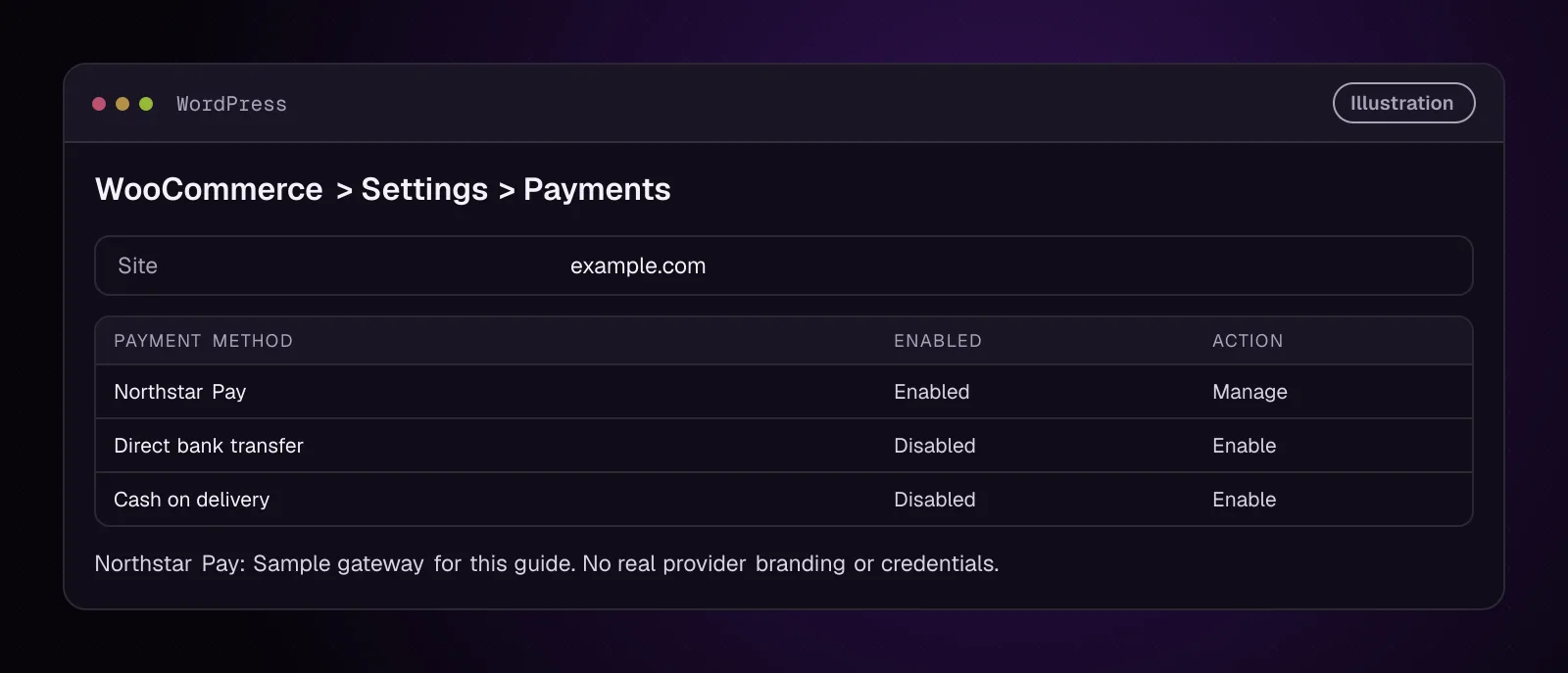
WooCommerce documents the payment provider list under WooCommerce > Settings > Payments. Open that screen and record every enabled payment method, then open the settings for the affected gateway.
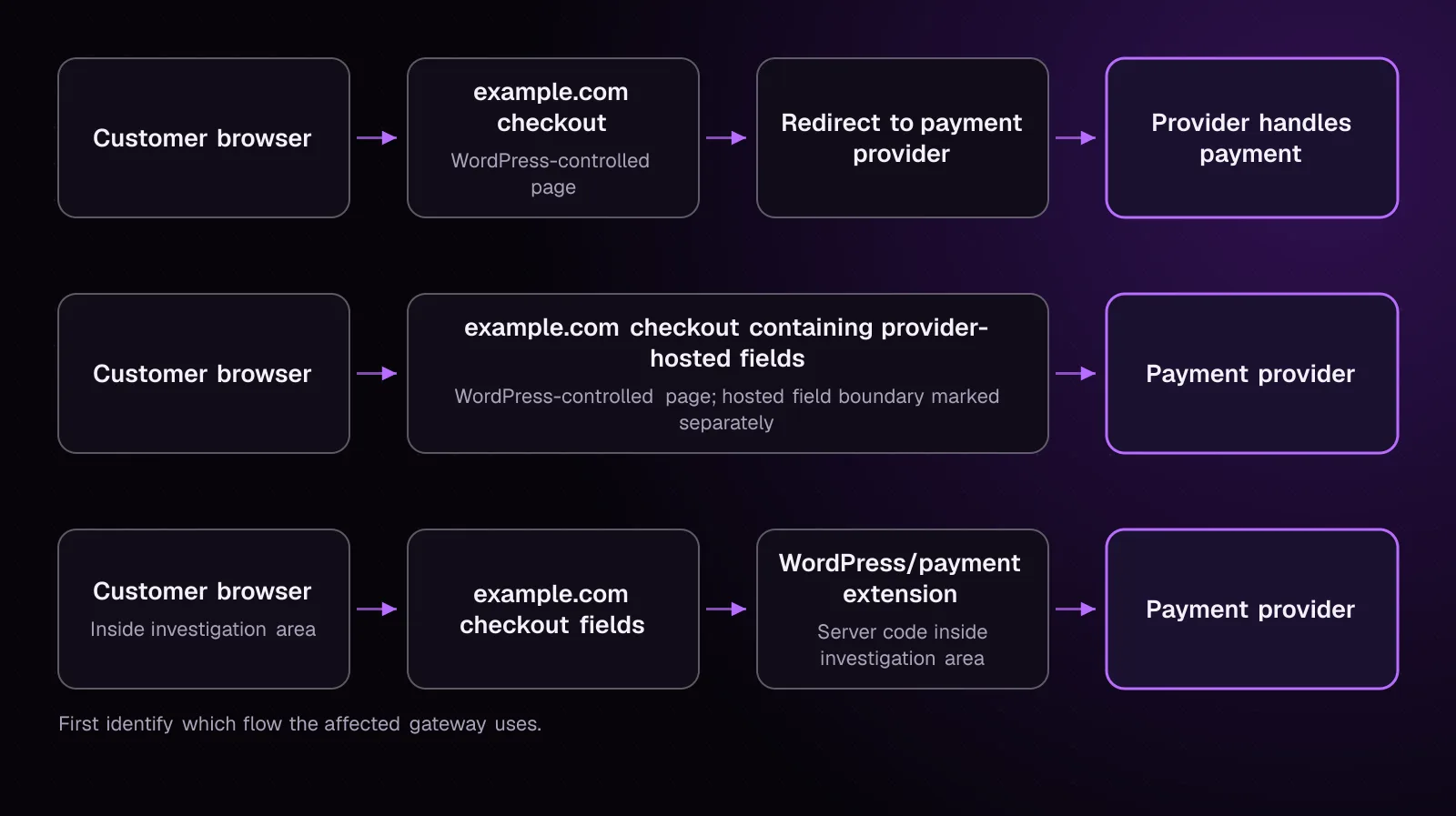
For each affected payment method, classify the flow from the gateway's own current documentation:
- Off-site redirect: the customer leaves the store for the provider's payment page.
- Hosted fields: payment fields appear within checkout but are supplied through provider-controlled components rather than ordinary store form fields.
- Site-integrated fields: payment information is entered into fields handled within code running on the store page or server.
WooCommerce's PCI DSS overview (opens in a new tab) states that gateways using off-site payment processing or hosted fields can keep the store from directly handling raw cardholder data. That does not make a compromised checkout harmless. Malicious page code may still alter the flow, replace fields, capture other customer data or send customers somewhere unexpected.
How do I inspect the scripts and code loaded on checkout?
Inspect every script and network request loaded by checkout, then trace anything unfamiliar back to the WordPress file, setting or third-party service that added it.
- Open checkout in a clean browser session with developer tools open.
- Select the Network panel before loading checkout.
- Reload the page and select the affected payment method.
- Review script requests and requests triggered as checkout changes state.
- Check each unfamiliar request's URL and Initiator.
- Compare the hostnames and assets with the gateway, theme and checkout extensions you expect.
Chrome documents that the Network panel records requests and exposes their initiators (opens in a new tab), which helps trace a request back to the script that caused it.
Do not enter live card details into a suspected checkout. If the payment provider supplies an approved test mode and test credentials, follow that provider's documentation in an isolated test environment. Otherwise, stop before submitting payment data.
An unknown third-party hostname is a lead, not automatic proof of malware. Analytics, fraud tools and payment services can load external resources. Verify ownership before removing one.
How do I check WordPress files for unauthorized checkout changes?
Verify files that have official checksums, then inspect the code that checksum services cannot validate.
- Verify WordPress core.
wp core verify-checksums --include-root
WP-CLI's core checksum command (opens in a new tab) runs before WordPress loads. --include-root also reports unexpected items in the WordPress root.
A checksum mismatch identifies a difference from the official release. Investigate every reported file rather than assuming every mismatch is malicious.
- Verify WordPress.org plugins.
wp plugin verify-checksums --all --skip-plugins --skip-themes
The plugin checksum command (opens in a new tab) compares supported plugin files with WordPress.org checksums. Plugins that do not have available WordPress.org checksums need comparison with their trusted package.
- List must-use plugins and drop-ins.
wp plugin list --status=must-use --skip-plugins --skip-themes
wp plugin list --status=dropin --skip-plugins --skip-themes
Must-use plugins still load even when --skip-plugins is used. Inspect every file in wp-content/mu-plugins/ against your deployment source or another trusted copy.
- Compare the active theme, child theme and commercial payment extensions with trusted copies from the same release.
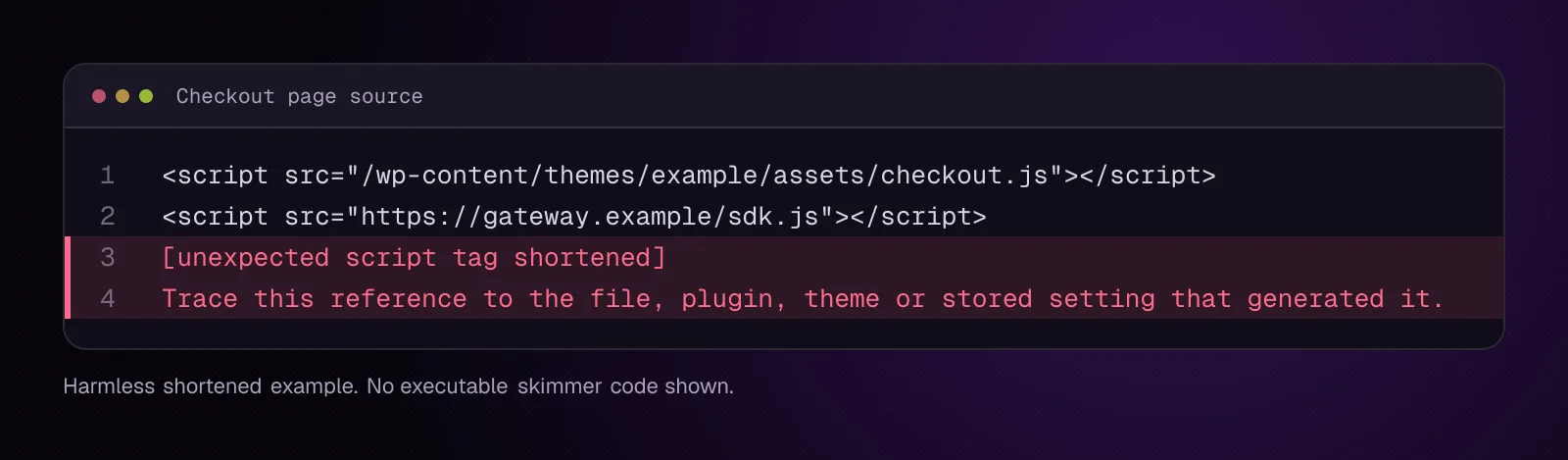
Pay special attention to code that runs only at checkout, scripts added to checkout templates, gateway PHP files, global header or footer injection settings, and unfamiliar code that creates remote requests.
A file timestamp can help build a timeline, but timestamps alone do not prove when an attacker changed a file.
How do I check the database for injected checkout code or domains?
Search the database for a hostname or marker you already confirmed as suspicious instead of searching for broad strings that also occur in legitimate code.
Suppose browser inspection has confirmed collect.example as an unauthorized checkout destination. Search all tables using the site's registered prefix:
wp db search 'collect.example' --all-tables-with-prefix --skip-plugins --skip-themes
--all-tables-with-prefix includes prefixed tables that plugins created without registering them with WordPress. Confirm which table and column contain the match before editing anything.
Without SSH, use phpMyAdmin's search function against the WordPress database for the same confirmed hostname.
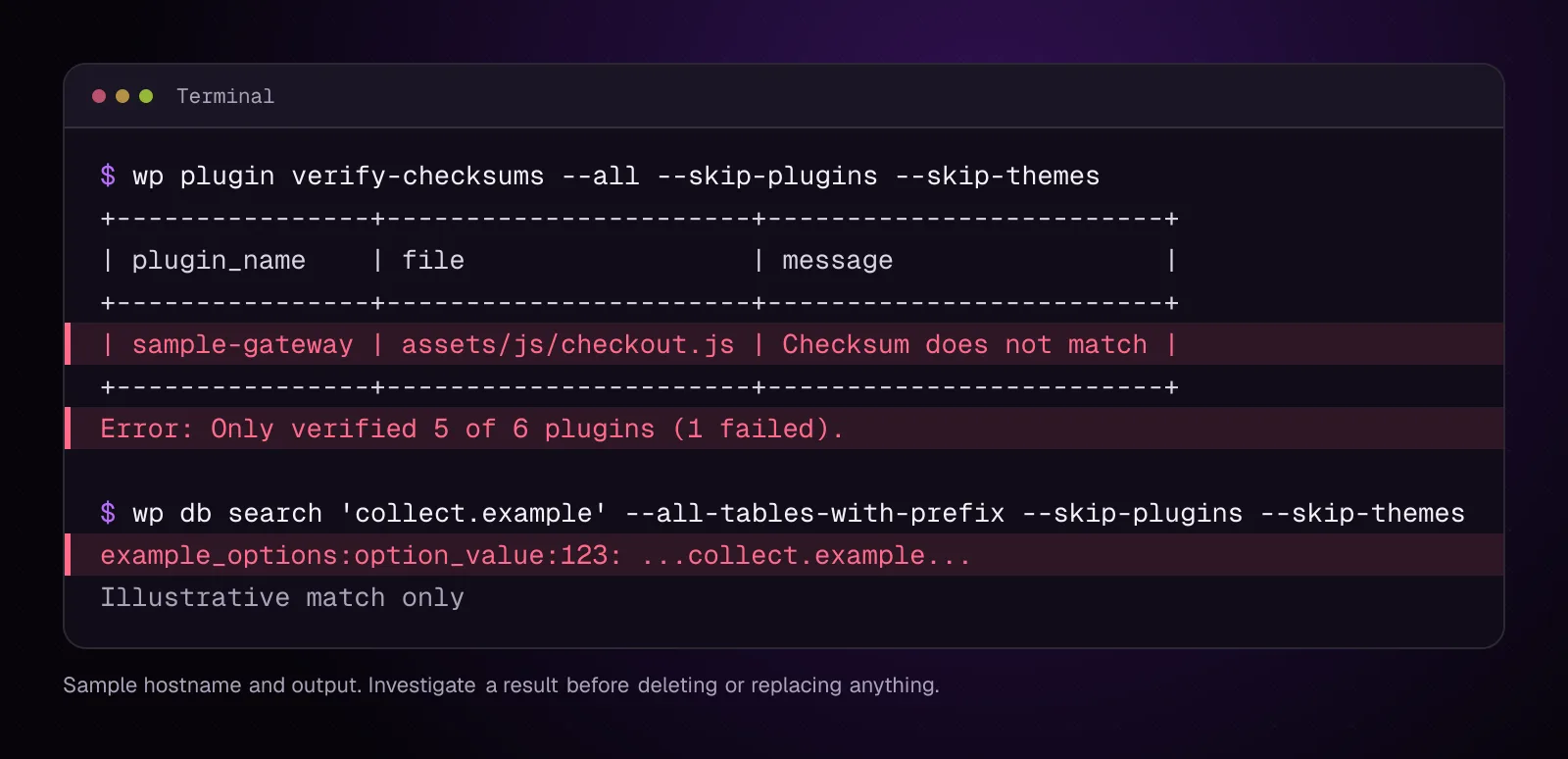
Do not delete a whole option, post or serialized value just because the hostname appears inside it. Preserve the row and understand which component owns it first. Chapter 12, How to Remove Malware from the WordPress Database, covers database cleanup in depth.
How do I remove WooCommerce checkout malware?
Remove the confirmed malicious source only after preserving evidence, and keep the affected payment path disabled until the entry point and persistence are addressed.
Stop the affected payment path
- Open WooCommerce > Settings > Payments.
- Disable the affected provider or otherwise stop checkout from sending customers through the compromised path.
- Clear any page or edge cache that can continue serving the altered checkout.
- Verify from a logged-out browser that customers can no longer reach the affected payment flow.
If you cannot safely disable only the payment method, restrict checkout or place the store into an incident mode appropriate for your setup.
Replace modified trusted software
If a WordPress.org plugin file is confirmed altered, record the installed slug and version first. Then replace that same release:
wp plugin install SLUG --version=VERSION --force --skip-plugins --skip-themes
Put the plugin's WordPress.org slug in SLUG and its recorded installed release in VERSION. --force overwrites the installed plugin files, so run it only after the evidence backup.
For a commercial or custom gateway, obtain the exact trusted release from its maintained source and replace the altered files through SSH or the host file manager. Do not substitute an unrelated or newer build during incident cleanup unless you have separately decided to update it.
If a core file is confirmed modified, record the installed WordPress release and restore that release:
wp core version
wp core download --version=WP_VERSION --skip-content --force
wp core verify-checksums --include-root
Put the version printed by the first command in WP_VERSION. --force overwrites existing core files, while --skip-content avoids installing default themes and plugins.
If malicious code was inserted into a custom theme or database setting, restore the known-good content rather than deleting the surrounding legitimate configuration.
Then investigate chapter 11, How to Find a Backdoor in WordPress: Web Shells and Hidden PHP, and chapter 19, WordPress Malware Keeps Coming Back: Find the Reinfection Source, if unexplained persistence remains.
What should I do if payment data may have been exposed?
Contact the payment processor or acquiring organization promptly and follow the incident process they give you. Do not decide from the visible skimmer alone which card data was exposed.
PCI SSC states that suspected card-data compromises may require a specialized forensic investigation and discusses evidence preservation in its breach-response guidance (opens in a new tab).
Chapter 29, Hacked WooCommerce Store: Customer Data, Payments and Who to Tell, covers the wider store incident. Notification duties depend on the incident and jurisdiction, so obtain advice from the processor and qualified legal or forensic professionals where needed.
How do I verify that checkout is clean before accepting payments again?
Recheck the payment path from the browser to the server before reopening it.
- Run the core and plugin checksum checks again.
- Confirm the suspicious database marker no longer appears.
- Reinspect checkout in the browser Network panel.
- Confirm every loaded script and destination belongs to an expected component.
- Compare the rendered payment fields with the gateway's documented implementation.
- Use the gateway's documented test environment, if available, for a controlled checkout.
- Check that the expected order state and payment-provider event are produced.
- Review the relevant logs for unexplained requests during that test.
A clean visual checkout is insufficient. The file source, database source and network behavior should all match the implementation you expect.
How do I stop checkout malware from coming back?
Prevent reinfection by removing the persistence mechanism and closing the path that let the attacker write to the site.
Check:
- administrator accounts against known staff;
- must-use plugins and drop-ins;
- hosting, SFTP, SSH and control-panel access;
- scheduled tasks and other persistence covered in chapter 11;
- vulnerable or abandoned extensions;
- sibling applications that share the hosting account;
- deployed files against trusted source control or release packages.
Chapter 27, How to Secure WordPress After a Hack, covers the wider hardening work. How to clean a hacked WordPress site and stop it happening again also explains why removing the visible payload is only one part of recovery.
What changes for different WooCommerce payment setups?
The investigation boundary changes with the gateway, so inspect the code that participates in that store's payment path.
WooCommerce stores: Identify the exact gateway and checkout implementation before deciding what payment data might have reached compromised code. Contact the payment processor when payment data may have been exposed.
Shared hosting: Inspect sibling sites and account-level access when the same hosting account can write to several storefronts or applications. Chapter 31 covers cross-contamination between sites on shared hosting.
Membership and course sites: Include subscription checkout, account payment pages and renewal-related payment screens that use the affected gateway. A skimmer restricted to a specific URL may appear on one payment surface and not another.
For an off-site redirect flow, check the WordPress page and code that creates or changes the redirect. For hosted fields, verify that the expected provider components are the ones being loaded and that page-level code has not inserted replacement fields. For integrated flows, include both browser code and server-side gateway code in the investigation.
What should I investigate after the checkout code is clean?
If the store starts sending unexplained email, continue with chapter 17, WordPress Site Sending Spam Emails: Find the Script and Stop It. If checkout files or database entries return after removal, go to chapter 19 and investigate the persistence mechanism before making more cleanup changes.
Frequently asked questions
Is a WooCommerce card skimmer the same as a card testing attack?
No. A checkout skimmer captures or redirects information from customers using a compromised payment flow. Card testing sends previously stolen card details through a legitimate checkout to discover which cards are still usable.
Can a checkout skimmer work without changing the checkout page visibly?
Yes. Malicious JavaScript can listen to existing fields or make background requests without adding visible elements. Server-side PHP can also process submitted data without changing the rendered checkout.
Can card details be stolen if WooCommerce does not store them?
Lack of card storage does not prove the checkout page was unable to expose card data. The answer depends on how the gateway renders and processes its payment fields and what the malicious code could access. Confirm the implementation with the gateway and payment processor.
Can malware alter a hosted payment field?
Store-controlled code may be unable to read data inside a properly isolated provider-controlled field, but a compromised page can still interfere with the surrounding checkout. It may add replacement fields, change scripts, alter redirects or collect other customer information. Verify the exact hosted-field design from the gateway's current documentation.
Should I keep WooCommerce checkout open while I investigate a skimmer?
Do not continue sending customers through a payment path you believe is compromised. Preserve evidence, stop the affected payment method or checkout path, and contact the payment processor if payment information may have been exposed.
Does replacing the payment plugin remove a checkout skimmer?
Only when the confirmed malicious source is confined to files that the replacement overwrites. A skimmer may also exist in the theme, database, must-use plugins, core files or another persistence mechanism, so verify the full checkout path after replacing the plugin.
Sources
- WooCommerce site and data security FAQ (opens in a new tab)
- PCI-DSS compliance and WooCommerce (opens in a new tab)
- Configuring WooCommerce settings (opens in a new tab)
- wp plugin list (opens in a new tab)
- wp theme list (opens in a new tab)
- wp core verify-checksums (opens in a new tab)
- wp plugin verify-checksums (opens in a new tab)
- wp db search (opens in a new tab)
- wp db export (opens in a new tab)
- wp core download (opens in a new tab)
- wp plugin install (opens in a new tab)
- Network features reference (opens in a new tab)
How this article was made: drafted with AI assistance from a researched brief, then checked against primary documentation before publishing.
Message
Ask me about your site
Tell me what is wrong or what you need built. I reply by email.