The common infectionsChapter 9 of 3210 min read
WordPress Pharma Hack: Remove Spam Only Google Can See
Pharma spam can alter Google results while your normal pages look unchanged. Trace the injected source, clean files and database records, then retest the affected URLs.
 By Hamza Ahmad AslamAI & WordPress Developer | Speed Optimization & Site Security

In this guide
A WordPress pharma hack injects unauthorized pharmaceutical spam into your site, often so Google sees drug pages, titles or links that normal visitors do not. Removing it means finding the source in WordPress files or database data, restoring trusted content, and removing the access or persistence that would recreate it. Do not delete content merely because it contains a medicine name.
What is a WordPress pharma hack?
A WordPress pharma hack is unauthorized search spam about drugs or pharmacies added to a compromised WordPress site. The name describes the spam content, not one malware family or one fixed infection method.
An attacker may add pharmaceutical text to existing pages, generate new URLs, insert outbound links, change metadata or return different content for selected requests. Google classifies content placed on a site without permission as hacked content. Its spam policies also describe content injection, page injection and cloaking (opens in a new tab).
That distinction matters during cleanup. There is no universal pharma.php file, database option or signature that every infection uses. You need to trace what produces the unauthorized output on your site.
What does a pharma hack look like in Google and on the site?
A pharma hack often appears as drug-related titles, snippets, URLs or links associated with your domain even though your normal pages look unchanged.
You may find:
- Google results containing drug or pharmacy terms you never published.
- Existing URLs showing altered titles or snippets in search.
- New paths that do not correspond to pages you created.
- Links in generated HTML that are missing from the editor.
- Redirects that occur only for some requests.
- Search Console reporting hacked or harmful content.
A strange search result alone does not identify the infection source. Record the exact affected URL, the unwanted title or text, and any external destination before changing files.
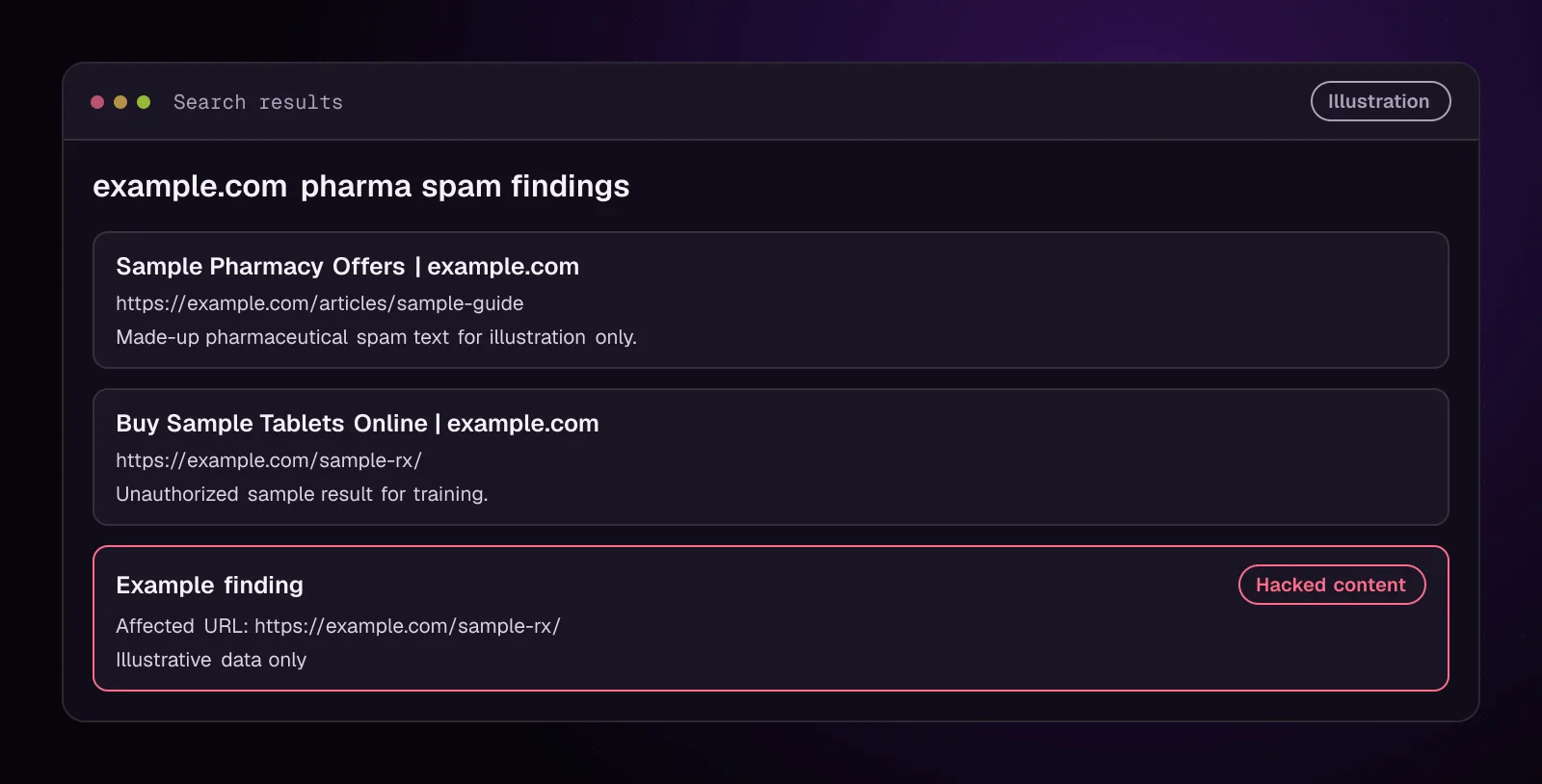
These sample findings show the evidence you need to preserve before cleanup.
How does pharma spam get into WordPress?
Pharma spam gets into WordPress after an attacker gains a way to alter files, stored data or generated responses.
Possible places include a compromised plugin or theme, modified WordPress files, a stolen administrator account, a server-level compromise, malicious database data, a must-use plugin or a WordPress drop-in. Persistence can also remain after the visible spam is removed.
Do not infer the original entry point from the word "pharma." The same visible symptom can come from different code and different access paths.
Chapter 11, on hidden PHP malware and backdoors, covers deeper PHP investigation. Chapter 12, on database malware, covers detailed database cleanup.
Why can Google see pharmaceutical spam when my browser cannot?
Google can see pharmaceutical spam that you cannot when compromised code changes its response according to request conditions.
Google defines cloaking as presenting different content to users and search engines with the intent to manipulate search. Its documentation specifically notes that hacked sites may use cloaking to make the compromise harder for the owner to detect.
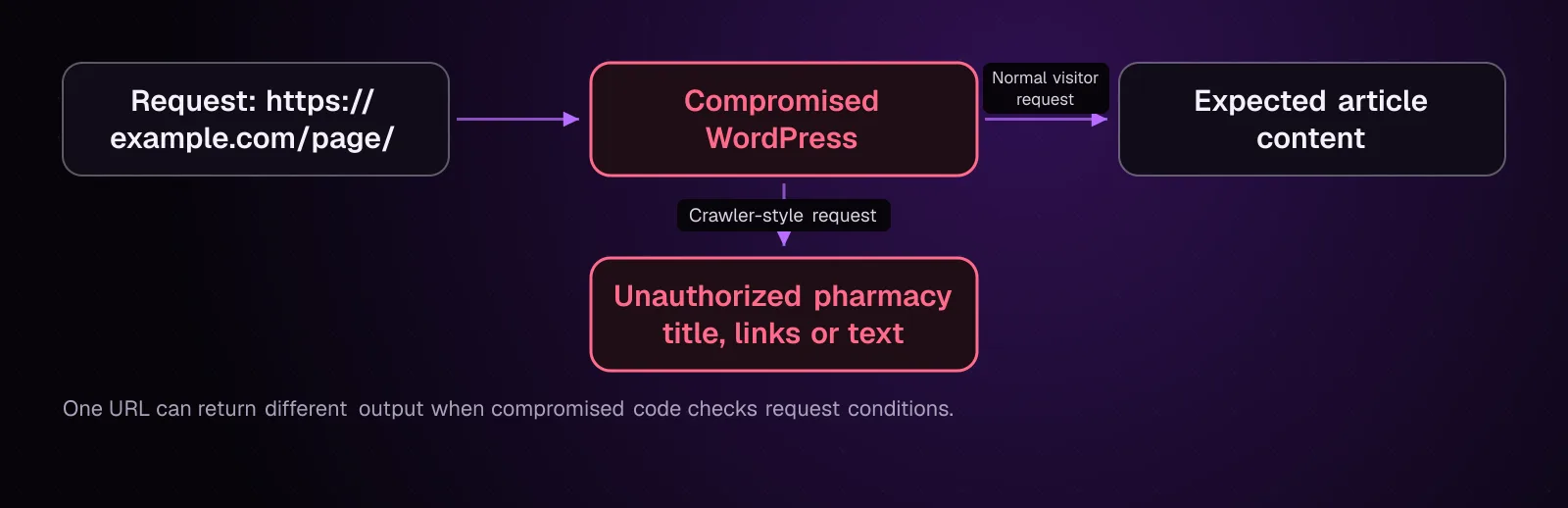
The condition may involve the user agent, referrer, device or another request property. A user-agent comparison can expose some cases, but a matching result does not prove that no cloaking exists.
For a known affected URL, compare an ordinary request with a request carrying a crawler-style user agent:
curl -L 'https://example.com/AFFECTED_PATH'
curl -L -A 'Googlebot' 'https://example.com/AFFECTED_PATH'
Replace AFFECTED_PATH with the path you recorded. -L follows HTTP redirects, while -A sets the User-Agent header.
Do not log in or send cookies with this test. Compare the returned text, destination and HTML for the confirmed spam marker.
Without SSH, open the same affected URL normally and compare it with the cached evidence or Search Console finding you recorded. Browser testing alone may miss conditional server output.
How do I confirm that the pharma results come from compromised WordPress content?
Confirm the infection by connecting the affected URL to unauthorized output, stored data or altered code before you delete anything.
-
Record several affected URLs and exact spam markers. Use an unusual domain, phrase or title from the unwanted content rather than a broad term such as
medicine. -
Check Search Console. The Security Issues report can identify hacked pages or harmful behavior (opens in a new tab). Record any listed examples before requesting a review.
-
Compare the affected URL under ordinary and crawler-style requests as shown above.
-
Check WordPress core integrity:
wp core verify-checksums --include-root
The --include-root checksum check (opens in a new tab) also warns about non-WordPress items in the WordPress root. A warning needs investigation; a custom root file is not automatically malicious.
- Check plugins that WordPress.org can verify:
wp plugin verify-checksums --all
The plugin checksum command (opens in a new tab) compares supported plugin files with WordPress.org checksums. Plugins without available checksums need comparison against a trusted package or source repository.
Without SSH, use your hosting file manager to compare core and extension files with clean copies from their official source. Do not overwrite anything yet.
Where should I look for the injected pharma content?
Look in both executable WordPress code and database data because either can generate the spam.
Check must-use plugins and drop-ins
These components can run outside the normal active-plugin list.
wp plugin list --status=must-use
wp plugin list --status=dropin
Review every listed component against what belongs on the site. The WP-CLI plugin list documentation confirms both must-use and dropin as supported status filters.
With wp-admin, inspect Plugins and any host-specific management screens. With a file manager, inspect wp-content/mu-plugins and recognized drop-in files under wp-content.
Search files for a confirmed marker
Use a distinctive string taken from the spam you already observed:
grep -rInF -- 'sample-pharmacy.example' .
-r searches recursively, -I skips binary-file matches, -n prints line numbers and -F treats the marker as a fixed string. Replace sample-pharmacy.example with your confirmed spam marker.
Do not search only PHP files. Injected text can appear in JavaScript, templates, cached artifacts or other text files.
With a hosting file manager, use its content-search function if available. Otherwise download a protected copy of the site files and search them locally.
Search the WordPress database
WP-CLI can search text columns across tables that use the WordPress table prefix:
wp db search 'sample-pharmacy.example' --all-tables-with-prefix
The wp db search documentation (opens in a new tab) says --all-tables-with-prefix includes matching prefixed tables even when a plugin has not registered them with $wpdb.
Example output, illustrative:
wp_options:option_value
wp_posts:post_content
wp_postmeta:meta_value
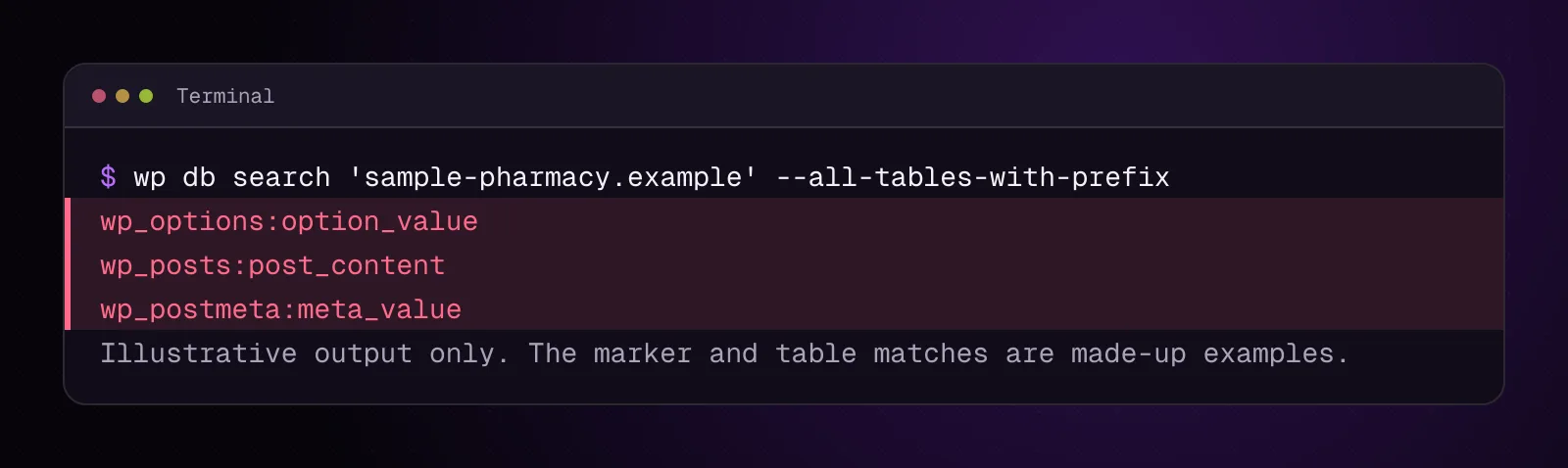
If you use phpMyAdmin, search the database for the exact confirmed marker and inspect each matching row. Do not run a blanket replace across every table.
How do I remove a WordPress pharma hack step by step?
Remove only the verified unauthorized source, then replace altered application code from trusted packages.
1. Back up the current files and database
/SAFE_PATH means a private directory outside every public web root. Create it through your hosting account first if it does not already exist.
From the WordPress directory, copy the current installation and export the database:
cp -a . /SAFE_PATH/wordpress-pharma-before-cleanup
wp db export /SAFE_PATH/wordpress-pharma-before-cleanup.sql
The first command copies the current directory while preserving as much file metadata as GNU cp -a can preserve. The second writes the database export outside the served site.
If you do not have SSH, use your host's backup or file-manager archive feature and database export tool. Store both somewhere visitors cannot request over HTTP.
Check that the copied files and SQL export exist before continuing.
2. Remove confirmed unauthorized content from editable records
If the database search points to a normal post, page, widget or plugin setting, inspect that record in wp-admin first. Remove only the injected text, link or value that you have confirmed is unauthorized.
For stores, publishers and medical sites, a medicine name is not evidence by itself. Compare ownership, editorial history, URL structure and destination links.
If the matching row belongs to unfamiliar serialized plugin data or an unknown custom table, do not edit bytes blindly in phpMyAdmin. Identify the component that owns the record first, then use its supported editor or continue the database investigation in chapter 12.
Check the affected URL again after saving the corrected record.
3. Restore modified WordPress core files
First record the installed WordPress version:
wp core version
Put the version printed by that command in WP_VERSION, then replace WordPress core files with the same official release:
wp core download --version=WP_VERSION --skip-content --force
wp core verify-checksums --include-root
--version selects the release, --skip-content avoids installing bundled content, and --force overwrites existing core files. This changes WordPress core files, so the backup must exist first.
Do not use a bare wp core download during incident cleanup because that can select a release other than the one you intended to restore.
Without SSH, download the matching WordPress release and replace the core files through your host's file manager while preserving wp-content and wp-config.php. Then compare the root for unexpected files.
The checksum command should finish without unexplained core modifications.
4. Replace a confirmed modified plugin from its trusted package
List installed plugin names and versions:
wp plugin list --fields=name,version,status
For a WordPress.org plugin that you have confirmed was altered, set SLUG to its listed plugin slug and VERSION to the installed version you intend to restore:
wp plugin install SLUG --version=VERSION --force
--force overwrites the installed plugin files. Do this only after the backup, and do not use the command for a commercial or custom plugin that does not come from WordPress.org.
For those plugins, obtain the matching trusted package from its owner and replace the altered files through your deployment process or file manager.
Run wp plugin verify-checksums --all again where checksums are available.
5. Remove confirmed malicious custom files
If your file search finds a file that does not belong to WordPress, your theme, a plugin, an upload or your deployment, preserve it in /SAFE_PATH before removing it from the web root.
Do not delete an unfamiliar file based on its name alone. Compare it with the site's source control, deployment artifact or official extension package.
If the file contains hidden PHP execution, loaders or code that recreates the spam, continue with chapter 11 before declaring the site clean.
6. Retest the affected URLs
Repeat the ordinary and crawler-style requests. Search files and the database again for the same confirmed marker.
The known affected URLs should stop returning the unauthorized title, text, link or redirect. Search results may still display old indexed information until Google processes the cleaned page again.
How do I test for cloaked pharma spam after cleanup?
Test the exact URLs and markers that exposed the infection before cleanup.
Run the two request variants again:
curl -L 'https://example.com/AFFECTED_PATH'
curl -L -A 'Googlebot' 'https://example.com/AFFECTED_PATH'
Then repeat the local searches:
grep -rInF -- 'sample-pharmacy.example' .
wp db search 'sample-pharmacy.example' --all-tables-with-prefix
Replace both placeholders with your known path and confirmed spam marker.
A clean test means the marker is absent from places where it was unauthorized, and the affected URL no longer returns the spam under your tested request conditions. It does not prove that every possible backdoor has been removed.
Also rerun:
wp core verify-checksums --include-root
wp plugin verify-checksums --all
Investigate unexplained failures rather than accepting them as part of the cleanup.
How do I stop pharmaceutical spam from coming back?
Stop recurrence by removing persistence and closing the access path that allowed unauthorized changes.
Review unexpected administrators in chapter 10. Investigate hidden PHP loaders in chapter 11 and database persistence in chapter 12. Check must-use plugins, drop-ins, scheduled mechanisms and server-level files when the evidence points there.
Update vulnerable or unsupported software after preserving incident evidence and confirming compatibility. Reset credentials that may have been exposed, including WordPress administrator, hosting, SFTP or SSH and database credentials where appropriate.
Apply the site's WordPress security hardening checklist for 2026 after the infection is removed. The separate guide on how to clean a hacked WordPress site and stop it happening again covers the wider recovery sequence.
If Search Console reported a security issue, clean the whole affected site before requesting review. Google describes a reconsideration request as a request to review a site after problems in a manual action or security issue notification have been fixed.
What changes for different kinds of WordPress sites?
The investigation method stays the same, but legitimate content and shared infrastructure change what counts as evidence.
WooCommerce stores: If the store legitimately sells medicines, supplements or health products, identify unauthorized URLs, sellers, links and text by ownership and source. Do not delete catalog data because it contains the same words found in spam.
Multisite: Search the affected subsites and shared code. For database searches across a network, decide whether the evidence belongs to one site or shared tables before editing anything.
Shared hosting: Check neighboring installations when the same pharma marker, altered file or redirect destination appears on several sites. Ask the host to investigate if evidence points outside your WordPress account or into server-managed files.
News sites: Preserve legitimate reporting that mentions drug names. Treat placement, authorship, URL ownership, unexpected links and generated output as evidence rather than the vocabulary alone.
What should I investigate after removing pharma spam?
If you find an unexpected administrator or account-based persistence, continue to chapter 10, How to Find and Remove Hidden Admin Users in WordPress. If the evidence instead points to PHP or database persistence, keep those findings for chapters 11 and 12 as you continue through the guide.
Frequently asked questions
Why does Google show Viagra or pharmacy pages for my WordPress site?
Your site may be returning unauthorized search spam in existing pages or generated URLs. Record the affected URLs and exact spam text, then check the response, files and database before removing anything.
Is pharma spam always hidden from website visitors?
No. Some infections expose spam openly, while others change output according to request conditions or redirect selected visitors. The phrase "pharma hack" describes the pharmaceutical spam theme, not one display method.
Can pharma spam be stored in WordPress post content?
Yes. Unauthorized text or links can be inserted into normal WordPress content, but the visible output can also come from options, metadata, custom tables or executable files. Search for a confirmed spam marker before deciding where to edit.
Can a pharma hack create new URLs without creating WordPress pages?
Yes. Compromised code can generate responses for paths that have no corresponding page in the normal WordPress editor. An indexed URL therefore does not prove that a post or page record exists for it.
Why does pharma spam come back after I remove the visible links?
The code or access that created the links may still exist. Check for altered files, unexpected administrators, must-use plugins, drop-ins, database persistence and other mechanisms that can regenerate the content.
Does removing the spam from Google remove the malware from WordPress?
No. Search visibility and the compromised WordPress installation are separate problems. Clean the source and persistence on the site first, then let Google process the corrected pages or use the relevant Search Console review process when Google reported a security issue.
Sources
- Spam Policies for Google Web Search (opens in a new tab)
- Why is my site labeled as dangerous in Google Search? (opens in a new tab)
- Reconsideration requests (opens in a new tab)
- wp core verify-checksums (opens in a new tab)
- wp plugin verify-checksums (opens in a new tab)
- wp db search (opens in a new tab)
- wp plugin list (opens in a new tab)
- wp core download (opens in a new tab)
- wp core version (opens in a new tab)
- wp plugin install (opens in a new tab)
- GNU Coreutils cp documentation (opens in a new tab)
- curl command-line manual (opens in a new tab)
How this article was made: drafted with AI assistance from a researched brief, then checked against primary documentation before publishing.