Is it hacked? The first hourChapter 5 of 3210 min read
How to Scan WordPress for Malware, Online and on the Server
Check a suspected WordPress infection from the outside and the server. Verify core and plugin files, inventory loaded code, search the database, and save every finding before cleanup.
 By Hamza Ahmad AslamAI & WordPress Developer | Speed Optimization & Site Security
In this guide
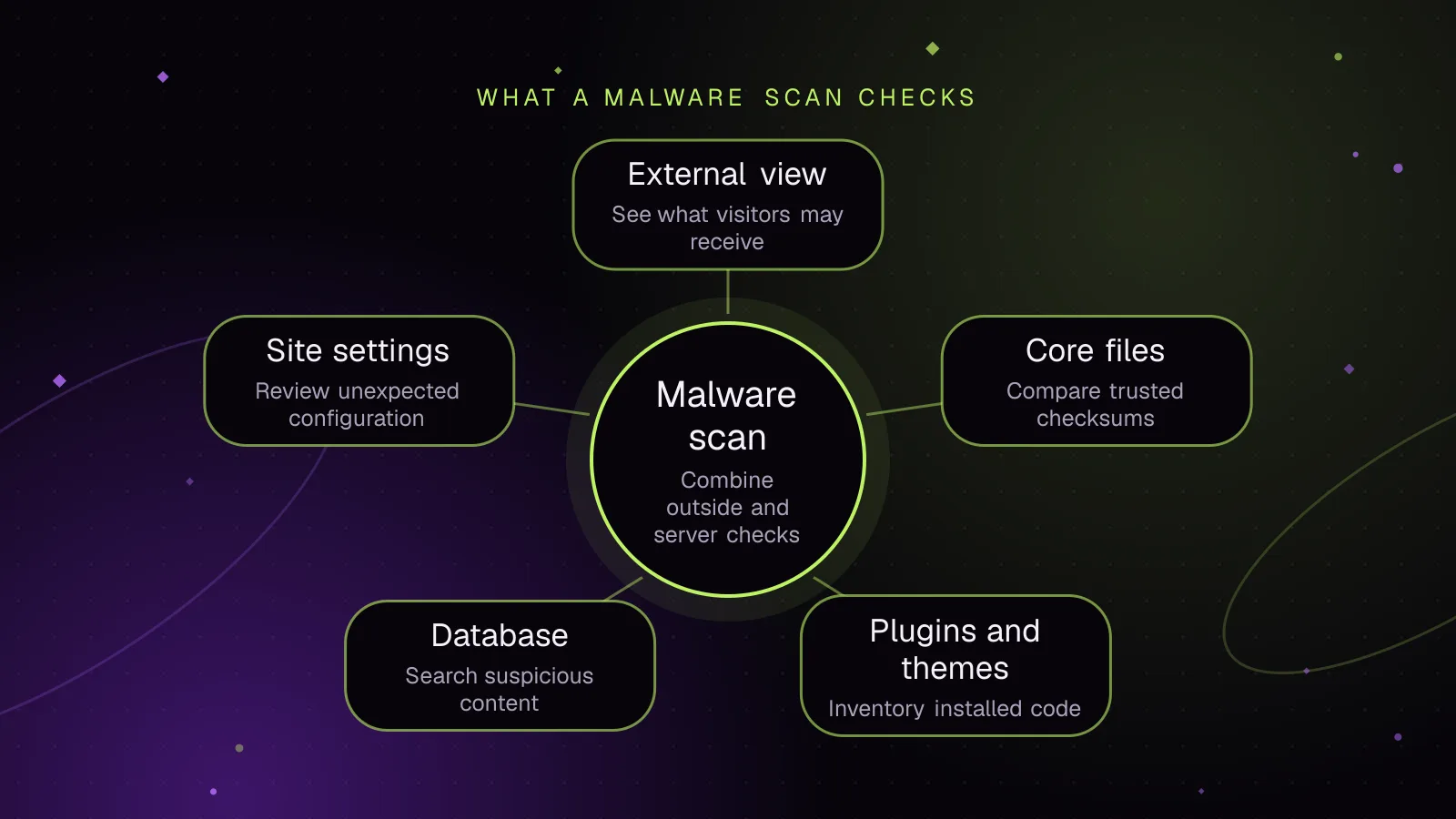
To scan WordPress for malware, check what visitors and Google can see, then inspect WordPress files, installed code, the database and the wider hosting account. Treat each result as evidence: a clean checksum or scanner result covers only what that check examined. Save suspicious paths, URLs and database locations before changing anything, because chapter 6 uses that evidence to trace how the attacker got in.
What can a WordPress malware scan tell me?
A WordPress malware scan can show unauthorized files, changed trusted files, suspicious database content, injected pages and warnings observed outside the server.
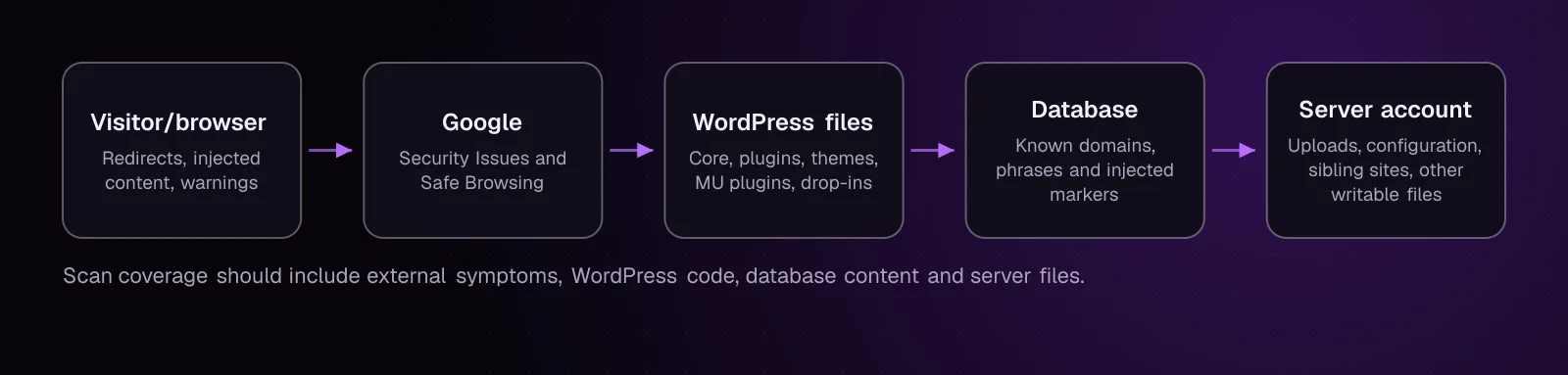
No single check covers all of those areas. A checksum comparison can identify a changed WordPress core file without inspecting a custom plugin. An external scanner can see browser-facing redirects without reading every server file. A database search can find a known injected domain while missing an unrelated payload stored under another value.
Use the scan to build an evidence list. For each finding, record:
- the full file path or database table and column;
- the URL or page where the symptom appeared;
- the command or scanner that reported it;
- the exact warning or mismatch;
- the installed plugin, theme or WordPress version involved;
- a copy or screenshot of the result.
Do not classify every unfamiliar file as malware. A checksum mismatch proves that a checked file differs from its trusted checksum. You still need to determine why.
What can visitors or external scanners see that a server scan may miss?
External checks can expose redirects, injected browser content, Google warnings and page-specific behavior that a file comparison alone does not describe.
Test the site as a visitor rather than relying only on wp-admin. Open several affected and unaffected URLs in a private browser window. Include the home page, a post or product, a search page if the site has one, and any URL reported by a customer or Search Console.
Look for:
- redirects to an unknown domain;
- unfamiliar pop-ups, scripts or overlays;
- spam pages or search snippets you did not create;
- browser security interstitials;
- behavior that appears only on one URL or part of the site.
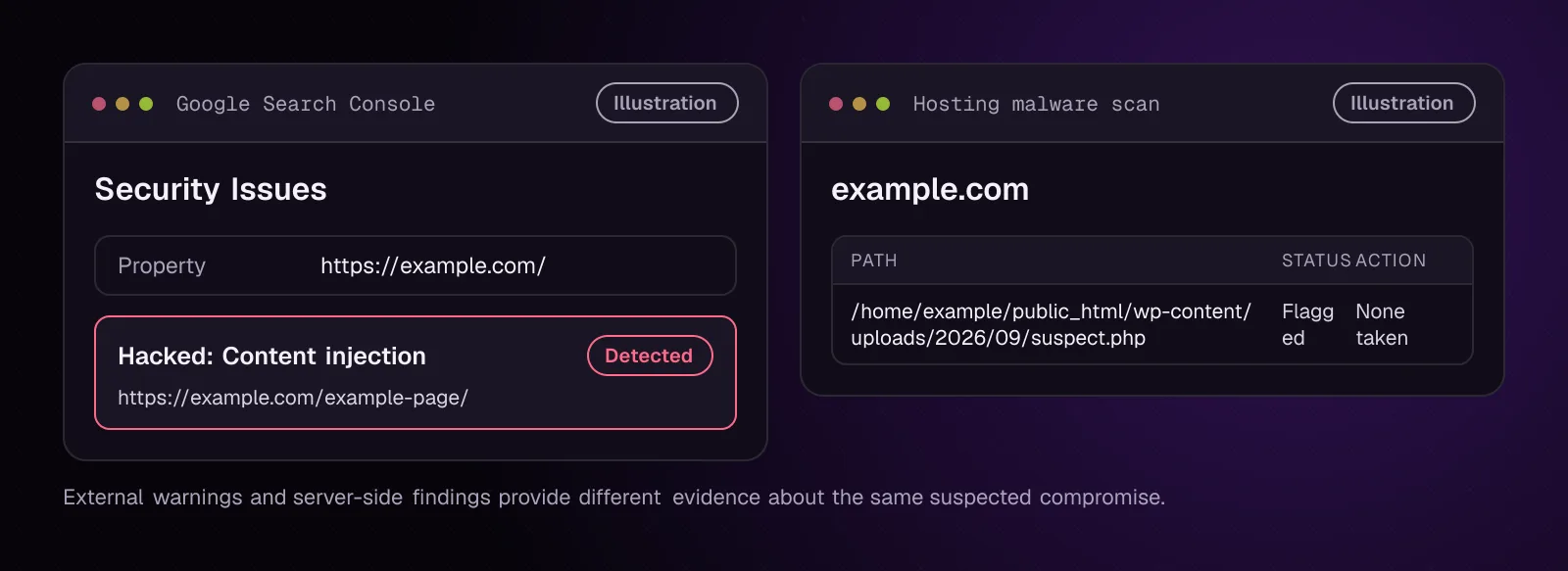
Google documents that compromised sites can receive warning labels in Search results or browser interstitials. Its Security Issues report can also identify hacked or harmful pages.
If an external check gives you a suspicious domain, phrase or URL fragment, save it exactly. You can use that value later with wp db search.
Where can WordPress malware hide?
Malicious or unauthorized changes can exist in WordPress core, plugins, themes, must-use plugins, drop-ins, uploads, configuration files, database content or other writable locations in the hosting account.
Your scan should cover these areas:
- WordPress core files;
- normal plugins and themes;
- must-use plugins;
- WordPress drop-ins such as
object-cache.php; - the uploads directory;
wp-config.php;- database tables belonging to WordPress and plugins;
- account-level files outside the site's expected WordPress directory;
- sibling sites that share the same hosting account.
Do not assume every installation uses literal wp-content/plugins, wp-content/themes or wp-content/uploads paths. WordPress permits the content directory and related locations to be moved or renamed.
Must-use plugins need their own check. WordPress loads them from a special directory, wp-content/mu-plugins by default, and wp-admin shows them separately from normal plugins.
Uploads also need inspection. WordPress normally derives its upload path from its configured content directory, but the path can be changed. Treat executable or unfamiliar files there as evidence that needs investigation rather than deleting them during the scan.
If your host has a server-side malware scanner, run it across the whole hosting account rather than only the public document root. Export or screenshot its findings with full paths. If no server scanner is available, use the host file manager to inspect the same locations and compare them with the inventories in this chapter.
How do I check Google for security warnings?
Check Search Console's Security Issues report and Google Safe Browsing status, because both can provide evidence from outside your WordPress server.
-
Open the affected Search Console property and check the Security Issues report. Google describes this report as the place where it reports detected hacked content, malware and other harmful behavior. Read Google's Security Issues guidance (opens in a new tab) if an issue is listed.
-
Record every issue type and sample URL shown. Do not request a review yet. The cleanup and verification come later in the guide.
-
If you do not control the Search Console property, check the domain or affected URL in Google's Safe Browsing site status (opens in a new tab).
-
Save the result with the date and the exact URL checked.
A clean Safe Browsing result means Google is not currently reporting that checked site as dangerous through that status tool. It does not inspect every WordPress file, plugin, database value or hosting-account location.
How do I verify WordPress core files from the command line?
Use WP-CLI checksums to compare WordPress core files with the checksums published for the installed WordPress release.
-
Change to the site's WordPress directory over SSH. If the installation is elsewhere, run WP-CLI from that directory or use WP-CLI's global
--pathparameter. -
Run the documented core checksum command (opens in a new tab) with
--include-root. That flag also checks the root directory for unexpected non-WordPress items.
wp core verify-checksums --include-root
-
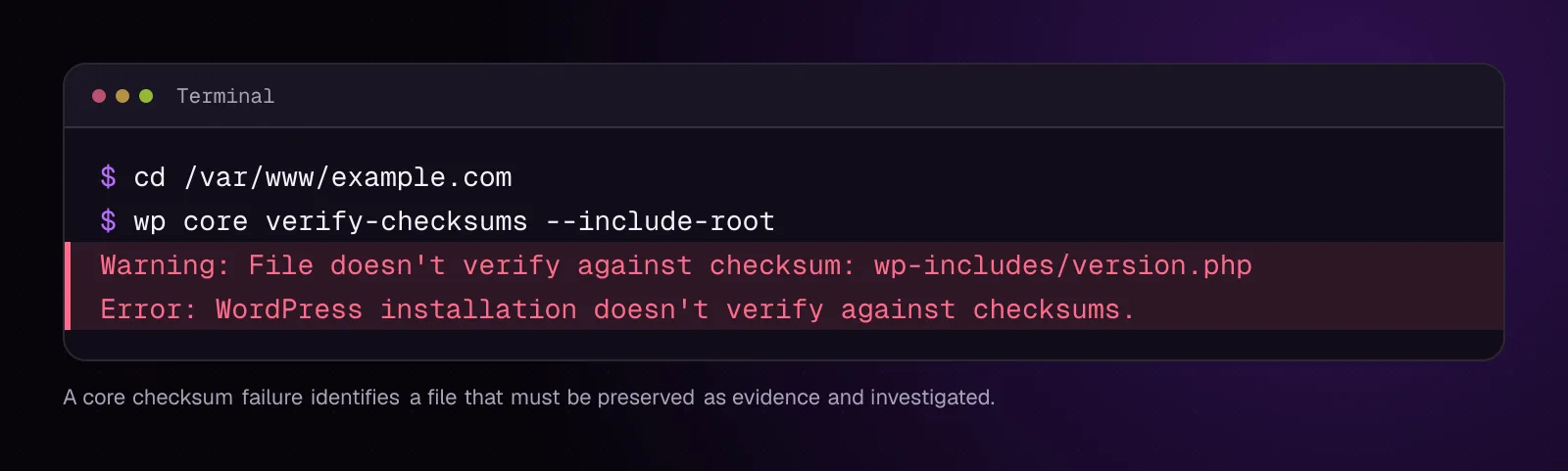
Save every warning. A message that a file does not verify means its contents differ from the expected checksum. A message that a file should not exist means the command found an extra item within the scope it checked.
-
Check that the command either ends with the documented success message or lists the exact files that need investigation.
Example output, illustrative:
$ wp core verify-checksums --include-root
Warning: File doesn't verify against checksum: wp-includes/version.php
Error: WordPress installation doesn't verify against checksums.
If you do not have SSH, compare the affected core file with a trusted copy of the same WordPress version through the host file manager. Do not overwrite the mismatched file during this chapter. Chapter 12 will use the recorded core-file findings during replacement and cleanup.
How do I verify plugin files against WordPress.org checksums?
Use wp plugin verify-checksums --all to compare eligible installed plugins with checksum data from WordPress.org.
- Run the documented plugin checksum command (opens in a new tab):
wp plugin verify-checksums --all
-
Record every mismatch and every plugin that cannot be verified.
-
For a plugin whose checksums are unavailable from WordPress.org, compare its files with the exact same version obtained from its trusted original source. This commonly applies to custom code and plugins distributed outside WordPress.org.
-
Confirm that each installed plugin is either verified or placed on your manual-comparison list.
A checksum failure does not identify the attack method. It tells you that the checked plugin file set differs from the published reference.
For sites without SSH, use wp-admin to note every installed plugin and version, then download the matching package from its trusted source and compare files through the hosting file manager. Do not reinstall or update the plugin yet because that would overwrite evidence.
How do I inventory plugins, must-use plugins, drop-ins and themes?
List every installed code component and its version so unfamiliar components and checksum gaps are visible.
- Inventory normal plugins:
wp plugin list --fields=name,status,version,update,update_version --format=table
- Inventory must-use plugins and drop-ins separately, then list themes:
wp plugin list --status=must-use
wp plugin list --status=dropin
wp theme list --fields=name,status,version,update,update_version --format=table
WP-CLI documents must-use and dropin as plugin status filters. Its plugin listing documentation also identifies drop-ins as single-file WordPress extensions such as object-cache.php.
-
Save the output and mark anything you do not recognize. Check old inactive code too. Inactive does not mean absent from the server.
-
Compare the list with your deployment records, repository, agency handoff notes or host-managed components.
Without SSH, open Plugins, Must-Use if present, and Appearance > Themes in wp-admin. Use the hosting file manager to inspect the actual plugin, must-use plugin and content directories as well, because the wp-admin lists alone do not describe every arbitrary file stored there.
The WordPress plugin vulnerability monitoring: from alert to fix workflow is useful after recovery when you need a repeatable way to track known plugin security issues.
How do I search the WordPress database for a suspicious string?
Use wp db search when you already know a suspicious domain, phrase, script marker or redirect string.
Do not start with a broad list of generic malware words. Search for evidence you already observed, such as an unknown domain from a redirect.
-
Replace
bad.examplewith the exact suspicious value you found. The example domain below is made up. -
Search all tables that use the configured WordPress table prefix, including plugin tables that may not be registered with WordPress:
wp db search 'bad.example' --all-tables-with-prefix
The WP-CLI database search documentation (opens in a new tab) states that --all-tables-with-prefix searches tables matching the registered prefix even when they are not registered on $wpdb.
-
Record the table, column and row identifier for every match. Do not run a replacement command during this chapter.
-
Search again for another known indicator if the external scan gave you one.
Example output, illustrative:
$ wp db search 'bad.example' --all-tables-with-prefix
wp_options:option_value
187:...https://bad.example/redirect...
wp_posts:post_content
421:...src="https://bad.example/payload.js"...
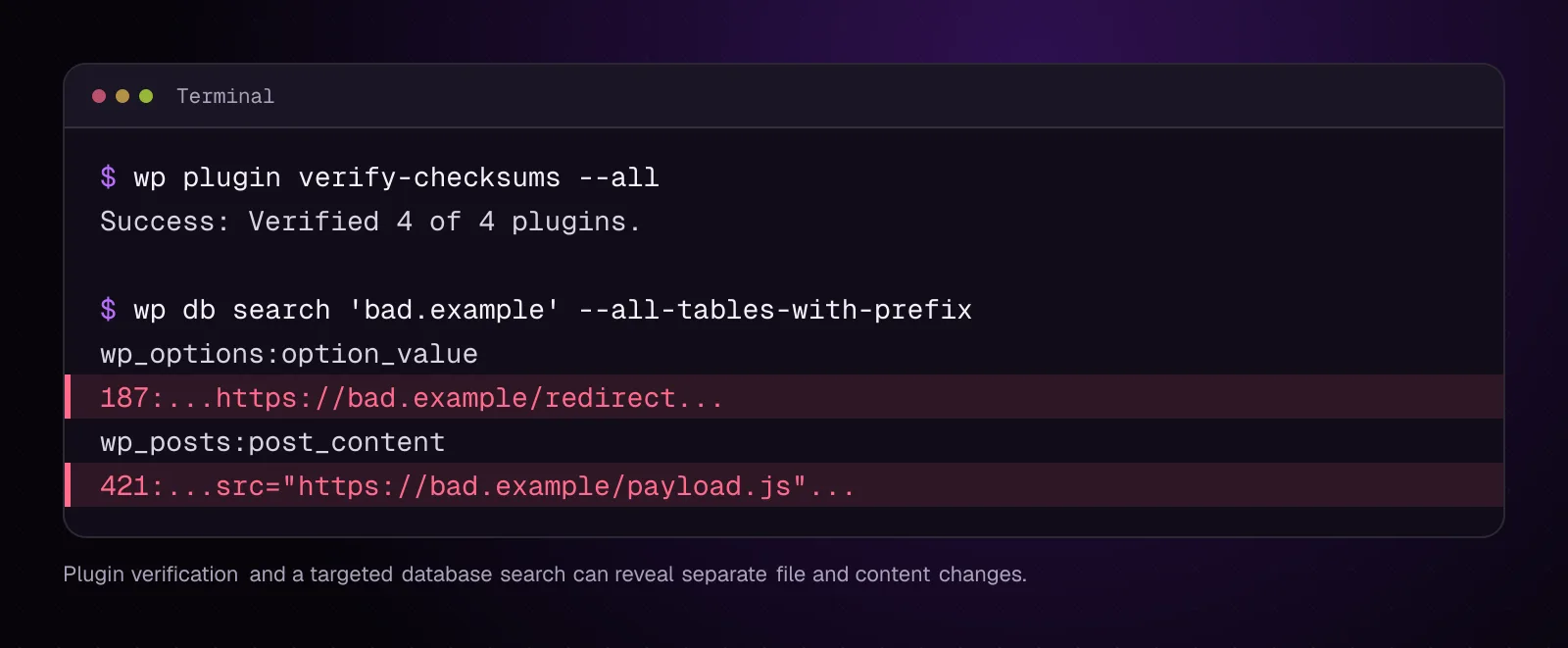
If you use phpMyAdmin instead, search the site's tables for the exact suspicious domain or phrase and record each matching table and row. Do not edit serialized plugin options by hand during evidence collection.
What should I do with suspicious scan results?
Preserve suspicious results and record enough context to trace them later rather than deleting them during the scan.
For each file finding, keep the full path, checksum message and component version. For each database finding, keep the table, column, row identifier and matched value. For an external warning, save the URL, warning type and screenshot.
If you need the site restored urgently, keep your evidence copy first. The later cleanup procedure in How to clean a hacked WordPress site and stop it happening again should follow the investigation rather than replace it.
How do I know when the scan is broad enough to move on?
The scan is broad enough when you have checked external symptoms, WordPress core, installed code, special plugin locations, database content and relevant server locations.
Before moving on, confirm that you have:
- checked the affected URLs as a visitor;
- checked Search Console or Safe Browsing where available;
- verified WordPress core checksums;
- verified supported WordPress.org plugin checksums;
- listed normal plugins, must-use plugins, drop-ins and themes;
- identified which plugins or themes need manual source comparison;
- searched the database for every known suspicious string;
- reviewed uploads, configuration and account-level findings;
- included sibling installations when the same hosting account can write to them.
A clean result in one area does not cancel a suspicious result somewhere else. Your goal at this point is a complete inventory of what needs investigation.
How should scanning change after the site is cleaned?
Repeat the same checks after cleanup so you can compare the post-clean state with the evidence you saved before cleanup.
Run the core and plugin checksum commands again. Repeat database searches for the indicators you found. Recheck the externally affected URLs, Search Console and the host's server scan.
The expected post-clean result depends on the check. Trusted core and supported plugin files should verify. Known malicious strings should no longer appear where they were removed. External redirects or injected content should no longer reproduce.
Keep the before-and-after records together. They provide a clear way to see what changed during remediation.
What changes for different kinds of WordPress sites?
The same scan applies, but some site types add locations or request paths that need explicit coverage.
WooCommerce stores: Check product pages, cart and the active checkout path as an unauthenticated visitor. Inventory payment-related extensions with the other plugins because code that affects checkout may never appear on ordinary storefront pages.
Multisite: List every site in the network, then search network-registered tables when that matches the indicator you are investigating. WP-CLI documents both commands:
wp site list --fields=blog_id,url,last_updated --format=table
wp db search 'bad.example' --network
The wp site list documentation (opens in a new tab) confirms the blog_id, url and last_updated fields. The database search documentation states that --network searches tables registered to $wpdb across a Multisite installation.
If you need plugin state per site, remember that network-activated and site-activated plugins can differ. Record those relationships before cleanup.
Shared hosting: Scan sibling WordPress installations and writable account-level locations. A clean primary document root does not account for another compromised installation under the same hosting account.
Membership and course sites: Test login, registration and account pages as part of the external scan. Also test the affected behavior with the same authentication state in which users reported it, without using production credentials on an unsafe copy.
What should I investigate after I know where the suspicious changes are?
Take the paths, URLs, timestamps and database findings from this scan into chapter 6, How Was My WordPress Site Hacked? Finding the Entry Point in the Logs. The next task is to correlate those findings with web, authentication and server logs so you can identify the likely route into the site before removing the evidence.
Frequently asked questions
Is there a free way to scan WordPress for malware?
Yes. WP-CLI can verify WordPress core and supported WordPress.org plugin files without a paid scanner, while Google Safe Browsing and Search Console can provide external security signals. You still need to inspect unsupported code, database content and server locations that those checks do not cover.
Can WP-CLI detect every WordPress malware infection?
No. WP-CLI checksum commands compare known file sets with trusted checksum data, and wp db search finds strings you tell it to search for. They do not provide a universal malware verdict across custom code, arbitrary server files, every database value and browser-only behavior.
What does a WordPress checksum failure mean?
It means a checked file does not match the checksum expected for the referenced WordPress or plugin version, or an unexpected file was found within the command's checked scope. The mismatch needs investigation because legitimate edits, incomplete deployments and unauthorized changes can all produce differences.
Why does `wp plugin verify-checksums` skip some plugins?
The command verifies plugin files against checksum data from WordPress.org. A custom or externally distributed plugin may not have matching WordPress.org checksum data, so compare that exact installed version with a trusted package or repository from its source.
Can malware hide in the WordPress database?
Yes. Unauthorized redirects, scripts, spam content or configuration values can be stored in WordPress or plugin tables. A targeted wp db search is useful when you already know an indicator such as a suspicious domain or injected phrase.
Can malware hide inside the uploads folder?
Unauthorized files can be placed in writable directories, including the configured uploads location. Inspect unfamiliar files there and preserve suspicious items for investigation rather than assuming every file under uploads is safe.
Does a clean Google Safe Browsing result mean WordPress is clean?
No. A clean Safe Browsing status only tells you that Google's status check is not currently reporting that site as dangerous. It does not verify WordPress core, plugin files, database rows, custom code or every file in the hosting account.
Sources
- wp core verify-checksums (opens in a new tab)
- wp plugin verify-checksums (opens in a new tab)
- wp plugin list (opens in a new tab)
- wp theme list (opens in a new tab)
- wp db search (opens in a new tab)
- wp site list (opens in a new tab)
- Must-Use Plugins (opens in a new tab)
- Why is my site labeled as dangerous in Google Search? (opens in a new tab)
- Google Safe Browsing site status (opens in a new tab)
- Determining Plugin and Content Directories (opens in a new tab)
- wp_upload_dir() (opens in a new tab)
- Website security checks with WP-CLI (opens in a new tab)
How this article was made: drafted with AI assistance from a researched brief, then checked against primary documentation before publishing.