Monitoring8 min read
WordPress plugin vulnerability monitoring: from alert to fix
Use WordPress vulnerability monitoring to inventory plugins, match known flaws, triage risk, patch safely, and track closed or abandoned extensions.
 By Hamza Ahmad AslamWordPress VIP, Performance & Full-Stack Engineer
On this page
- How should WordPress vulnerability monitoring be built?
- Which vulnerability data sources are useful?
- Wordfence Intelligence
- Patchstack
- WPScan
- CVE records
- How do you build a reliable plugin and theme inventory?
- How do you match installed versions to vulnerability ranges?
- How should a vulnerability alert be triaged?
- What should you do after confirming an affected version?
- What if there is no fixed version?
- Why do closed and abandoned plugins need separate monitoring?
- How do you stop the same alert being triaged every week?
- What should you do next?
- Frequently asked questions
Short answer: WordPress vulnerability monitoring works when you keep a current inventory of installed plugins and themes. Compare exact versions with trusted vulnerability data, then record what you did with each match. A useful alert says that a specific site runs an affected version, under defined conditions, with a known fix or mitigation.
How should WordPress vulnerability monitoring be built?
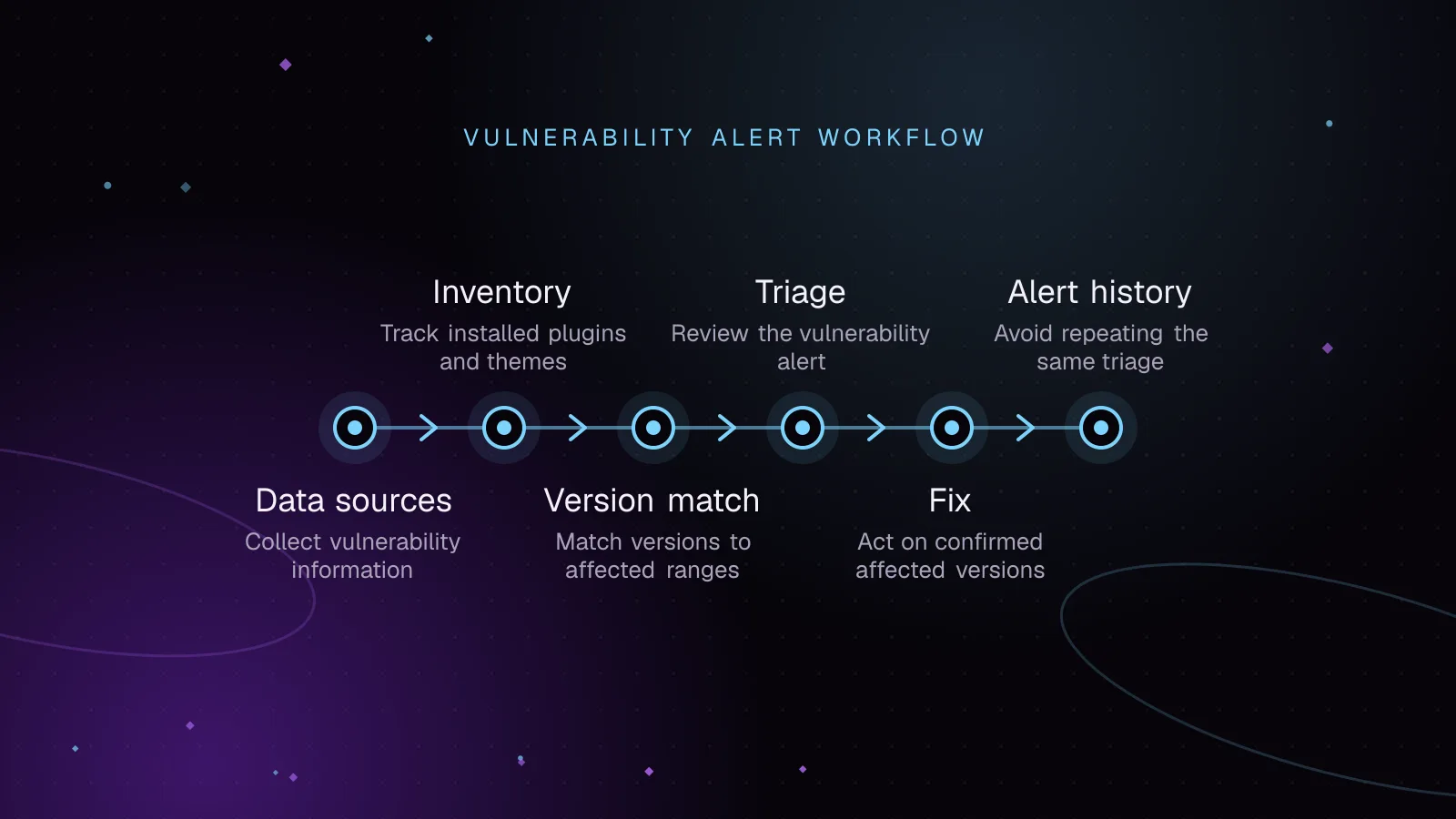
Treat monitoring as a small asset-management pipeline, not as a mailbox full of security notices. You need four pieces: an inventory, one or more vulnerability sources, matching logic, and a decision record.
The inventory tells you what is installed. The feed tells you which versions are affected. Matching joins the two by product identity and version range. Triage decides whether the alert needs an emergency update, a scheduled change, mitigation, replacement, or no action.
For several sites, run the same collection job against every WordPress installation. Give each result a stable site identifier and collection time. Keep plugin and theme inventories separate. Their slugs, release channels, and replacement choices differ.
If you already operate a fleet, the same inventory can feed uptime, update, PHP, and certificate checks. Vulnerability matching must use the installed version from the site. Do not rely on a spreadsheet that someone may have forgotten to update.
Which vulnerability data sources are useful?
No single vulnerability database for WordPress should be treated as a complete truth source. Providers publish at different times and use different identifiers. They may also encode affected ranges differently. Cross-check high-impact alerts before making a risky production change.
Wordfence Intelligence
Wordfence Intelligence provides a searchable WordPress vulnerability database and a versioned vulnerability data feed. Its documentation describes the vulnerability data feed as free for personal and commercial use under its terms. Each feed version documents how to authenticate and what data it returns.
Its documentation also confirms webhook notifications for newly added and updated vulnerability records. That makes it useful for alert-driven monitoring and periodic full-feed checks.
Patchstack
Patchstack exposes WordPress plugin, theme, and core vulnerability data through its Threat Intelligence API. Current documentation describes product-and-version lookups, a latest feed, batch checks, and advisory detail.
Access is arranged by contacting Patchstack. The API key is sent in the PSKey request header. Its advisory fields can include CVSS data, CVE identifiers, exploitation state, affected versions, and patched ranges. Use the provider's documented range rules instead of guessing from a title.
WPScan
WPScan maintains a WordPress vulnerability database covering core, plugins, and themes. Its API requires registration and an API token.
Its terms state that caching API vulnerability data is not permitted. Commercial use requires a commercial license. Build your collector around those terms instead of copying the database into an unrestricted internal mirror.
CVE records
A CVE record gives a common vulnerability identifier and description. It can also include affected product information and public references. It is useful for matching the same issue across vendors and security tools.
A CVE for a WordPress plugin is not always enough for automated matching. A record may lack the WordPress.org slug. It may also use a range format that does not map directly to your inventory. Use CVE as a cross-reference, then rely on a source with precise WordPress product and version data.
How do you build a reliable plugin and theme inventory?
Use WP-CLI on the same codebase that serves the site. The current WP-CLI plugin list documentation (opens in a new tab) confirms JSON output and the fields used below.
wp plugin list --fields=name,status,version,update_version,auto_update,wporg_status,wporg_last_updated --format=json > plugins.json
Example output, with made-up plugin names and versions:
[
  {
    "name": "sample-forms",
    "status": "active",
    "version": "2.4.1",
    "update_version": "2.4.2",
    "auto_update": "off",
    "wporg_status": "active",
    "wporg_last_updated": "2026-09-10"
  },
  {
    "name": "sample-cache",
    "status": "inactive",
    "version": "1.8.0",
    "update_version": "",
    "auto_update": "on",
    "wporg_status": "active",
    "wporg_last_updated": "2026-08-27"
  }
]
Collect themes too. The current WP-CLI theme list documentation (opens in a new tab) supports the same JSON format and version fields.
wp theme list --fields=name,status,version,update_version,auto_update --format=json > themes.json
Example output, again illustrative:
[
  {
    "name": "sample-theme",
    "status": "active",
    "version": "3.2.0",
    "update_version": "3.2.1",
    "auto_update": "off"
  }
]
Run those commands for every separate installation. On multisite, inventory each site context where plugin activation differs. Remember that network-active plugins apply across the network.
Do not assume every name value maps to a public repository slug. Premium, private, renamed, and bundled extensions may need an explicit mapping to the vendor's product identifier. Store that mapping beside the inventory. This keeps matching deterministic.
How do you match installed versions to vulnerability ranges?
A useful feed match needs three things: product type, stable product identity, and a version-range test. Exact string equality is not enough. Advisories often affect a range of versions.
Normalize provider responses before comparison. Preserve lower and upper bounds and whether each bound is inclusive. Keep every affected range and the fixed version when the source supplies one. Do not collapse several affected ranges into one broad interval.
This small PHP outline compares a WP-CLI plugin inventory with a normalized feed. The feed format here is illustrative, not a copy of any provider response.
[
  {
    "id": "ADVISORY-EXAMPLE-1",
    "slug": "sample-forms",
    "from": "2.0.0",
    "from_inclusive": true,
    "to": "2.4.1",
    "to_inclusive": true,
    "fixed_in": "2.4.2"
  }
]
<?php
$installed = json_decode(file_get_contents('plugins.json'), true);
$feed = json_decode(file_get_contents('vulnerabilities.normalized.json'), true);

foreach ($installed as $plugin) {
    foreach ($feed as $advisory) {
        if ($plugin['name'] !== $advisory['slug']) {
            continue;
        }

        $version = $plugin['version'];

        $lower_match = $advisory['from'] === null
            || version_compare(
                $version,
                $advisory['from'],
                $advisory['from_inclusive'] ? '>=' : '>'
            );

        $upper_match = $advisory['to'] === null
            || version_compare(
                $version,
                $advisory['to'],
                $advisory['to_inclusive'] ? '<=' : '<'
            );

        if ($lower_match && $upper_match) {
            echo $plugin['name'] . ' ' . $version . ' matches ' . $advisory['id'] . "\n";
        }
    }
}
PHP documents version_compare() for PHP-standardized version strings. If a vendor uses unusual version labels, test those labels before trusting automated range decisions.
A match should create a triage item, not trigger an update blindly. Record which source produced it. Keep the original affected-range data for review.
How should a vulnerability alert be triaged?
Start with the advisory's CVSS score, vector, and scoring version, but do not stop there. The vector can tell you more than the headline score. It describes factors such as attack path, privileges, and required user interaction.
Then answer these questions:
- Check whether exploitation is unauthenticated, low-privilege authenticated, or limited to a highly privileged role.
- Confirm that the installed version is inside an affected range, including boundary rules.
- Find whether a fixed version exists and whether it is available from the site's normal update source.
- Identify whether the vulnerable component or feature is enabled and reachable on that site.
- Check whether exploitation has been reported by the vulnerability source. Separate confirmed exploitation from general proof-of-concept availability.
- Review exposure differences between public sites, authenticated portals, staging systems, and internal installations.
Feature use matters, but it is not a reason to ignore a vulnerable package forever. An unused vulnerable module can become reachable after a configuration change. If the extension is unnecessary, removal is cleaner than carrying an exception.
If there are signs the flaw may already have been exploited, stop treating the task as patch management. Preserve evidence and move into incident response. Do not assume an update removes persistence.
What should you do after confirming an affected version?
When a fixed release exists, read its changelog and current support forum topics before updating. Look for database migrations, renamed settings, changed hooks, compatibility reports, and rollback problems.
For a low-risk security release, your policy may allow automatic approval and deployment. Since WordPress 5.5, administrators can opt into plugin and theme auto-updates, as documented in the WordPress 5.5 field guide (opens in a new tab). Native plugin auto-updates are not limited to security releases. Enable them only where routine releases are also acceptable.
Do not equate "minor" with "security-only." WP-CLI's --minor flag limits the version movement described in its command documentation. Plugin authors still control their own release numbering.
For a single plugin, the documented command is:
wp plugin update plugin-slug
To restrict that update to a minor release, use:
wp plugin update plugin-slug --minor
The current WP-CLI plugin update documentation (opens in a new tab) also provides --dry-run when you need to preview an update. For a vendor-declared major release, test on staging first. Exercise the features the plugin touches before production deployment.
Before updating a business-critical plugin, run its release through Update Forecast to review the changelog and recent support topics together.
What if there is no fixed version?
Deactivate the plugin or switch away from the theme if the site can function without it. Deactivation reduces WordPress-loaded exposure, but it does not prove every file is unreachable. Remove unused vulnerable code when practical, or replace the extension with a maintained alternative.
A narrowly scoped WAF rule can reduce exposure while you wait for a vendor fix. Treat it as temporary. A WAF may not cover authenticated paths, alternate endpoints, background jobs, or every exploit variation.
If disabling the extension breaks a required workflow, document the mitigation, owner, review date, and replacement plan. Do not leave "waiting for vendor" as an unowned permanent state.
Why do closed and abandoned plugins need separate monitoring?
A plugin being closed on WordPress.org is a risk signal, not proof that it is vulnerable. WordPress.org can close plugins for security issues or guideline violations. Other reasons include licensing or trademark issues, author requests, or functionality moving into core.
The official WordPress.org closure guidance (opens in a new tab) says closed plugins are no longer available for download. It also explains that the public closure reason may appear later.
Capture wporg_status and wporg_last_updated in your inventory. Then flag changes for review. A closure marked for a security issue deserves different handling from an author-requested closure. Both should prompt an ownership decision.
Abandonment is less formal. Treat long periods without maintenance as a signal to investigate. Other signals include unresolved compatibility problems, no supported update path, and missing vendor responses. Do not invent a universal age threshold. The right threshold depends on the extension, its exposure, and whether upstream dependencies still receive fixes.
Closed or abandoned software also creates an operational problem. The next vulnerability may arrive without a safe update path. Replacement planning belongs in the same queue as WordPress plugin vulnerabilities.
How do you stop the same alert being triaged every week?
Store the decision beside the advisory match. Your record should contain the site, component slug, installed version, advisory identifier, affected range, and fixed version. Also keep CVSS data, authentication requirement, feature-use decision, chosen action, owner, decision date, and evidence.
Give each decision a state such as patched, not affected, mitigated, replacement planned, or accepted temporarily. Use a deduplication key that includes site, component, advisory, and installed version. Add a recheck condition instead of a vague note.
Good recheck conditions include a new plugin version or a changed advisory range. They can also include a vendor fix, a change in feature use, or expiry of a temporary mitigation. If none of those conditions changed, your monitoring system can suppress duplicate work while keeping the alert history.
Keep the raw inventory snapshot that produced the match. That lets you explain later why an alert was closed and whether the installed version changed.
What should you do next?
Turn the process into a scheduled fleet job using the same inventory and decision store. The guide to monitoring many WordPress sites can help structure the wider checks around it.
If an alert arrives after suspicious redirects, unknown administrators, modified files, or other compromise indicators, follow the hacked WordPress recovery process instead of treating the task as a normal update.
For teams that do not want to own collection, triage, testing, patching, and follow-up internally, the WordPress maintenance and security service covers that operational layer.
Frequently asked questions
How often should WordPress vulnerability checks run?
Run inventory collection often enough that an emergency advisory is matched against current site data. Refresh it after deployments or manual plugin changes too. Webhook-capable sources can reduce delay, but periodic full reconciliation still catches missed or changed records.
Does a CVE mean my WordPress site is vulnerable?
No. A CVE identifies a vulnerability, but your site is affected only if the installed product and version match the vulnerable range and the relevant conditions apply. Confirm the slug, version, authentication requirements, and affected feature before acting.
Should every vulnerable WordPress plugin be auto-updated?
No. Auto-updates fit extensions where regression risk is understood and your rollback path is ready. High-impact or major changes should be tested on staging. Urgent security fixes still need a defined path to production.
What should I do with a closed WordPress.org plugin?
Check the closure reason, whether a maintained version exists elsewhere, and whether the plugin is still required. If the plugin has no dependable update path, plan removal or replacement even when no current vulnerability matches your installed version.
Share this article
Enjoyed this? Get the next article by email.
Keep reading
 Monitoring
7 min read
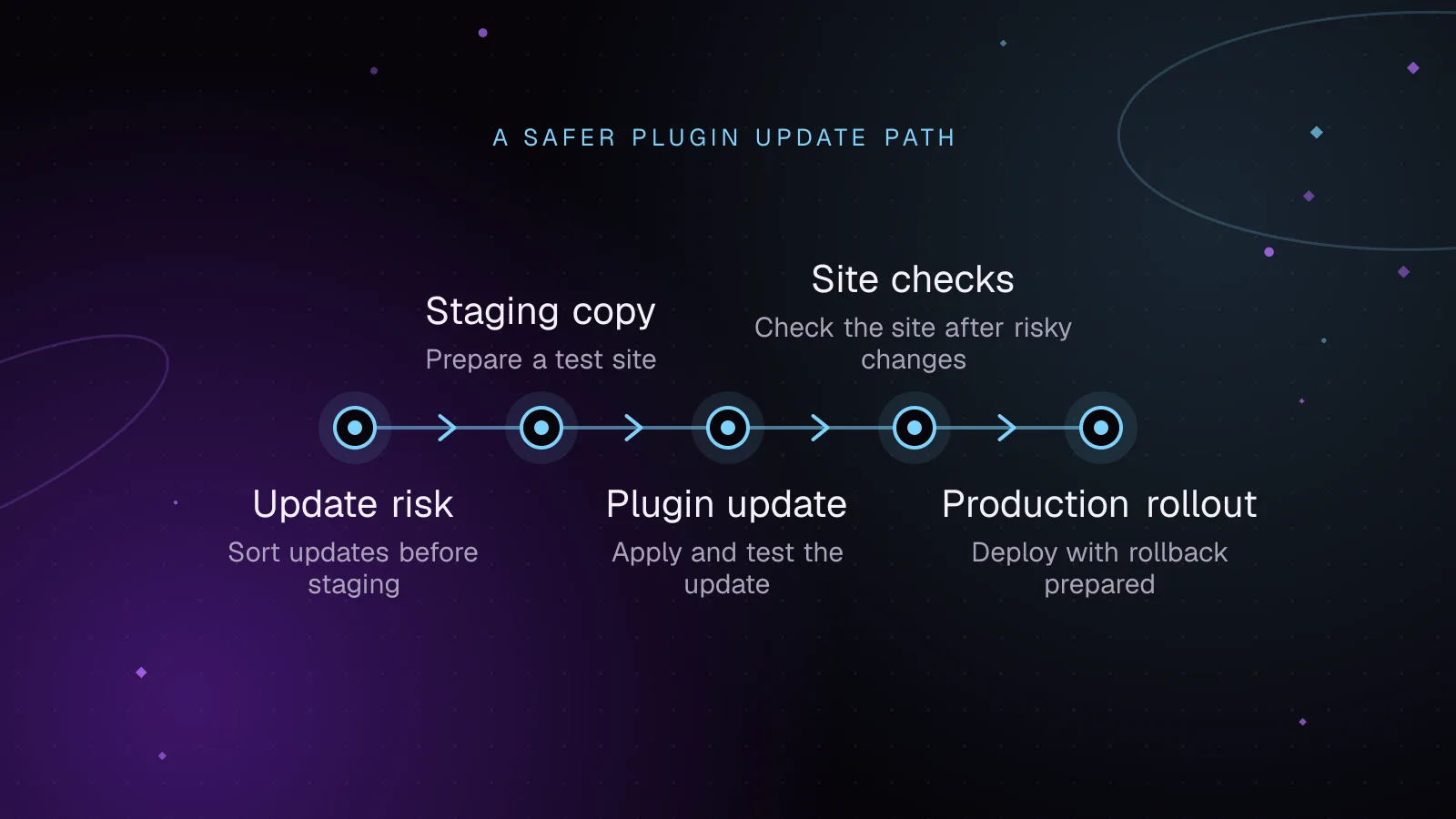
How to test WordPress plugin updates before they reach production
Test WordPress plugin updates on staging, check key site flows, deploy one change at a time, and roll back cleanly if an update causes trouble.
- WordPress
- Plugins
- Monitoring
 Monitoring
5 min read
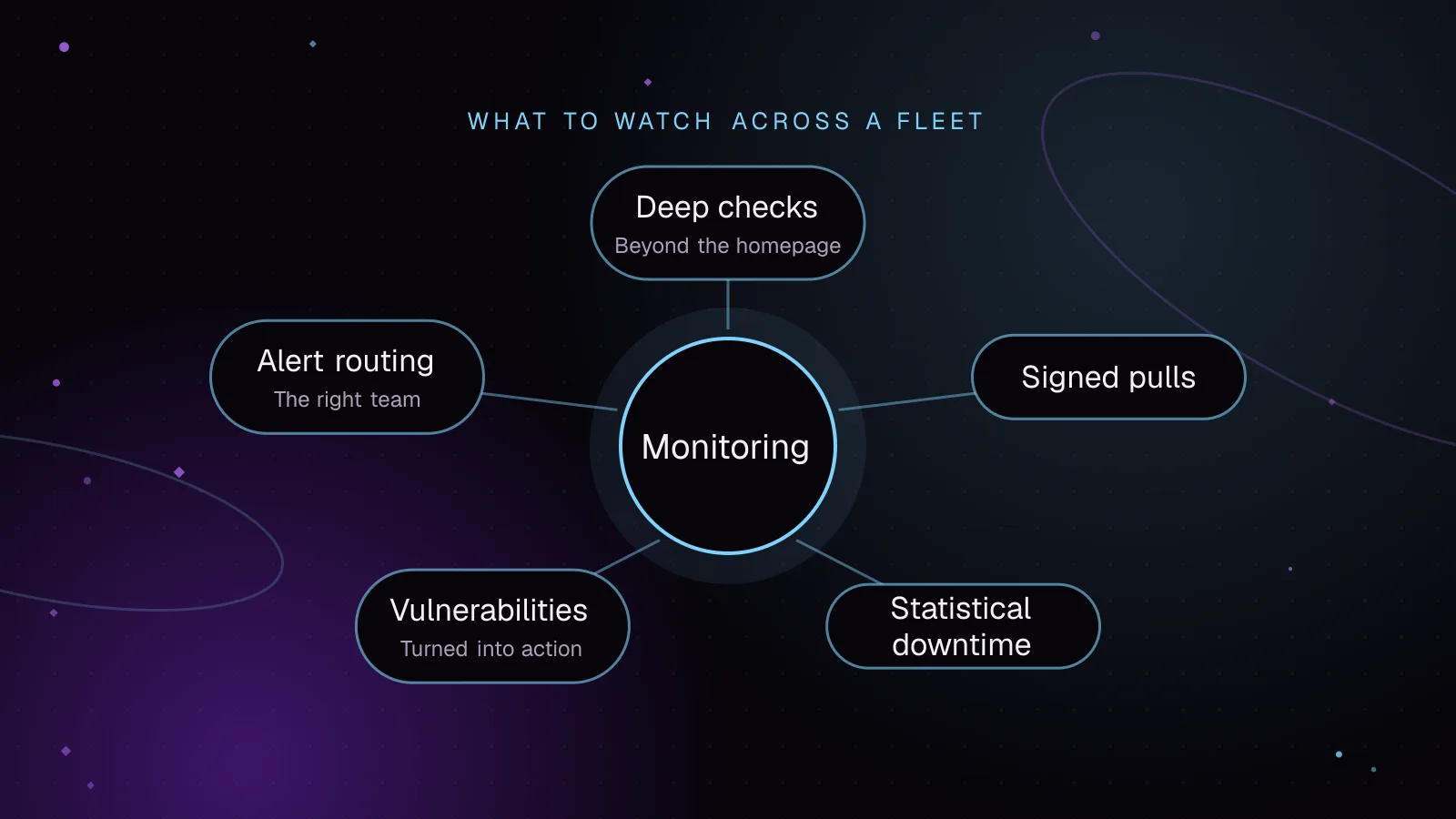
How to monitor WordPress sites without alert fatigue
Monitor WordPress sites with signed agent requests, vulnerability checks and alerts grouped by severity. Lessons from building Fleet Sentinel.
- WordPress
- Monitoring
- Security
 Monitoring
7 min read
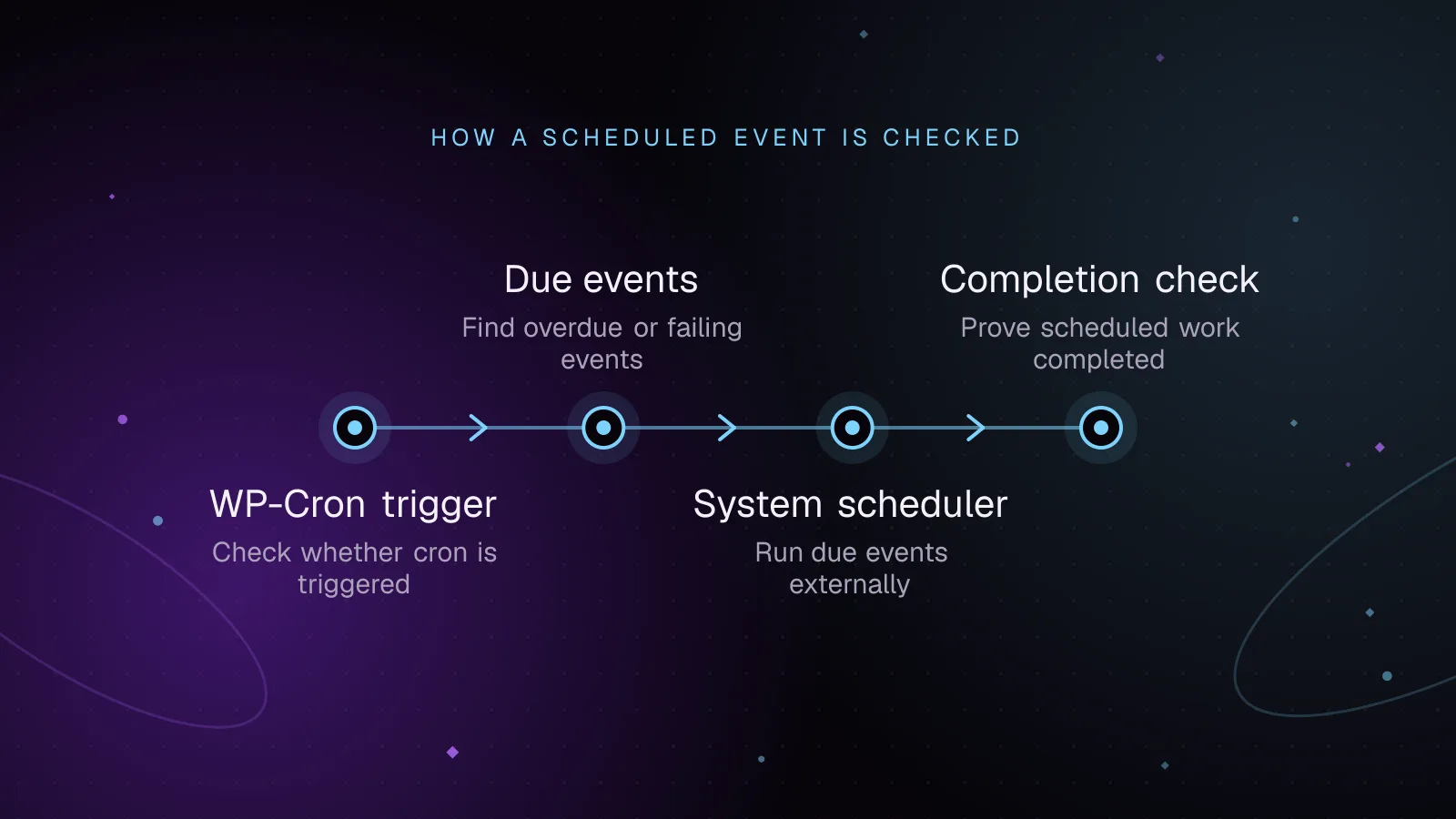
WordPress cron monitoring: prove scheduled jobs ran
Diagnose WordPress cron not running, find overdue events, test spawning, run due jobs from system cron, and add alerts that prove key jobs finished.
- WordPress
- Monitoring
- Cron