Security8 min read
WordPress plugin supply chain security: when the update itself is the attack
Use WordPress plugin supply chain security checks to verify updates, spot warning signs, stage releases, and respond fast to compromised code.
 By Hamza Ahmad AslamWordPress VIP, Performance & Full-Stack Engineer
On this page
- How WordPress plugin supply chain security changes update review
- Which update signals deserve a closer look
- Treat a plugin ownership change as a review trigger
- Treat a closed plugin as a status signal, not a verdict
- Review unexpected code and new outbound requests
- Why official sources matter more than the ZIP file itself
- How to verify plugin checksums without over-trusting them
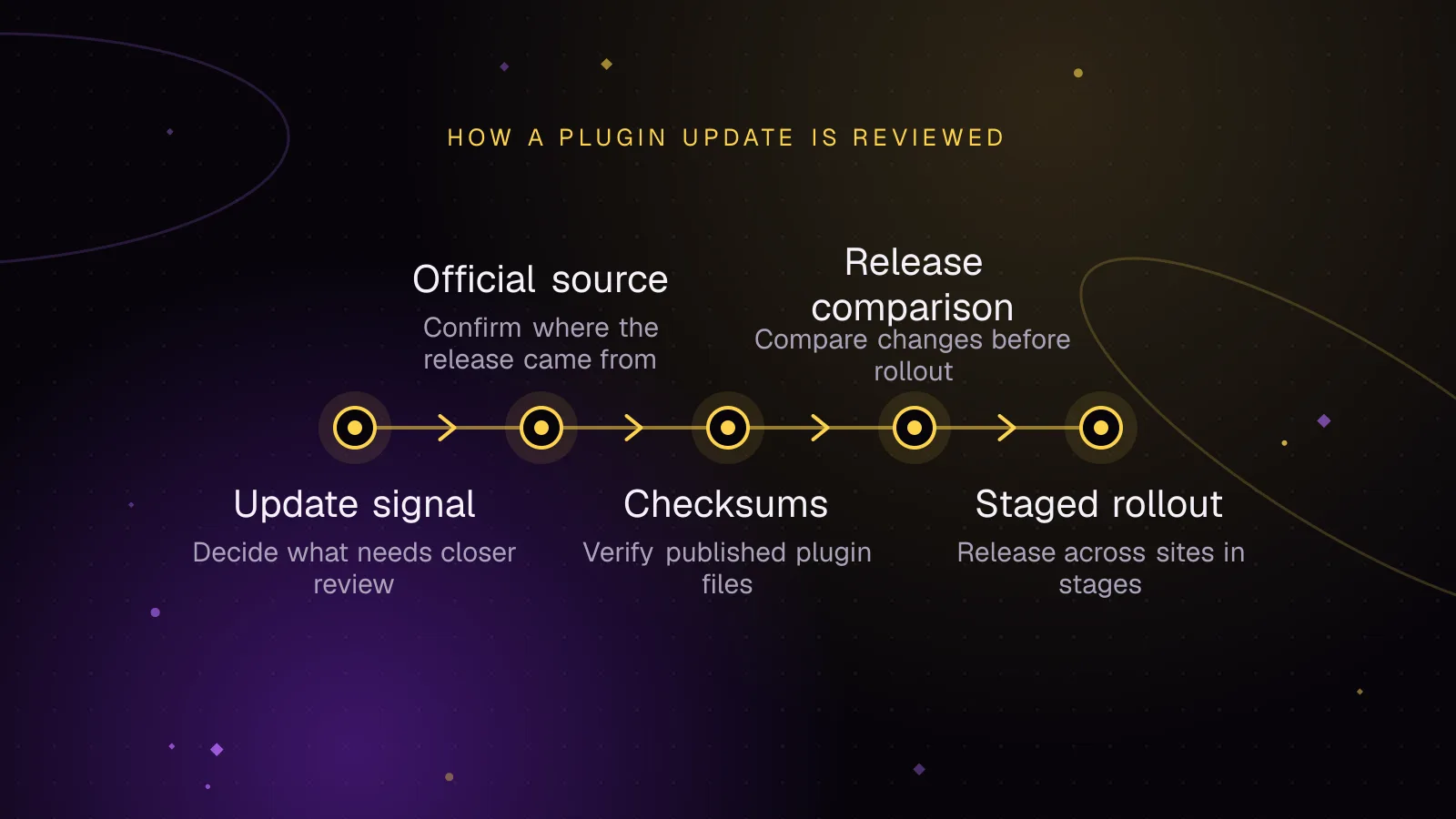
- How to compare two releases before rollout
- How to inventory plugin versions across many sites
- How staged rollouts reduce plugin auto-updates risk
- What to do when a compromised release is announced
- What to do next
- Frequently asked questions
Short answer: WordPress plugin supply chain security treats the update channel itself as something you must verify, not just a way to receive fixes. Use trusted sources, inspect unusual releases, verify installed files, and stage updates so one bad package does not reach every site at once.
How WordPress plugin supply chain security changes update review
An ordinary plugin vulnerability is a flaw in code the developer intended to ship. An attacker usually has to exploit that flaw after the plugin is installed.
A supply chain compromise changes what you can trust. The attacker gets malicious code into a package, account, build process, repository, or update channel that administrators already trust. A normal update action can then install the attack.
That difference changes your controls. Vulnerability monitoring tells you when known code needs a fix. Supply chain controls ask a second question: can you trust the package carrying that fix?
Keep the two processes together. The site's WordPress plugin vulnerability monitoring process covers vulnerability alerts and response. This guide focuses on release provenance, review, rollout, and response.
Which update signals deserve a closer look
Most updates do not need a manual audit. You need a short list of signals that change the level of review.
Treat a plugin ownership change as a review trigger
A plugin ownership change is not evidence of compromise. It does change who can publish future releases.
WordPress.org documents a formal plugin transfer process (opens in a new tab). If a plugin changes owner, maintainer, company, or distribution domain, record that change before the next rollout.
Check whether the new maintainer has changed the plugin's purpose, licensing flow, update endpoint, bundled libraries, or data collection. A release that follows an ownership change deserves comparison with the previous release.
Treat a closed plugin as a status signal, not a verdict
WordPress.org can close a plugin for several reasons, including an author request, a guideline issue, a licensing or trademark issue, or a security issue. The official plugin alerts and warnings documentation (opens in a new tab) explains those states.
A closed page means you should stop treating the plugin as routine. Check the stated reason when available, the maintainer's notice, and your installed version. Do not assume that every closure means malware.
Review unexpected code and new outbound requests
A release deserves inspection when its code changes do not match the stated purpose. Pay attention to new executable files, bundled libraries, scheduled tasks, privileged admin behavior, or outbound HTTP requests to unfamiliar domains.
A remote call is simply a request from the plugin to another server. Many plugins need them for licensing, APIs, payments, or hosted services. The signal is an unexplained new destination or a new call that does not fit the release notes.
I built Update Forecast, a free tool that reads a plugin release's changelog and recent support topics before you update. It can help you decide which releases need a closer manual comparison.
Why official sources matter more than the ZIP file itself
Install plugins from WordPress.org when that is the plugin's official distribution point. For commercial plugins, use the vendor's own account portal, documented updater, or release download.
The source gives you provenance, meaning a traceable origin for the package. A file can have a familiar plugin name and still come from an unknown party.
Avoid nulled plugins and modified commercial copies from mirrors, forums, file-sharing sites, or bundle sellers. "Nulled" usually means a redistributed paid plugin changed to bypass its normal licensing or purchase checks. Even when the code appears to work, you no longer have a trustworthy chain from the vendor to the installed package.
Keep the original ZIP file for high-impact plugins until the rollout is complete. That gives you a known package to compare with what reached each site.
How to verify plugin checksums without over-trusting them
WP-CLI can verify plugin checksums for releases that have WordPress.org checksums. The command compares installed files with the checksums published for that plugin release.
Use the documented wp plugin verify-checksums (opens in a new tab) command:
wp plugin verify-checksums --all --strict
The --strict flag makes soft changes, such as changes to readme.txt, count as checksum errors.
Example output below is illustrative:
Success: Verified 18 of 18 plugins.
A successful result means the checked files match WordPress.org's published checksums. It does not prove that the release contains safe code. If a compromised plugin update was published through the trusted distribution channel, matching its checksums only proves that you received that published release unchanged.
Plugins distributed outside WordPress.org may not have checksums available to this command. Treat that as a limitation of this verification method, not as proof that the plugin is unsafe.
This is why "verify plugin checksums" belongs beside release comparison and trusted-source checks, rather than replacing them.
How to compare two releases before rollout
For a plugin with high privileges or business impact, compare the old package with the new one before production rollout. Extract both ZIP files into separate directories, then compare the directory trees.
Git can compare two filesystem paths without requiring a repository:
git diff --no-index -- plugin-old/ plugin-new/
Review the diff for changes that matter to trust, not just line count. Look for new PHP or JavaScript files, new network destinations, new package dependencies, changes to authentication or authorization behavior, and code that writes executable files.
Large generated files can make the diff noisy. Start with the files named in the changelog, then inspect added files and code paths that run on every request, in the admin area, or during updates.
For premium plugins, compare the vendor package you downloaded with the package you plan to deploy. Do not compare against a copy from an unofficial mirror because that makes the baseline untrustworthy.
How to inventory plugin versions across many sites
You need to know which sites received a release before you can contain it. WP-CLI's wp plugin list (opens in a new tab) supports selecting the name and version fields and skipping the update check.
Create sites.txt with one WordPress root path per line, then run:
while IFS= read -r site; do
  printf '\n== %s ==\n' "$site"
  wp plugin list --path="$site" --fields=name,version --format=csv --skip-update-check
done < sites.txt
Store that inventory with the deployment record. If an advisory later names an affected release, you can identify exposed sites without opening each dashboard.
The same inventory also shows version drift, meaning sites that should match are running different plugin versions. Fix that before the next rollout. Drift makes incident response slower because you cannot assume the fleet has one state.
How staged rollouts reduce plugin auto-updates risk
WordPress added the plugin and theme auto-update interface in WordPress 5.5. The official WordPress 5.5 auto-update documentation (opens in a new tab) states that plugin and theme auto-updates are disabled by default and can be enabled by administrators.
The plugin auto-updates risk is a tradeoff. Automatic updates can shorten exposure to known vulnerabilities. They can also distribute a bad release before your normal review if you enable them everywhere without a rollout gate.
For sites you manage as a group, use three release stages:
- Update test or staging sites first. Run the flows that matter for that site, including login, forms, editor work, scheduled jobs, and checkout where relevant.
- Update a representative subset of production sites. Choose sites that cover different plugin combinations, themes, hosting setups, and business functions.
- Update the remaining sites only after the subset stays clean through your normal observation window.
Do not define success as "the site loads." Check logs, outbound requests, admin behavior, scheduled work, and the business flows touched by the plugin.
A WordPress plugin supply chain security process should also separate low-impact packages from plugins that handle authentication, payments, file writes, remote management, or privileged admin actions. Those higher-impact updates deserve a tighter gate.
What to do when a compromised release is announced
Start by stopping further rollout. Pause the affected plugin's automated deployment or auto-update policy while you confirm the affected release and the vendor's safe version.
Then identify exposure. Use your version inventory to find every site that installed or ran the named release. Preserve relevant server, application, and security logs before automatic log deletion removes them.
After removing the compromised release, use the WordPress debug log safely and read the PHP evidence it captured as part of your incident review.
Get fix instructions from the plugin's official WordPress.org page or vendor channel. Replace affected code only with the release they identify as safe. Re-run checksum verification where WordPress.org checksums exist, and compare the replacement package with the affected release so you understand what changed.
If the advisory says credentials, API keys, tokens, or customer data may have been exposed, follow its scope. Rotate the affected secrets after you have removed the malicious code, so the replacement credentials are not captured again.
A package rollback does not prove the site is clean. If the compromised code executed, inspect for persistence, meaning changes that let an attacker keep access. Also check for unauthorized accounts, changed files, and other signs of access.
Keep the affected release, advisory, timestamps, version inventory, and remediation notes with the incident record. They give you evidence for later review and for any sites found after the first response.
What to do next
Add release provenance, checksum verification, version inventory, and staged rollout gates to your normal update procedure. Keep known vulnerability intake in the WordPress plugin vulnerability monitoring guide.
If compromised code ran on a site, move into the guide to cleaning a hacked WordPress site instead of treating rollback as the end of the incident.
Teams that need this handled as an ongoing process can use the WordPress maintenance and security service for managed updates and operational security.
Frequently asked questions
Can WordPress plugin checksums detect a malicious official release?
No. Checksums can show whether installed files match the published WordPress.org release. If the published release itself is malicious, matching checksums confirm file integrity, not the safety of the code.
Should I disable all WordPress plugin auto-updates?
Not as a blanket rule. Auto-updates can reduce the time a known vulnerability stays unpatched, while staged review reduces the chance that one bad release reaches every site. Set the policy based on plugin impact and your ability to test releases quickly.
Is a plugin ownership change a sign that the plugin has been compromised?
No. Ownership transfers can be legitimate and WordPress.org has a documented transfer process. Treat a change in owner or maintainer as a reason to review the next releases more closely.
Are nulled WordPress plugins always infected with malware?
You cannot assume every nulled copy contains malware, but you also cannot establish a trusted vendor-to-site chain for an unofficial modified package. Use the official repository or vendor distribution channel so you can trace where the code came from and receive supported updates.
Share this article
Enjoyed this? Get the next article by email.
Keep reading
 Monitoring
8 min read
WordPress plugin vulnerability monitoring: from alert to fix
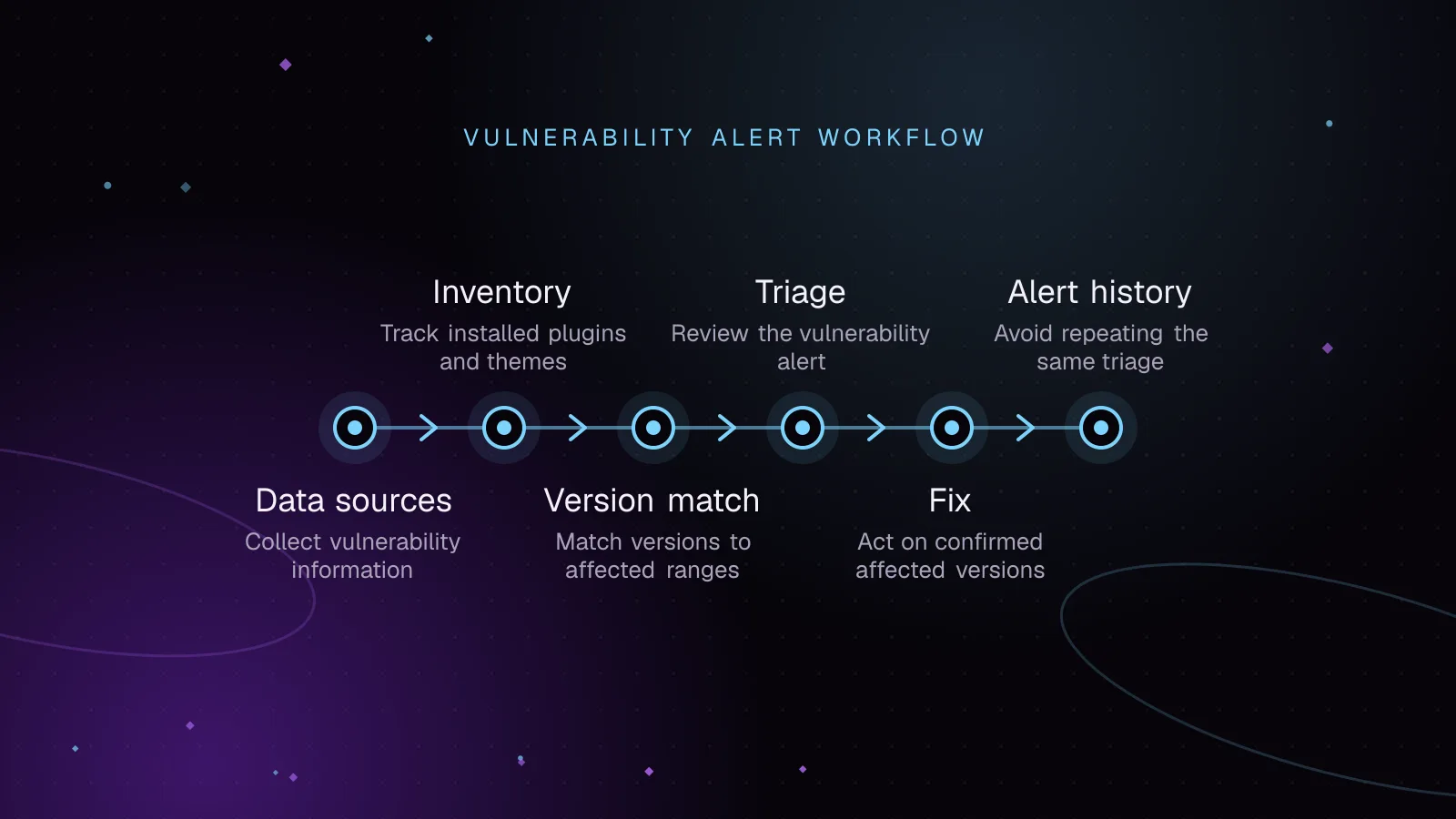
Use WordPress vulnerability monitoring to inventory plugins, match known flaws, triage risk, patch safely, and track closed or abandoned extensions.
- WordPress
- Security
- Monitoring
 Security
7 min read
Secure WordPress REST API endpoints: permission callbacks that hold up
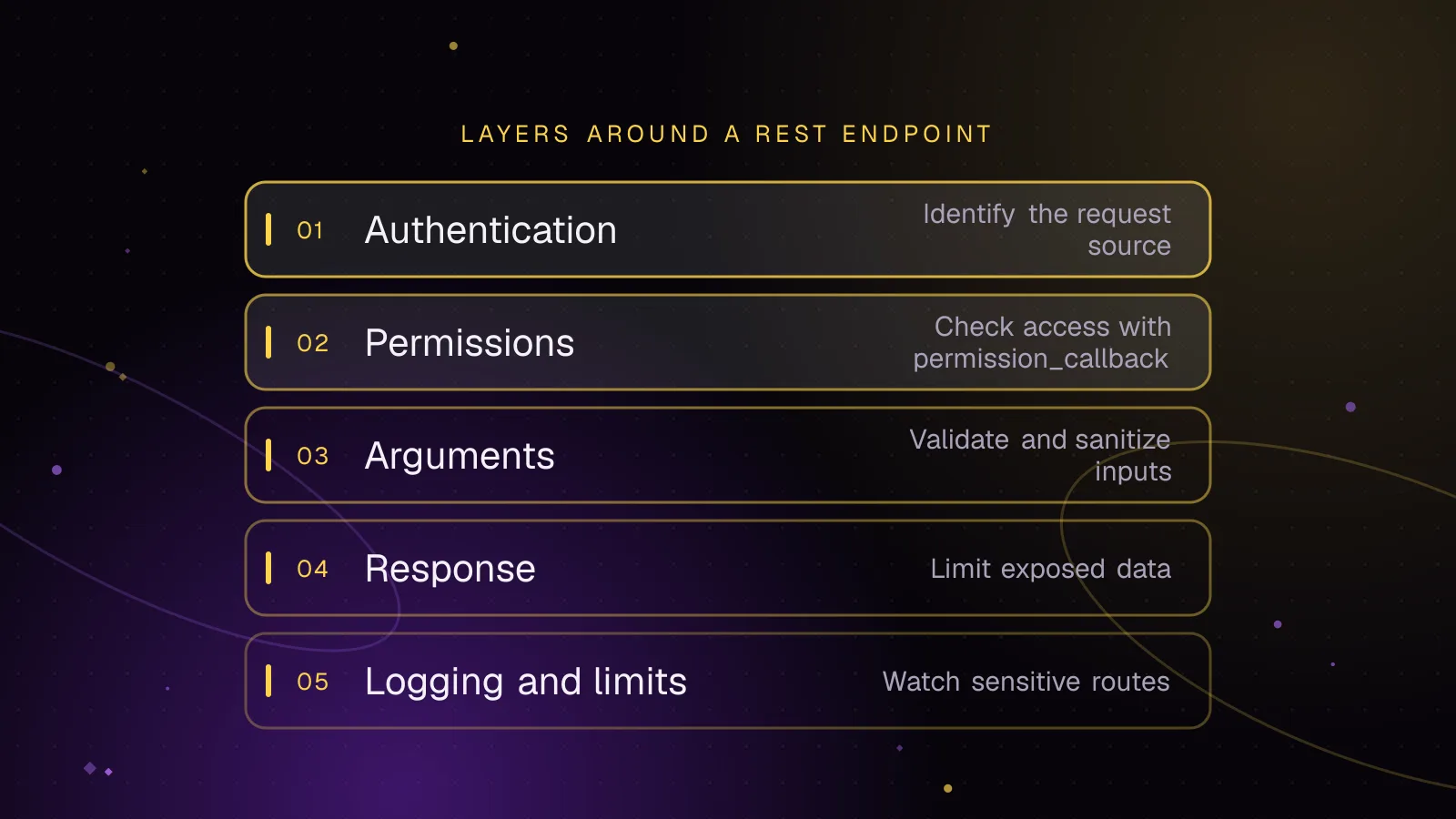
Review a WordPress REST API permission_callback, capability checks, nonces, argument schemas, output, logging, and rate limits for custom endpoints.
- WordPress
- Security
- REST API
 Monitoring
5 min read
How to monitor WordPress sites without alert fatigue
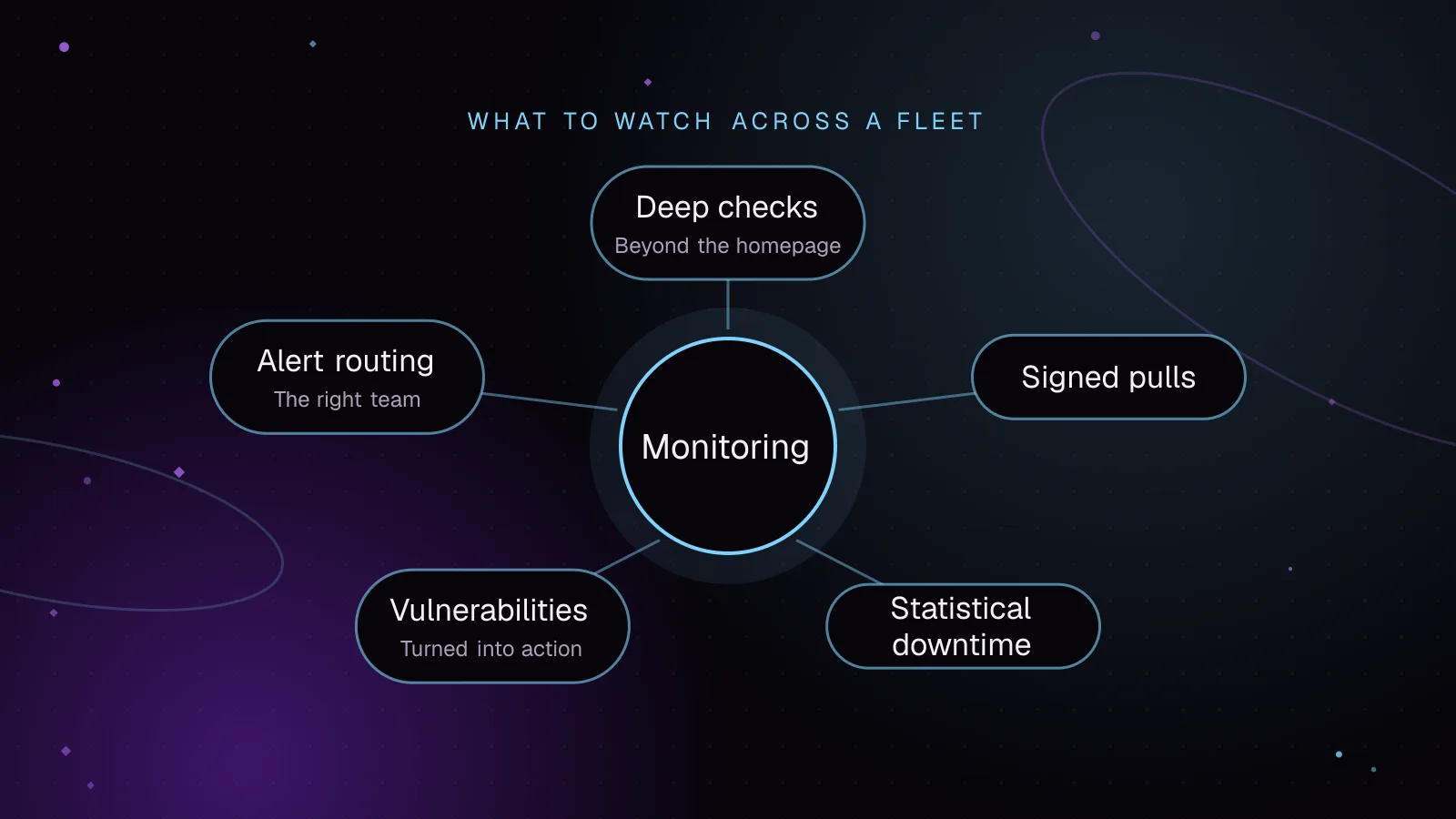
Monitor WordPress sites with signed agent requests, vulnerability checks and alerts grouped by severity. Lessons from building Fleet Sentinel.
- WordPress
- Monitoring
- Security