Security8 min read
WooCommerce card testing attacks: how to spot and stop them
Stop WooCommerce card testing by spotting failed-order spikes, enabling Store API limits, tuning gateway fraud controls, and adding edge challenges.
 By Hamza Ahmad AslamWordPress VIP, Performance & Full-Stack Engineer
On this page
- How to recognize WooCommerce card testing
- Check orders and order notes
- Check WooCommerce logs
- Check the payment gateway dashboard
- What to switch on first during an attack
- Turn on the gateway's fraud and bot controls
- Enable checkout rate limiting in WooCommerce
- How Store API rate limiting works and how to tune it
- How to add edge rules without blocking legitimate buyers
- How to inspect and clean up failed orders
- How to monitor for the next failed orders spike
- What to do next
- Frequently asked questions
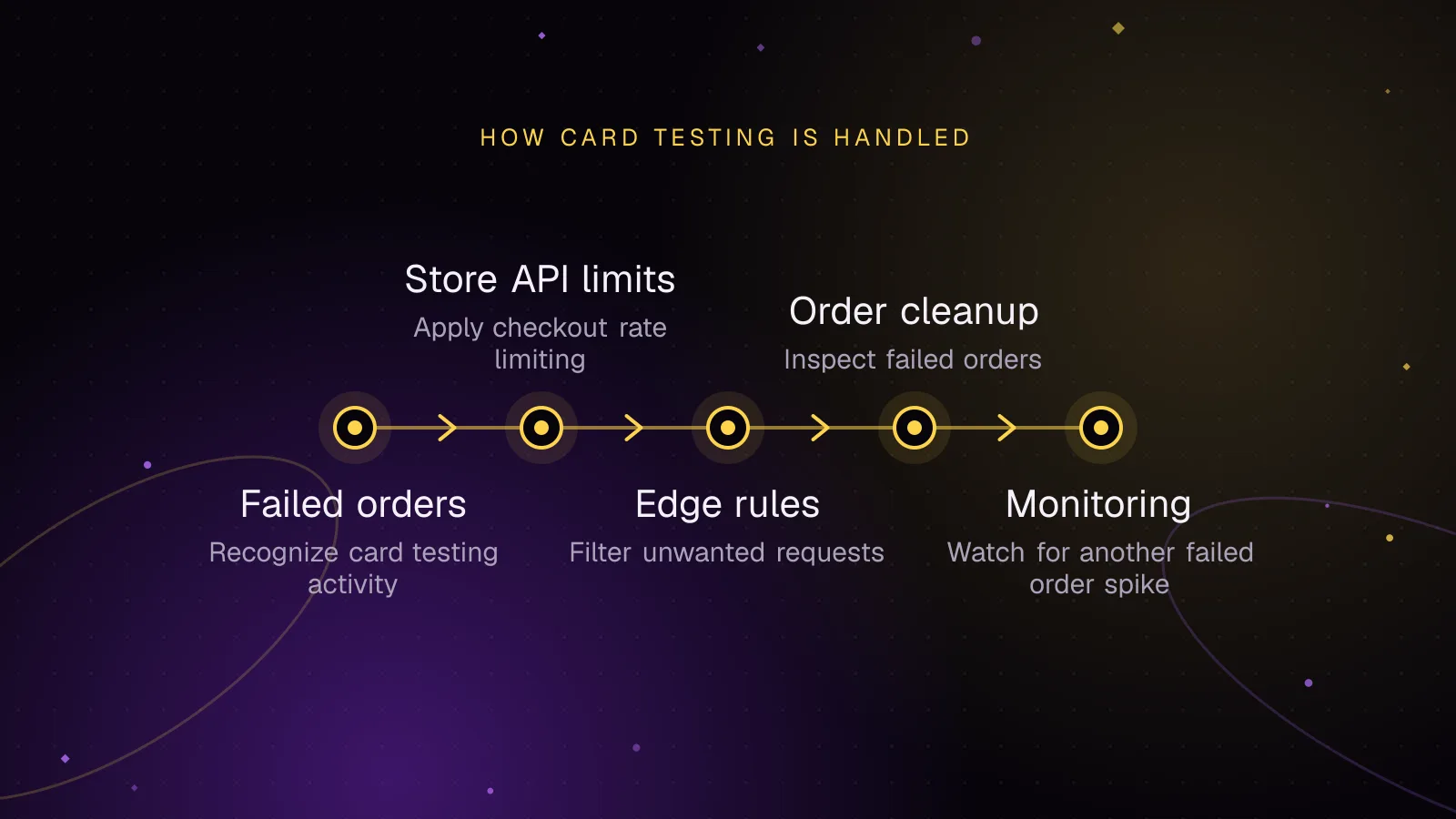
Short answer: WooCommerce card testing usually shows up as a sudden run of low-value payment attempts, many failed orders, or repeated declines in your gateway dashboard. Stop it in layers: turn on the gateway's fraud controls, enable WooCommerce checkout rate limiting where it applies, challenge abusive checkout traffic at the edge, then watch failed-order volume for another spike.
How to recognize WooCommerce card testing
A carding attack on WooCommerce uses your checkout to test stolen payment details. Attackers often try low-value purchases and many cards in a short period. WooCommerce documents a sharp rise in Failed orders, often with decline notes, as a common sign of card testing (opens in a new tab).
Do not treat every failed order as fraud. A gateway outage, checkout bug, expired cards, or a bad release can create a similar pattern. Confirm the pattern in three places before you start blocking traffic.
Check orders and order notes
Open WooCommerce > Orders and filter by Failed. Look for a sudden cluster with similar small totals, repeated products, repeated billing details, or many different cards failing against the same checkout flow.
Open several orders. Order notes often show gateway decline messages or error codes. Record the order IDs, timestamps, payment method, and any gateway transaction or intent IDs before deleting anything.
Check WooCommerce logs
Go to WooCommerce > Status > Logs and inspect the payment gateway logs for the same period, if that gateway has logging enabled. You are looking for repeated authorization failures, bot-like request bursts, or the same payment path failing over and over.
Do not leave verbose gateway logging enabled longer than needed. Payment extensions differ in what they record, so review the gateway's own logging guidance before changing its settings.
Check the payment gateway dashboard
The gateway view is the final check for payment activity. Compare WooCommerce failures with declines, blocked payments, successful charges, disputes, and any fraud or risk signals shown by the provider.
A failed WooCommerce order does not prove that no charge exists. Reconcile suspicious orders against the gateway before asking a customer to retry or before you clean up records.
What to switch on first during an attack
Start at the payment provider because it sees the card authorization attempt. Then add WooCommerce's own request controls.
Turn on the gateway's fraud and bot controls
Use the fraud controls built into your gateway or payment plugin. Enable card-testing or bot protection if the provider offers it. Review velocity rules, CVC checks, address checks, 3D Secure settings, and provider-side risk rules that are available for your account.
For WooPayments, Fraud Protection is under Payments > Settings. Its Basic mode blocks failed CVC checks, while Advanced mode lets you configure more rules. Other gateways use different controls, so use the provider's current documentation rather than copying a WooPayments setting across gateways.
If suspicious payments succeeded, refund the transactions you judge to be unauthorized and contact the gateway. WooCommerce's guidance says payment providers may not return transaction fees automatically, so ask the provider about those charges as part of the incident.
Enable checkout rate limiting in WooCommerce
Since WooCommerce 9.6, you can enable checkout-specific rate limiting under WooCommerce > Settings > Advanced > Features. Turn on "Rate limiting Checkout block and Store API." WooCommerce says the UI option applies only to the Store API POST /checkout endpoint and the Place Order flow for the Checkout block, with a maximum of 3 requests per 60 seconds.
The option does not cover the classic shortcode checkout, which submits to ?wc-ajax=checkout. The Store API limiter described below also applies only to Store API endpoints. On a classic checkout store, the gateway's fraud controls and an edge rule for the classic checkout request are the applicable layers.
If your site sits behind a proxy, load balancer, CDN, or firewall, configure proxy support correctly so different shoppers are not grouped under the same apparent IP.
How Store API rate limiting works and how to tune it
WooCommerce's Store API rate limiting documentation (opens in a new tab) describes a broader limiter for Store API requests. It is optional and disabled by default. When enabled through the documented filter, the default is 25 requests per 10 seconds.
Only POST requests are rate limited. Logged-in requests are tracked by user ID, while unauthenticated requests are tracked by IP unless you provide custom fingerprinting. This limiter does not cover the classic shortcode checkout at ?wc-ajax=checkout.
Put this in a small site plugin or an MU plugin so a theme change does not remove it:
<?php
add_filter( 'woocommerce_store_api_rate_limit_options', function() {
	return [
		'enabled'       => true,
		'proxy_support' => false,
		'limit'         => 25,
		'seconds'       => 10,
	];
} );
Those values are the documented defaults. The example makes the feature active without inventing a store-specific threshold.
Tune limit and seconds from your own legitimate checkout traffic. Do not copy an aggressive value from another store. A subscription site, flash sale, headless front end, and normal catalog can have very different request patterns.
If a trusted proxy or CDN is in front of WordPress, change proxy_support only after you have confirmed the forwarding path. WooCommerce warns that incorrect proxy handling can group unrelated shoppers and trigger false limits.
The response also exposes RateLimit-Limit, RateLimit-Remaining, RateLimit-Reset, and, when blocked, RateLimit-Retry-After. These headers help a developer confirm that WooCommerce, rather than the gateway or edge layer, rejected a request.
How to add edge rules without blocking legitimate buyers
An edge service can stop abusive checkout requests before they reach PHP or the payment gateway. Keep the rule narrow. Match order-placement requests, not the whole checkout page, cart browsing, product APIs, or all WordPress REST traffic.
Cloudflare limits which fields a rate limiting rule can use by plan. Its rate limiting rules documentation (opens in a new tab) lists Path and Verified Bot for Free, adds Host, URI, Full URI and Query for Pro, and adds Method for Business. Enterprise plans also support the request fields needed here.
Because the expression below uses both http.request.method and a query-string field, it requires a Business or Enterprise plan as written:
(http.request.method eq "POST" and (
  http.request.uri.path eq "/wp-json/wc/store/v1/checkout" or
  any(http.request.uri.args["wc-ajax"][*] == "checkout")
))
On Free or Pro, a path-only rate limiting rule can instead target /wp-json/wc/store/v1/checkout, because Path is available on both plans. That protects the Store API checkout path without relying on the Method field. It does not cover the classic ?wc-ajax=checkout route.
Use the broader expression only on a plan that supports its fields. Cloudflare's own checkout rate limiting example uses a Managed Challenge after 10 requests per 1 minute.
Treat that Cloudflare number as a vendor example, not a WooCommerce recommendation. Check your own checkout traffic first. If you have a WordPress subdirectory, custom REST path, headless front end, or alternate checkout route, adjust the expression to the path your site receives.
For other edge protections and a safe way to test them, use the guide to Cloudflare WAF rules for WordPress that block attacks without blocking customers.
Prefer a Managed Challenge before a hard block when you are still tuning the rule. Review Cloudflare Security Events after deployment. Exempt known server-to-server payment callbacks, monitoring jobs, or internal integrations only when you can identify them safely.
Do not challenge webhook endpoints just because they mention orders or payments. Gateways need those callbacks to update payment state. A checkout rule should target the browser-facing order attempt, not the gateway's inbound notification URL.
How to inspect and clean up failed orders
Capture evidence before cleanup. You may need it for a gateway support case, a dispute review, or to prove that the controls stopped the attack.
For stores using HPOS as the authoritative order store, WooCommerce documents order fields such as status, total_amount, billing_email, date_created_gmt, payment_method, and ip_address in the wc_orders schema (opens in a new tab). HPOS has been enabled by default for new WooCommerce installations since WooCommerce 8.2.
This WP-CLI example lists today's failed orders in UTC, newest first. wp db prefix reads the site's configured table prefix, and wp db query runs the SQL with the database credentials from wp-config.php. The command syntax is documented in the WP-CLI database query reference (opens in a new tab).
PREFIX="$(wp db prefix)"
wp db query "
SELECT id, date_created_gmt, total_amount, billing_email, ip_address, payment_method
FROM ${PREFIX}wc_orders
WHERE type = 'shop_order'
  AND status = 'wc-failed'
  AND date_created_gmt >= UTC_DATE()
ORDER BY date_created_gmt DESC;
"
Example output below is illustrative:
+--------+---------------------+--------------+----------------------+---------------+----------------+
| id     | date_created_gmt    | total_amount | billing_email        | ip_address    | payment_method |
+--------+---------------------+--------------+----------------------+---------------+----------------+
| 184231 | 2026-09-23 13:42:18 | 4.50         | buyer1@example.test  | 203.0.113.24  | card_gateway   |
| 184229 | 2026-09-23 13:41:57 | 4.50         | buyer2@example.test  | 198.51.100.17 | card_gateway   |
| 184226 | 2026-09-23 13:41:12 | 4.50         | buyer3@example.test  | 192.0.2.44    | card_gateway   |
+--------+---------------------+--------------+----------------------+---------------+----------------+
Use this direct query only when HPOS is the active source of truth. On a legacy order-storage site, use WooCommerce > Orders and filter by Failed instead of assuming the HPOS table is authoritative.
A cleanup pass on WooCommerce fraudulent orders should separate failed attempts from successful unauthorized charges. After reconciliation, a Failed order with no successful gateway charge needs no refund. Refund successful unauthorized charges through the gateway-connected WooCommerce flow or the provider's dashboard, then verify the refund in both systems.
Do not bulk-delete customer accounts just because they appeared during the attack window. Check their order history and payment state first. Remove clearly abusive accounts only after you have saved the evidence you need and confirmed they do not belong to legitimate buyers.
When you report the incident to the gateway, send representative order IDs, timestamps with timezone, transaction IDs, decline codes, payment method, and the pattern you observed. Do not send full card numbers or security codes.
How to monitor for the next failed orders spike
Your alert should watch the pattern that matters: a sudden change in failed payment attempts, not every single decline.
Track these signals together:
- Alert on failed-order volume compared with your store's normal pattern.
- Watch the gateway for decline spikes, blocked payments, successful suspicious charges, and disputes.
- Review edge security events for checkout rule matches and Managed Challenge activity.
- Check WooCommerce rate-limit headers when a legitimate shopper reports a blocked checkout.
- Keep one known-good test path for each major payment method after security rule changes.
This makes checkout rate limiting observable. It also tells you which layer reacted when a customer reports a payment problem.
What to do next
Keep the incident response focused on checkout abuse. Use the WordPress uptime monitoring guide to alert on checkout failures without rebuilding monitoring from scratch.
For browser-side policy such as CSP and HSTS, use the WordPress security headers guide. Those headers solve a different class of problem and do not replace rate limiting or gateway fraud controls.
If you want ongoing review of payment logs, checkout rules, updates, and incident follow-up, the WordPress maintenance and security service covers that operational work.
Frequently asked questions
Can WooCommerce block card testing by itself?
WooCommerce can rate-limit Store API requests, and its "Rate limiting Checkout block and Store API" option limits only POST /checkout and the Checkout block Place Order flow to 3 requests per 60 seconds. Neither that UI option nor the Store API limiter covers the classic shortcode checkout at ?wc-ajax=checkout. A classic checkout store therefore needs the gateway's fraud controls and an edge rule for that route.
Why am I suddenly getting many small failed WooCommerce orders?
A burst of small Failed orders can be a carding attack, but it can also come from a payment outage or a broken checkout release. Compare the order notes with gateway declines and WooCommerce logs before you block traffic or delete records.
Does disabling guest checkout stop a carding attack on WooCommerce?
Do not rely on that setting as your only control. Attackers can target public checkout endpoints directly, and account creation rules vary by checkout flow, so use gateway fraud controls, checkout rate limiting, and edge protection around the order attempt.
Should I delete failed fraudulent orders after the attack?
Keep enough failed-order data to investigate the pattern and support a gateway case before cleanup. After that, remove records according to your retention policy, but reconcile successful charges and refunds first so you do not lose payment evidence.
Share this article
Enjoyed this? Get the next article by email.
Keep reading
 Security
7 min read
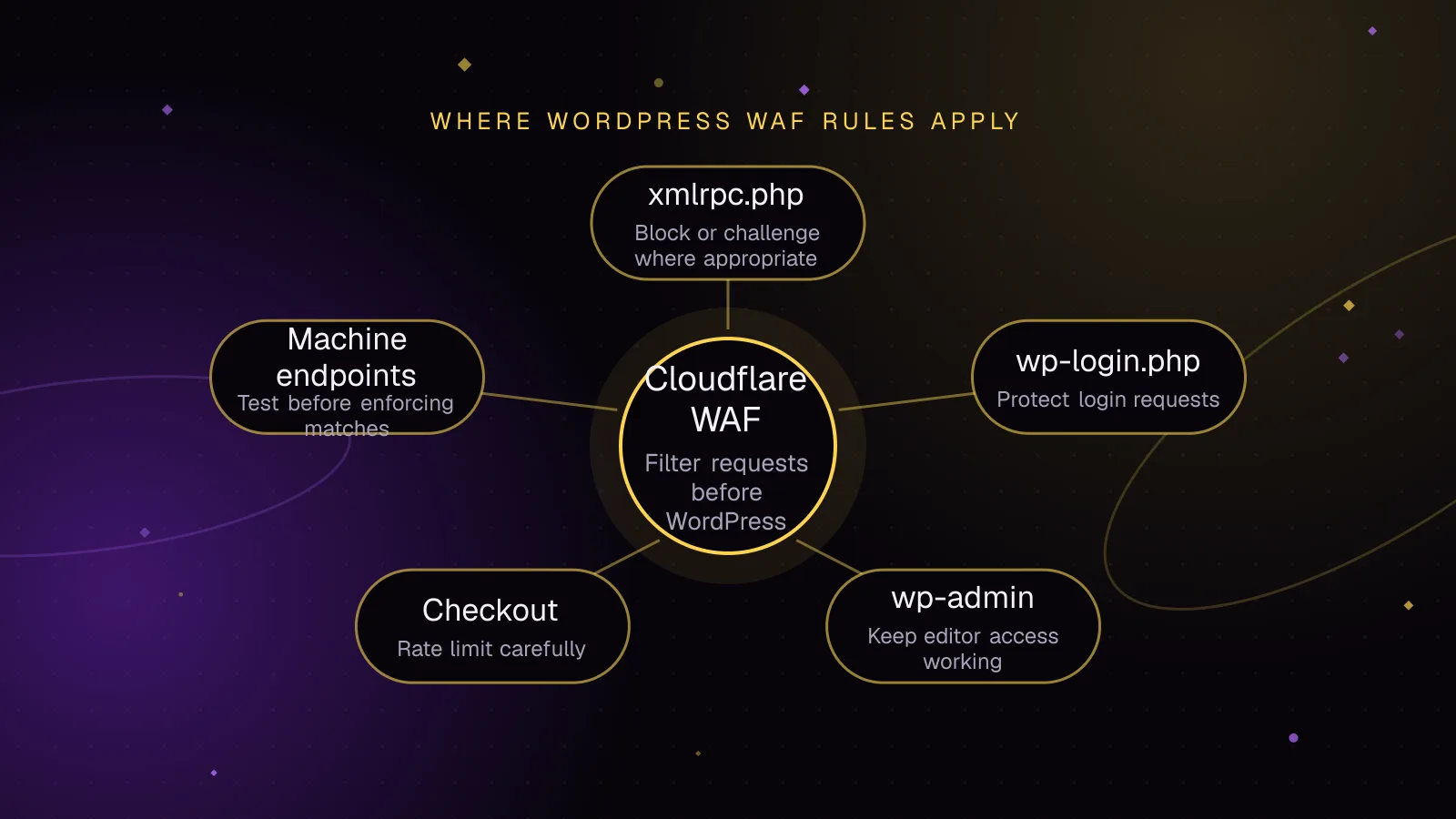
Cloudflare WAF rules for WordPress that block attacks, not customers
Use Cloudflare WAF rules WordPress sites can test safely, protect login and checkout paths, and avoid breaking webhooks, REST API traffic, or cron.
- WordPress
- Security
- Cloudflare
 Security
4 min read
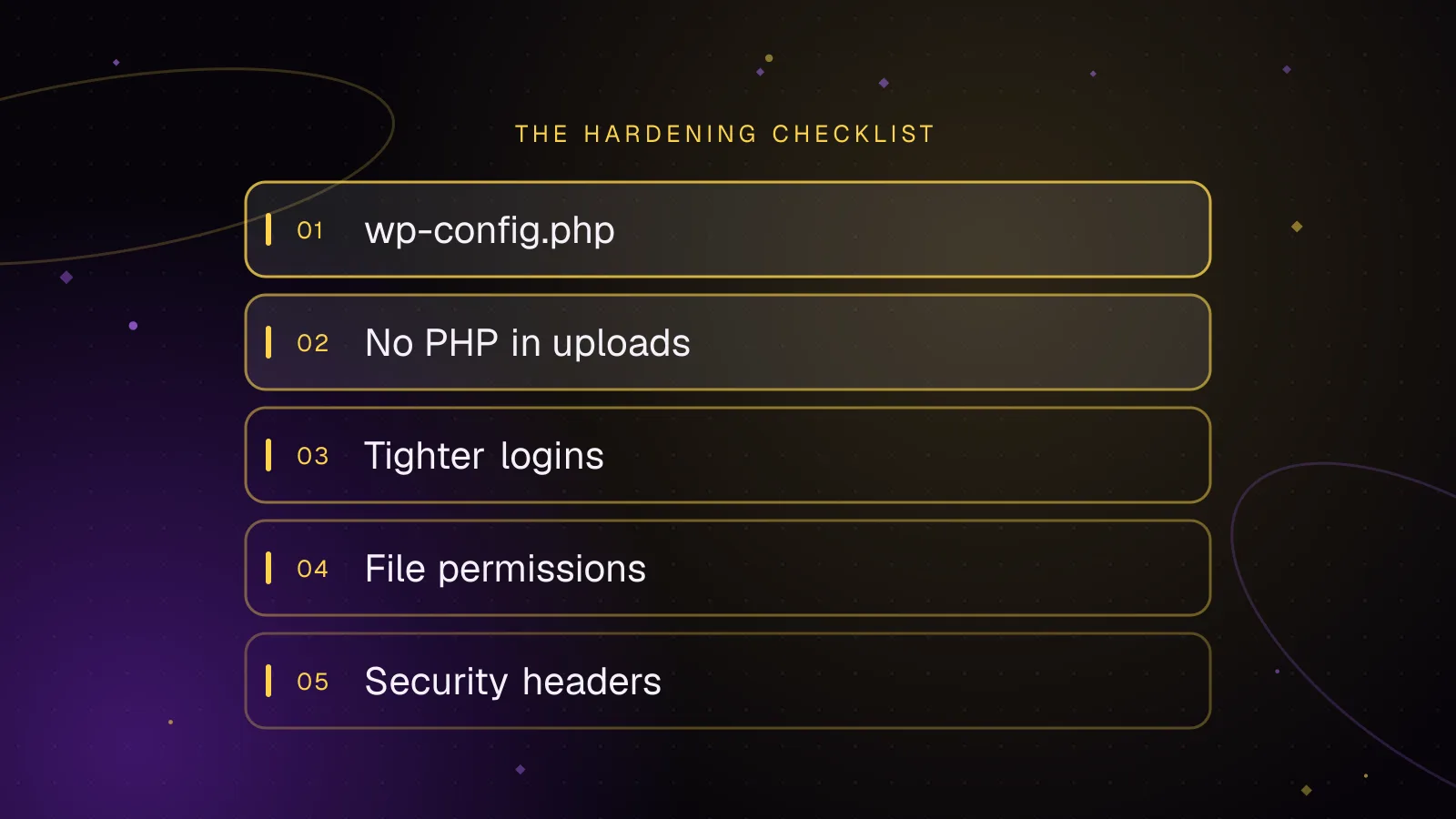
WordPress security hardening: a practical checklist for 2026
A practical WordPress security hardening checklist: updates, logins, wp-config settings, upload rules, headers and what to do after a hack.
- WordPress
- Security
- Hardening
 Security
7 min read
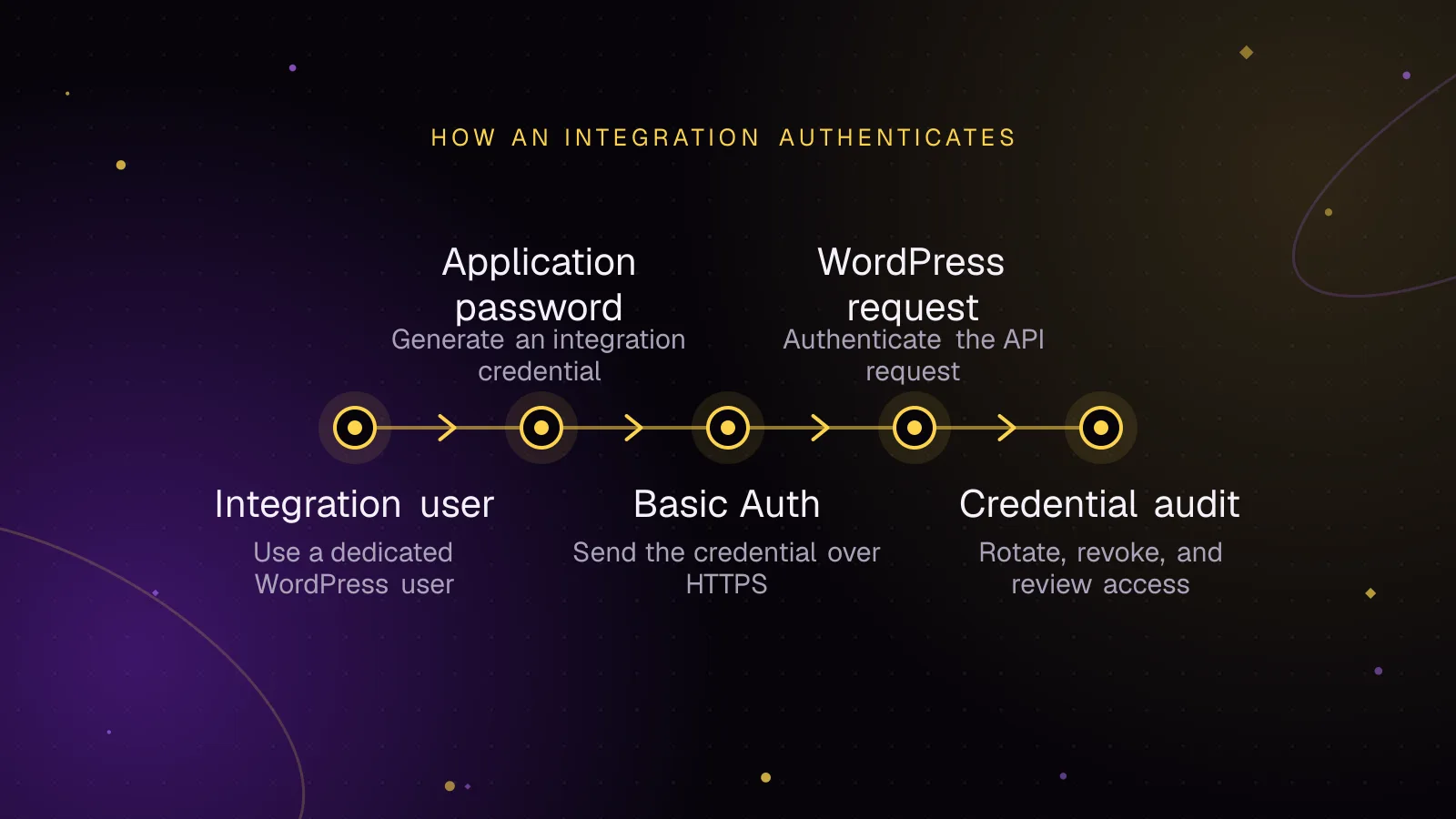
Application passwords for safer WordPress integrations
Use WordPress application passwords for REST API integrations with least-privilege users, HTTPS, rotation, revocation, and practical audit checks.
- WordPress
- Security
- REST API