Security7 min read
Application passwords for safer WordPress integrations
Use WordPress application passwords for REST API integrations with least-privilege users, HTTPS, rotation, revocation, and practical audit checks.
 By Hamza Ahmad AslamWordPress VIP, Performance & Full-Stack Engineer
On this page
- How WordPress application passwords authenticate requests
- Create a dedicated integration user before generating a password
- Send the credential with Basic Auth over HTTPS
- Why application passwords are not working
- Restrict or disable application passwords when a site does not need them
- Rotate, revoke, and audit credentials without losing track
- What to do next
- Frequently asked questions
Short answer: WordPress application passwords let an external system authenticate without storing a user's main login password. Use a dedicated low-privilege user, send the credential only over HTTPS, and give each integration its own password so you can revoke it without affecting the others.
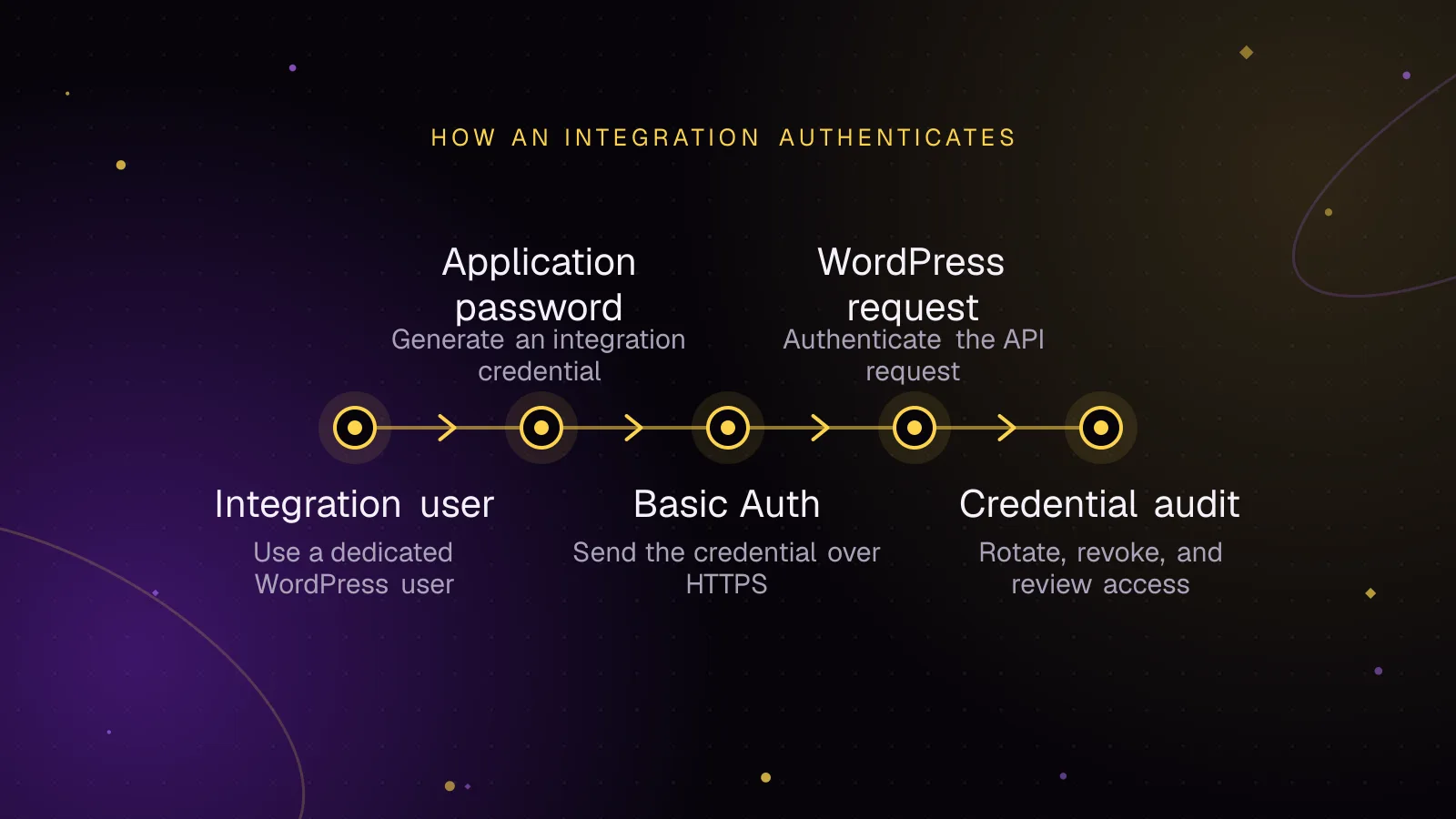
How WordPress application passwords authenticate requests
Application Passwords have been part of WordPress core since WordPress 5.6. They are per-user credentials for programmatic access, meaning access by software rather than a person signing in. They are not a second password for wp-login.php. WordPress stores them hashed and shows the generated password only when you create it. The current Application Passwords handbook (opens in a new tab) covers the core behavior and management screens.
For the REST API, the HTTP interface WordPress exposes to other software, the client sends the WordPress username and application password with HTTP Basic Authentication. Basic Auth puts a Base64-encoded username:password value in the Authorization header. Base64 is encoding, not encryption, so HTTPS must protect the connection. The REST API authentication handbook (opens in a new tab) documents this method.
Core also accepts application passwords for XML-RPC requests where XML-RPC is enabled. XML-RPC is WordPress's older remote publishing API. The application password takes the place of the user's normal account password in that API request.
In both cases, WordPress authenticates as the linked user. The user's roles, capabilities, and each endpoint's permission checks still decide what the request can do.
That detail matters for risk. A credential attached to an Administrator account has that account's authority when an endpoint permits it. A credential attached to a narrower integration account has less authority to misuse.
Create a dedicated integration user before generating a password
Create a separate WordPress user for the external system. Do not reuse a personal Administrator account just because it already exists. Give the integration the lowest role that satisfies the endpoints it must call, then test the required read and write operations with that user.
A clean setup looks like this:
- Create a user whose name identifies the integration, such as
reporting_sync. - Assign only the role needed for its API work.
- Sign in as that user, or edit it as an administrator.
- Open the Application Passwords section in the user profile.
- Give the credential a specific name, such as
Reporting sync production. - Generate it and move the value into the integration's secret storage immediately.
Use one application password per integration instance. That keeps revocation specific. It also makes the stored name, last-used value, and last IP useful when you review access later.
If you manage the site through SSH, current WP-CLI includes application-password commands. The official command reference (opens in a new tab) documents create, list, get, update, delete, and related subcommands.
This creates a credential for the illustrative user ID 123 and prints only the new password:
wp user application-password create 123 "Reporting sync production" --porcelain
This lists the records and the fields most useful for a review:
wp user application-password list 123 --fields=uuid,name,created,last_used,last_ip
The generated secret appears only at creation time. Store it in the external system's secret manager or protected runtime configuration. Do not commit it to a plugin, theme, deployment repository, ticket, or shared document.
Send the credential with Basic Auth over HTTPS
A direct REST API test is useful before you add more code. Replace the hostname, username, and password with values for the integration account.
curl --user 'integration_bot:APPLICATION_PASSWORD' \
  https://example.com/wp-json/wp/v2/users/me
A successful request returns data for the authenticated user. Example output, shortened and illustrative:
{
  "id": 123,
  "name": "Reporting integration",
  "slug": "integration_bot"
}
For WordPress-side PHP, you can send the same Authorization header with the HTTP API. In this example, assume $application_password was loaded from protected runtime secret storage before this code runs.
<?php

$username = 'integration_bot';

$credentials = base64_encode(
	$username . ':' . $application_password
);

$response = wp_remote_get(
	'https://example.com/wp-json/wp/v2/users/me',
	array(
		'headers' => array(
			'Authorization' => 'Basic ' . $credentials,
		),
	)
);

if ( is_wp_error( $response ) ) {
	return $response;
}

$body = wp_remote_retrieve_body( $response );
Keep the target URL on HTTPS. Do not disable certificate verification to make a failing integration pass. Fix the certificate, hostname, proxy, or trust-chain problem instead.
For a custom REST endpoint, authentication only establishes the user. The endpoint must still enforce its own permission rules. Keep that check tied to a capability that the integration user needs, rather than treating possession of an application password as permission by itself.
Why application passwords are not working
Start with transport and availability. By default, core makes Application Passwords available on sites using SSL and in local environments. The wp_is_application_passwords_available() reference (opens in a new tab) shows that the global availability check can also be changed by a filter.
If the Application Passwords section is missing, or API authentication fails, check these points in order:
- Confirm the request reaches WordPress as HTTPS. A proxy or hosting layer that terminates TLS still needs to leave WordPress able to detect the secure request.
- Confirm the client sends the application password, not the user's normal login password.
- Confirm the
Authorizationheader reaches PHP. Some CGI and proxy setups strip it. - Check must-use plugins, security plugins, and custom code for filters that disable the feature globally or for that user.
- Confirm the integration user has permission for the endpoint. Successful authentication does not grant a capability the user lacks.
- For XML-RPC integrations, confirm XML-RPC itself is available on the site.
The WordPress REST API FAQ documents an Apache fix for CGI environments where the Authorization header is stripped. Add this only in the Apache configuration or .htaccess context your host supports:
<IfModule mod_setenvif>
	SetEnvIf Authorization "(.*)" HTTP_AUTHORIZATION=$1
</IfModule>
See the official REST API authentication troubleshooting entry (opens in a new tab) for that rule. After changing server configuration, repeat the smallest authenticated request first. That separates header transport problems from endpoint permission problems.
Security plugins can also block Application Passwords by design. Review the plugin's settings and its code or documentation before overriding that behavior. A site may have intentionally disabled the feature.
Restrict or disable application passwords when a site does not need them
If the site has no external system that needs this authentication method, you can disable application passwords with a core filter. Put policy code in a small site plugin or must-use plugin so the setting does not depend on the active theme.
For a policy that must survive theme changes and normal plugin deactivation, put the availability filters in a must-use plugin and load it correctly.
This disables the feature site-wide:
<?php

add_filter( 'wp_is_application_passwords_available', '__return_false' );
Core checks this availability during authentication, so this affects existing application-password requests as well as the management UI.
If the feature should remain available for one dedicated integration account, use the per-user filter instead of the global disable. The user ID below is illustrative:
<?php

add_filter(
	'wp_is_application_passwords_available_for_user',
	function ( $available, $user ) {
		return $available && 123 === (int) $user->ID;
	},
	10,
	2
);
Do not combine that example with the global __return_false filter. The global filter would make the feature unavailable before the per-user check can allow the selected account.
This control is useful when only a small set of service accounts should use API credentials. It also reduces the chance that a high-privilege user creates an unnecessary application password after a phishing prompt.
Rotate, revoke, and audit credentials without losing track
Treat each application password as an independent secret with an owner and purpose. Its name should tell you which system uses it and, when useful, which environment uses it.
For a planned rotation, create a replacement first. Update the external system, verify an authenticated request, then revoke the old credential. That order avoids mixing credential replacement with an unrelated API failure.
You can revoke a password from the user's profile. With WP-CLI, delete it by UUID:
wp user application-password delete 123 <uuid>
Audit the list for names you no longer recognize, old integrations, unexpected last IP values, and credentials that no longer show expected use. WordPress stores created, last_used, and last_ip metadata for application-password records. Treat those fields as review signals, not a full request log.
If you need request-level records, keep them in the integration, web server, edge, or application logging layer with appropriate secret redaction. Do not log the Authorization header. A copied header contains reusable credentials.
Rotate after suspected exposure, staff or vendor access changes, or a change to the system that stores the secret. Planned rotation can follow the same secret-management policy you use for other machine credentials.
What to do next
Once the integration works, use the WordPress security hardening checklist for the wider controls this guide does not repeat. Add the article on WordPress plugin vulnerability monitoring to your maintenance process, since plugin changes can affect authentication policy and API behavior.
If the integration needs custom endpoints, custom capabilities, or tighter server-side rules than a standard role provides, the custom WordPress plugin development service covers that implementation work.
Frequently asked questions
Are WordPress application passwords secure?
They are revocable API credentials that WordPress stores hashed and intends for HTTPS connections. Their risk still depends on the privileges of the linked user and how the secret is stored, so a dedicated low-privilege account and one credential per integration reduce the impact of a leak.
Why is the Application Passwords section missing from my user profile?
WordPress makes the feature available by default on SSL sites and local environments. A security plugin, must-use plugin, or custom filter can also disable it globally or for a specific user, so check HTTPS detection and the two availability filters.
Can I use an application password to sign in to wp-admin?
No. Core Application Passwords are for programmatic API authentication and cannot be used as the password on wp-login.php.
Can I limit one application password to a single REST API endpoint?
Core authenticates the application password as its linked WordPress user, while endpoint permission checks decide what that user may do. Use a dedicated account with the narrowest suitable role, and add custom permission rules when an integration needs access narrower than that role provides.
Share this article
Enjoyed this? Get the next article by email.
Keep reading
 Security
7 min read
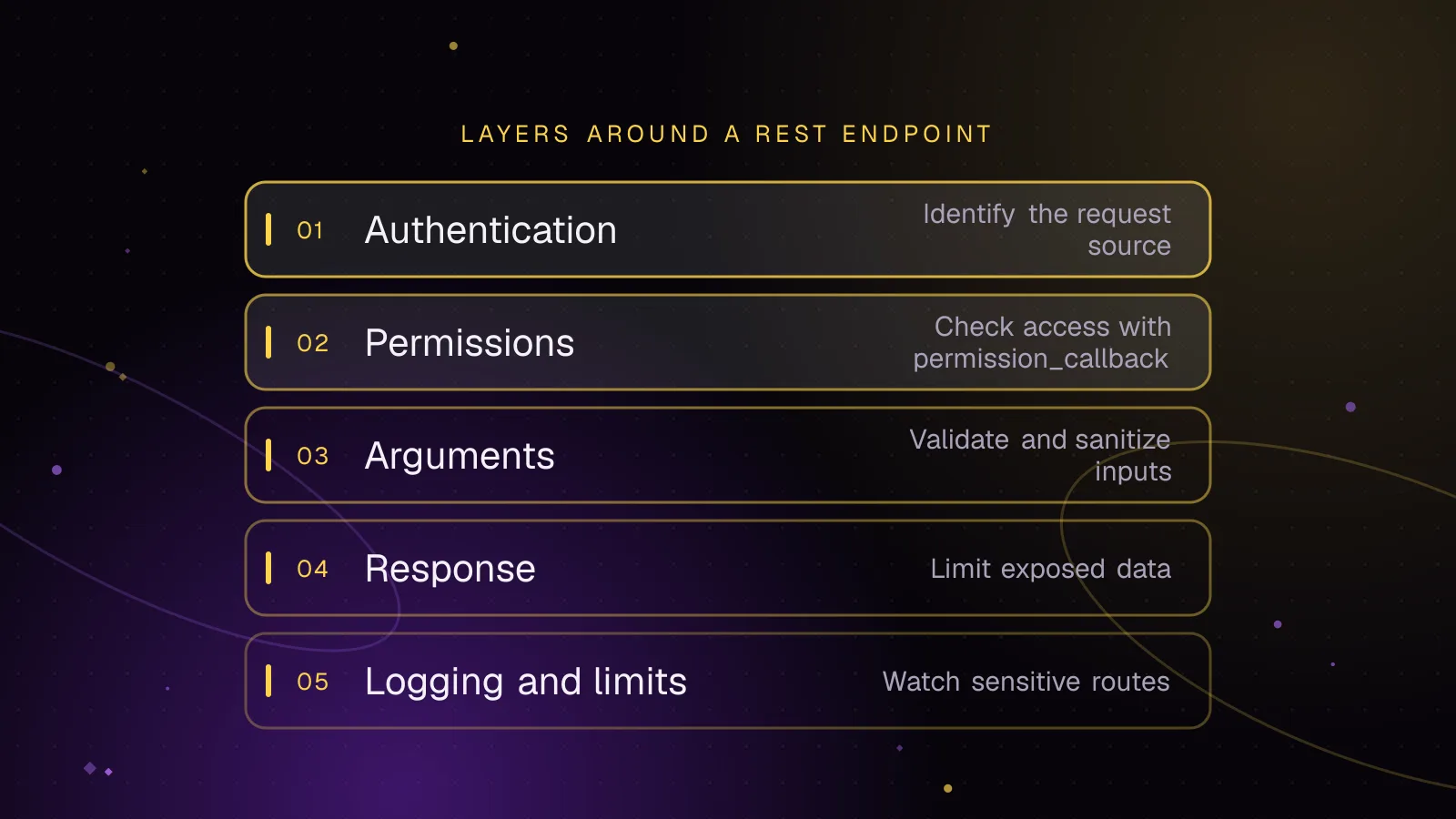
Secure WordPress REST API endpoints: permission callbacks that hold up
Review a WordPress REST API permission_callback, capability checks, nonces, argument schemas, output, logging, and rate limits for custom endpoints.
- WordPress
- Security
- REST API
 Monitoring
5 min read
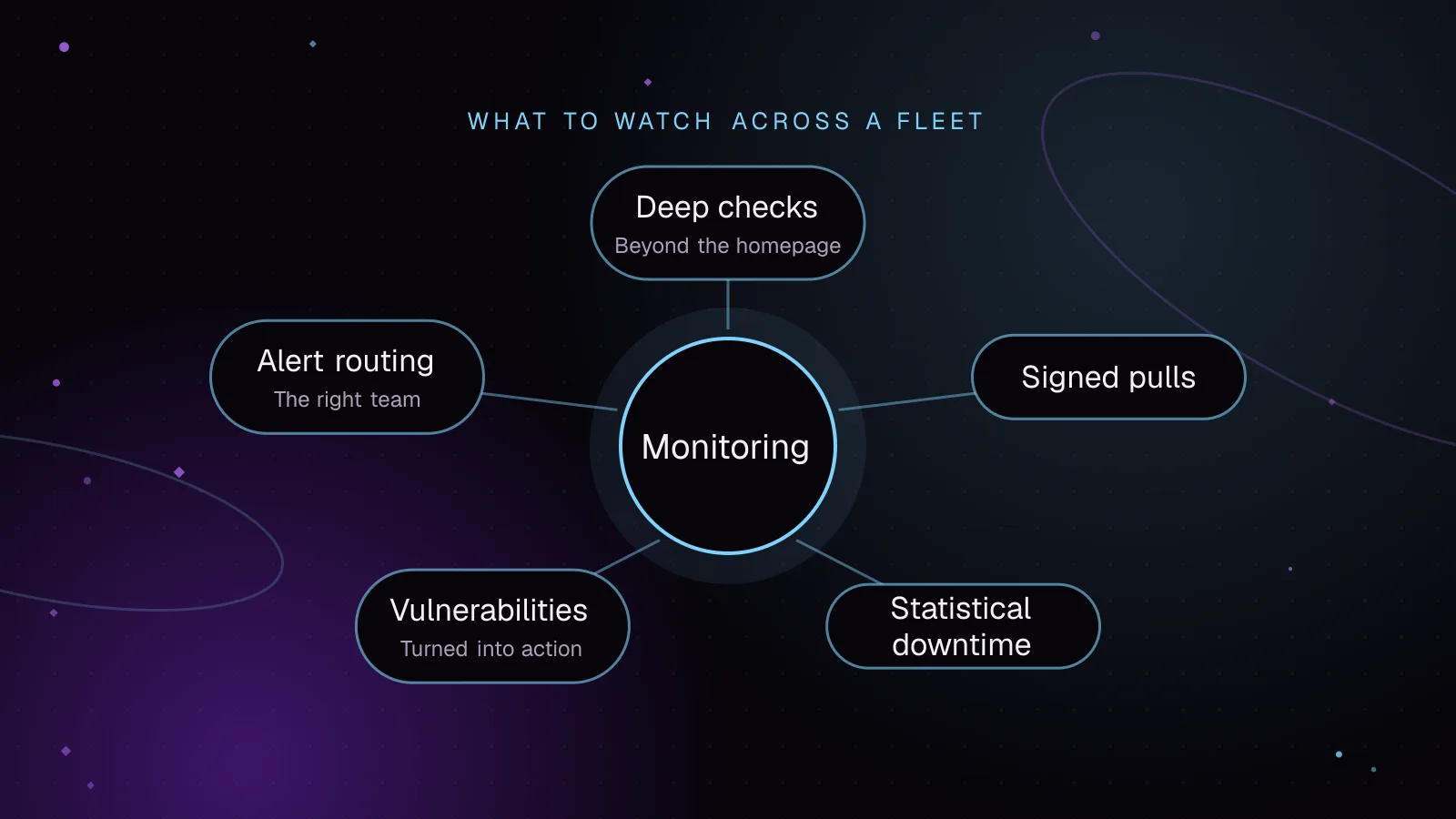
How to monitor WordPress sites without alert fatigue
Monitor WordPress sites with signed agent requests, vulnerability checks and alerts grouped by severity. Lessons from building Fleet Sentinel.
- WordPress
- Monitoring
- Security
 Security
4 min read
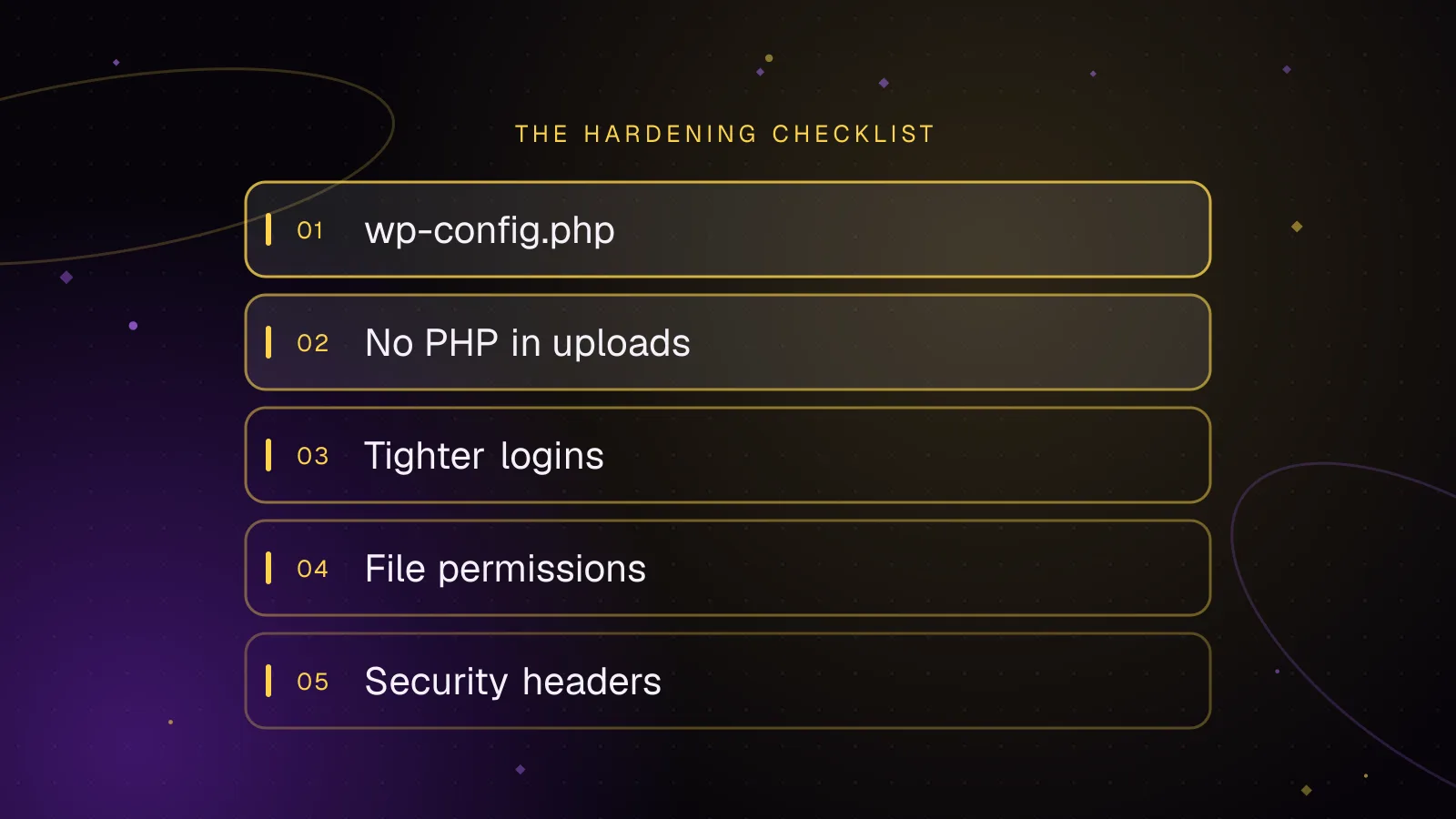
WordPress security hardening: a practical checklist for 2026
A practical WordPress security hardening checklist: updates, logins, wp-config settings, upload rules, headers and what to do after a hack.
- WordPress
- Security
- Hardening