Enterprise7 min read
Must-use plugins in WordPress: what belongs there and how to load them
Use WordPress MU plugins safely: choose platform code, control load order, load subdirectories, verify status, and avoid activation and update traps.
 By Hamza Ahmad AslamWordPress VIP, Performance & Full-Stack Engineer
On this page
- How WordPress MU plugins load
- What belongs in the must-use layer
- What should stay a normal plugin
- How to load plugins from subdirectories in a set order
- How to verify what WordPress sees as must-use
- What you lose by skipping normal activation
- How WordPress VIP uses client-mu-plugins
- What to do next
- Frequently asked questions
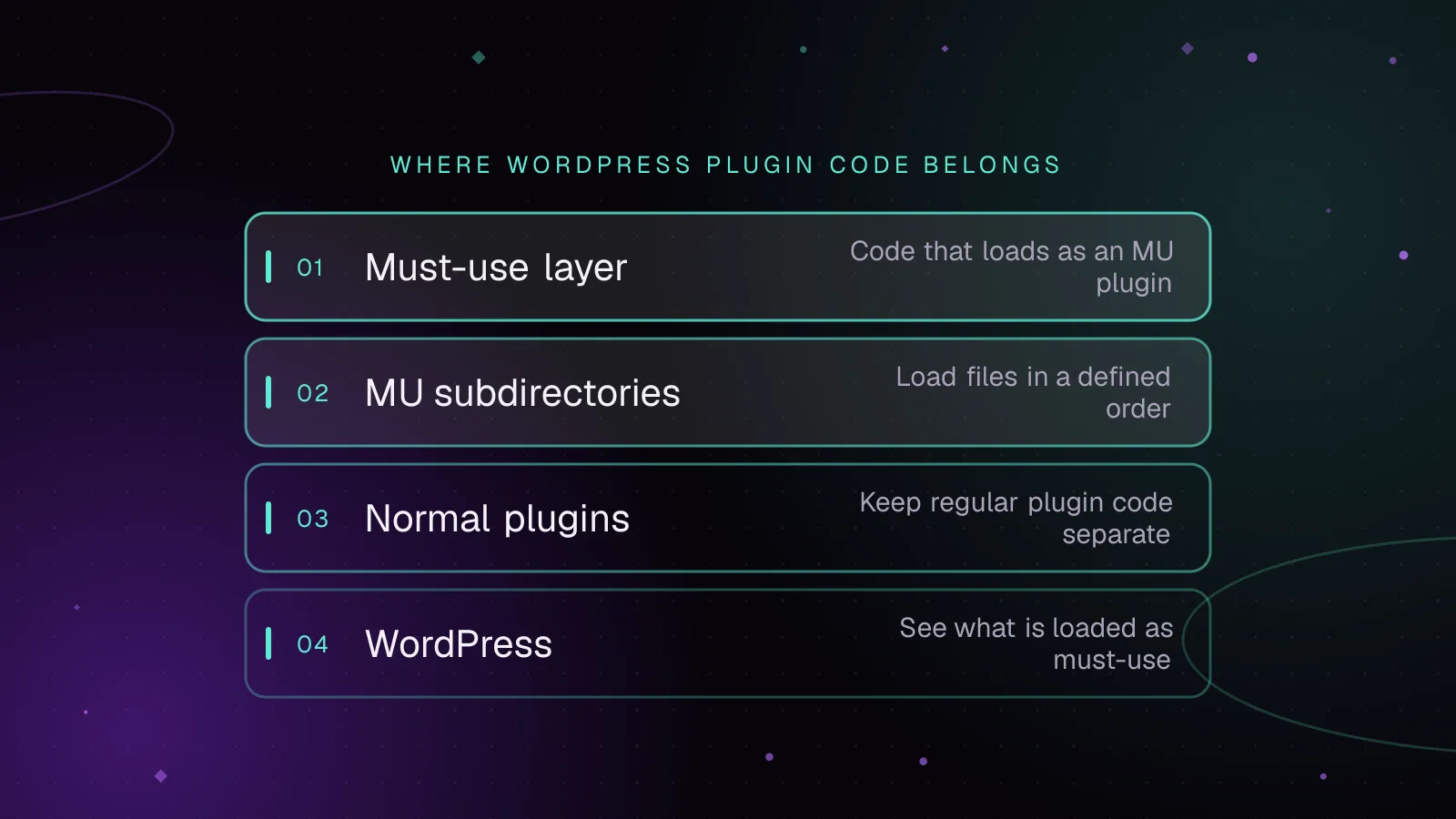
Short answer: WordPress MU plugins are PHP plugins that WordPress loads automatically from a special directory before normal plugins. Use them for code that is part of the platform and must stay enabled, then keep optional features and third-party packages in the normal plugins directory.
How WordPress MU plugins load
The default mu-plugins folder is wp-content/mu-plugins. WordPress automatically includes PHP files placed directly in that directory. They do not need activation through wp-admin.
The WordPress must-use plugins documentation (opens in a new tab) describes two important differences from normal plugins. Must-use plugins are always enabled, and an administrator cannot deactivate them from the Plugins screen. They appear separately under Must-Use plugins.
Core collects PHP files directly inside the directory, sorts their paths alphabetically, and includes them in that order. Normal active plugins load later.
That makes filename ordering significant when you have several top-level files:
wp-content/
└── mu-plugins/
    ├── a-platform.php
    ├── b-security.php
    └── c-integrations.php
a-platform.php loads before b-security.php, which loads before c-integrations.php.
The must-use plugins load order also matters in Multisite. WordPress loads must-use plugins, then network-activated plugins. The muplugins_loaded action fires after those groups have loaded and before normal active plugins.
Do not read "must-use" as "the earliest PHP that can run." WordPress performs earlier bootstrap work before reaching plugins. The useful guarantee is narrower: MU plugins load before ordinary active plugins.
One naming trap is wpmu_plugins. The directory you work with is mu-plugins, while current Core defines WPMU_PLUGIN_DIR and WPMU_PLUGIN_URL for its path and URL. The WPMU part of those names comes from the feature's Multisite history.
What belongs in the must-use layer
A good boundary for WordPress MU plugins is platform ownership. Put code there when the site depends on it being present on every request and disabling it from wp-admin would violate how the platform is meant to run.
Suitable examples include:
- Enforce platform rules that every application environment needs.
- Register site-wide integration bootstrap code that must stay active.
- Apply security-related platform configuration that should not depend on an administrator remembering to activate a plugin.
- Load environment-specific platform components from a controlled entry point.
- Provide shared code required by several sites using the same deployment structure.
Keep each responsibility narrow. An MU plugin should still be testable and replaceable through deployment. "Cannot be disabled in wp-admin" should not become "cannot be changed safely."
Environment handling needs one distinction. Values WordPress needs during early bootstrap should come from server configuration or wp-config.php. For example, WP_ENVIRONMENT_TYPE can identify local, development, staging, or production.
Your MU code can then read that value with wp_get_environment_type() (opens in a new tab). If no valid environment type is supplied, WordPress returns production.
Here is a small environment-aware must-use component:
<?php
/**
 * Plugin Name: Platform integration gate
 */

if ( 'production' !== wp_get_environment_type() ) {
	return;
}

require_once WPMU_PLUGIN_DIR . '/platform-integrations/production.php';
This file does not decide what environment the server is running. It consumes the environment setting and prevents a production-only integration from loading elsewhere.
That distinction keeps deployment configuration outside application logic while giving the platform code one predictable place to enforce the result.
What should stay a normal plugin
Do not put something in MU just because you dislike seeing a Deactivate link.
Features that site administrators are expected to control belong in the normal plugins directory. The same applies to features that vary by site on a shared codebase.
A useful mu plugin vs plugin test is to ask who owns the decision.
Use a normal plugin when:
- An administrator may legitimately switch the feature off.
- Different sites should activate different combinations.
- The package expects WordPress activation or deactivation behavior.
- WordPress or the vendor should manage its normal update workflow.
- The package is a third-party plugin that was built and tested for ordinary plugin activation.
Third-party plugins are especially poor candidates for moving directly into mu-plugins. A plugin may create tables, initialize options, flush rewrite rules, or perform other setup during activation. Copying its directory into the MU location can bypass those assumptions.
Keep vendor packages in the normal plugins directory unless their documentation specifically supports another arrangement. If the platform must control their activation, solve that at the deployment or platform level rather than changing how the package is loaded without checking its lifecycle.
For packages that stay there, verify third-party plugin releases and their supply chain before rollout so a trusted update channel does not become an unchecked deployment path.
How to load plugins from subdirectories in a set order
WordPress automatically scans PHP files only at the top level of wp-content/mu-plugins. It does not recursively discover plugin entry files inside nested directories.
This layout therefore needs a loader:
wp-content/
└── mu-plugins/
    ├── a-loader.php
    ├── platform-core/
    │   └── platform-core.php
    ├── platform-security/
    │   └── platform-security.php
    └── platform-integrations/
        └── platform-integrations.php
Create a-loader.php in the root:
<?php
/**
 * Plugin Name: Platform MU loader
 */

require_once WPMU_PLUGIN_DIR . '/platform-core/platform-core.php';
require_once WPMU_PLUGIN_DIR . '/platform-security/platform-security.php';
require_once WPMU_PLUGIN_DIR . '/platform-integrations/platform-integrations.php';
The loader itself is discovered automatically because it sits directly in mu-plugins.
The three required files then execute in the order written. That gives you an explicit dependency order instead of relying on the names of several top-level plugin files.
This mu-plugins subdirectory loader pattern also keeps each component in its own directory. That makes tests, autoloaders, classes, and supporting files easier to keep with the component that owns them.
There is one detail that catches teams during audits. WordPress sees the root loader as the automatically discovered MU plugin. It does not independently discover each nested entry file.
That distinction can also affect inventory tools. Treat the loader and its required files as one deployment unit unless your own tooling inventories the nested components separately.
How to verify what WordPress sees as must-use
WP-CLI supports must-use as a status filter for wp plugin list. The current wp plugin list command documentation (opens in a new tab) lists it as a valid value.
Run:
wp plugin list --status=must-use
Example output below is illustrative. The names and values are not measurements from a production site.
+----------+----------+--------+---------+----------------+-------------+
| name     | status   | update | version | update_version | auto_update |
+----------+----------+--------+---------+----------------+-------------+
| a-loader | must-use | none   |         |                | off         |
+----------+----------+--------+---------+----------------+-------------+
With the subdirectory pattern above, seeing only the loader is expected. WordPress discovered a-loader.php; that file then required the nested PHP files itself.
Also check the Must-Use section of the Plugins screen when validating a deployment. It gives you another view of the root files WordPress recognizes as MU plugins.
What you lose by skipping normal activation
Must-use plugins have no normal activate and deactivate cycle. Simply placing a root PHP file in the MU directory makes WordPress load it.
That means code registered through activation and deactivation hooks does not get the lifecycle it would receive as a normal plugin. The WordPress activation and deactivation hooks documentation (opens in a new tab) explains the jobs those hooks normally perform, including initial setup and temporary cleanup.
This matters when moving an existing plugin.
Suppose a normal plugin creates required data only during activation. Moving its files into mu-plugins does not reproduce that activation event. The plugin may load with its expected setup missing.
For custom platform code, design initialization to match the MU lifecycle. Database migrations or other one-time changes need their own versioned deployment logic rather than an activation hook that will never run.
MU plugins also do not receive the normal plugin update notices shown for ordinary plugins. WordPress documents this as a caveat of the MU system.
That means your deployment process owns updates. Keep the code in version control, review dependency changes there, and deploy it through the same controlled path as the rest of the application.
This is another reason not to move third-party packages into MU casually. You would be changing both their lifecycle and how their available updates reach the team.
How WordPress VIP uses client-mu-plugins
WordPress VIP exposes the same pattern through /client-mu-plugins in the application repository. VIP's client-mu-plugins documentation (opens in a new tab) describes it as working similarly to the normal wp-content/mu-plugins directory.
A custom plugin consisting of one PHP file can live directly in /client-mu-plugins and load automatically. A custom plugin in its own subdirectory needs to be loaded programmatically through plugin-loader.php.
VIP also draws the same boundary around third-party code. Its documentation directs third-party plugins to /plugins, while /client-mu-plugins is intended for custom code that must auto-load or needs the earlier MU position.
That separation is useful beyond VIP. It gives a repository a visible platform layer instead of turning every required dependency into an ordinary plugin that someone can switch off from wp-admin.
What to do next
Start by inventorying the current MU directory and writing down why every entry must stay enabled. If the directory has accumulated unrelated application features, use the high-traffic WordPress architecture guide to separate platform responsibilities from the rest of the application.
For a VIP repository, align that boundary with the deployment and review model described in the WordPress VIP development guide. If the codebase needs a larger platform cleanup, deployment design, or VIP migration plan, the WordPress VIP development service covers that engineering work.
Frequently asked questions
Can I put a normal WordPress plugin inside the mu-plugins folder?
You can place PHP there, but that does not mean the plugin will behave correctly as an MU plugin. WordPress will skip the normal activation and deactivation lifecycle, and nested plugin directories need an explicit loader. Third-party plugins should normally remain in the standard plugins directory.
Why is my plugin inside a mu-plugins subdirectory not loading?
WordPress scans PHP files directly inside the MU directory and does not recursively load plugin entry files from subdirectories. Add a PHP loader in the root of mu-plugins and require the nested plugin's main file from that loader.
Can a WordPress administrator deactivate a must-use plugin?
WordPress does not provide a Deactivate action for must-use plugins. To stop one from loading, change the deployed files or remove its inclusion from the MU loader, depending on how the codebase is structured.
Do must-use plugins update automatically?
Must-use plugins do not participate in the normal plugin update-notice workflow. Treat their versions and updates as application code, with changes reviewed, tested, and deployed through your repository and release process.
Share this article
Enjoyed this? Get the next article by email.
Keep reading
 Enterprise
7 min read
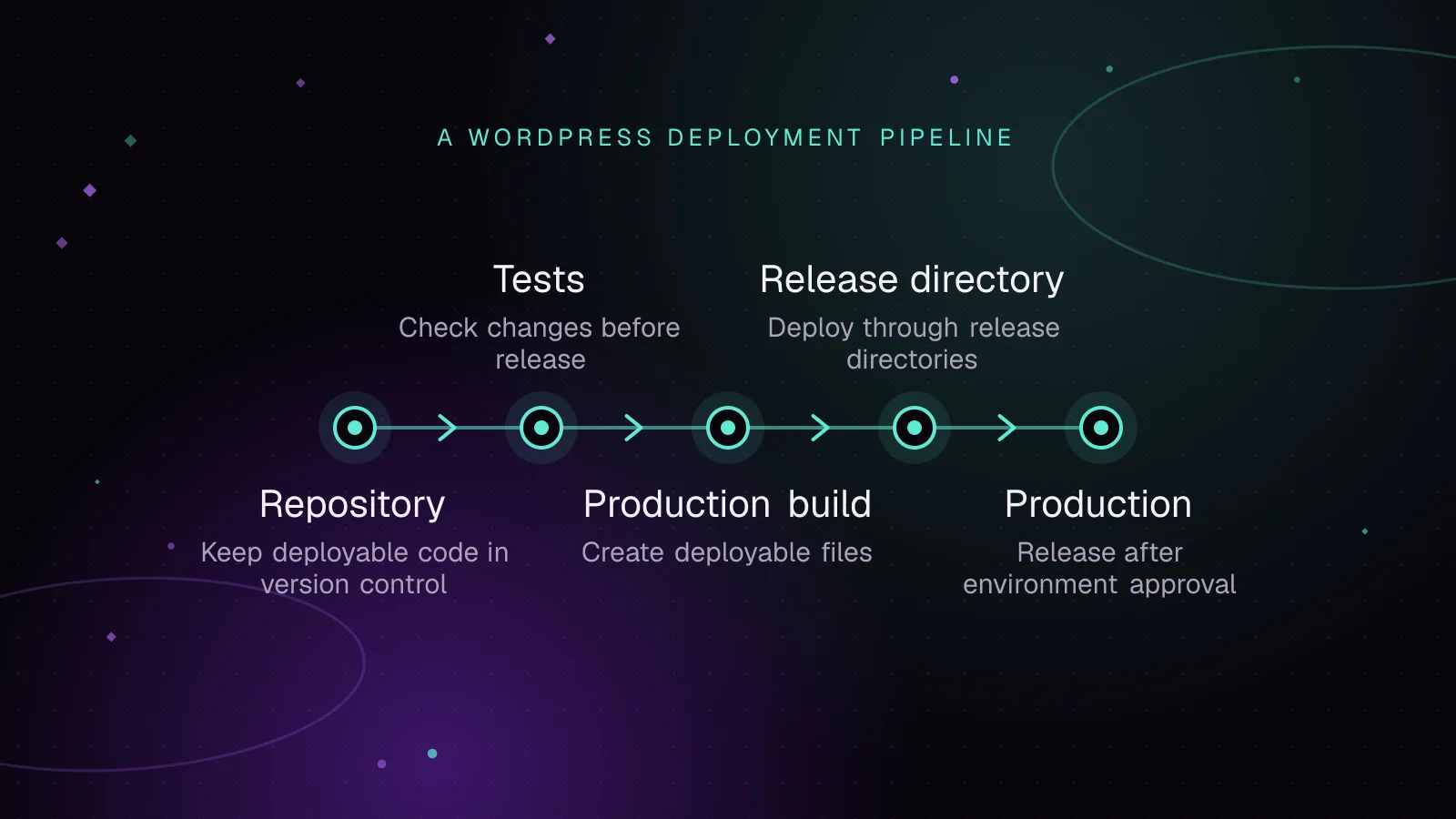
WordPress CI/CD with GitHub Actions: tests, builds and safe deploys
Build a WordPress CI CD GitHub Actions pipeline that tests code, builds assets and Composer dependencies, deploys atomically, and rolls back safely.
- WordPress
- Enterprise
- Automation
 Enterprise
7 min read
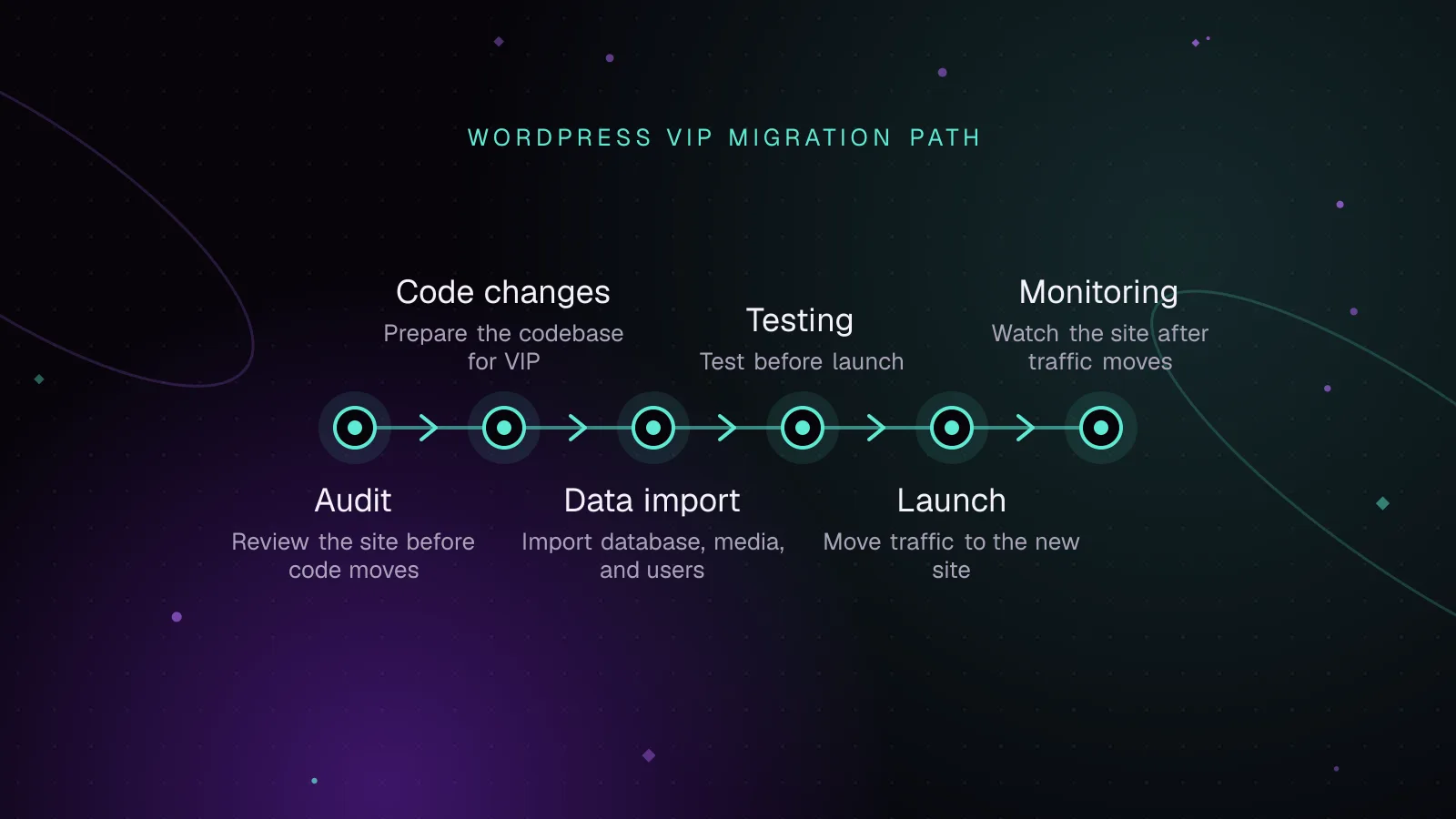
Migrating to WordPress VIP: a technical checklist
Plan a WordPress VIP migration from code audit to imports, testing, DNS launch, rollback, and monitoring with current VIP commands and checks.
- WordPress VIP
- Enterprise
- Migration
 Enterprise
7 min read
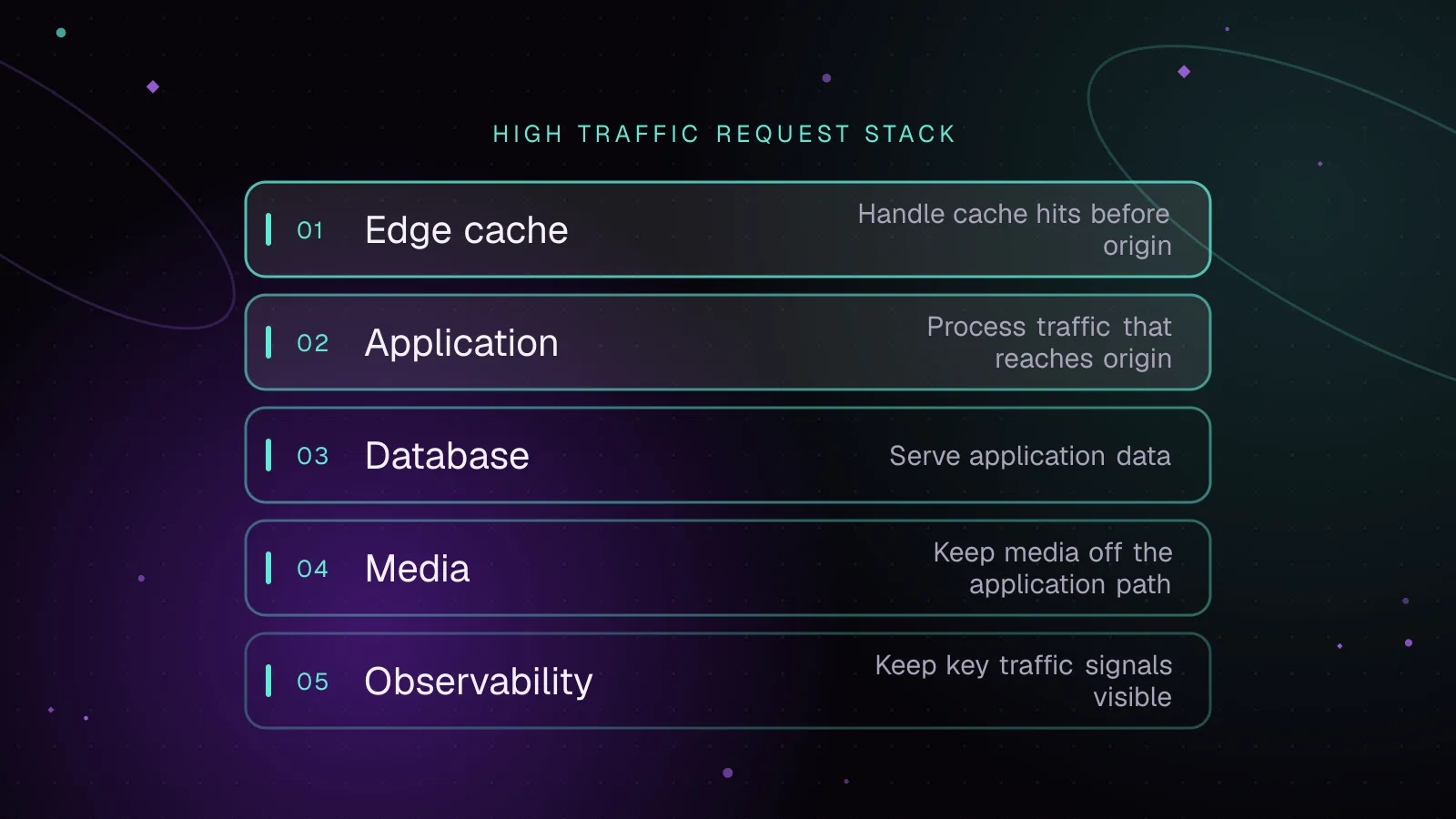
High-traffic WordPress architecture: the layers that carry the load
High traffic WordPress architecture explained: edge caching, PHP workers, object cache, database scaling, media offload, and load testing.
- WordPress
- Architecture
- Performance