Security7 min read
How to clean a hacked WordPress site and stop it happening again
Learn how to clean hacked WordPress site files, database injections, accounts, credentials, and search warnings, then reduce the chance of reinfection.
 By Hamza Ahmad AslamWordPress VIP, Performance & Full-Stack Engineer
On this page
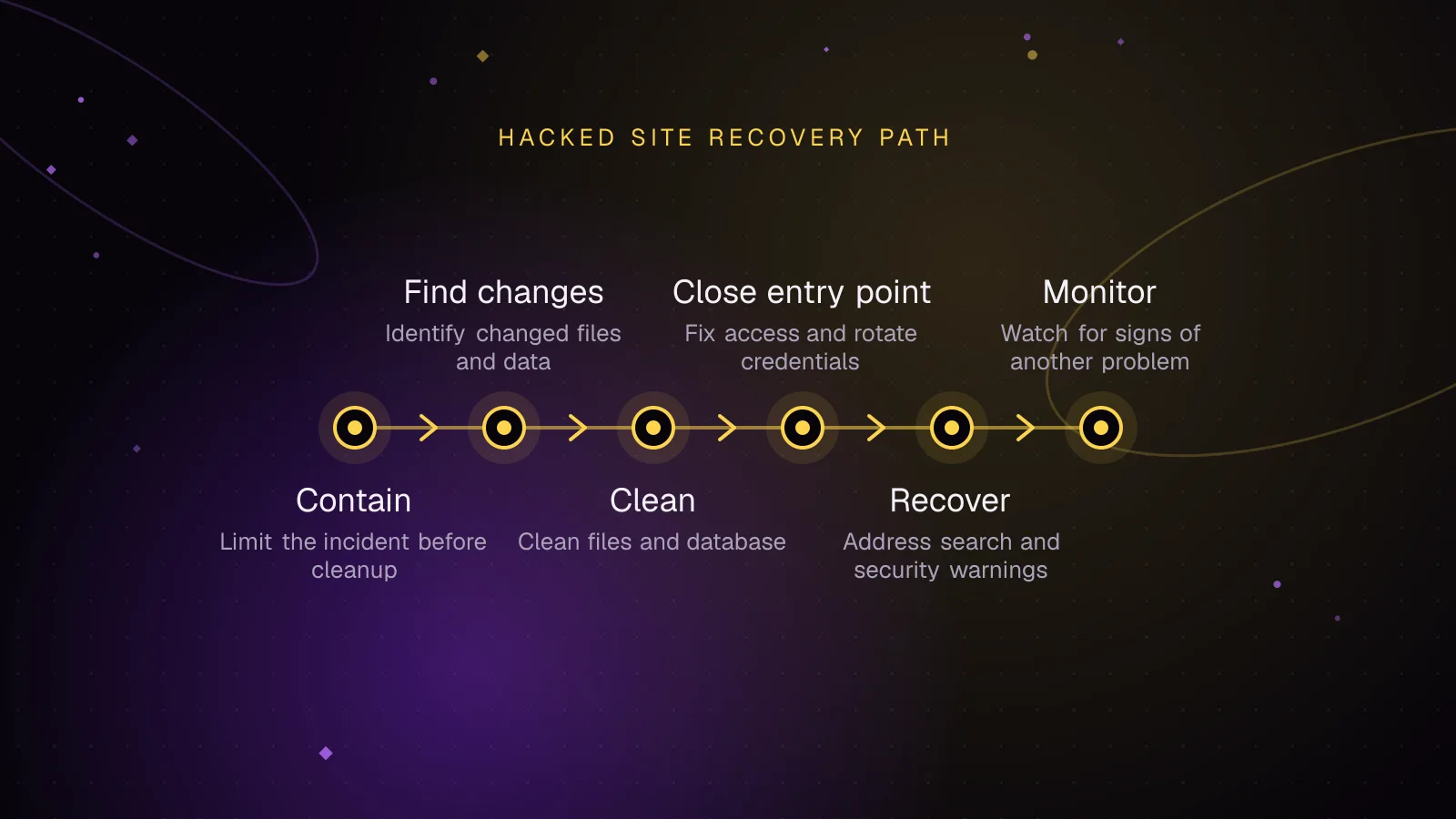
- How to contain a hacked WordPress site before cleanup
- How to find what changed before WordPress malware removal
- Verify WordPress core files
- Verify plugins that have WordPress.org checksums
- Review recently changed PHP and PHP inside uploads
- Check administrators, cron events, and must-use plugins
- Compare wp-config.php and .htaccess with known-good copies
- Search posts and options for injected scripts
- How to clean a hacked WordPress site's files and database
- How to close the entry point and rotate every credential
- How to recover search visibility and security warnings
- What to monitor for the next two weeks
- What to do next
- Frequently asked questions
Short answer: To clean hacked WordPress site files safely, contain the site first, preserve evidence, identify every changed layer, then replace compromised code from trusted sources. Finish by closing the entry point, rotating credentials and salts, restoring search visibility, and watching closely for reinfection.
How to contain a hacked WordPress site before cleanup
If you need to clean hacked WordPress site data without losing evidence, do not start by deleting files. First preserve a copy of the compromised state. You may need it to work out how the attacker entered, what changed, and whether the same weakness exists elsewhere.
Take a full copy of both files and database. A hosting snapshot is useful if it includes both. You can also export the database with WP-CLI before changing it:
wp db export compromised-site.sql
Store the evidence copy somewhere the compromised account cannot modify it. Do not use the copy as a production backup later.
If the site is serving malware, phishing, drive-by redirects, or other harmful content, take it offline or place it behind a maintenance response that attackers cannot bypass. Do not rely on a WordPress maintenance plugin if compromised PHP is still executing.
Notify the host. Ask whether they detected malicious processes, altered files, suspicious logins, outbound spam, or account-level compromise. A hacked site can involve more than WordPress, especially on shared hosting or an account that contains several sites.
Do the investigation from a known-clean workstation. If possible, inspect a quarantined copy rather than the live document root. Commands that load WordPress can also load compromised code, so isolation matters.
How to find what changed before WordPress malware removal
The aim is to build an inventory before you remove malware WordPress files or database rows. A checksum failure, recent file, or unfamiliar cron hook is evidence to inspect, not automatic proof of malware.
Verify WordPress core files
Run the official WP-CLI core checksum command (opens in a new tab):
wp core verify-checksums
The command compares core files with WordPress.org checksums for the installed version. Example output for a clean installation:
Success: WordPress installation verifies against checksums.
Example output for an illustrative modified file:
Warning: File doesn't verify against checksum: wp-includes/version.php
Error: WordPress installation doesn't verify against checksums.
A mismatch means the file differs from the expected package. Investigate it, then replace core from a trusted WordPress package rather than editing the suspicious file.
Verify plugins that have WordPress.org checksums
Run the documented plugin checksum verification command (opens in a new tab):
wp plugin verify-checksums --all
Example output for an illustrative clean set:
Success: Verified 8 of 8 plugins.
This check is most useful for plugins whose published packages have checksums available through WordPress.org. Custom, premium, or otherwise unavailable packages need comparison against a trusted vendor package or a known-good deployment artifact.
Review recently changed PHP and PHP inside uploads
On GNU/Linux, this lists PHP files with their modification timestamps, newest first:
find . -type f -name '*.php' -printf '%TY-%Tm-%Td %TH:%TM %p\n' | sort -r
Look closely at files changed around the suspected incident. Timestamps can be altered, so do not treat them as a complete audit trail.
Standard media uploads normally do not require arbitrary PHP files. List any PHP under the uploads directory and review each file before deleting it:
find wp-content/uploads -type f -name '*.php' -print
If the site uses a custom upload path, adjust the directory. A PHP file in uploads is suspicious, but filename and location alone do not prove compromise.
Check administrators, cron events, and must-use plugins
List administrator accounts with fields that help identify unfamiliar users:
wp user list --role=administrator --fields=ID,user_login,user_email,user_registered,roles
Confirm every administrator with the site owner. Do not assume an unfamiliar login is malicious until you identify its owner, especially on agency-managed sites.
Inspect scheduled events:
wp cron event list --fields=hook,next_run_gmt,recurrence
Unexpected hooks can reveal persistence or spam jobs. Compare unfamiliar hooks with active plugins and custom code before removing them.
Must-use plugins load automatically and are easy to overlook during hacked WordPress recovery. List them explicitly:
wp plugin list --status=must-use --fields=name,status,version
Review every file under wp-content/mu-plugins/, including loader files that include code from another directory.
Compare wp-config.php and .htaccess with known-good copies
If you have clean copies from before the incident, compare them directly:
diff -u /secure-backup/wp-config.php wp-config.php
diff -u /secure-backup/.htaccess .htaccess
Review new include or require statements, unexpected rewrites, unfamiliar bootstrap code, changed database settings, and code placed before or after the normal configuration. A legitimate deployment can also change these files, so compare against release history where available.
Search posts and options for injected scripts
First confirm the canonical site URLs:
wp option get siteurl
wp option get home
An unexpected domain or path can cause redirects even when files look clean.
Before changing database rows, take a fresh database export. Then use read-only queries to locate literal script tags. Replace wp_ if the installation uses another table prefix:
SELECT ID, post_type, post_status, post_title
FROM wp_posts
WHERE post_content LIKE '%<script%';

SELECT option_id, option_name
FROM wp_options
WHERE option_value LIKE '%<script%';
These queries produce candidates for review. Legitimate content and plugin settings can contain scripts. Also inspect suspicious iframes, encoded payloads, and unknown external domains found during the incident.
How to clean a hacked WordPress site's files and database
Prefer replacement over hand-editing infected application files. Hand edits often remove the visible payload while leaving another backdoor.
Rebuild WordPress core from an official WordPress package that matches the intended release, then update through your normal tested release process. Do not carry unknown core files into the rebuilt tree.
Reinstall plugins and themes from trusted sources. For WordPress.org packages, use a fresh package. For commercial or custom code, use the vendor download or your trusted source-control artifact. Do not copy a plugin directory from the compromised site into the clean build just because its main file looks normal.
Remove files that do not belong after you have identified them and preserved evidence. Check the web root, wp-admin, wp-includes, active theme directories, plugin directories, mu-plugins, uploads, and any writable cache or temporary directories.
Remove unknown administrator accounts only after confirming they are not legitimate. Reassign owned content where necessary instead of deleting content by accident.
Clean database injections row by row. Restore known-clean content where possible. Avoid broad SQL replacements across wp_options, because option values can contain serialized data. Use the application or a serialization-aware tool when editing serialized values.
After you clean hacked WordPress site code and data, run the core and plugin checksum checks again. A clean checksum result does not prove the whole site is clean, but a new mismatch after cleanup is a strong reason to keep investigating.
How to close the entry point and rotate every credential
Do not treat file cleanup as the end of the incident. If the vulnerable plugin, stolen password, exposed hosting account, or insecure deployment path remains, the site can be compromised again.
Identify the likely entry point from access logs, host alerts, vulnerable component history, file timestamps, and the first malicious change you can establish. Update the vulnerable component to a fixed release, replace it, or remove it. Do not keep an abandoned plugin because the visible malware is gone.
Revoke obviously compromised access during containment. After the code and database are clean, perform a full credential rotation from a known-clean device:
- Force password resets for WordPress users and change every privileged account password directly.
- Rotate database credentials and update the site configuration in the same maintenance window.
- Change hosting control panel, SSH and SFTP credentials.
- Revoke and replace API keys, application passwords, deployment tokens, and webhook secrets that the attacker may have read.
- Review recovery email addresses, multi-factor authentication settings, SSH authorized keys, and hosting account users.
Refresh WordPress salts with the documented WP-CLI salt command (opens in a new tab):
wp config shuffle-salts
Do this after preserving the evidence copy. Keep the new wp-config.php protected and do not copy secrets from the compromised snapshot back into production.
For ongoing prevention, pair patching with the article on monitoring plugin vulnerabilities. Vulnerability monitoring is useful only if there is also a clear owner and a process for removing software that is no longer maintained.
How to recover search visibility and security warnings
Open Google Search Console and check the Security issues report after the cleaned site is live. Google documents that, once the security problem is fixed, you can request a review from that report. The Google guidance for malware and unwanted software (opens in a new tab) explains the review path.
Check whether the site is still listed by any blocklist named in the browser warning, hosting alert, CDN notice, or security product that reported the compromise. Use the provider's own status or review process where available. Do not assume one cleared warning means every provider has updated.
Review indexed URLs for spam pages and unexpected titles. Remove malicious pages from the site itself first. Search cleanup cannot substitute for fixing the compromised origin.
What to monitor for the next two weeks
Watch the recovered site closely for two weeks. A return of the same file, account, cron hook, redirect, or injected content usually means the initial cleanup missed persistence or the entry point remains open.
Repeat file integrity checks and compare changes with expected deployments. Review the administrator list for new accounts. Monitor uptime, page content, redirects, and key templates from outside the hosting account so you can detect visible changes.
Keep server, authentication, and application logs long enough to compare any recurrence with the original incident. If suspicious changes reappear, isolate the site again and investigate from the evidence rather than repeatedly deleting the symptom.
What to do next
After the emergency work, apply the WordPress security hardening checklist to the recovered build. Review the WordPress security headers guide for browser-facing controls that belong at the web or CDN layer.
If the site needs ongoing patching, integrity review, and incident follow-up, use the WordPress maintenance and security service as the maintenance path. Keep the evidence copy separate until you are satisfied the reinfection window has passed.
Frequently asked questions
Can I clean a hacked WordPress site without a backup?
Yes, but you should preserve a copy of the compromised files and database before changing anything. That copy helps you identify what changed and prevents cleanup from destroying evidence you may need later.
Does reinstalling WordPress core remove all malware?
No. Replacing core can remove malicious changes inside core files, but malware may remain in plugins, themes, uploads, must-use plugins, the database, or hosting-level files. You still need to inspect every affected layer and close the original entry point.
Is every PHP file inside wp-content/uploads malware?
No. PHP inside a normal media upload path is suspicious and deserves review, but some site-specific tooling may create unusual files. Confirm ownership and purpose before deleting it, then prevent arbitrary code execution in writable upload locations where your hosting setup supports that policy.
Should I rotate passwords before or after WordPress malware removal?
Revoke access that is clearly compromised as part of containment. Perform the full credential and salt rotation after you have removed persistence and closed the likely entry point, otherwise an active attacker may capture the replacement credentials.
Share this article
Enjoyed this? Get the next article by email.
Keep reading
 Security
4 min read
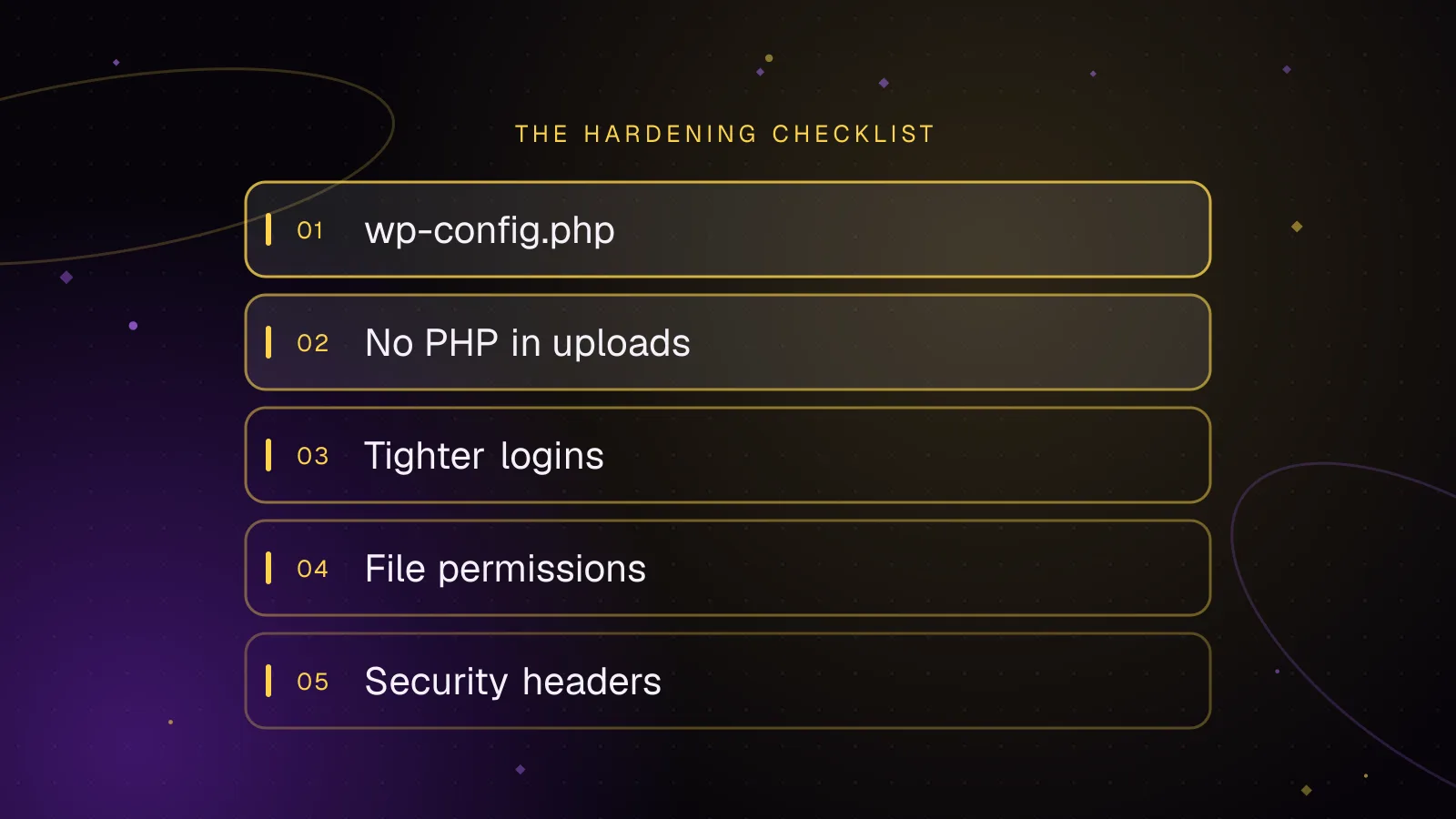
WordPress security hardening: a practical checklist for 2026
A practical WordPress security hardening checklist: updates, logins, wp-config settings, upload rules, headers and what to do after a hack.
- WordPress
- Security
- Hardening
 Security
7 min read
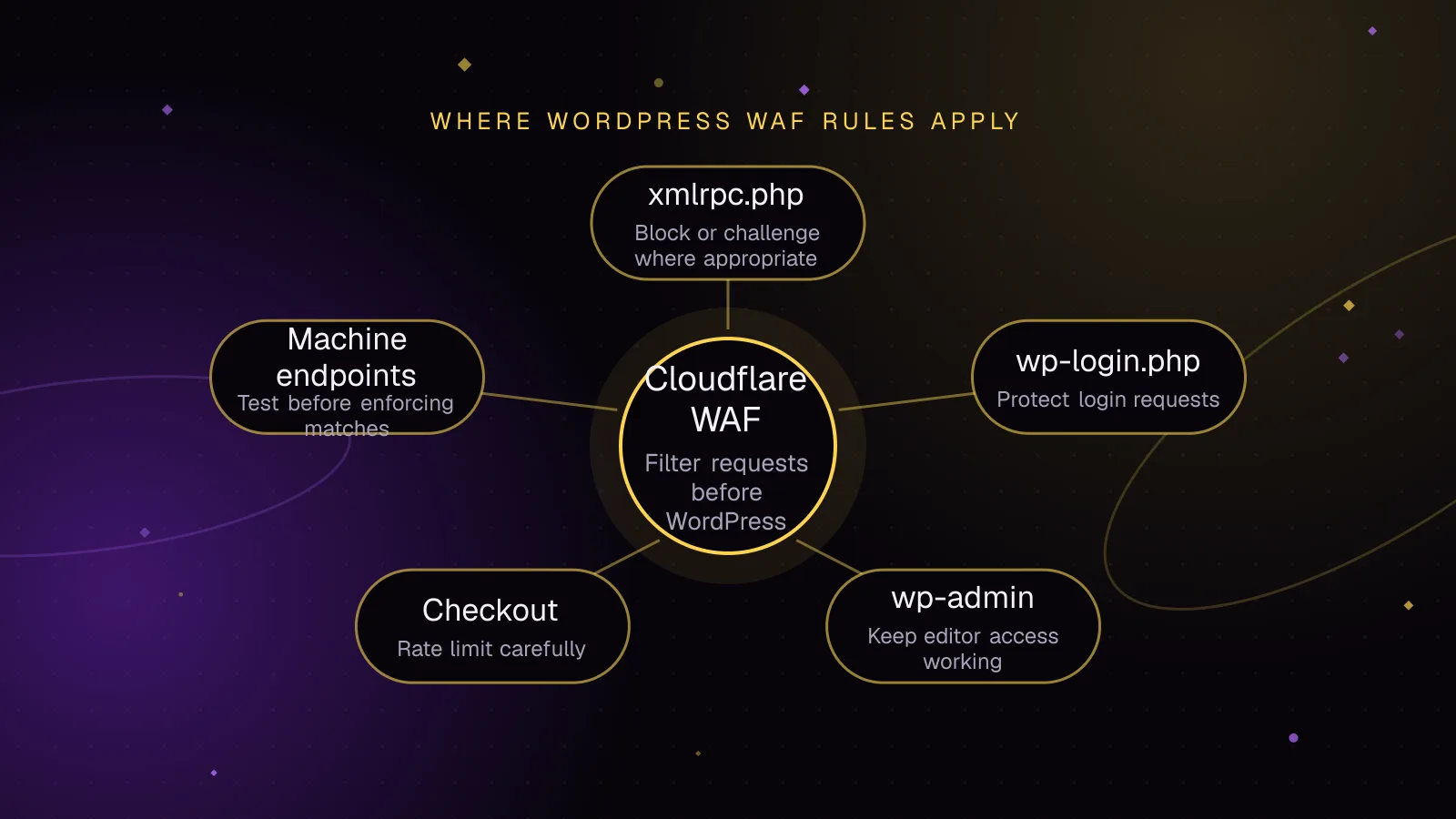
Cloudflare WAF rules for WordPress that block attacks, not customers
Use Cloudflare WAF rules WordPress sites can test safely, protect login and checkout paths, and avoid breaking webhooks, REST API traffic, or cron.
- WordPress
- Security
- Cloudflare
 Security
7 min read
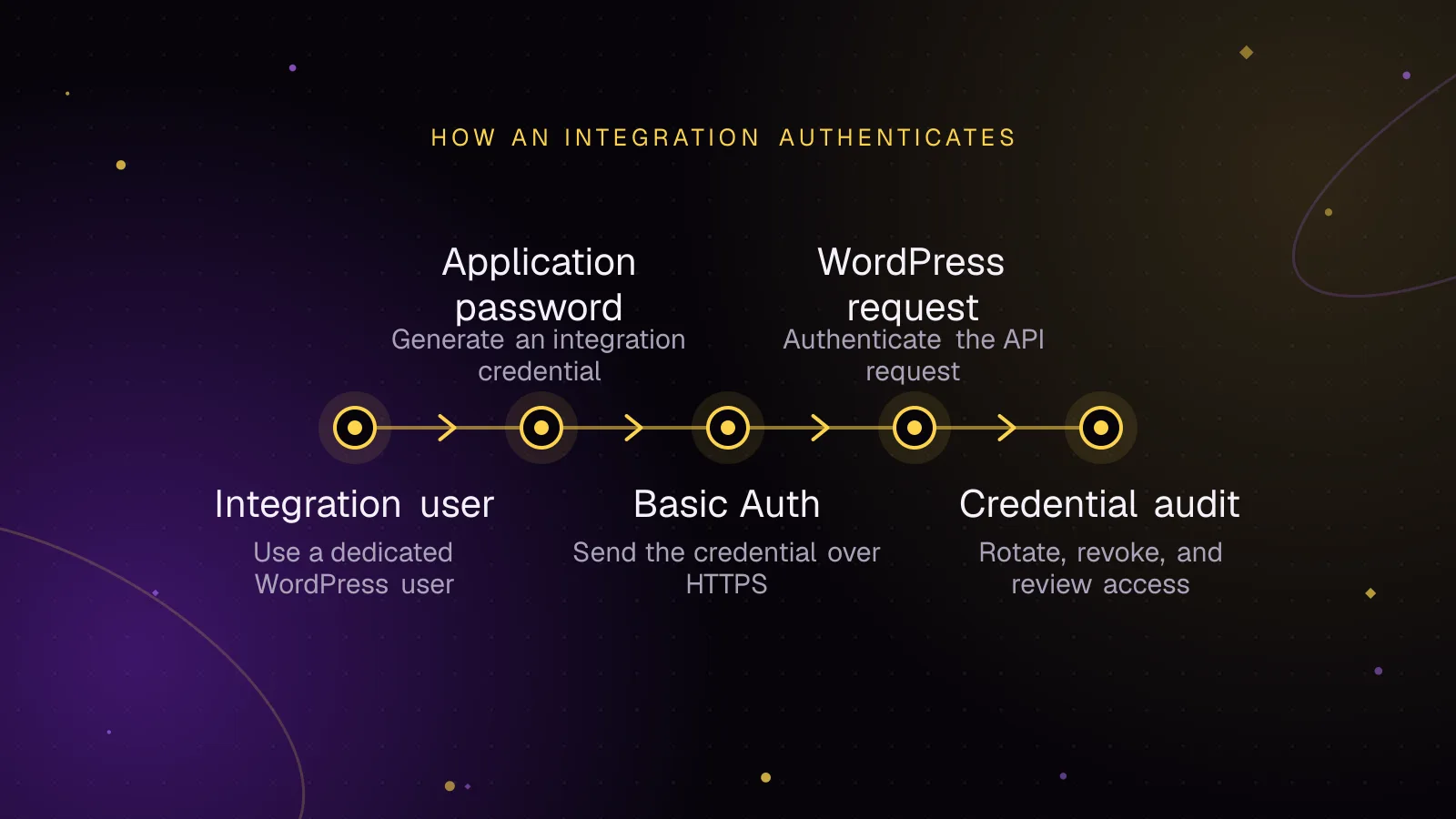
Application passwords for safer WordPress integrations
Use WordPress application passwords for REST API integrations with least-privilege users, HTTPS, rotation, revocation, and practical audit checks.
- WordPress
- Security
- REST API