Development8 min read
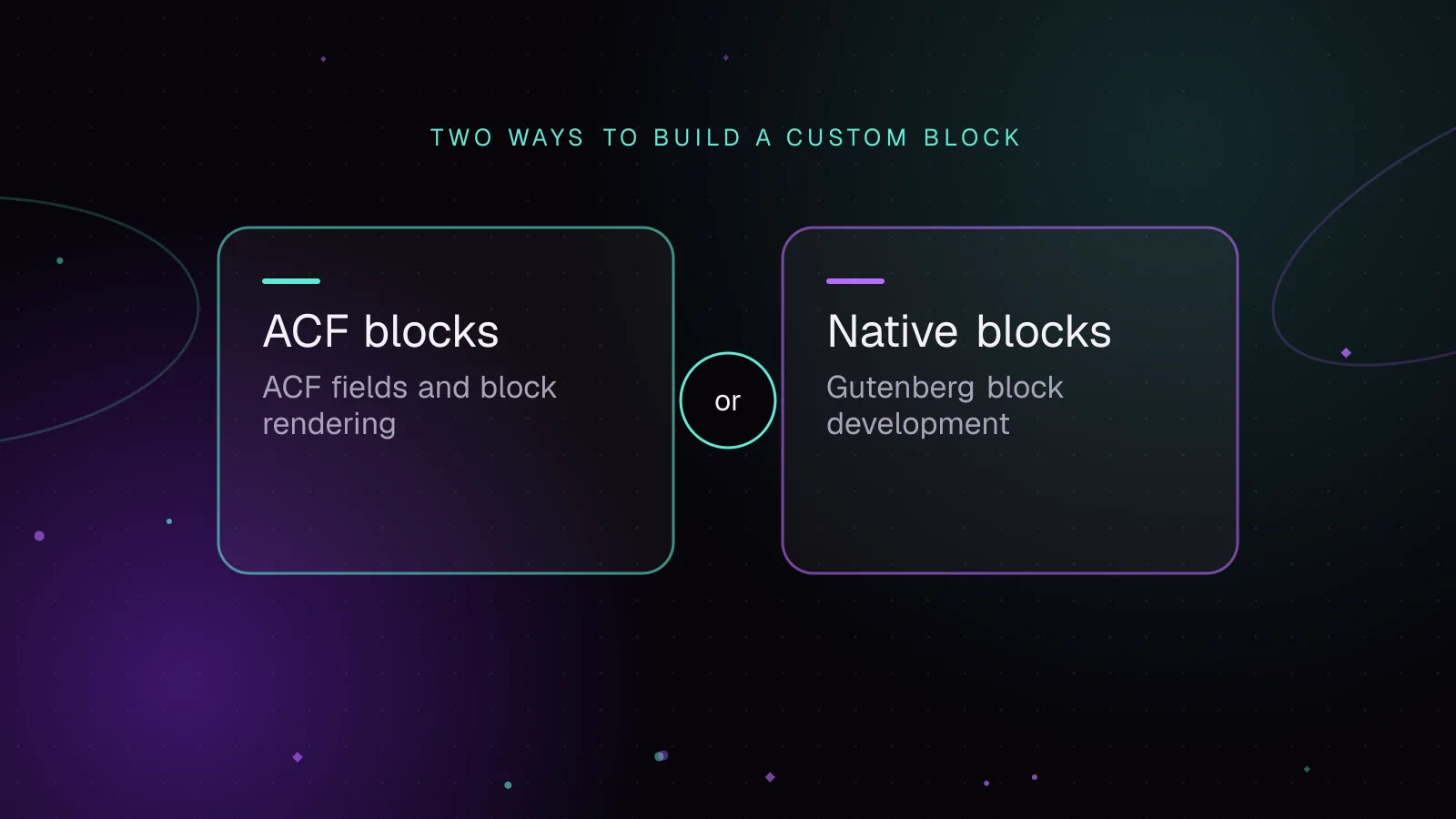
ACF blocks or native Gutenberg blocks: what to build for a client site
Compare ACF blocks vs Gutenberg blocks by build cost, editor UX, rendering, storage and maintenance, then choose the right block model for a client site.
 By Hamza Ahmad AslamWordPress VIP, Performance & Full-Stack Engineer
On this page
- ACF blocks vs Gutenberg blocks: what changes in the build
- The same feature card built both ways
- Build it as an ACF Block
- Build it as a native dynamic block
- How the editing experience differs
- What each approach renders and stores
- What maintenance costs show up later
- ACF blocks vs flexible content for existing ACF sites
- Which approach fits each project type
- What to do next
- Frequently asked questions
Short answer: For most client sites, the ACF blocks vs Gutenberg blocks choice comes down to editor needs, team skills and how much JavaScript you want to own. ACF Blocks reduce custom editor code when ACF fields fit the UI, and v3 can provide inline editing for simple fields. Native blocks give you full control over the editor and can avoid an ACF PRO dependency.
ACF blocks vs Gutenberg blocks: what changes in the build
An ACF Block is still a WordPress block. You register it from block.json, but add an acf key that points to a PHP render template or callback. ACF supplies the field UI and stores block field data with the block by default.
The current ACF block.json configuration (opens in a new tab) supports renderTemplate, blockVersion, autoInlineEditing and other ACF-specific settings. ACF Blocks are an ACF PRO feature.
A native block uses the WordPress Block API directly. Its editor is normally a React component. The front end can come from a JavaScript save() function or a PHP file declared with the render property in block.json.
That means native block development asks you to design both the data model and editor UI. ACF lets you define much of the editor UI as fields. At Coalition Technologies I build ACF-powered plugins and front-end templates for client sites, so that difference matters most when a project has many custom content components.
For both approaches, register the block on the server with register_block_type(). The same loader can register both folders:
<?php
function clientsite_register_blocks() {
	register_block_type( __DIR__ . '/blocks/acf-feature-card' );
	register_block_type( __DIR__ . '/blocks/native-feature-card' );
}
add_action( 'init', 'clientsite_register_blocks' );
The same feature card built both ways
Use one small block for a fair comparison: a feature card with a heading and one line of copy. Both examples render with PHP, so the front-end model is the same.
Build it as an ACF Block
Create two ACF fields named heading and body, then target the block with an ACF field group location rule. The block metadata can stay small:
{
	"apiVersion": 3,
	"name": "acf/feature-card",
	"title": "Feature card",
	"category": "design",
	"style": "file:./style.css",
	"acf": {
		"blockVersion": 3,
		"renderTemplate": "render.php",
		"autoInlineEditing": true
	},
	"supports": {
		"html": false
	}
}
ACF PRO 6.6 introduced ACF Blocks v3. Setting blockVersion: 3 enables it explicitly. The current ACF Blocks v3 documentation (opens in a new tab) says v3 keeps the rendered preview visible and moves field editing to the sidebar or expanded editing panel.
The render template reads the two fields and escapes them for HTML output:
<?php
$heading = get_field( 'heading' );
$body    = get_field( 'body' );
?>
<section <?php echo get_block_wrapper_attributes(); ?>>
	<?php if ( $heading ) : ?>
		<h2><?php echo esc_html( $heading ); ?></h2>
	<?php endif; ?>

	<?php if ( $body ) : ?>
		<p><?php echo esc_html( $body ); ?></p>
	<?php endif; ?>
</section>
This is the common create Gutenberg block with ACF path: define fields, add the block.json ACF settings, and render through PHP.
Build it as a native dynamic block
The native version declares its data as block attributes. It also points to a PHP render file. Both examples use Block API version 3, which WordPress supports since 6.3:
{
	"apiVersion": 3,
	"name": "client/feature-card",
	"title": "Feature card",
	"category": "design",
	"attributes": {
		"heading": {
			"type": "string",
			"default": ""
		},
		"body": {
			"type": "string",
			"default": ""
		}
	},
	"supports": {
		"html": false
	},
	"editorScript": "file:./index.js",
	"style": "file:./style.css",
	"render": "file:./render.php"
}
The source editor can use WordPress RichText controls. Your normal block build step compiles this source into the index.js referenced above:
import { registerBlockType } from '@wordpress/blocks';
import { RichText, useBlockProps } from '@wordpress/block-editor';
import metadata from './block.json';

function Edit( { attributes, setAttributes } ) {
	const blockProps = useBlockProps();

	return (
		<section { ...blockProps }>
			<RichText
				tagName="h2"
				value={ attributes.heading }
				allowedFormats={ [] }
				onChange={ ( heading ) => setAttributes( { heading } ) }
				placeholder="Heading"
			/>
			<RichText
				tagName="p"
				value={ attributes.body }
				allowedFormats={ [] }
				onChange={ ( body ) => setAttributes( { body } ) }
				placeholder="Body"
			/>
		</section>
	);
}

registerBlockType( metadata.name, {
	edit: Edit,
	save: () => null
} );
The PHP renderer receives the saved attributes:
<?php
$heading = $attributes['heading'] ?? '';
$body    = $attributes['body'] ?? '';
?>
<section <?php echo get_block_wrapper_attributes(); ?>>
	<?php if ( $heading ) : ?>
		<h2><?php echo esc_html( $heading ); ?></h2>
	<?php endif; ?>

	<?php if ( $body ) : ?>
		<p><?php echo esc_html( $body ); ?></p>
	<?php endif; ?>
</section>
WordPress documents this split under static and dynamic block rendering (opens in a new tab). A dynamic block can keep its editor in React while generating front-end HTML in PHP.
If the native block needs front-end behavior, the guide to using the WordPress Interactivity API in a custom block shows how to add it without an ad hoc script.
How the editing experience differs
Native blocks give you direct control over every editor interaction. In the example, the React edit component is also the editable preview. A heading can be a RichText control, and toolbar controls can change attributes without a second field form.
ACF Blocks v3 narrows that gap. With ACF 6.7 or later, v3 blocks can opt into ACF inline editing (opens in a new tab) through autoInlineEditing or the manual helper functions. Simple text fields can then be edited from the preview instead of only from the field panel.
For complex field groups, ACF still presents fields through its editing UI. That can be useful when a component has structured options that do not map neatly to visible text.
Both approaches support nested blocks. ACF can place <InnerBlocks /> in its PHP render template. Native blocks use InnerBlocks or useInnerBlocksProps in React. If your component is mostly a container for core blocks, native APIs often give you finer control over allowed blocks, templates and selection behavior.
What each approach renders and stores
ACF Blocks render on the server. Changing the PHP template changes the front-end output for existing block instances because the generated HTML is not the canonical saved copy.
By default, ACF saves block field data as JSON inside the block comment in post_content. ACF can also store block values in post meta with usePostMeta, but that mode has placement limits, so it should be chosen for a specific data need rather than as a general default.
A native block can be static or dynamic. A static save() writes its markup into post_content. A dynamic block like the example above saves its attributes in the block comment and lets render.php generate the HTML on each request.
That distinction matters more than the library choice. A native dynamic block and an ACF Block have similar server-rendered behavior. A native static block has a different portability model because its saved HTML remains in the post content.
Asset loading can also be close to equal. Both approaches can use standard block.json fields such as style, editorStyle, viewScript and viewStyle. WordPress can use that metadata for per-block loading, subject to the site's asset-loading setup.
Do not assume one option is faster from the label alone. Front-end cost comes from the PHP work, queries, markup, CSS and scripts your block adds. Compare the rendered result you plan to ship.
What maintenance costs show up later
ACF Blocks add a runtime and licensing dependency on ACF PRO. That may be fine if the project already depends on ACF for field groups, options and content models. It is a larger decision if the block library is meant to run without third-party plugins.
Native blocks remove that dependency but move more editor code into your codebase. You own React components, attribute changes, editor behavior and compatibility with future WordPress changes.
Static native blocks also need a migration plan when saved markup changes. WordPress supports a deprecated array so old attribute shapes and old save() output can be recognized and migrated. The block deprecation documentation (opens in a new tab) recommends keeping deprecated versions and test fixtures for older content.
Dynamic native blocks avoid validation against generated front-end markup because that markup is not saved by save(). You still need to plan attribute changes. ACF Blocks avoid saved-markup validation for their PHP output, but renamed or removed ACF fields can still make older block data harder to use.
For portability, inspect the content that survives when the rendering code is unavailable. ACF field values remain in the block comment, but another system needs to understand that data. Native dynamic attributes have the same broad issue. Native static blocks can leave readable HTML behind.
ACF blocks vs flexible content for existing ACF sites
ACF Flexible Content is a field-based page builder. You define layouts and subfields, then loop through those layouts in a theme template. ACF Blocks use the WordPress block tree, so editors can mix your custom components with core blocks, patterns and nested blocks.
Teams comparing ACF blocks vs flexible content should treat migration as a content-model change. Existing Flexible Content rows do not become block instances by changing a template. You need a migration plan if old pages must move into block content.
Keeping Flexible Content can still make sense for a stable site with a locked editing model and no need for block editor composition. For new custom themes, ACF Blocks usually give teams a shorter path into WordPress's block tools without rebuilding every field control in React.
Which approach fits each project type
| Project type | Choose ACF Blocks when | Choose native blocks when | Main tradeoff |
|---|---|---|---|
| Custom marketing site with many structured sections | Fields map cleanly to components and ACF PRO is already part of the stack | Editors need custom direct-manipulation controls | Field configuration versus editor code ownership |
| PHP-heavy development team | You want ACF fields to provide most editor controls | The team is ready to own React editor code | Team skill mix |
| Editorial site with rich direct manipulation | Simple v3 inline fields cover the authoring needs | The editor needs custom controls and selection behavior | Editing control |
| Reusable block library for unrelated sites | Every target site can depend on ACF PRO | The library should depend only on WordPress core APIs | Dependency policy |
| Component with server-side data | ACF fields define the inputs | Custom attributes define the inputs | Editor implementation |
| Existing Flexible Content site | You want a staged move into block content | You want to remove the ACF content dependency | Migration effort |
| Content that should retain front-end HTML if block code disappears | Retaining ACF field data is enough | A static native save() should leave HTML in post_content | Portability model |
A useful choice is to prototype one representative block before committing the whole library. Pick one with text, media, settings and nested content. The gaps appear faster there than in a heading-and-paragraph demo.
What to do next
If the site is a normal WordPress build, define the block library and dependency policy before theme work starts. The custom WordPress development service shows the broader type of custom theme and block work this decision belongs to.
If content will also feed a separate front end, read the guide to headless WordPress with Next.js before tying presentation rules too tightly to PHP templates. You can also use the headless WordPress decision aid to check whether headless delivery changes the architecture enough to affect the block choice.
Frequently asked questions
Are ACF Blocks slower than native Gutenberg blocks?
There is no fixed performance result from choosing ACF or native blocks. Both can render with PHP and load block-specific assets through block.json, so the front-end cost depends on the code, queries, CSS and scripts inside the block.
Do ACF Blocks require ACF PRO?
Yes. ACF Blocks are part of ACF PRO, so a site that uses them needs that plugin available for the block integration and field handling. Native blocks can be built with WordPress core APIs without that dependency.
Can ACF Blocks use InnerBlocks?
Yes. ACF Blocks support nested blocks by placing <InnerBlocks /> in the PHP render template. Native blocks provide the same concept through InnerBlocks or useInnerBlocksProps in the block editor package.
Should I replace ACF Flexible Content with ACF Blocks?
Replace it only when the block editor gives the project a clear editing or composition benefit. Existing Flexible Content rows need a migration if you want them converted into block content, so a staged move is often easier for an established site.
Share this article
Enjoyed this? Get the next article by email.
Keep reading
 Development
7 min read
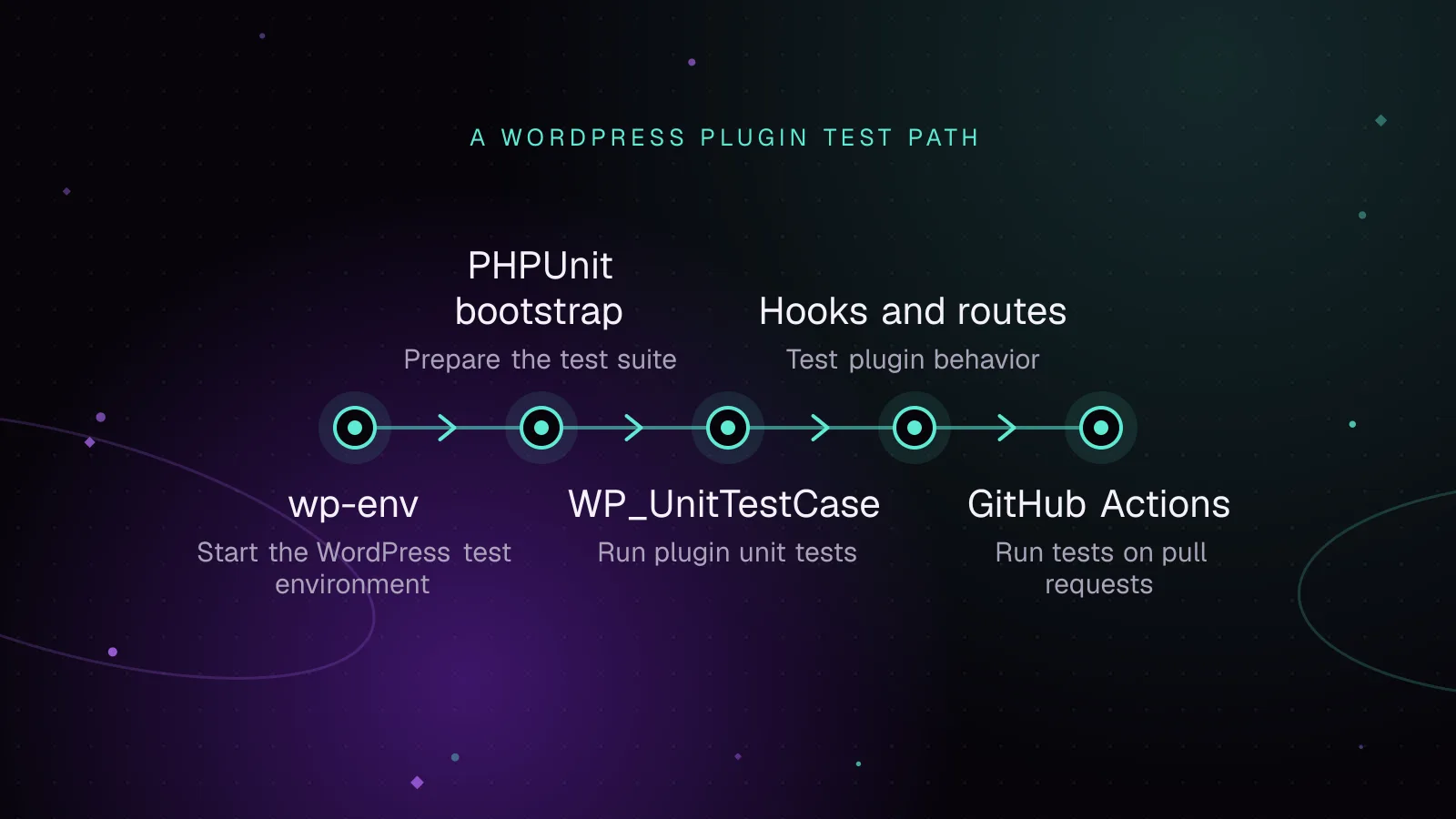
WordPress plugin unit testing with wp-env and PHPUnit
Set up WordPress plugin unit testing with wp-env and PHPUnit, write integration tests, and run the same suite in GitHub Actions on pull requests.
- WordPress
- Plugins
- PHP
 Development
6 min read
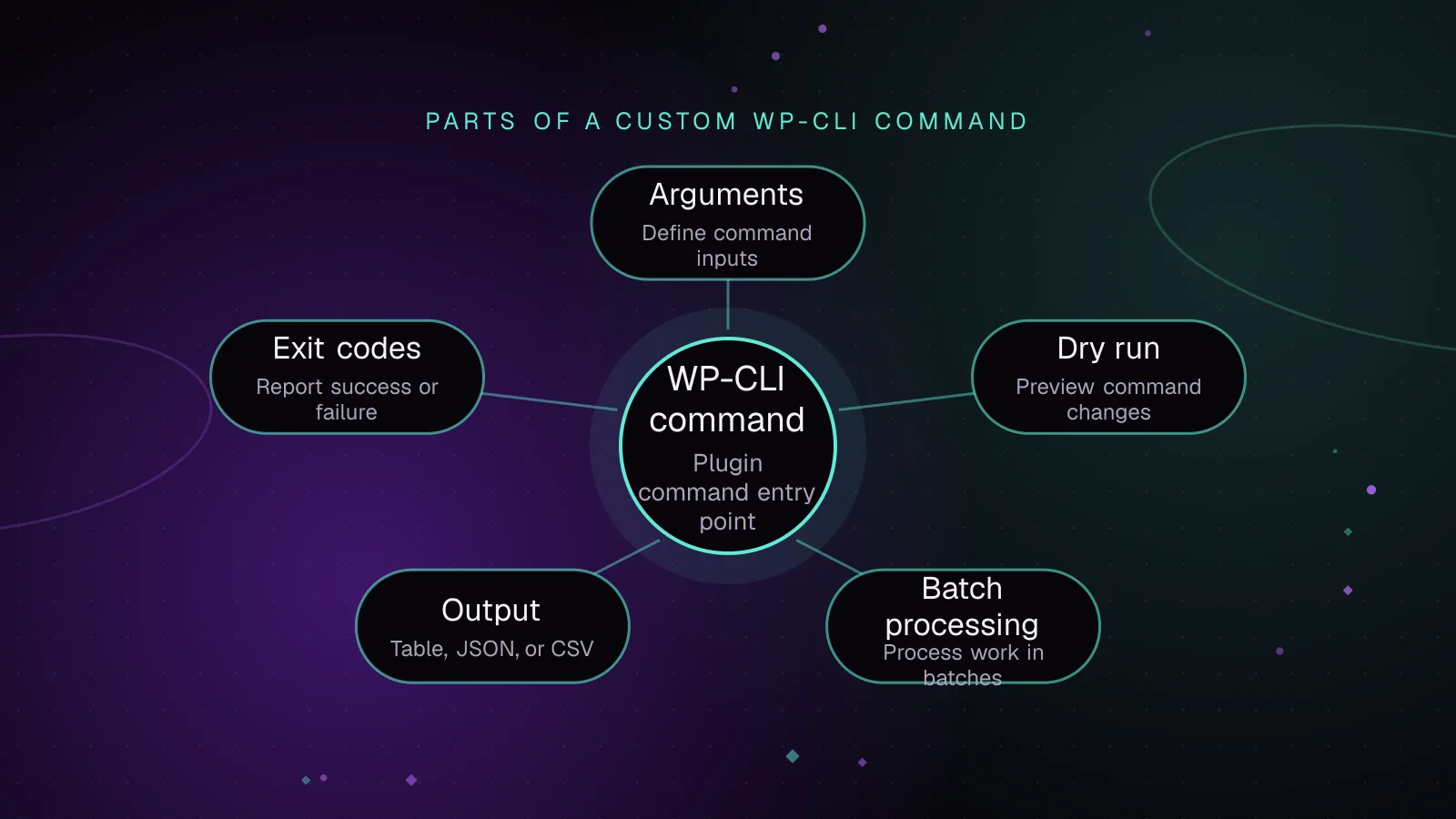
How to write a custom WP-CLI command for your plugin
Build a WP CLI custom command for a plugin with validated arguments, dry runs, batching, progress output, formats, exit codes, staging and cron.
- WP-CLI
- WordPress
- Plugins
 Development
7 min read
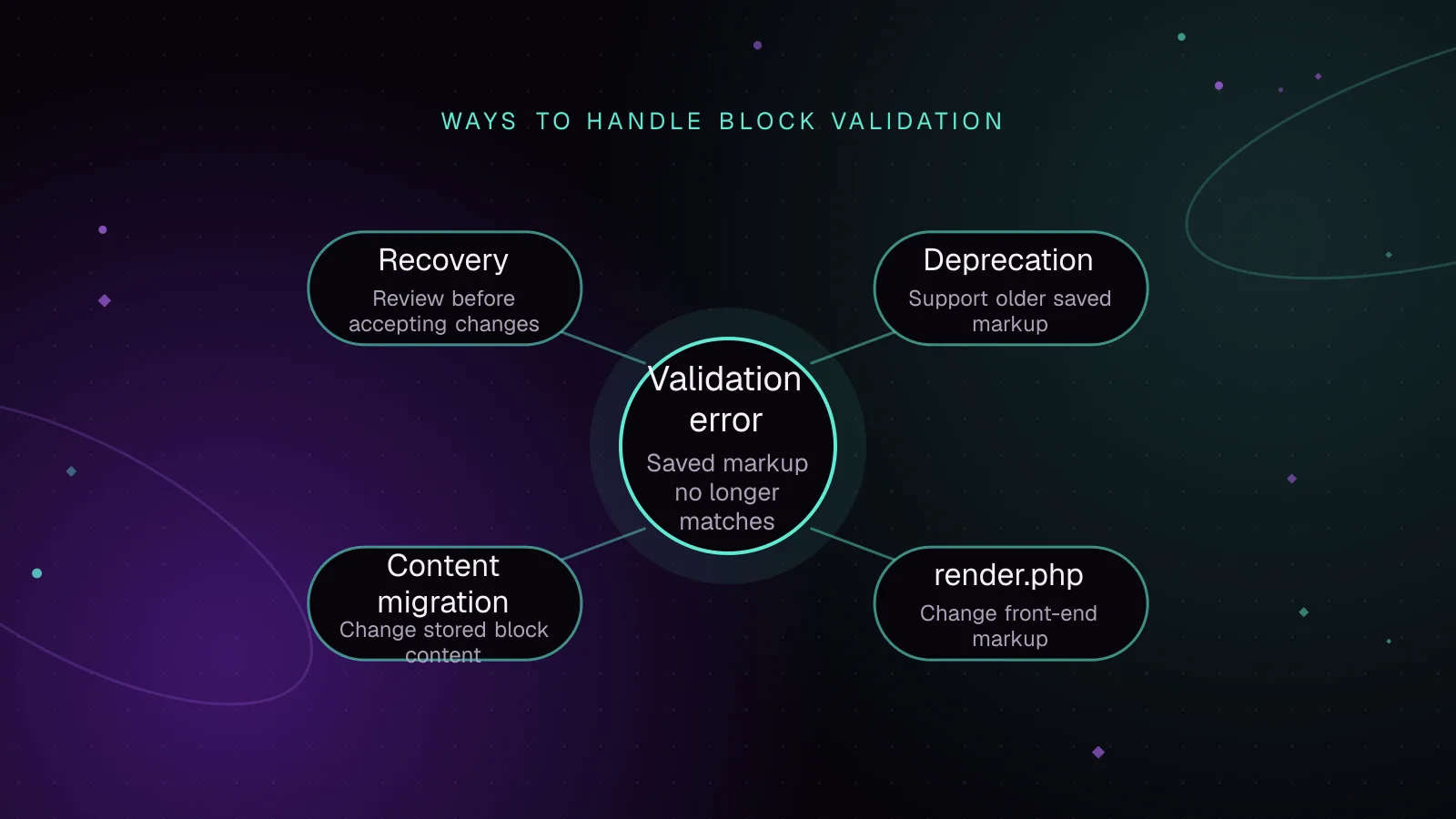
"This block contains unexpected or invalid content": fixing validation errors
Fix a block validation failed WordPress error by reading the markup mismatch, adding a deprecation, migrating attributes, or switching to render.php.
- Gutenberg Blocks
- WordPress
- JavaScript