Development7 min read
"This block contains unexpected or invalid content": fixing validation errors
Fix a block validation failed WordPress error by reading the markup mismatch, adding a deprecation, migrating attributes, or switching to render.php.
 By Hamza Ahmad AslamWordPress VIP, Performance & Full-Stack Engineer
On this page
- What block validation compares and why it fails
- How to diagnose a block validation failed WordPress error
- Trace the mismatch back to parsing or saving
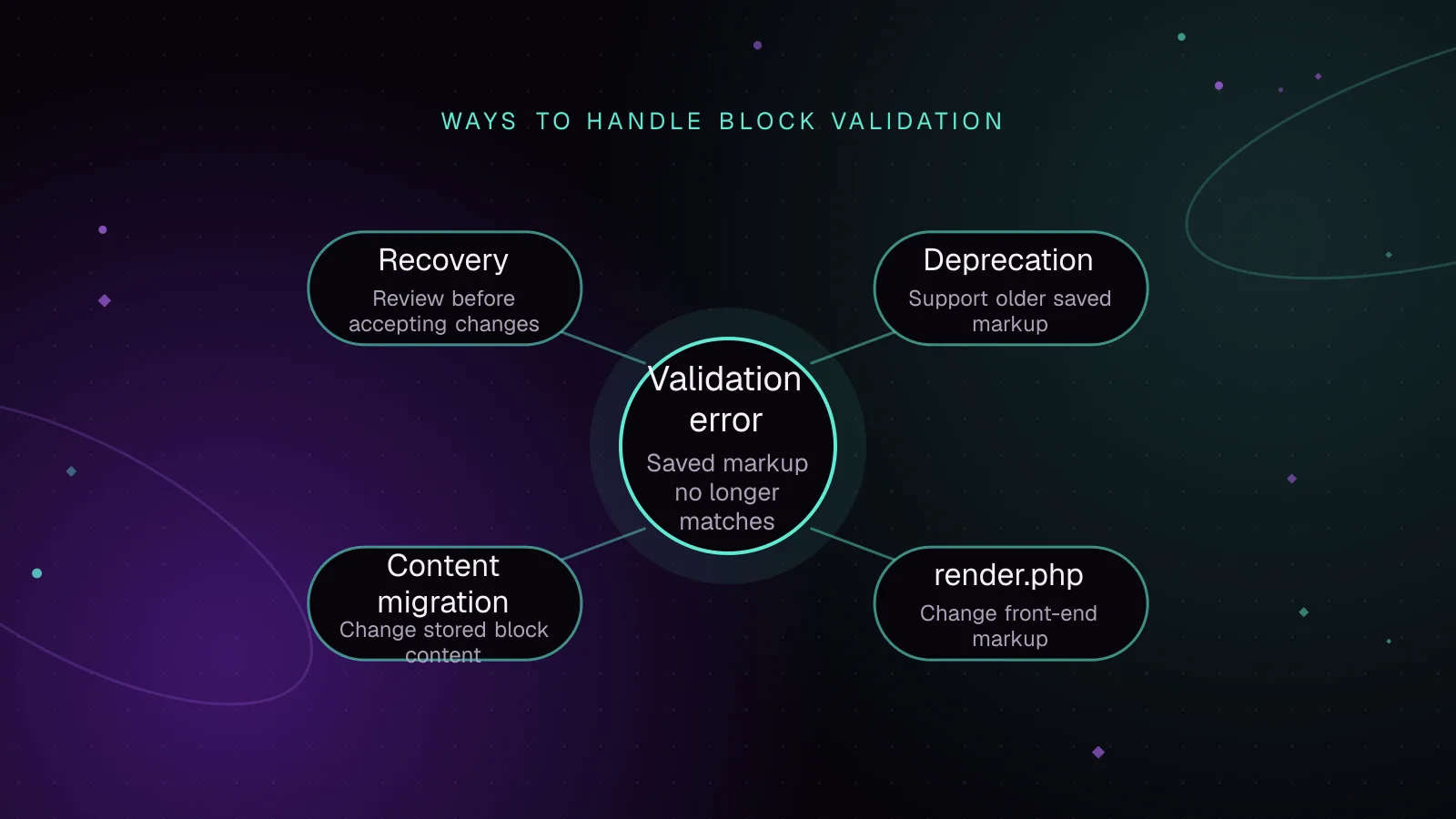
- Fix 1: add a block deprecation for old saved markup
- Use migrate when attribute names or shapes changed
- Fix 2: use render.php when front-end markup needs to change
- Fix 3: use a content migration when stored content must change
- Why Attempt block recovery can lose content
- Prevent block validation errors before release
- What to do next
- Frequently asked questions
Short answer: If you searched for "block validation failed WordPress," the editor is telling you that stored block markup no longer matches what the current save() function generates from the attributes it can parse. Fix the cause instead of forcing recovery: preserve the old markup with a deprecation, move changing output to server rendering, or run a controlled content migration.
What block validation compares and why it fails
A static block stores the HTML returned by its save() function in post_content. When the editor opens the post, WordPress parses the block's attributes, runs the current save() logic again, and compares the regenerated markup with the markup already stored. If they do not match, WordPress marks the block as invalid. The Block Editor validation documentation (opens in a new tab) describes this check as a guard against content loss.
That is why the message often appears after a plugin or theme update. The old post still contains markup from the previous block version, while the installed JavaScript now produces a different element, class, attribute, wrapper, or structure.
A save function changed without a compatibility path is a common cause. So is changing an attribute source or selector so the editor parses a different value from old content. Manual HTML edits and tools that alter stored block markup can create the same block markup mismatch.
Treat save() output as stored data. Once published content contains that HTML, changing it is a storage-format change, not only a front-end template change.
How to diagnose a block validation failed WordPress error
Start with the browser developer console while the affected post is open. WordPress logs validation details and shows the markup produced by the current save() function beside the markup read from the post.
Example output for an illustrative acme/card block:
Block validation: Block validation failed for `acme/card`.

Content generated by `save` function:

<div class="wp-block-acme-card"><h3>Shipping</h3></div>

Content retrieved from post body:

<div class="wp-block-acme-card"><h2>Shipping</h2></div>
The useful part is the first difference. In this example, old content contains h2, but the current code expects h3. Do not start by editing every affected post. First find the code change that created the difference.
Trace the mismatch back to parsing or saving
Check these points in order:
- Compare the old stored wrapper, child elements, classes, and HTML attributes with the current
save()output. - Check any attribute
sourceandselectorthat reads values from saved HTML. A changed selector can make an old value disappear during parsing. - Check whether a block support or wrapper change altered classes or attributes that are serialized.
- Check whether another plugin, an import, or custom code modified the stored HTML after WordPress saved it.
- Reproduce with a copy of content created by the previous release, then open it with the new block code.
The console can show a symptom such as an expected tag, class, or attribute. The fix depends on why that difference exists.
Fix 1: add a block deprecation for old saved markup
Use a block deprecation when an intentional block update changed static markup or the attribute schema. A deprecation describes an older valid form so the editor can recognize it and hand compatible data to the current block.
The official block deprecation reference (opens in a new tab) is important on one point: deprecations are not a chain of database migrations. WordPress tries each deprecation against the original saved content. Once a deprecated save function produces valid markup, WordPress can use that version's attributes and run its migrate function.
Keep newer deprecations before older ones. Also keep each deprecated save implementation stable. Importing mutable helpers into an old deprecation can change its output later and break content that it used to recognize.
Use migrate when attribute names or shapes changed
Suppose version one stored a heading attribute sourced from an h2. The new block uses a title attribute and saves an h3. The deprecated entry must reproduce the old h2 markup, while migrate maps the old attribute to the current one.
const settings = {
    attributes: {
        title: {
            type: 'string',
            source: 'html',
            selector: 'h3',
        },
    },

    save( { attributes } ) {
        return (
            <div className="wp-block-acme-card">
                <h3>{ attributes.title }</h3>
            </div>
        );
    },

    deprecated: [
        {
            attributes: {
                heading: {
                    type: 'string',
                    source: 'html',
                    selector: 'h2',
                },
            },

            migrate( { heading } ) {
                return {
                    title: heading,
                };
            },

            save( { attributes } ) {
                return (
                    <div className="wp-block-acme-card">
                        <h2>{ attributes.heading }</h2>
                    </div>
                );
            },
        },
    ],
};
The old save output must match the old stored markup. If it does not validate, that deprecation is skipped and its migrate function does not run. If an older version used supports settings that affected serialization, preserve those settings in the deprecation as well.
For blocks with several historical formats, keep fixtures containing saved markup from each release. Test every fixture against the next release before shipping it.
Fix 2: use render.php when front-end markup needs to change
Static saving is a poor fit when the front-end HTML must change as code changes. A dynamic block can store attributes in the block comment and build its front-end markup on the server.
The current static and dynamic rendering guide (opens in a new tab) states that when a dynamic block's save function returns null, the editor saves the block delimiter and attributes rather than HTML, and skips block markup validation.
If you are choosing a block model for a client site, the comparison of ACF blocks and native Gutenberg blocks explains how PHP-rendered ACF blocks and dynamic native blocks change how often saved markup can go out of date.
For an existing metadata-based block, add a render file. The render property has been available since WordPress 6.1, as documented in the block.json metadata reference (opens in a new tab).
In block.json, add:
{
    "render": "file:./render.php"
}
For a block that does not need to save inner HTML, its save.js can return null:
export default function save() {
    return null;
}
Then render the current front-end structure in render.php:
<?php
$title = isset( $attributes['title'] ) ? (string) $attributes['title'] : '';
?>
<div <?php echo get_block_wrapper_attributes(); ?>>
    <h2><?php echo esc_html( $title ); ?></h2>
</div>
render.php receives the block attributes from WordPress. get_block_wrapper_attributes() applies supported wrapper attributes, and esc_html() escapes plain text for HTML output.
Do not switch a content-heavy static block to save: null without planning what happens to its existing saved HTML. Dynamic rendering solves future markup drift. Existing content still needs a compatibility path if the old storage format contains data you need.
Fix 3: use a content migration when stored content must change
A content migration is the right tool when you need to rewrite stored posts rather than wait for editors to open and save them. Examples include replacing an old storage model, correcting markup that external code changed, or moving data that a deprecation cannot safely recover.
Make the migration narrow. Target your block name and known old shapes, preserve unrelated blocks, and make repeated runs harmless. Run it on a copy of production data first and compare both editor content and front-end output before updating live posts.
For programmatic migrations, use WordPress block parsing rather than a regular expression over all post_content. The parse_blocks() reference (opens in a new tab) documents the parsed block tree. WordPress also provides serialize_blocks() to turn parsed block structures back into block markup after your code changes the intended nodes.
A bulk migration is more invasive than a deprecation. Use it when the stored source must change now, not only because the editor shows an invalid-block warning.
Why Attempt block recovery can lose content
"Attempt block recovery" asks the editor to rebuild an invalid block from what the current block code can understand. That can be unsafe when the current attribute schema no longer reads every value from the old markup.
For example, if an old selector read text from h2 and the new schema only looks for h3, the current parser may not recover that text into the expected attribute. Accepting recovery and then saving can replace preserved old markup with regenerated markup that lacks the missed value.
For a site owner, do this before recovery:
- Copy the original block HTML from the Code editor or keep a copy of the post content.
- Note which plugin or theme update happened before the error appeared.
- Ask the block developer to compare the console's generated and stored markup.
- Use Convert to HTML when preserving the original markup matters more than keeping the block's editing controls.
WordPress documents Convert to HTML as an option that protects the saved markup by turning it into an HTML block. It is useful for preservation and diagnosis, but it changes how that content is edited.
Prevent block validation errors before release
Treat every static save() result as a stored contract. A harmless-looking wrapper or tag change can invalidate years of existing content if the release has no deprecation.
Keep old-content fixtures in the block's test suite. Each fixture should contain the serialized markup produced by a released version. Before publishing an update, load those fixtures with the new code and verify that each block stays valid and preserves its attributes.
When changing attributes, test both parsing and migration. The old save function must still validate the old HTML before migrate can run. When changing only front-end presentation, consider whether server rendering is a better fit than changing stored markup.
Also avoid data in save() that depends on outside state. The Block Editor documentation requires save() to be pure and stateless because outside data can change later and make regenerated markup differ from stored content.
What to do next
Fix the smallest layer that broke the storage contract: add a deprecation for old static markup, move changeable presentation into render.php, or plan a controlled content migration. If the block is part of a larger build, the custom WordPress development service covers custom blocks and plugin work.
If unexpected code or file changes caused the mismatch, review the WordPress security hardening checklist. If the project is moving presentation into a separate application, the guide to headless WordPress with Next.js explains that architecture without changing the need for valid editor content.
Frequently asked questions
Why did "This block contains unexpected or invalid content" appear after a plugin update?
The update may have changed the block's saved HTML or the way attributes are read from old HTML. Existing posts still contain the previous markup, so the editor can mark them invalid until the block supplies a compatible deprecation or migration path.
Is it safe to click Attempt block recovery?
Only after you preserve the original content and understand the mismatch. Recovery relies on what the current block code can parse, so it may rebuild the block without values that are still present in old markup but no longer match the current attribute schema.
Can a CSS change cause a WordPress block validation error?
A stylesheet change alone does not change saved block markup. A code change that adds, removes, or changes serialized classes or HTML attributes in save() can trigger validation because the stored HTML and regenerated HTML differ.
Do dynamic WordPress blocks avoid validation errors?
A dynamic block whose save() returns null skips block markup validation because it does not store front-end HTML for that block. A dynamic or hybrid block that still saves HTML can still have compatibility concerns for that saved representation.
Share this article
Enjoyed this? Get the next article by email.
Keep reading
 Development
7 min read
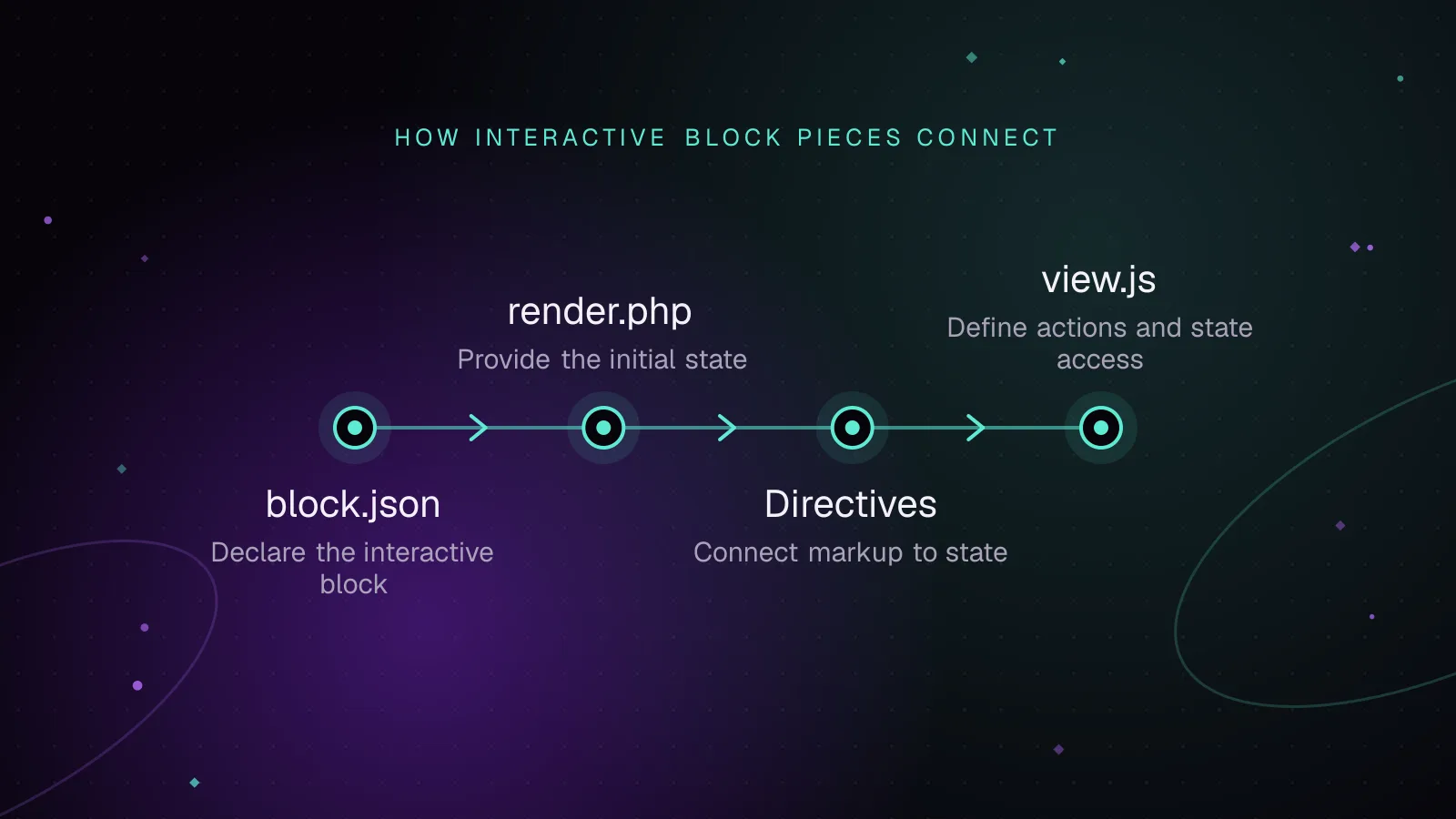
The WordPress Interactivity API: add front-end behavior to a custom block
Use the WordPress Interactivity API to build a custom interactive block with directives, store actions, server-rendered state, and script modules.
- WordPress
- Gutenberg Blocks
- JavaScript
 Development
7 min read
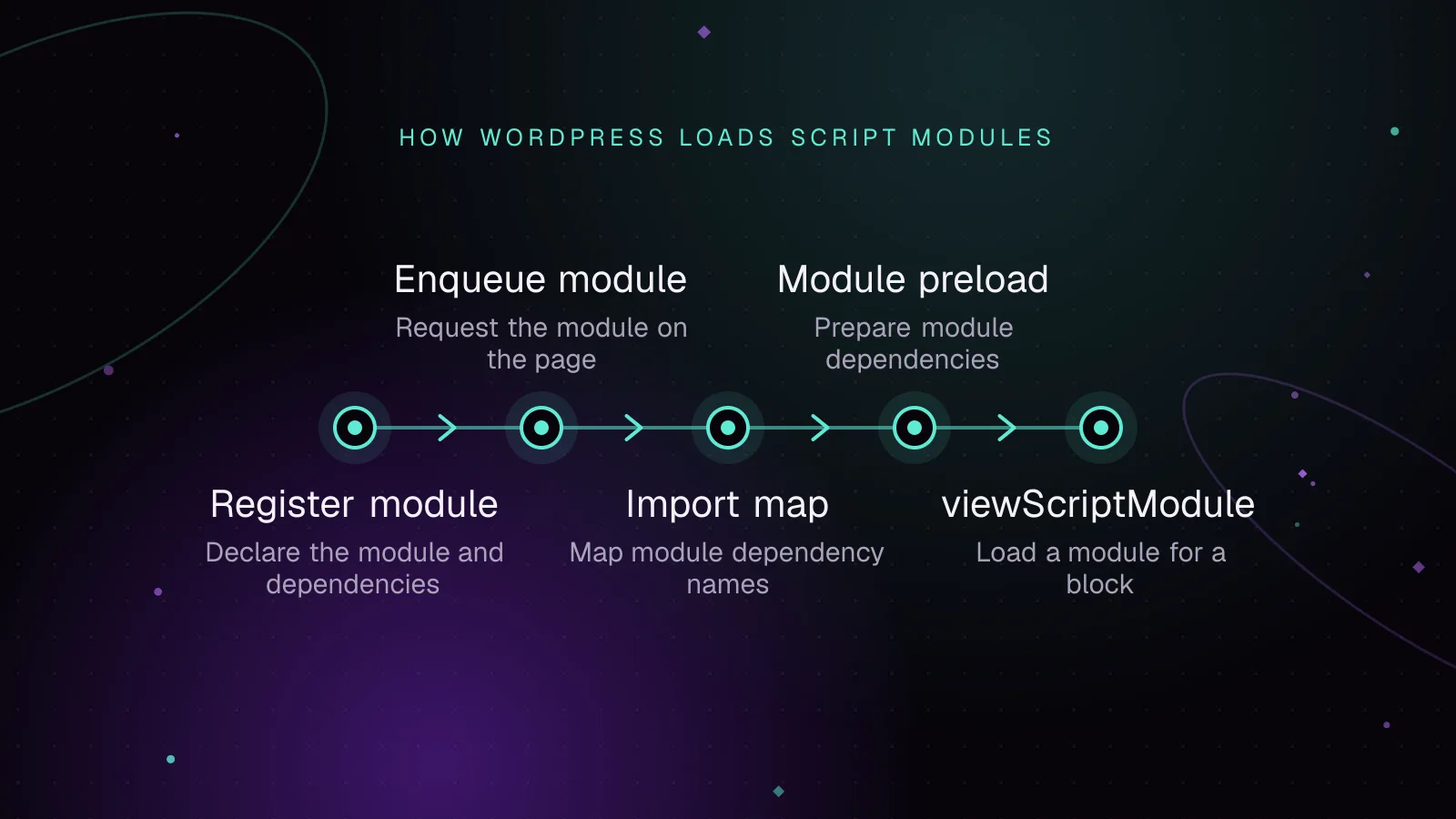
WordPress Script Modules: load ES modules the WordPress way
Use WordPress Script Modules to register ES modules, manage imports and dependencies, pass data, translate strings, and test optimizer compatibility.
- WordPress
- JavaScript
- Performance
 Development
7 min read
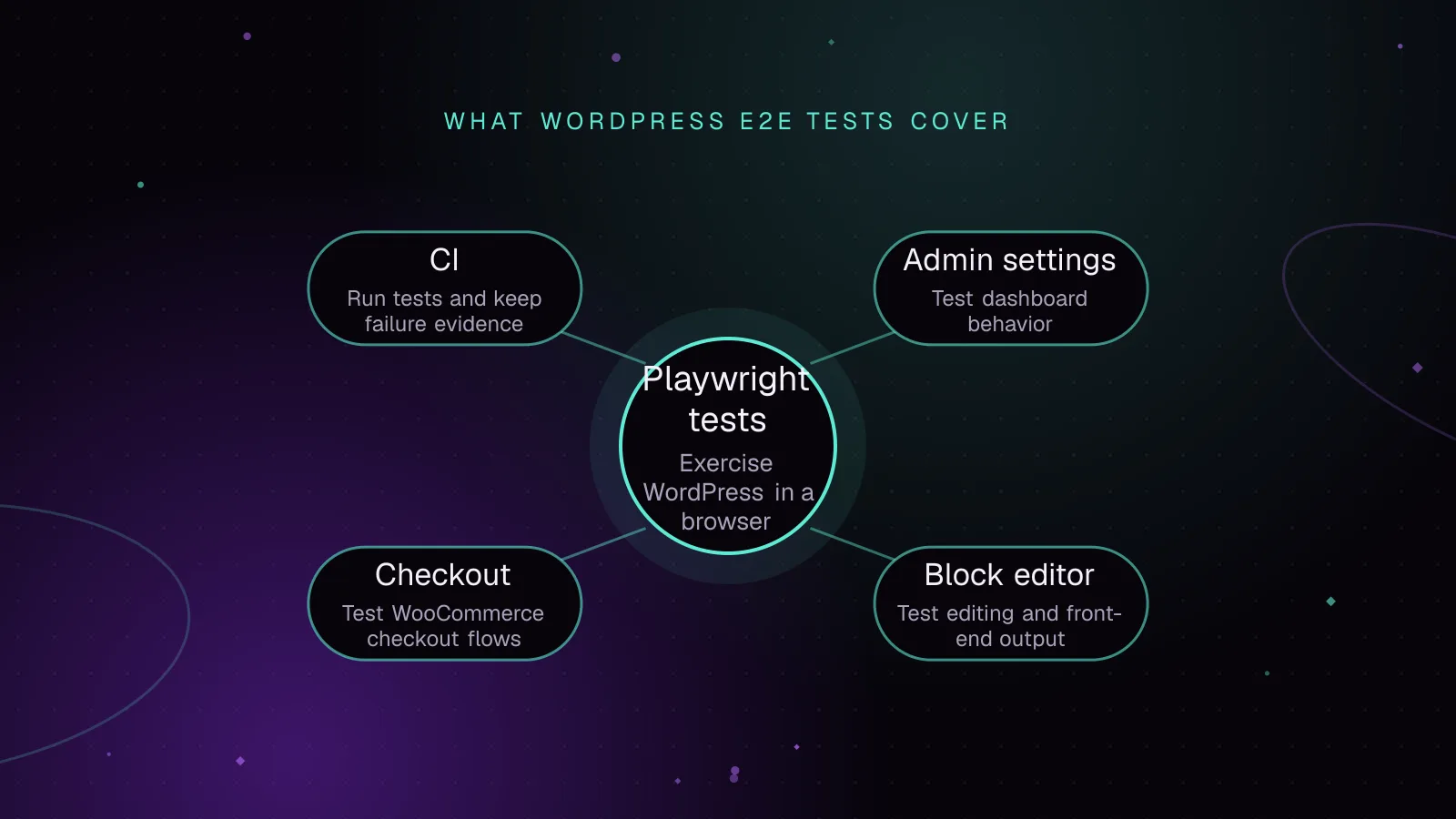
End-to-end WordPress Playwright testing for editor, admin and checkout
Use WordPress Playwright testing to automate block editor, admin, and WooCommerce checkout flows with saved login state, stable data, traces, and CI.
- WordPress
- Testing
- JavaScript