Monitoring7 min read
The WordPress debug log: turn it on safely, find it, and read it
Turn on the WordPress debug log safely, find its file, fix missing logs, read PHP errors, protect access, and rotate or disable logging after debugging.
 By Hamza Ahmad AslamWordPress VIP, Performance & Full-Stack Engineer
On this page
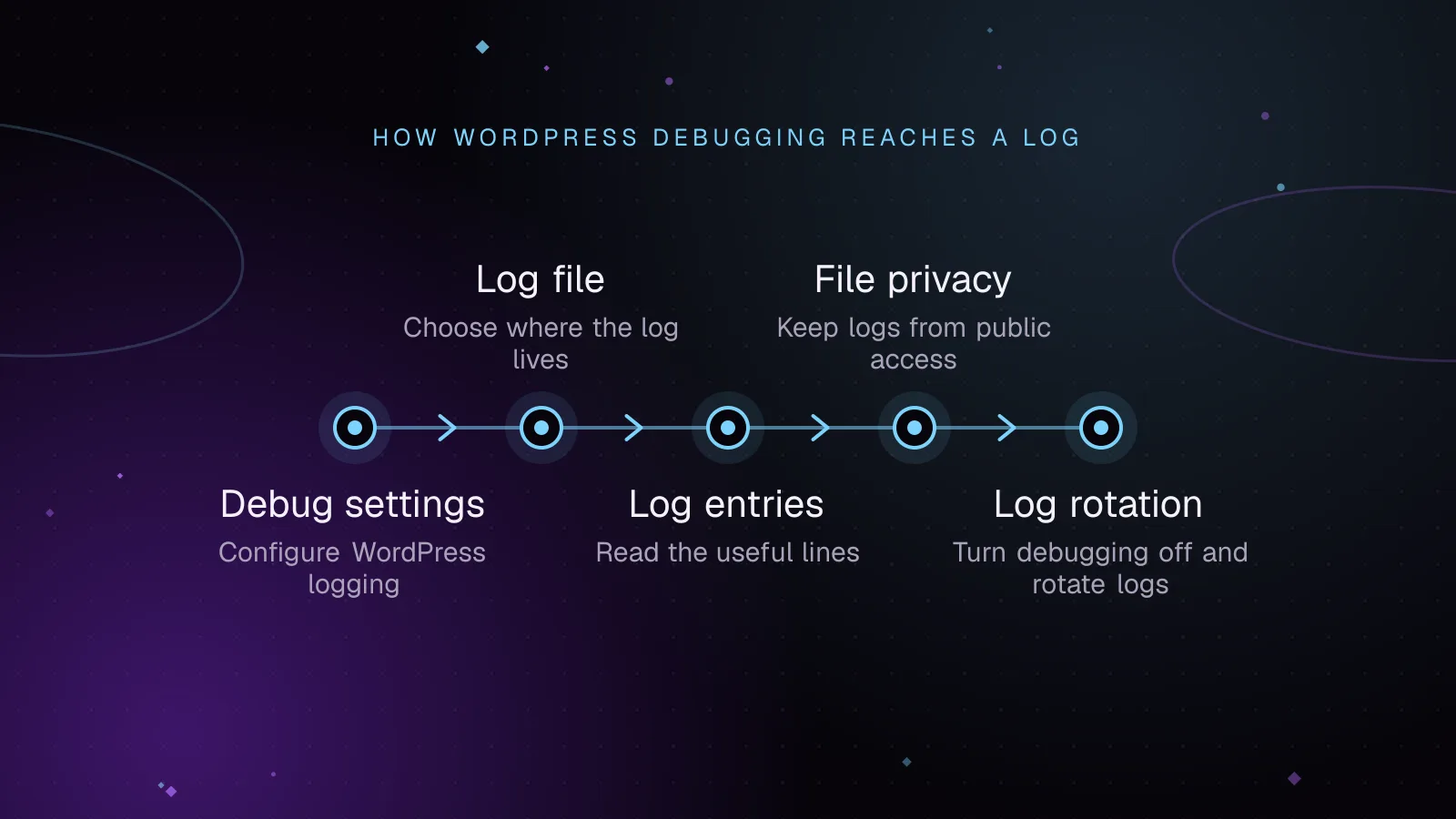
- How the WordPress debug log settings work
- Where should the log file live?
- Why is debug.log not created?
- The constants are in the wrong place
- PHP cannot write to the path
- The failure happens before WordPress configures logging
- PHP is writing to its own error log
- Nothing has written an entry yet
- How do you read the useful lines?
- How do you keep log files private?
- How do you turn debugging off and rotate old logs?
- What to do next
- Frequently asked questions
Short answer: To turn on the WordPress debug log, set WP_DEBUG and WP_DEBUG_LOG to true in wp-config.php, then set WP_DEBUG_DISPLAY to false so errors are not printed into pages. With the default logging setting, WordPress writes entries to wp-content/debug.log; for a safer setup, point the log to a writable path outside the public web root.
How the WordPress debug log settings work
WordPress has three settings that matter for this job. The WordPress debugging handbook (opens in a new tab) documents how they work together.
WP_DEBUGenables WordPress debug mode. Its default value isfalse.WP_DEBUG_LOGtells WordPress to send PHP errors to a log when debug mode is enabled. Its default value isfalse.WP_DEBUG_DISPLAYcontrols whether debug messages are printed into page output. Its default value istrue, so set it tofalsewhen you want logging without exposing errors to visitors.
WP_DEBUG_LOG and WP_DEBUG_DISPLAY do nothing unless WP_DEBUG is true. Current core sets PHP error reporting to E_ALL when debug mode is active, which includes PHP errors, warnings, notices, and deprecations.
Put the definitions in wp-config.php before the standard /* That's all, stop editing! Happy publishing. */ line. On a customized config file, they must appear before the require or include that loads WordPress.
A basic setup is:
define( 'WP_DEBUG', true );
define( 'WP_DEBUG_LOG', true );
define( 'WP_DEBUG_DISPLAY', false );
With that configuration, the usual wp_debug_log location is wp-content/debug.log. WordPress core sets the PHP error_log directive to that file when logging is enabled.
Where should the log file live?
Keeping debug.log under wp-content is convenient, but that directory is often reachable from the web. A better temporary setup is an absolute path outside the site's document root.
Since WordPress 5.1, WP_DEBUG_LOG may be a file path rather than only true or false, as shown in the current wp_debug_mode() reference (opens in a new tab).
For example, if the public site lives under /home/example/public_html, you could use a sibling logs directory:
define( 'WP_DEBUG', true );
define( 'WP_DEBUG_LOG', '/home/example/logs/wordpress-debug.log' );
define( 'WP_DEBUG_DISPLAY', false );
The exact path depends on your host. The file must be writable by the web server or PHP process. PHP's error logging configuration (opens in a new tab) also states that the configured error_log file must be writable by the web server user.
Do not copy a path from another server without checking it. A valid path on one host may not exist or may be blocked by permissions on another.
Why is debug.log not created?
A missing file usually means WordPress never reached the point where it could write, PHP could not write to the target, or no loggable event has happened yet.
The constants are in the wrong place
WordPress applies these settings during its bootstrap process. If the definitions appear after WordPress has already loaded, they arrive too late.
Move them above the stop-editing line in a standard wp-config.php. If your config has been heavily changed, place them before the first require or include that loads WordPress.
PHP cannot write to the path
A custom directory may exist but still reject writes from PHP. Check the owner and permissions through your hosting panel or server configuration.
Avoid fixing this by making the log world-writable. Give the PHP process only the access it needs, and keep the file outside the public directory when possible.
The failure happens before WordPress configures logging
A parse error in wp-config.php, a PHP startup problem, or another failure before WordPress runs its debug setup may never reach the configured file. PHP documents that runtime display settings cannot affect a fatal error when the script never gets far enough to apply them.
In that case, check the PHP or web server error log supplied by your host. On PHP-FPM setups, the final destination depends on the server's PHP and process-manager configuration.
PHP is writing to its own error log
The PHP error log for WordPress may be a separate file from wp-content/debug.log. PHP can send errors to the file or system logger configured by its error_log setting when WordPress has not replaced that destination.
If a host dashboard shows a PHP error log, check it when the WordPress file stays empty. Earlier startup errors are especially likely to appear there.
Nothing has written an entry yet
Enabling logging sets the destination. It does not create a useful line by itself. Reproduce the failing request after enabling the settings, then check the file again.
How do you read the useful lines?
Start with the timestamp, severity, message, file path, and line number. The exact prefix can vary by server, so the path and error type usually tell you more than the formatting.
Example output below is illustrative:
[23-Sep-2026 13:42:11 UTC] PHP Fatal error: Uncaught TypeError: Example_Plugin\Handler::run(): Argument #1 ($id) must be of type int, string given in /var/www/html/wp-content/plugins/example-plugin/includes/class-handler.php:87
[23-Sep-2026 13:43:02 UTC] PHP Warning: Undefined array key "customer_id" in /var/www/html/wp-content/plugins/example-plugin/includes/customer.php on line 41
[23-Sep-2026 13:44:19 UTC] PHP Deprecated: Example deprecated API use in /var/www/html/wp-content/plugins/example-plugin/includes/legacy.php on line 52
A fatal error stops the current PHP request. Read its message first, then inspect the file named near the end of the line and any stack trace that follows.
A warning means PHP continued running, but code hit a condition that deserves inspection. A deprecation says code relies on behavior or an API marked for replacement. WordPress also emits deprecation messages while WP_DEBUG is enabled.
A stack trace is a list of function calls that led to the failure. Start at the fatal message, then scan the trace for the first path under wp-content/plugins/ or wp-content/themes/. That frame often tells you which extension called into the failing code. Keep reading upward and downward before assigning blame, because the file where PHP throws the error may only be where bad input finally became fatal.
A path under wp-content/plugins/example-plugin/ points directly into that plugin's code. That makes the plugin a strong lead, but not automatic proof of root cause. A stack trace can show that another plugin, theme, or custom call triggered the failing code.
If a new fatal error appeared after an update, the guide to testing WordPress plugin updates before production shows how to catch that class of failure in staging before release.
For a live view over SSH, tail -f follows new lines as the file grows:
tail -f /home/example/logs/wordpress-debug.log
To find common high-signal PHP entries with GNU grep, use an extended regular expression and include line numbers:
grep -nE 'PHP (Fatal error|Warning|Deprecated)' /home/example/logs/wordpress-debug.log
Reproduce one problem at a time. Note the request you made, then compare its time with the new entries. This keeps unrelated cron, admin, and frontend messages from getting mixed together.
How do you keep log files private?
A debug log can expose file paths, stack traces, request data, plugin names, and other details that should not be public. PHP's manual warns that displayed errors can expose confidential information, which is another reason to keep WP_DEBUG_DISPLAY false on a public site.
The safest location is outside the web root. If the file must remain under a served directory, block HTTP access at the web server as well.
For nginx, a case-insensitive regular-expression location can deny requests for .log files. The deny directive (opens in a new tab) accepts all in a location context.
location ~* \.log$ {
    deny all;
}
For Apache HTTP Server 2.4, <FilesMatch> can match filenames and Require all denied can reject every request. Apache documents this behavior in its configuration sections reference (opens in a new tab).
<FilesMatch "\.log$">
    Require all denied
</FilesMatch>
Put server rules in the correct virtual host or directory context for your setup. On Apache hosting that permits .htaccess, <FilesMatch> can also be used there when the allowed override settings permit it.
How do you turn debugging off and rotate old logs?
Once you have captured the error, restore the production-safe values:
define( 'WP_DEBUG', false );
define( 'WP_DEBUG_LOG', false );
define( 'WP_DEBUG_DISPLAY', false );
Then remove the temporary log from any public directory. If you need to retain it for a ticket or code review, store it in a private location with restricted access.
If rotation can happen while you are watching the file, GNU tail -F follows the filename and retries when the file is replaced. That is usually more useful than following the old open file after rotation:
tail -F /home/example/logs/wordpress-debug.log
For staging or another environment where logging stays enabled, include the custom log path in the server or hosting platform's log rotation policy. Rotation should move or replace old files before they grow without limit, and retention should match your operational needs. Do not treat a debug file as permanent application monitoring.
What to do next
If the log points to slow admin requests rather than a crash, use the guide to fixing a slow WordPress admin for the next diagnostic steps. If entries appear alongside unknown files, unexpected code changes, or other signs of compromise, follow the guide to cleaning a hacked WordPress site.
If you want ongoing updates, security checks, and troubleshooting handled as operational work, the WordPress maintenance and security service covers that broader job rather than leaving debug mode enabled.
Frequently asked questions
Where is the WordPress WP_DEBUG_LOG file?
When WP_DEBUG_LOG is true, WordPress writes to debug.log in the content directory, usually wp-content/debug.log. You can instead set WP_DEBUG_LOG to an absolute file path and keep the file outside the web root.
Why is debug.log not created even though WP_DEBUG is true?
WP_DEBUG_LOG must also be enabled, the definitions must run before WordPress loads, and PHP must be able to write to the target path. If the failure occurs before WordPress configures logging, check the host's PHP or web server error log instead.
Should WP_DEBUG_DISPLAY be false on a live site?
Yes, if you temporarily enable debug logging on a public site, keep WP_DEBUG_DISPLAY false so debug messages are not printed into responses. Prefer reproducing the issue on staging when that is possible.
Is the WordPress error log the same as the PHP error log?
Not always. WordPress can redirect PHP errors to its configured debug file after WordPress loads, while PHP or the web server may use a different server-level log for earlier failures or other processes.
Share this article
Enjoyed this? Get the next article by email.
Keep reading
 Monitoring
5 min read
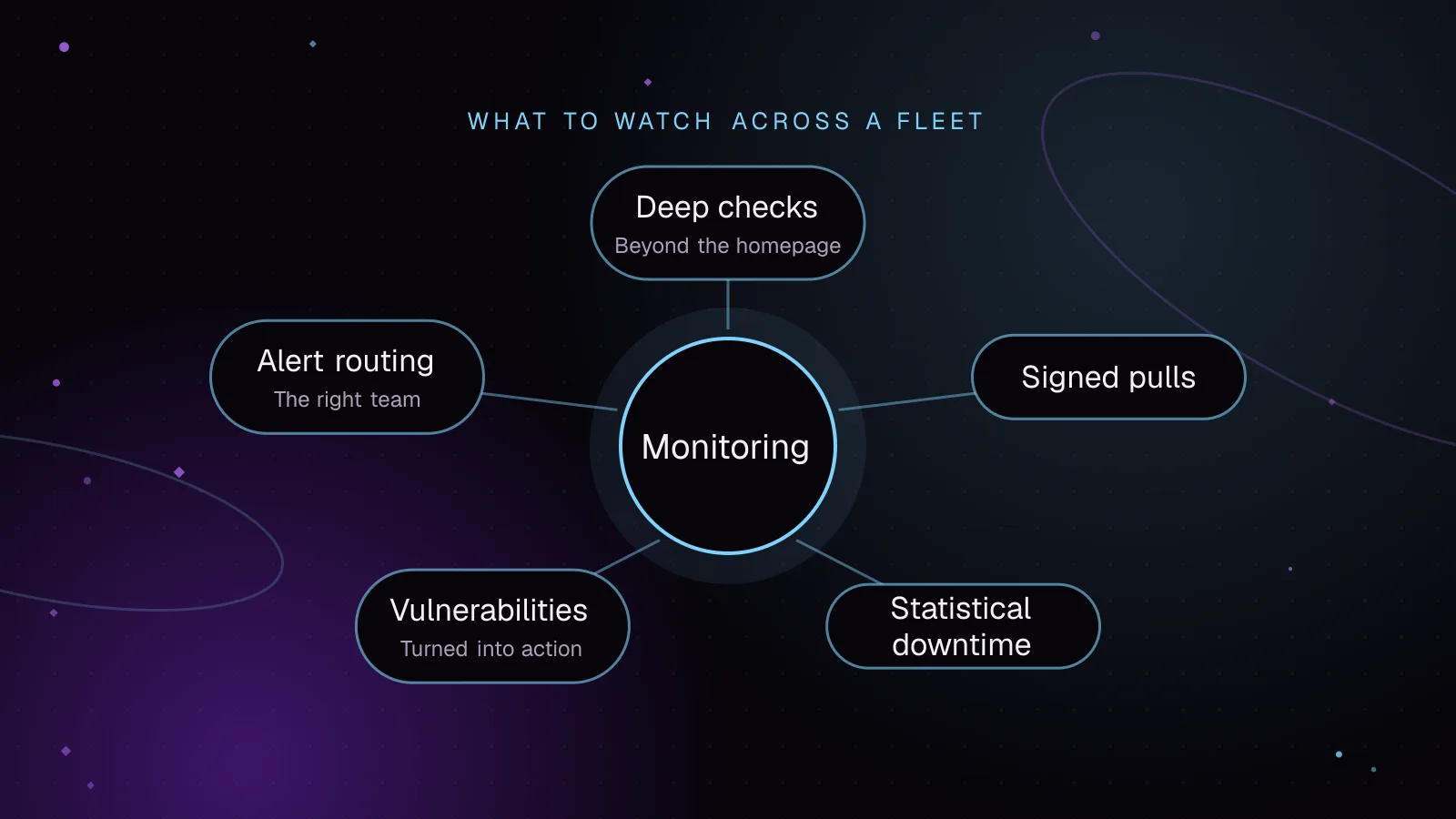
How to monitor WordPress sites without alert fatigue
Monitor WordPress sites with signed agent requests, vulnerability checks and alerts grouped by severity. Lessons from building Fleet Sentinel.
- WordPress
- Monitoring
- Security
 Monitoring
7 min read
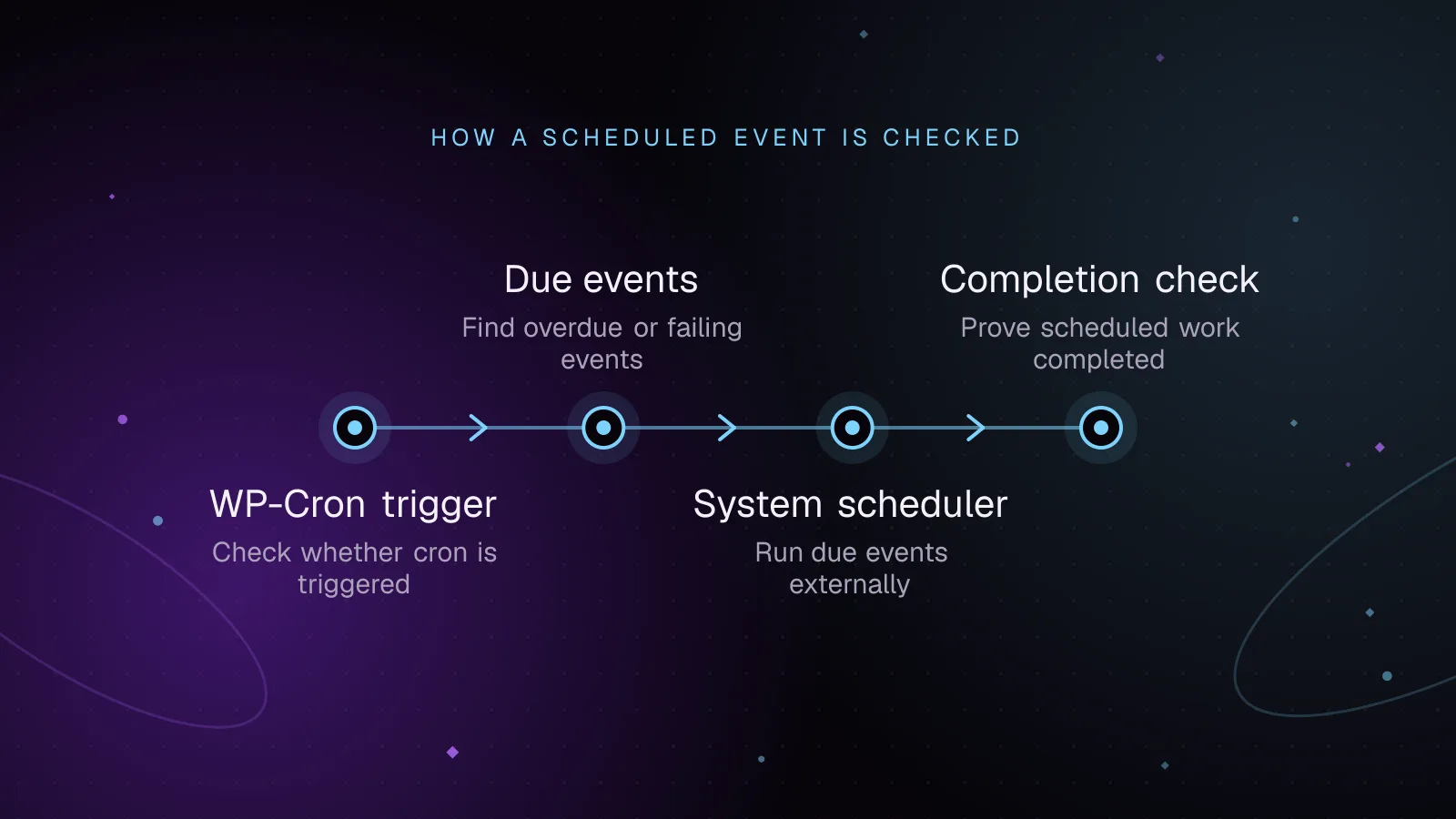
WordPress cron monitoring: prove scheduled jobs ran
Diagnose WordPress cron not running, find overdue events, test spawning, run due jobs from system cron, and add alerts that prove key jobs finished.
- WordPress
- Monitoring
- Cron
 Monitoring
7 min read
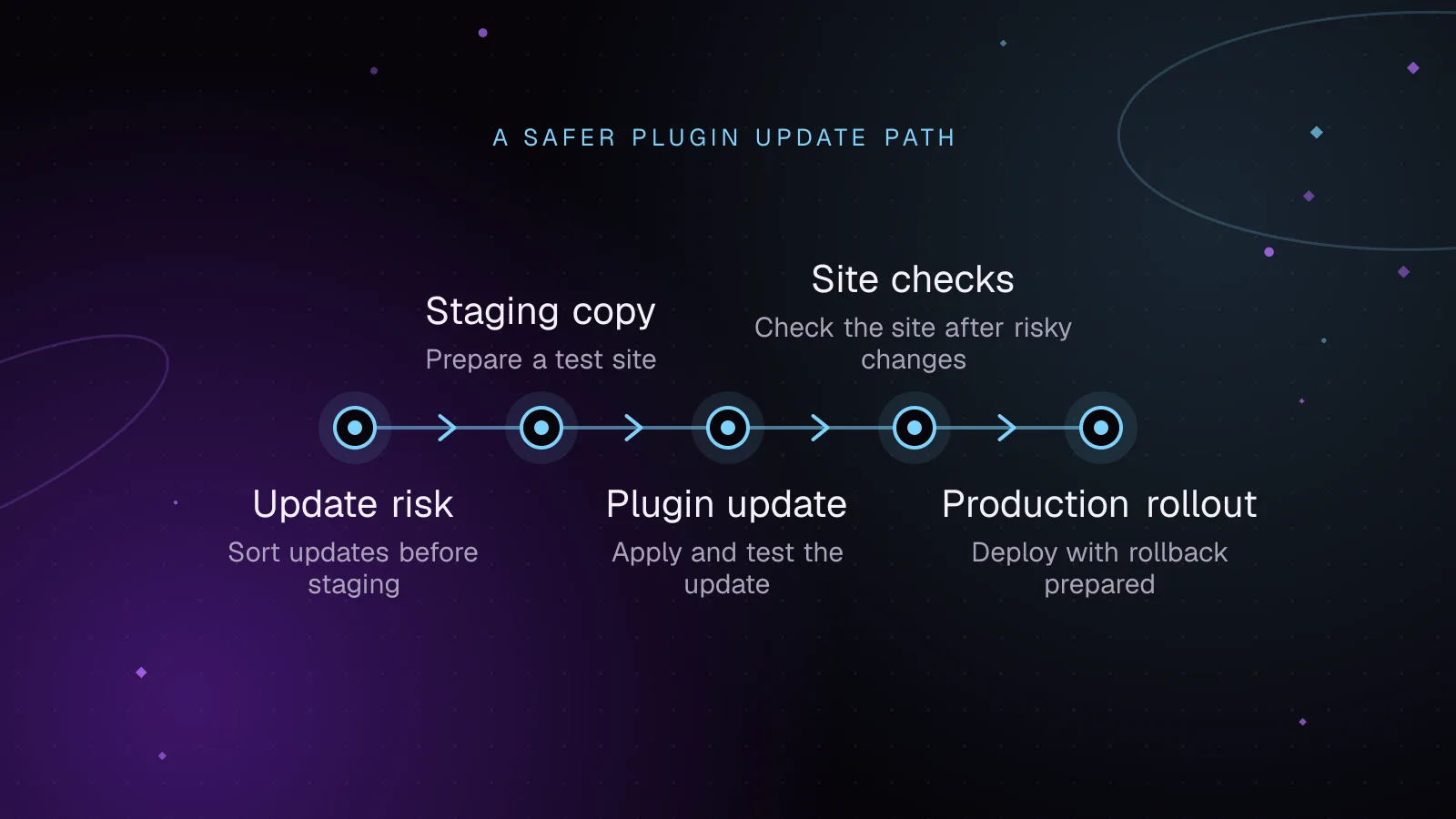
How to test WordPress plugin updates before they reach production
Test WordPress plugin updates on staging, check key site flows, deploy one change at a time, and roll back cleanly if an update causes trouble.
- WordPress
- Plugins
- Monitoring