Monitoring7 min read
How to test WordPress plugin updates before they reach production
Test WordPress plugin updates on staging, check key site flows, deploy one change at a time, and roll back cleanly if an update causes trouble.
 By Hamza Ahmad AslamWordPress VIP, Performance & Full-Stack Engineer
On this page
- Sort plugin updates by risk before you touch staging
- Copy production to staging without copying production risk
- How to test WordPress plugin updates with WP-CLI
- Check the site after each risky update
- Roll out to production with rollback already prepared
- Keep a small update record for the next release
- What to do next
- Frequently asked questions
Short answer: To test WordPress plugin updates safely, copy production to staging, a private test copy, review what changed, update in controlled batches, and run the site flows that matter before production. Keep a pre-update backup and the previous plugin package or version ready so you can reverse a bad release quickly.
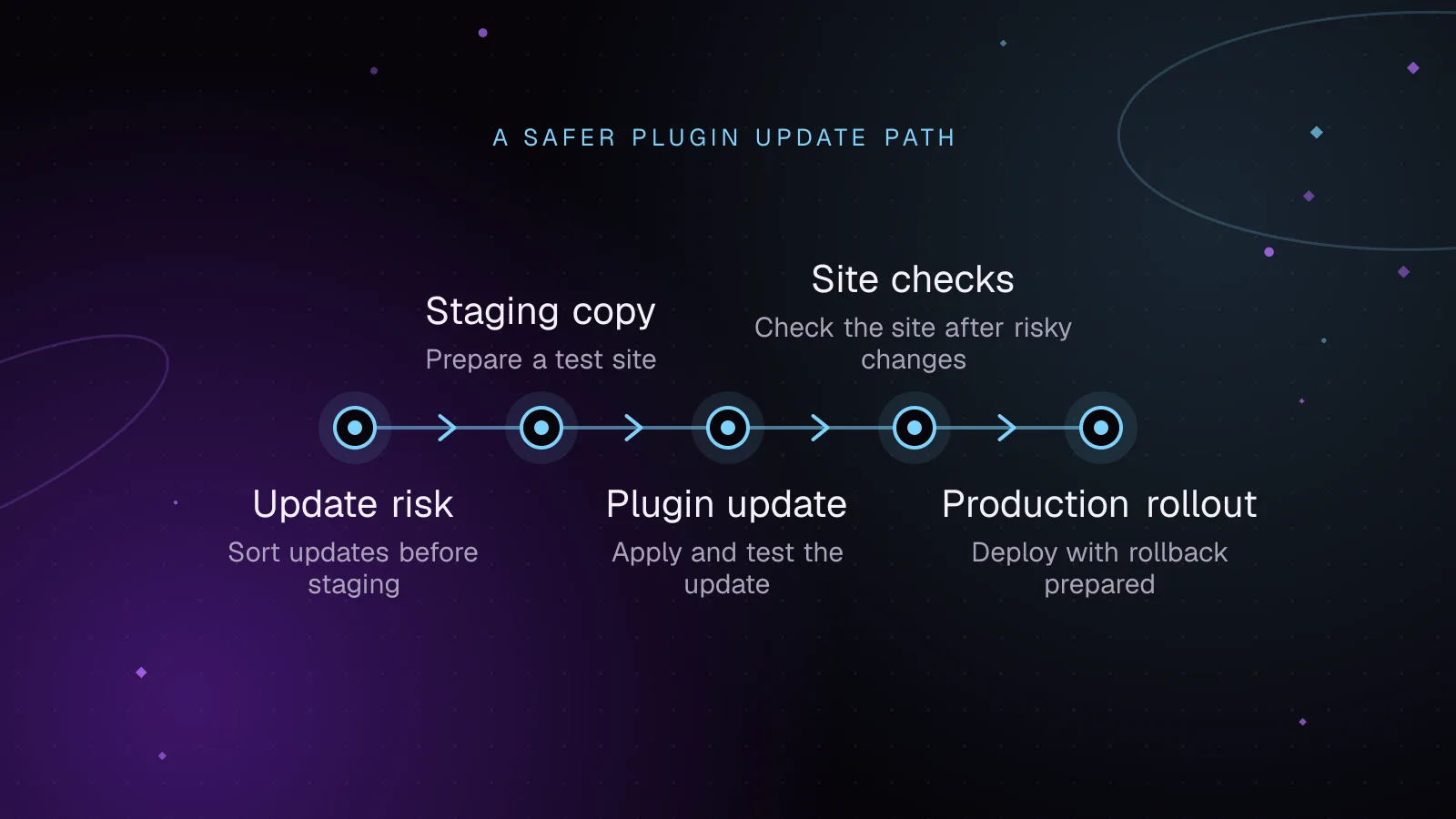
Sort plugin updates by risk before you touch staging
Start with the release notes, not the Update button. For plugins hosted on WordPress.org, the plugin page can expose changelog information supplied through the plugin readme. The WordPress Plugin Handbook explains how plugin readmes feed the directory (opens in a new tab).
Read the changelog for changes to requirements, database storage, checkout, authentication, external integrations, editor behavior, caching, scheduled jobs, and features marked for removal. Then read recent support topics for reports that match your stack. A support thread is not proof of a bug, but several similar reports tell you what to test.
Sort each update by the damage it could cause on your site, not by the version label alone. A small release to a payment gateway may deserve more care than a larger release to an unused admin tool.
Treat these as higher risk:
- Put payment, checkout, membership, login, forms, search, caching, multilingual, and security plugins in the high-risk group when the site depends on them.
- Raise risk when release notes mention database changes, new minimum requirements, removed compatibility, changed interfaces, or large rewrites.
- Raise risk when the plugin connects to a third-party service that affects orders, email, CRM data, shipping, tax, or identity.
- Lower the operational risk for inactive or non-critical plugins, while still checking that the update package is expected.
An update routine for agencies should make risky changes easy to identify and reproduce. It also prevents a long list of pending updates from becoming one undifferentiated job.
Copy production to staging without copying production risk
A staging site should be close enough to production that failures are useful. Copy the database, theme, plugin set, and all other code that production loads. Keep staging isolated from customers and search engines.
Do not treat production customer data as harmless test data. Scrub or replace personal information that testers do not need. That includes customer names, email addresses, phone numbers, addresses, form entries, account data, and order notes when they are not required for the test.
Replace live service credentials with test credentials. Block outgoing customer email or route it to a controlled test mailbox. Payment gateways should use their test mode where the provider supports one.
If your platform has a production-to-staging copy feature, use it instead of building a one-off transfer process. WordPress VIP, for example, documents a production-to-non-production data sync (opens in a new tab) that keeps content movement pointed away from production.
The key rule is simple: staging may receive a fresh production copy, but staging changes do not become production content. Deploy code upward through your normal release process.
How to test WordPress plugin updates with WP-CLI
WP-CLI is WordPress's command-line tool. It makes the update step visible and repeatable. First record what is installed and what has an update available.
The current wp plugin list command (opens in a new tab) can filter on plugin fields and display selected columns.
wp plugin list --update=available --fields=name,status,version,update_version
Example output below is illustrative. It uses documented Akismet release numbers and is not output from a live site.
+---------+--------+---------+----------------+
| name    | status | version | update_version |
+---------+--------+---------+----------------+
| akismet | active | 5.7.1   | 5.7.2          |
+---------+--------+---------+----------------+
Save that output in the change record. It gives you the before state without relying on memory.
For a risky plugin, preview the update first. The current wp plugin update command (opens in a new tab) supports --dry-run, which previews which plugins would be updated.
wp plugin update akismet --dry-run
If the preview names the release you expect, run the update for that plugin alone:
wp plugin update akismet
Do not use wp plugin update --all as the default for a high-risk batch. Updating one risky plugin at a time gives you a clean cause if a test fails. You can group lower-risk updates after the important flows have a known baseline.
A dry run checks the planned WP-CLI action. It does not execute plugin migration code, which can change stored data or database structure. It also does not prove compatibility.
Check the site after each risky update
Start with the PHP error log. Compare it with the baseline from before the update. Look for new fatal errors, uncaught exceptions, repeated warnings tied to the updated plugin, or failures from a dependency it calls.
Then test the paths users and staff depend on. If a plugin update broke site behavior before, the home page may still have looked normal. Check the feature the plugin affects, not only the front page.
Use this checklist as a release gate:
| Check | What to do | Pass condition |
|---|---|---|
| Plugin state | Confirm the intended plugin version is installed and active | Expected version and status are present |
| PHP log | Load the tested flows, then inspect new log entries | No new fatal error or repeated plugin-related failure |
| Key pages | Open landing, search, account, and other important templates | Pages render with expected content and controls |
| Forms | Submit each important form with staging data | Validation, storage, and delivery path work as expected |
| WooCommerce checkout | Add a product, change the cart, complete a test payment, and inspect the order | Cart totals, payment flow, order creation, and admin view work |
| Admin screens | Edit and save the settings or content the plugin touches | Save completes and the changed value persists |
| External services | Exercise the integration with test credentials | Request and response complete without touching live customer systems |
WooCommerce publishes testing guidance for extensions (opens in a new tab) that includes critical flows and end-to-end testing. For a store, checkout deserves a full test rather than a page-load check.
A small shell check can catch broken routes quickly. Edit the paths to match the staging site. This only checks whether each URL returns successfully, so it does not replace form, login, or checkout tests.
#!/usr/bin/env bash
set -euo pipefail

BASE_URL="https://staging.example.com"
PATHS=("/" "/contact/" "/shop/" "/cart/" "/checkout/")
failed=0

for path in "${PATHS[@]}"; do
  code="$(
    curl --silent --show-error --location \
      --output /dev/null \
      --write-out '%{http_code}' \
      "${BASE_URL}${path}"
  )" || code="000"

  printf '%s %s\n' "$code" "$path"

  if [[ "$code" != "200" ]]; then
    failed=1
  fi
done

exit "$failed"
Run the same route check before and after the update. A changed response is a reason to inspect the page, redirects, authentication, and logs before moving on.
Use visual regression testing that compares screenshots before and after updates to catch layout breaks that route checks and PHP logs miss.
Roll out to production with rollback already prepared
Before production, take a fresh backup of both the database and site files. If your host provides snapshots, confirm that you have a restorable point-in-time copy from immediately before the change. Record the current plugin version again.
Deploy during a period when someone can verify the result and reverse it. Apply the same risky plugins one at a time. Run short smoke checks, basic checks that the main flows still work, after each one.
For a WordPress.org-hosted plugin, WP-CLI can target a specific version with --version when that version is available from the repository. This rollback example uses a documented Akismet release:
wp plugin update akismet --version=5.7.1
That command replaces the plugin files with the requested package. It does not reverse database changes that the newer plugin may already have made.
That distinction matters for a WordPress update rollback. If the release changed stored data or database structure in a way the old plugin cannot read, restore the matching pre-update database and files instead of only replacing the plugin directory.
For a premium or private plugin, keep the previous vendor package or saved release package ready. Do not assume WP-CLI can fetch an older commercial release from WordPress.org.
If production fails after an update, stop the rollout. Capture the error, roll back the changed plugin or restore the pre-update snapshot, then verify the same key flow that failed. Resume only after you understand the failure and have a tested path forward.
Safe plugin updates depend on that rollback path being prepared before production changes start.
Keep a small update record for the next release
A useful record is short enough that people keep writing it. Store the date, site or environment, plugin slug, old version, target version, release notes reviewed, risk level, test results, production result, and rollback reference.
Also record any test that caught a problem. That test becomes part of the next update checklist. Over time, staging plugin updates get faster because the team stops rebuilding the test plan from memory.
For agencies, keep one record per site and one shared pattern for common stacks. You still test the site-specific flows, but the preparation and evidence stay consistent across maintainers.
What to do next
Use WordPress plugin vulnerability monitoring to separate urgent security work from normal maintenance. I built Update Forecast, a free pre-update check that reads a plugin release's changelog and recent support topics and suggests whether to update now or wait.
If you want the testing calendar, staging checks, production rollout, and rollback process handled for you, the WordPress maintenance and security service covers that ongoing work.
Frequently asked questions
How do I test a plugin update if I do not have a staging site?
Create a temporary clone with your host or local tooling before changing production. If that is impossible, take a restorable backup first, update one plugin, and check the critical flows immediately. A production-only process carries more risk because rollback becomes your first safety net.
Can I roll back a WordPress plugin to an older version?
Yes, if you have the older package or the version is still available from the plugin's distribution source. A file rollback may be insufficient after a database migration, so keep a matching database backup for risky updates.
Should I update all WordPress plugins at once?
Grouping low-risk updates can be reasonable after staging checks, but keep high-risk plugins separate. One-at-a-time updates make failures easier to attribute and reduce the amount you must reverse.
How long should I wait before installing a plugin update?
Base the decision on urgency, release scope, site dependency, and the evidence from staging. Security fixes may need a faster path, while a feature release can wait until its affected flows are tested.
Share this article
Enjoyed this? Get the next article by email.
Keep reading
 Monitoring
8 min read
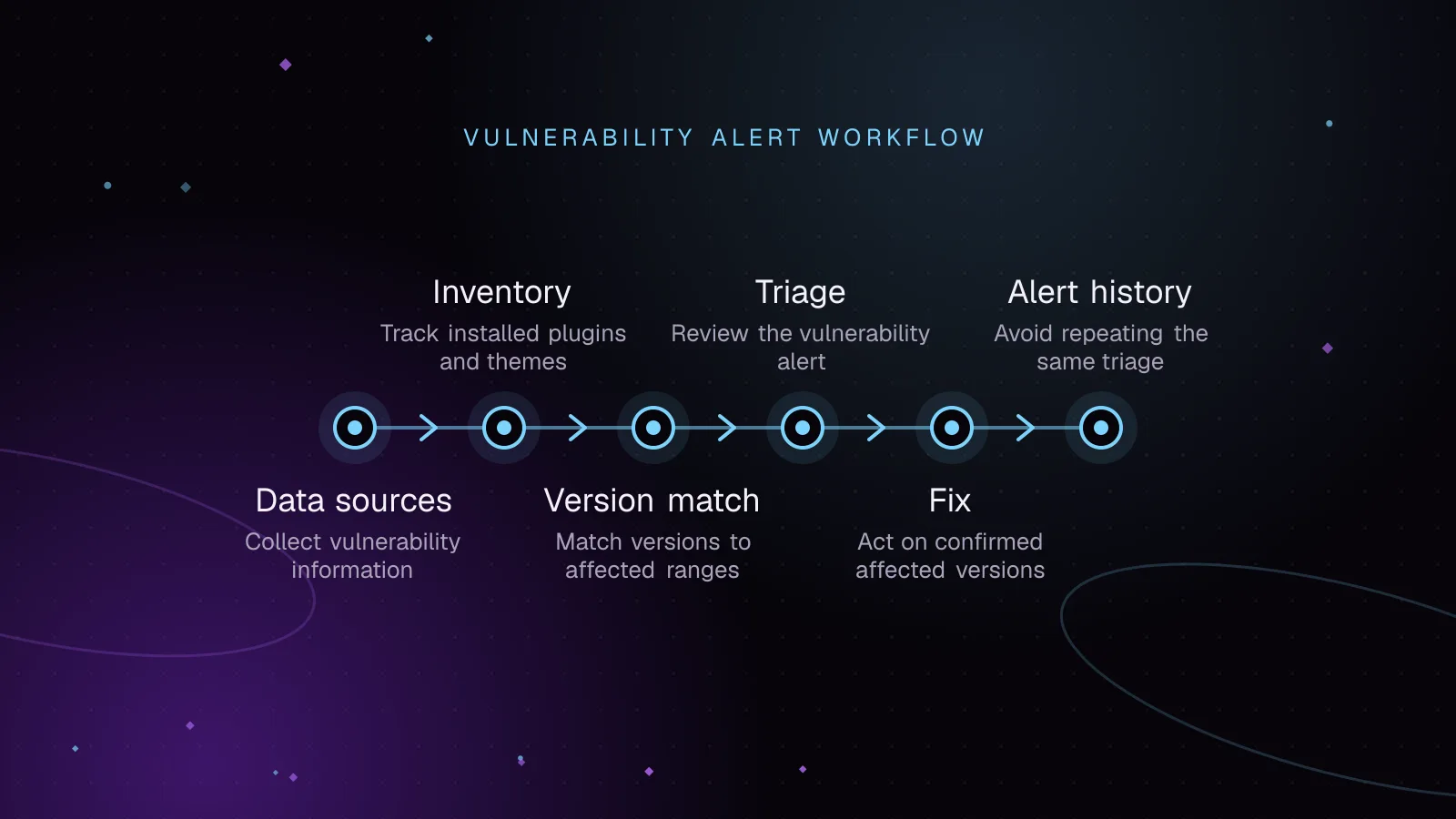
WordPress plugin vulnerability monitoring: from alert to fix
Use WordPress vulnerability monitoring to inventory plugins, match known flaws, triage risk, patch safely, and track closed or abandoned extensions.
- WordPress
- Security
- Monitoring
 Monitoring
7 min read
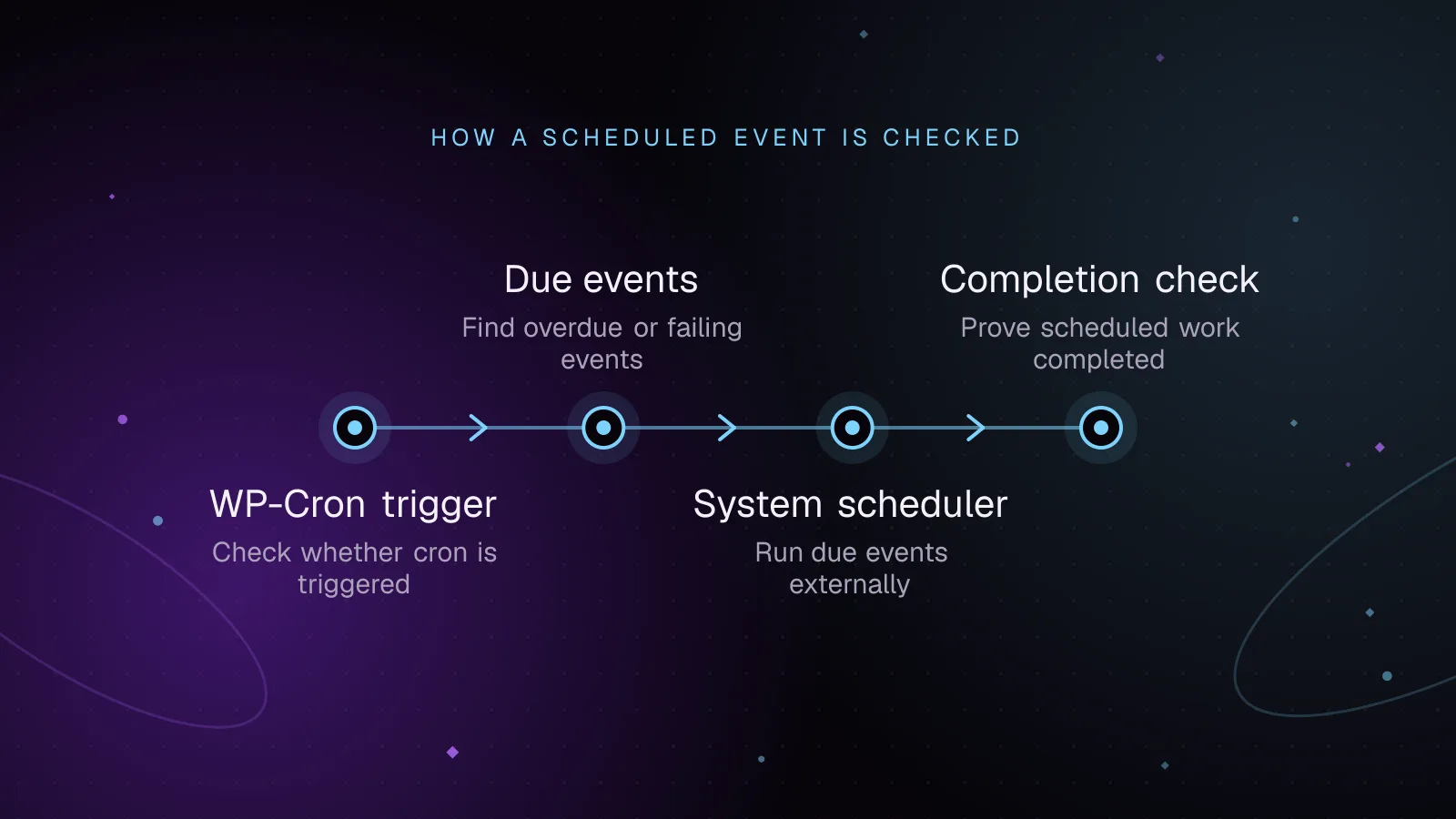
WordPress cron monitoring: prove scheduled jobs ran
Diagnose WordPress cron not running, find overdue events, test spawning, run due jobs from system cron, and add alerts that prove key jobs finished.
- WordPress
- Monitoring
- Cron
 Monitoring
7 min read
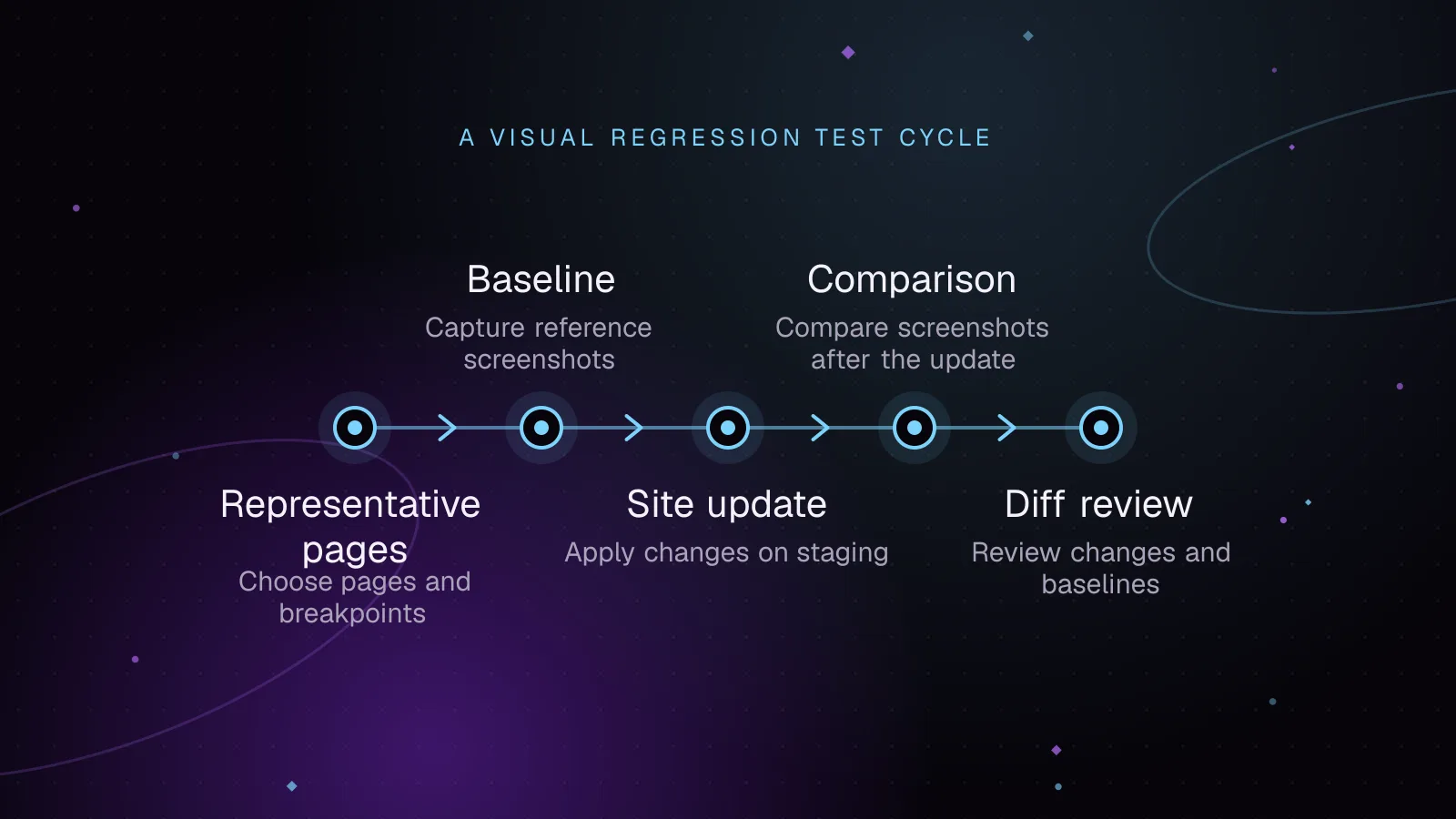
WordPress visual regression testing before and after updates
Use WordPress visual regression testing to catch layout breaks after updates, stabilize screenshots, review diffs, and approve baselines safely.
- WordPress
- Monitoring
- Testing