Performance7 min read
WordPress LCP image optimization: make the largest image load first
Fix a slow WordPress LCP image by finding the LCP element, removing lazy load, setting fetch priority, preloading backgrounds, and retesting.
 By Hamza Ahmad AslamWordPress VIP, Performance & Full-Stack Engineer
On this page
- Find the LCP element before changing the image
- Check PageSpeed Insights first
- Confirm it in Chrome DevTools
- What WordPress already does for image loading
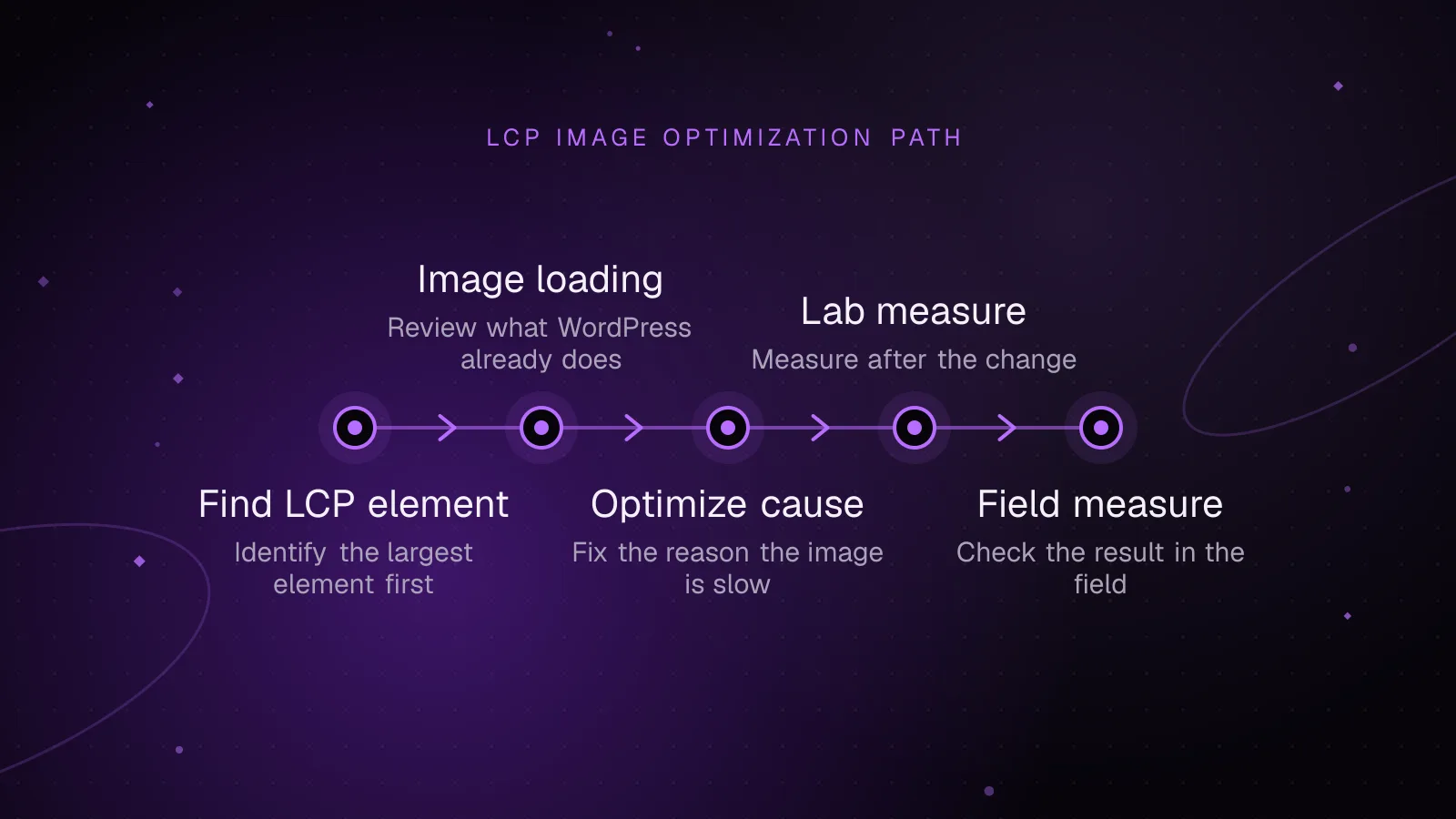
- How to optimize a WordPress LCP image by cause
- Remove lazy loading from the visible hero
- Fix a theme or plugin that adds the wrong loading attribute
- Preload a CSS background image
- Send an image close to its rendered size
- Use WebP or AVIF when they reduce bytes
- Fix server delay before chasing image priority
- Measure the result in the lab and then in the field
- What to do next
- Frequently asked questions
Short answer: A slow WordPress LCP image usually needs three things: early discovery, high fetch priority, and a file sized for the space it occupies. Find the actual LCP element first, then remove accidental lazy loading, fix responsive image markup, preload late-discovered backgrounds, and retest.
Find the LCP element before changing the image
Largest Contentful Paint problems in WordPress are easy to misdiagnose because the image you expect to be LCP may not be the element Chrome measures. LCP is the render time of the largest eligible image, text block, or video poster visible in the initial viewport.
Google classifies LCP as good at 2.5 seconds or less, needs improvement above 2.5 seconds through 4.0 seconds, and poor above 4.0 seconds. Field assessment uses the 75th percentile, split between mobile and desktop. See web.dev’s LCP definition and thresholds (opens in a new tab).
Check PageSpeed Insights first
Run the exact URL in PageSpeed Insights for both mobile and desktop. Separate the field result from the lab result. Field data comes from the Chrome User Experience Report over a rolling 28-day window, while the lab test comes from Lighthouse under controlled conditions.
Use the Lighthouse diagnostics to identify the LCP element and the request behind it. If the page has enough CrUX data, compare that lab finding with the field LCP. A lab run can tell you what happened during one test. Field data tells you whether real visitors still have the problem.
Confirm it in Chrome DevTools
Open Chrome DevTools, record a page load in the Performance panel, and select the LCP marker. The LCP details break the time into TTFB, resource load delay, resource load time, and element render delay.
Those four parts tell you which fix matters. A long resource load delay points to late discovery. A long resource load time points to bytes, connection speed, or origin delivery. A long TTFB means the browser could not discover an HTML-referenced image soon enough because the document itself arrived late.
For a quick local check, paste this into the DevTools console and reload. It logs the latest LCP candidate and its element.
new PerformanceObserver((list) => {
    const entries = list.getEntries();
    const lcp = entries[entries.length - 1];

    console.log({
        time: lcp.startTime,
        element: lcp.element,
        url: lcp.url
    });
}).observe({
    type: 'largest-contentful-paint',
    buffered: true
});
For field instrumentation, the web-vitals attribution build can report the LCP target, resource URL, and timing attribution from real visits. That is more useful than assuming every template has the same LCP element.
What WordPress already does for image loading
WordPress 5.5 introduced native image lazy loading by default through the HTML loading attribute. WordPress 5.9 started omitting lazy loading from the first content media items where Core expected them to appear in the initial viewport.
WordPress 6.3 refined that logic and began adding fetchpriority="high" to the image Core considers the most likely LCP candidate. The WordPress 6.3 image performance dev note (opens in a new tab) also states that loading="lazy" and fetchpriority="high" should not be used together on the same image.
That means a recent WordPress install often emits sensible markup without custom code. Problems appear when a theme, builder, slider, CDN transformer, or lazy-load plugin rewrites the markup after Core has made its decision.
Common failures include hiding the real src in data-src, forcing loading="lazy" onto the hero, rendering the first slide only after JavaScript runs, replacing an <img> with a CSS background, or stripping srcset and sizes.
Inspect the final HTML in the browser, not only the PHP template. The network request and rendered DOM are what determine whether the browser can discover the image early.
How to optimize a WordPress LCP image by cause
Treat LCP as a request-order problem before treating it as an image-compression problem. A tiny image can still start late, and a high-priority image can still be too large.
Remove lazy loading from the visible hero
Do not lazy-load an image that is visible in the initial viewport and becomes LCP. If a plugin adds loading="lazy" to that image, exclude the hero from that plugin or remove the attribute for that specific image.
A correctly prioritized hero image can look like this:
<img
    src="/wp-content/uploads/2026/09/hero-1280.webp"
    srcset="
        /wp-content/uploads/2026/09/hero-640.webp 640w,
        /wp-content/uploads/2026/09/hero-1280.webp 1280w,
        /wp-content/uploads/2026/09/hero-1920.webp 1920w
    "
    sizes="100vw"
    width="1280"
    height="720"
    fetchpriority="high"
    decoding="async"
    alt="Product collection displayed in the hero section"
>
There is no loading="lazy" here. You can omit loading entirely for the LCP image. loading="eager" is also valid, but it does not make an already non-lazy image fetch faster. fetchpriority="high" is the priority hint.
Use high priority on the single image that deserves it. Giving several images high priority makes them compete with one another and reduces the value of the signal.
Fix a theme or plugin that adds the wrong loading attribute
Since WordPress 6.4, the wp_get_loading_optimization_attributes filter (opens in a new tab) can adjust the loading attributes returned by Core. This example removes lazy loading for an image carrying a known hero class.
add_filter(
    'wp_get_loading_optimization_attributes',
    function ( $loading_attrs, $tag_name, $attr, $context ) {
        if (
            'img' === $tag_name
            && ! empty( $attr['class'] )
            && false !== strpos( ' ' . $attr['class'] . ' ', ' site-hero__image ' )
        ) {
            unset( $loading_attrs['loading'] );
        }

        return $loading_attrs;
    },
    10,
    4
);
Keep the rule narrow. Removing lazy loading globally makes below-the-fold images compete with the LCP resource. If you control the template that renders the hero, set the intended attributes there instead of correcting broad output later.
Preload a CSS background image
A CSS background can be the LCP element, but the browser normally discovers its URL only after it receives and processes the stylesheet. If the hero must remain a background image, preload the exact file used for the initial viewport.
This front-page example prints the preload from wp_head:
function haa_preload_front_page_hero() {
    if ( ! is_front_page() ) {
        return;
    }

    echo '<link rel="preload" as="image" href="/wp-content/uploads/2026/09/home-hero.webp" type="image/webp" fetchpriority="high">' . "\n";
}
add_action( 'wp_head', 'haa_preload_front_page_hero', 1 );
The preload URL must match the resource the CSS requests. If desktop and mobile use different backgrounds, use responsive preload markup rather than forcing both files to download.
When possible, prefer a real <img> for a content-bearing hero. The HTML parser can discover it earlier, and srcset plus sizes gives the browser better responsive choices.
Send an image close to its rendered size
Responsive image markup in WordPress matters because LCP includes the resource load itself. WordPress has added srcset and sizes to attachment images since 4.4 when it has the required image metadata.
Do not request a very large source and rely on CSS to shrink it. Make sure WordPress has an appropriate generated size, then inspect the resulting srcset and sizes in the final HTML. The browser should be able to choose a candidate close to the rendered width at each viewport.
This matters on product pages as much as editorial pages. For store-specific bottlenecks around galleries, scripts, cart behavior, and templates, use the guide to speeding up WooCommerce alongside the image work.
Use WebP or AVIF when they reduce bytes
WordPress 5.8 added support for uploading and using WebP images when the hosting environment supports the format. See the WordPress 5.8 WebP support dev note (opens in a new tab).
WordPress 6.5 added equivalent upload and use support for AVIF, again depending on server image-library support. See the WordPress 6.5 AVIF support dev note (opens in a new tab).
Core support does not mean WordPress automatically converts every existing JPEG or PNG into WebP or AVIF. Check the file that the browser downloads. Choose the format and compression level that reduce transfer size without damaging the visible image.
Fix server delay before chasing image priority
An HTML <img> cannot be discovered from the document until enough of the document response reaches the browser. If TTFB is slow, fetchpriority cannot recover the time already lost before discovery.
Use the WordPress TTFB diagnostic guide if the LCP breakdown shows a large server-response component. Check page caching, PHP execution, database time, external requests, and hosting capacity before adding more image hints.
For a CSS background, preload can move image discovery into the document head. It still does not remove a slow initial document response.
Measure the result in the lab and then in the field
After changing the WordPress LCP image path, test the same URL under the same lab conditions. Confirm three things in DevTools: the image starts earlier, it is not lazy-loaded, and the browser selects the intended responsive candidate.
Then rerun PageSpeed Insights. A single Lighthouse run is useful for debugging, but it is not the final result. Field LCP changes only as new real-user samples replace older samples in the CrUX window.
Use the free Core Web Vitals budget calculator to split LCP and INP budgets into their phases and see where each metric spends its available time. Keep the budget tied to real templates, such as the home page, product page, category page, and article page.
If the image begins early but LCP still lands late, look at the remaining LCP phases. Render delay can come from CSS, fonts, JavaScript, overlays, or client-side sliders that keep the final hero from painting.
What to do next
Pick one failing template and trace its LCP from HTML response through image request to final paint. Fix discovery first, then priority, dimensions, responsive candidates, file size, and server response.
If several templates share the same performance problems, a wider code and delivery review is usually faster than treating each image separately. The WordPress performance optimization service covers that broader path without limiting the investigation to one Core Web Vital.
Frequently asked questions
Should I add fetchpriority="high" to every above-the-fold image?
No. Reserve high fetch priority for the image most likely to be LCP. Marking several images high makes them compete for early bandwidth and weakens the browser hint.
Should the LCP image use loading="eager"?
It may, but omitting the loading attribute also gives normal eager behavior. The main rule is to avoid loading="lazy" on an image that is visible immediately and likely to become LCP.
Should I preload the hero image if it already uses an img tag?
Usually not. An <img> in the initial HTML is already discoverable by the browser preload scanner, so fetchpriority="high" is often the more relevant hint. Preload is most useful when the LCP resource is discovered late, such as a CSS background or JavaScript-inserted image.
Can a faster image format fix LCP by itself?
Only when image transfer time is a meaningful part of the delay. If the browser discovers the image late, the document has a slow TTFB, or JavaScript delays rendering, converting the file alone will not fix those phases.
Share this article
Enjoyed this? Get the next article by email.
Keep reading
 Performance
5 min read
How to speed up WooCommerce: a Core Web Vitals guide
Speed up WooCommerce step by step: faster LCP images, lighter JavaScript for a better INP, safe page caching and a leaner database.
- WooCommerce
- Performance
- Core Web Vitals
 Performance
7 min read
WordPress speculative loading: faster navigation without breaking a store
Tune WordPress speculative loading for WooCommerce, exclude risky URLs, verify browser behavior in DevTools, and measure navigation and server cost.
- WordPress
- Performance
- WooCommerce
 Performance
7 min read
How to reduce WordPress TTFB: a diagnostic guide
Reduce WordPress TTFB by separating CDN, network, PHP-FPM, database, cache, and WordPress delays with repeatable diagnostic tests.
- WordPress
- TTFB
- Performance