Is it hacked? The first hourChapter 1 of 328 min read
How to Tell If Your WordPress Site Is Hacked: Warning Signs
A hacked WordPress site can hide behind redirects, spam pages, unknown admins or changed files. Check the strongest signals first and record what you find before cleanup.
 By Hamza Ahmad AslamAI & WordPress Developer | Speed Optimization & Site Security
In this guide
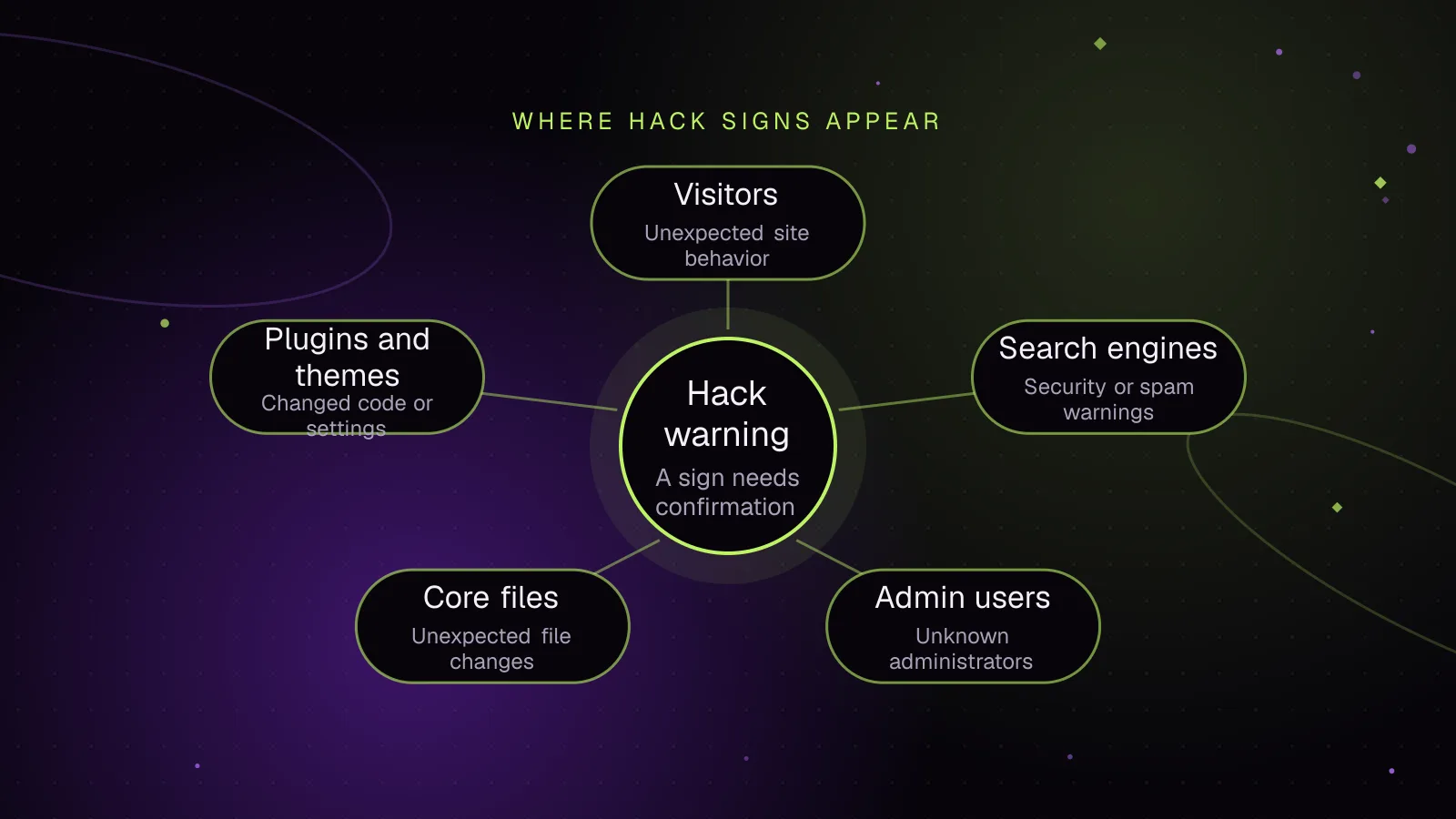
The signs a WordPress site is hacked are unauthorized changes, access or behavior caused by someone who gained control of the site, an account, its files or its database. Strong signs include unknown administrators, injected pages, redirects, changed core files and security warnings. A slow page or failed update alone does not establish that the site was hacked.
What are the signs that a WordPress site has been hacked?
The strongest signs are changes or behavior that nobody authorized and that ordinary WordPress faults do not explain.
Treat these as high-priority indicators:
- Visitors are redirected to domains you do not control.
- Search results show pages, titles or subjects nobody published.
- WordPress contains an administrator account nobody recognizes.
- Pages or posts have been added or changed without an authorized editor doing it.
- Your homepage, checkout or another page contains unfamiliar scripts, forms or links.
- WordPress core files differ from the official files for that WordPress version.
- Google Search Console reports a security issue.
- A browser displays a malware, phishing or dangerous-site warning.
- Your host reports malicious files or suspends the account for a security problem.
- An authorized administrator loses access after account details change.
Some symptoms have innocent explanations. A slow site may have a performance problem. A file you do not recognize may belong to your host, a plugin or a deployment process. An unexpected user may have been created by another administrator.
Confirmation comes from matching the symptom to an unauthorized change, a trusted security report or another independent signal.
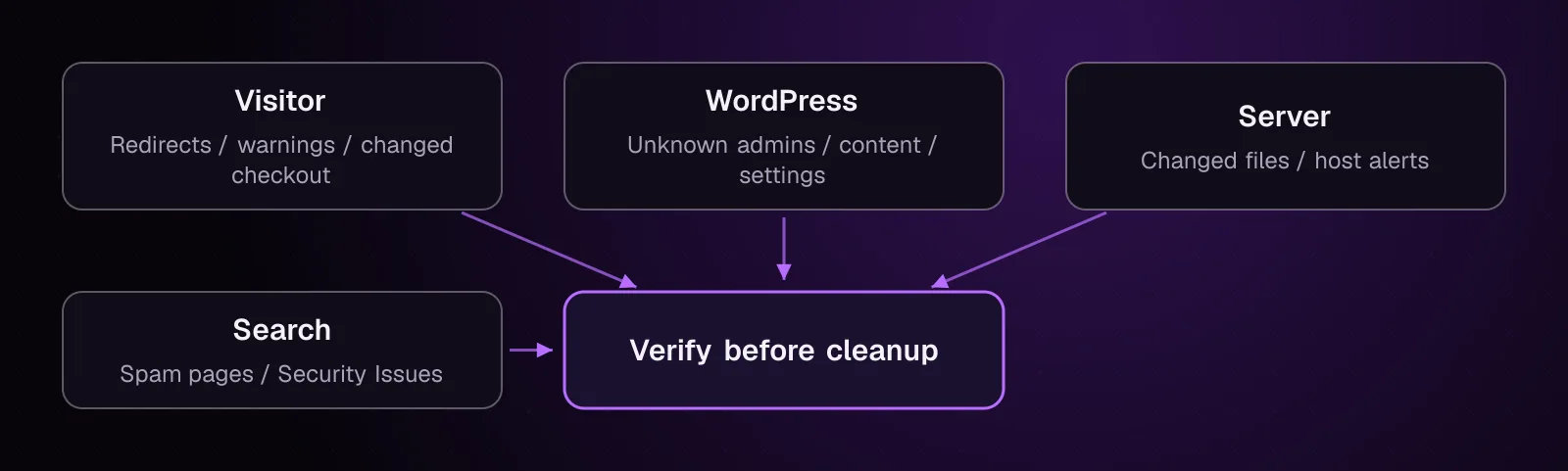
The same incident can leave signals in several places, so check more than the homepage.
What might visitors, customers or search engines see first?
Visitors may notice redirects, changed pages, browser warnings or checkout behavior before anything looks wrong inside WordPress.
Google documents several warning types. Search results can show hacked-site or harmful-site labels, while browsers using Safe Browsing data can put a warning page in front of an affected URL. Search Console can also report detected security issues in the verified property.
Check reports from visitors instead of dismissing them because the site looks normal from your browser. Record the affected URL, time, device and what happened. Do not ask someone to repeat a visit to a page that their browser has already marked dangerous.
For a store, pay close attention to a checkout that suddenly behaves differently. Unexpected scripts, redirects or payment-page changes need investigation before you accept more orders.
Search results can expose another type of compromise. Google documents hacked content as content placed on a site without permission. Search for your domain and inspect unfamiliar results, especially pages on subjects you have never published.
Google's dangerous-site guidance (opens in a new tab) explains the warning types and the Security Issues process.
How do WordPress sites usually get hacked?
Common entry points include vulnerable software, compromised credentials, untrusted code and compromise elsewhere in the hosting environment.
WordPress's security hardening documentation (opens in a new tab) describes risks from outdated software, password attacks, untrusted plugins or themes, compromised computers and server or network weaknesses.
Do not decide the entry point from the visible symptom. A spam page does not tell you whether the initial access came through a plugin flaw, a stolen password, another site in the hosting account or something outside WordPress.
That question belongs later in the investigation. For now, establish whether an unauthorized change happened and preserve enough information to investigate it.
How do I check WordPress without changing evidence?
Start by recording what exists, then move to inspection commands before you delete, update, reinstall or repair anything.
If payment data, personal information or another serious incident may need forensic investigation, ask the host or a qualified investigator how they want the system preserved before running further commands.
Use this read-first sequence:
-
Record the visible symptoms. Save the affected URLs, screenshots, browser warnings, host messages and approximate times.
-
Open Search Console and check Security Issues for the property. Record the issue category and example URLs Google provides.
-
Record every administrator account and compare it with the people who should have access.
-
Record the installed plugins, must-use plugins, drop-ins and themes.
-
Record the WordPress
homeandsiteurlvalues. -
Verify WordPress core against WordPress.org checksums.
-
Record suspicious files or settings without removing them.
-
If shared hosting is involved, inspect the other applications under the same account before assuming only this WordPress installation is affected.
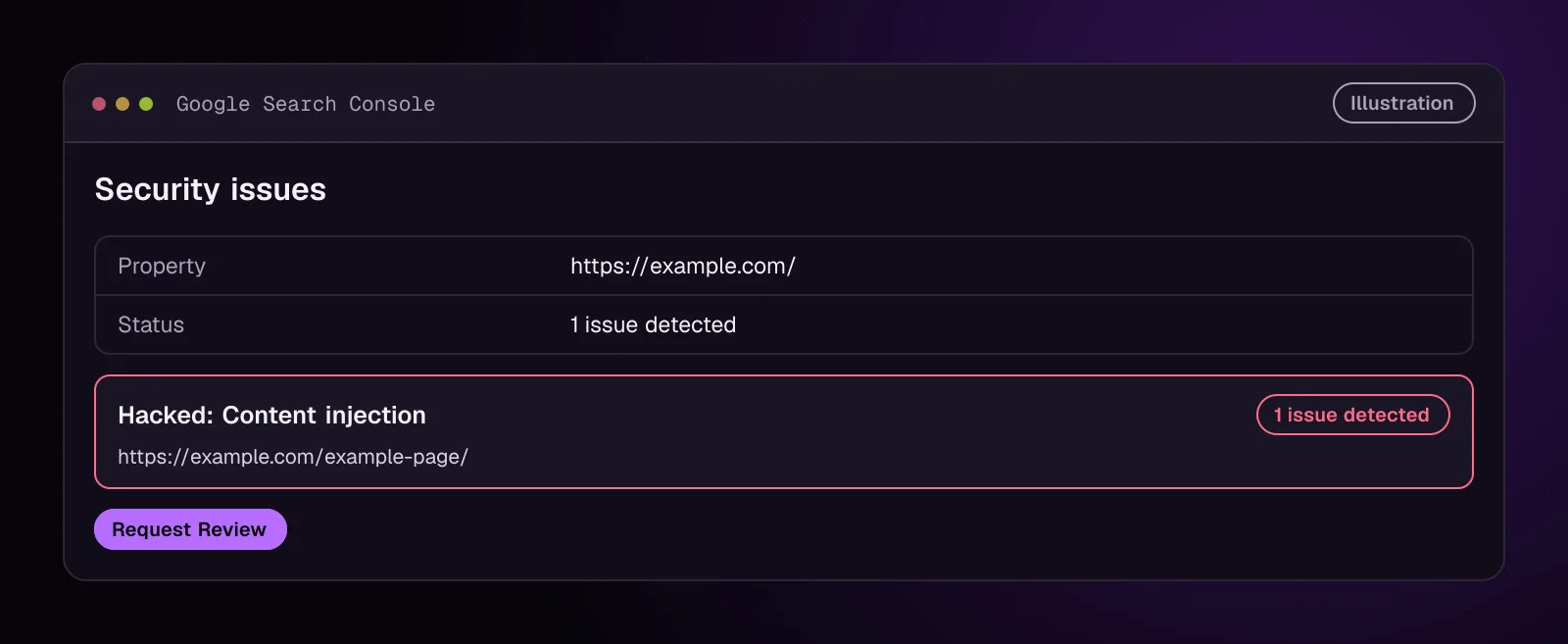
Search Console can provide a strong independent signal, but a clean report does not prove every file, database value or user account is clean.
How do I check for unknown WordPress administrators?
Compare every administrator with a person or system that is supposed to have that level of access.
In wp-admin, open Users and review the accounts with the Administrator role. Record the username, email address and registration information before changing anything.
With WP-CLI, use:
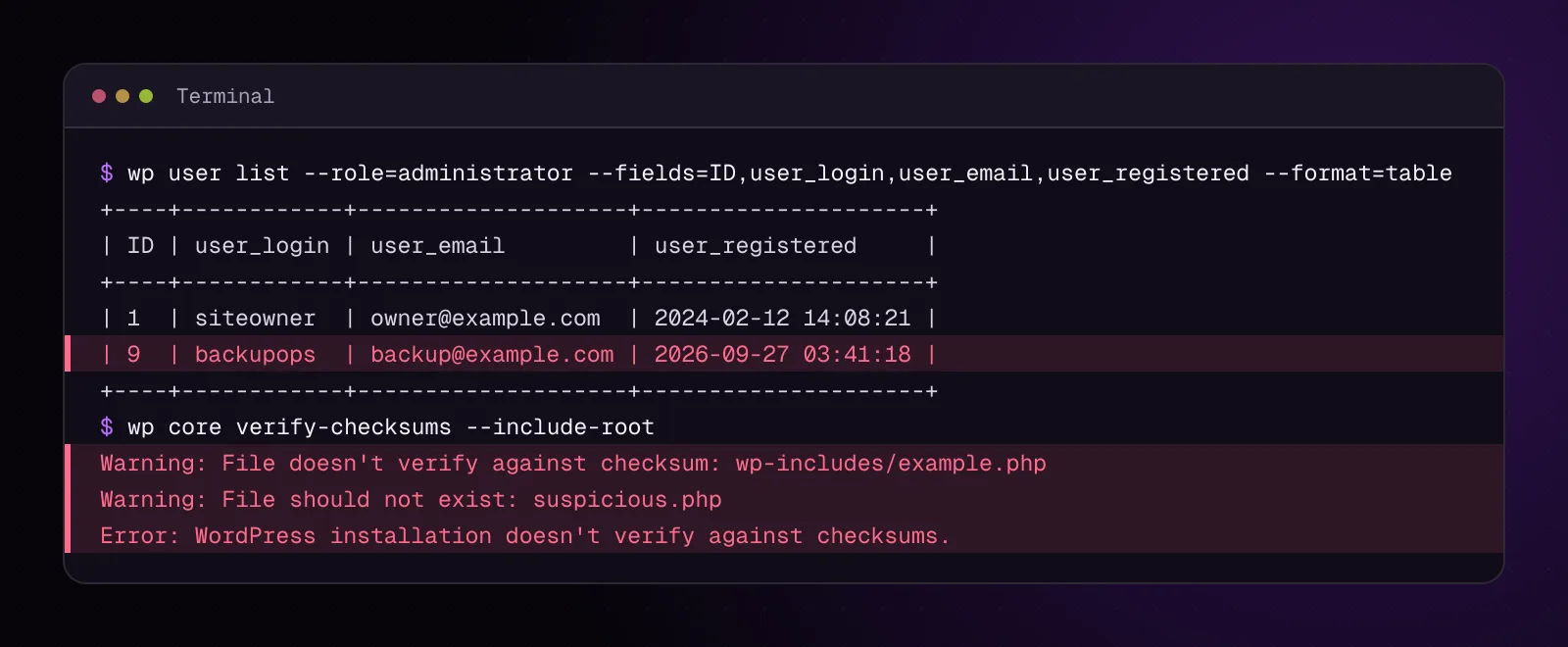
wp user list --role=administrator --fields=ID,user_login,user_email,user_registered --format=table
The current wp user list documentation (opens in a new tab) confirms the --role, --fields and --format options and the fields used here.
Example output, illustrative:
+----+------------+------------------------+---------------------+
| ID | user_login | user_email             | user_registered     |
+----+------------+------------------------+---------------------+
| 1  | siteowner  | owner@example.com      | 2024-02-12 14:08:21 |
| 9  | backupops  | backup@example.com     | 2026-09-27 03:41:18 |
+----+------------+------------------------+---------------------+
An unfamiliar account is a reason to investigate. Confirm first that it was not created by another authorized administrator, an agency or an approved operational process.
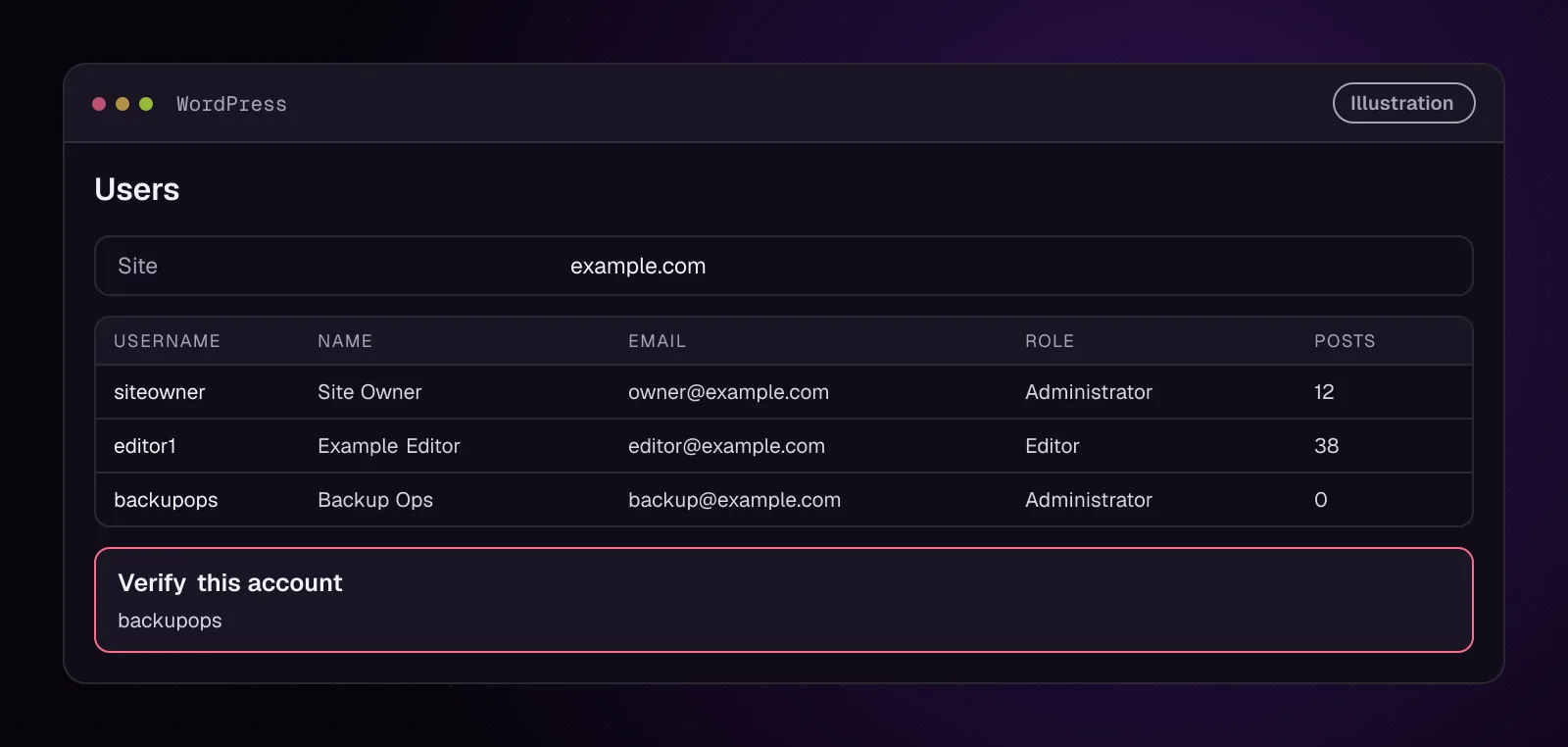
On Multisite, the same WP-CLI command supports --network for listing users across the network.
How do I check whether WordPress core files were changed?
Use the official WordPress checksums to see whether core files match the files expected for the installed WordPress version.
Run:
wp core verify-checksums --include-root
The wp core verify-checksums documentation (opens in a new tab) says the command compares installed WordPress files with checksums downloaded from WordPress.org. The --include-root option also checks the installation root and warns about items there that are not part of WordPress core.
Example output, illustrative:
Warning: File doesn't verify against checksum: wp-includes/example.php
Warning: File should not exist: suspicious.php
Error: WordPress installation doesn't verify against checksums.
A checksum failure deserves investigation, but it does not tell you who changed the file or why. A deliberate local modification can also differ from the official package.
A successful core check has a narrower meaning. It does not inspect all plugin files, theme files, uploads, database content or arbitrary files elsewhere in the hosting account.
How do I check plugins, themes and unexpected site settings?
Record the installed software and important URL settings so you can compare them with deployment records, licenses, invoices or a known-good backup.
Record normal plugins
Run:
wp plugin list --fields=name,status,version,update,update_version --format=table
The wp plugin list reference (opens in a new tab) confirms these fields and statuses.
Do not treat an available update as proof of the entry point. The version list tells you what is installed now. Later investigation can compare those versions and installation dates with known vulnerabilities and change records.
Check must-use plugins and drop-ins
Run:
wp plugin list --status=must-use
wp plugin list --status=dropin
Must-use plugins deserve a separate check because WordPress loads them automatically and shows them separately from normal plugins in wp-admin. WordPress documents their default location as wp-content/mu-plugins.
Drop-ins are special files detected separately by WordPress. WP-CLI documents --status=dropin for listing them.
Do not remove an unfamiliar must-use plugin or drop-in until you confirm its purpose. Hosts and development teams can install legitimate files in these categories.
Record themes
Run:
wp theme list --fields=name,status,version,update,update_version --format=table
The current wp theme list documentation confirms those output fields.
Look for a theme nobody installed, an unexpected active theme or a version that differs from your deployment record. None of those facts alone identifies the entry point.
Check the WordPress URLs
Run:
wp option get home
wp option get siteurl
WP-CLI's wp option get documentation (opens in a new tab) confirms that it retrieves the value of a named WordPress option.
Example output, illustrative:
https://example.com
https://example.com
An unexpected domain or protocol needs investigation. Record the current value before changing it.
What should I do when one of the checks confirms a hack?
Stop diagnosis from turning into an improvised cleanup and move to containment, evidence preservation and recovery planning.
Do not start deleting every suspicious file you find. You may remove one visible payload while leaving the access path, another backdoor or compromised credentials in place.
For the broader cleanup sequence after containment, How to clean a hacked WordPress site and stop it happening again provides the site's separate recovery article.
How can I reduce the chance of missing the next warning?
After recovery, set up several independent signals so one quiet infection does not depend on someone noticing a changed page.
Useful monitoring includes:
- Keep Search Console notifications going to an address that someone reads.
- Alert on unexpected file changes where your hosting or security setup supports it.
- Monitor whether important public URLs remain available.
- Watch privileged account creation and role changes.
- Track the WordPress core, plugin and theme versions you intend to run.
- Monitor published plugin vulnerability information for software installed on the site.
WordPress's hardening documentation also recommends backups, logging and monitoring as parts of site security.
Monitoring belongs after recovery. Installing another scanner on a compromised site does not replace finding the current unauthorized changes and closing the access path.
What changes for different kinds of WordPress sites?
The basic checks stay the same, but some sites have extra places where an unauthorized change can cause harm.
WooCommerce stores: Check the checkout from a safe investigation environment, inspect unexpected payment-page changes, review unfamiliar orders and check alerts from the payment provider. If card data may have been exposed, contact the payment processor and an appropriate forensic specialist rather than making conclusions from WordPress alone.
Multisite: Review network users as well as individual sites. WP-CLI supports wp user list --network for network users, and wp site list for listing sites in a Multisite installation.
wp user list --network
wp site list
Shared hosting: Check sibling WordPress installations and other applications under the same hosting account. If you suspect a server or account-level compromise, involve the host because the visible WordPress site may be only one affected component.
Membership and course sites: Look for unexpected role changes, large batches of unfamiliar accounts and changes to login behavior. Preserve the account records before removing them.
News sites: Review unexpected posts, author accounts and redirects on high-traffic article URLs. Compare publication and account changes with the newsroom's normal publishing record.
What should I do next after confirming the site is hacked?
Move directly to chapter 2, WordPress Site Hacked? What to Do in the First Hour. It covers containment, evidence preservation and the first decisions to make before cleanup starts.
Frequently asked questions
Can a WordPress site be hacked without showing any visible signs?
Yes. Unauthorized access can exist without changing the homepage or producing a browser warning. Account changes, hidden pages, altered files or database content may be the first evidence, which is why you should check more than the public page.
Does a Google warning prove my WordPress site has malware?
No. Google's warnings cover several security conditions, including malware, hacked content, phishing and other dangerous behavior. The warning is strong evidence that the affected URL needs investigation, but the Security Issues report and site inspection are needed to identify the cause.
Does an unknown file always mean my WordPress site was hacked?
No. WordPress, plugins, themes, hosts and deployment systems can add legitimate files. Compare the file with trusted source packages, hosting documentation and your own change history before treating it as malicious.
Can WordPress be hacked even when all plugins are updated?
Yes. Current plugin versions do not rule out compromised credentials, untrusted code, another application in the hosting account or a previously exploited weakness. An update state by itself cannot confirm or exclude a compromise.
Why does my WordPress site look normal to me but show spam in Google?
Unauthorized pages can exist outside the pages you normally visit, and compromised sites can present different content under certain requests. Check Search Console, search results, the affected URLs, users, files and database content rather than relying on the homepage alone.
Can a hacked WordPress site infect visitors?
It can if compromised pages deliver malicious software or load harmful content. Google documents hacked sites that inject scripts or other content capable of harming visitors, but not every WordPress compromise has that behavior.
Sources
- Why is my site labeled as dangerous in Google Search? (opens in a new tab)
- wp user list (opens in a new tab)
- wp core verify-checksums (opens in a new tab)
- wp plugin list (opens in a new tab)
- wp theme list (opens in a new tab)
- wp option get (opens in a new tab)
- Hardening WordPress (opens in a new tab)
- Must-Use Plugins (opens in a new tab)
- wp site list (opens in a new tab)
How this article was made: drafted with AI assistance from a researched brief, then checked against primary documentation before publishing.