Is it hacked? The first hourChapter 4 of 329 min read
How to Back Up a Hacked WordPress Site Before You Clean It
Preserve the compromised WordPress files and database before malware removal starts. This chapter shows how to record the site state, create the backup set, store it safely and verify it.
 By Hamza Ahmad AslamAI & WordPress Developer | Speed Optimization & Site Security
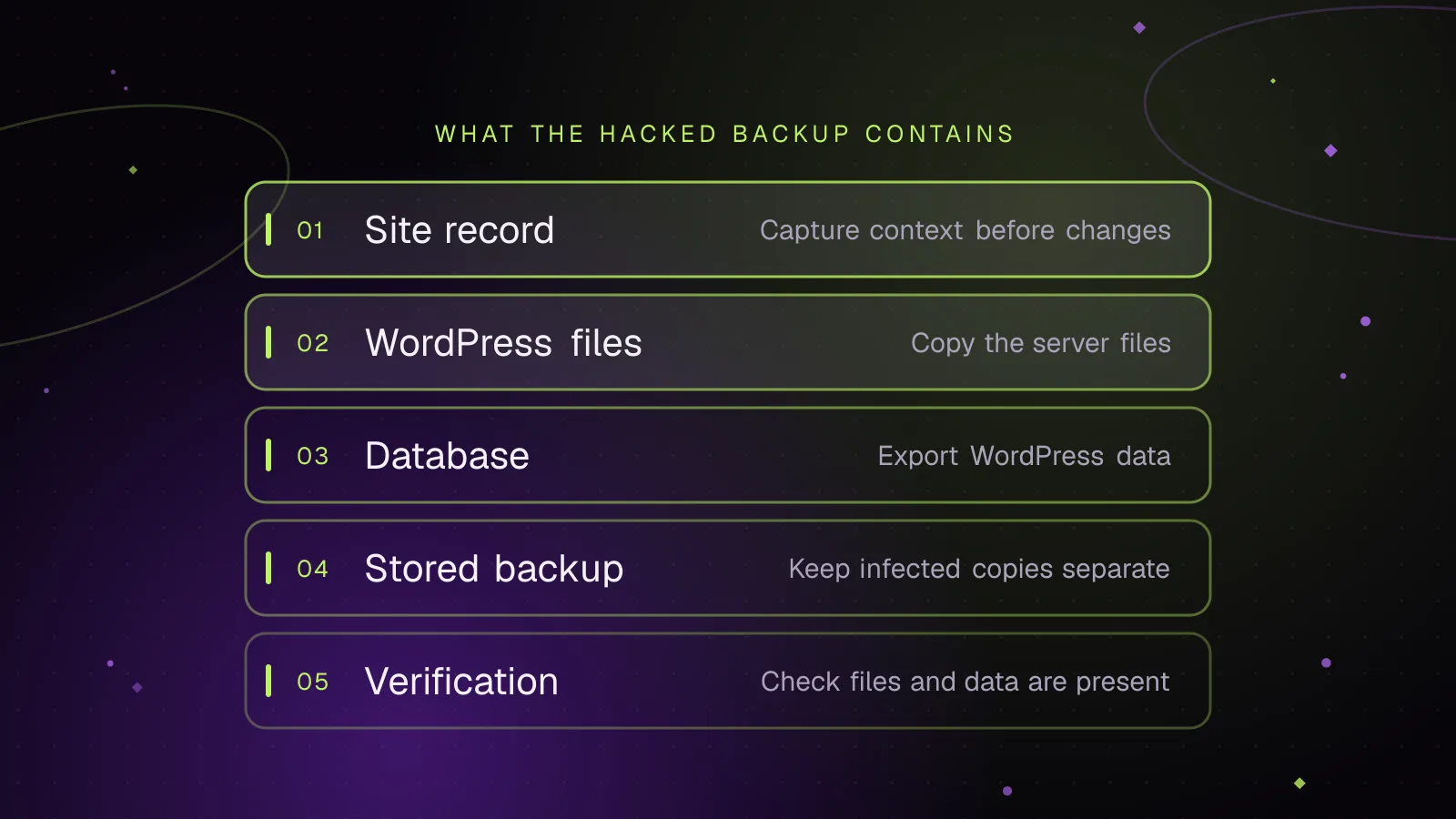
In this guide
Back up a hacked WordPress site before cleanup by preserving its current files and database as one compromised backup set. That copy can protect missing content and retain files, configuration, timestamps and other details you may need while investigating the intrusion. Keep it separate from backups you consider clean.
Why should I back up a WordPress site that I know is hacked?
Back up the compromised site because cleanup changes the evidence and can remove data you later discover you needed. WordPress's own hacked-site guidance recommends taking another snapshot of the environment before cleaning, even when that snapshot is infected: WordPress hacked-site guidance (opens in a new tab).
Deleting a suspicious file changes the server state. Replacing WordPress core changes files and their modification times. Restoring an older database can remove posts, orders, account changes or settings created since that restore point.
A preserved copy gives you something stable to inspect while the live site changes. It can also help if a cleanup mistake removes a legitimate customized file.
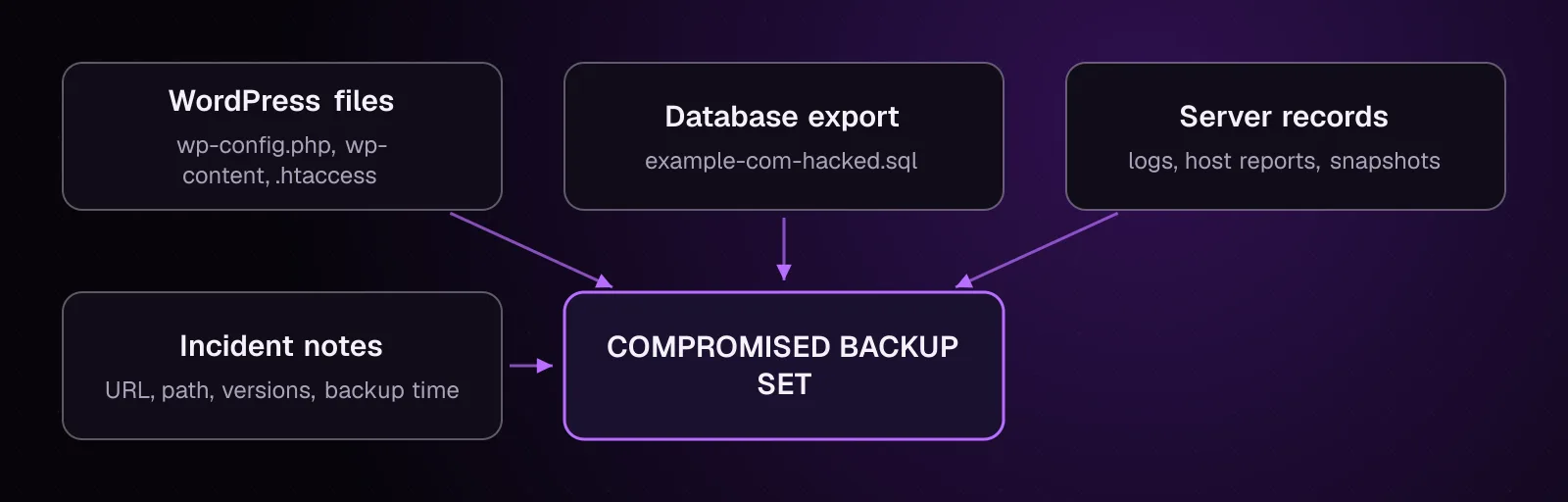
A useful hacked-site backup set keeps the WordPress files, database export, available server records and your incident notes together.
What exactly needs to be in the hacked-site backup?
The backup needs both the WordPress files and the database, plus relevant configuration and server records when they are available. The WordPress backup documentation (opens in a new tab) states that a typical full restore requires both parts.
Preserve these items:
- Copy the complete WordPress directory, including core files, plugins, themes and uploads.
- Keep
wp-contentin full, including plugins, themes, uploads and any other directories present there. - Preserve
wp-config.php. - Preserve
.htaccessand other site-level server configuration files present in the directory. - Export the complete WordPress database.
- Keep host-provided access, error, security or malware reports when the host makes them available.
- Save your incident notes with the date and time of the backup.
The database normally sits outside the WordPress directory. Downloading the files alone therefore does not normally include it. WordPress explains this distinction in its file backup guidance (opens in a new tab).
If your application depends on files outside the WordPress directory, record those locations too. Do not assume a web-root archive contains account-level configuration or host logs.
Should I use an older clean backup instead?
Preserve today's compromised state first, then evaluate older backups separately as possible restore points. An older backup cannot show everything that exists on the server now, and restoring it before preservation destroys part of the current state.
A backup dated before the first visible symptom is also not automatically clean. The intrusion may have started earlier than the symptom you noticed.
Chapter 20, on restoring WordPress from a clean backup without reinfecting it, covers how to choose and validate a restoration source. This chapter keeps the current compromised copy available before that decision is made.
What should I record before I create the backup?
Record enough context to identify exactly what the backup represents. Write down the discovery time, backup start time, site URL, WordPress server path, WordPress version and the installed plugin and theme versions.
If WP-CLI works, run the following commands from the WordPress directory before changing files.
First record the WordPress version:
wp core version
wp core version displays the installed WordPress version.
Then record the plugin inventory:
wp plugin list --fields=name,status,version --format=csv
The documented --fields option limits the returned fields, while --format=csv produces CSV output. Copy the result into your incident notes.
Record themes separately:
wp theme list --fields=name,status,version --format=csv
Keep the output unchanged with the backup notes. The status matters because an inactive plugin or theme can still be useful during investigation.
If WP-CLI is unavailable, record what you can from wp-admin before starting cleanup. If wp-admin is unavailable too, preserve the site first rather than delaying the backup; the copied plugin and theme files can be examined afterward.
Also write down the exact server path that contains wp-config.php, such as the path shown by your hosting file manager. Record the public URL separately because one hosting account can contain several WordPress installations.
How do I export the WordPress database without wp-admin?
Use WP-CLI or your host's database tool to export the entire WordPress database to a file outside the public web directory. Keep that export with the file copy created at about the same point in the incident.
From the WordPress directory, replace /SAFE_PATH with an existing directory that is not served by the website:
wp db export /SAFE_PATH/example-com-hacked.sql
The current wp db export documentation (opens in a new tab) confirms that a file argument selects the SQL output file. When --tables and --exclude_tables are omitted, the command exports all tables in the database.
Example output, illustrative:
Success: Exported to '/safe/path/example-com-hacked.sql'.
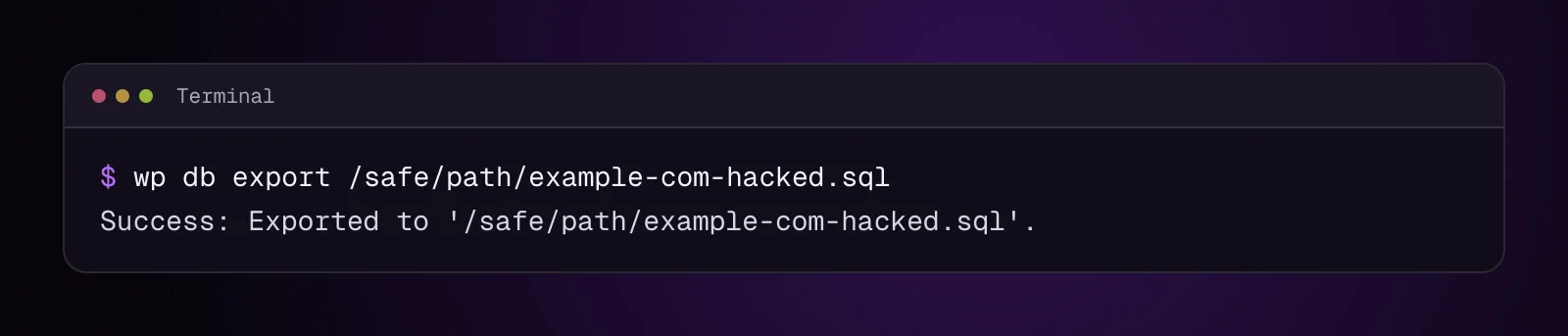
The example shows the SQL dump being written to a non-public backup path rather than into the site's document root.
Without SSH, open the WordPress database in phpMyAdmin through the hosting account. WordPress's database backup instructions (opens in a new tab) document the Export flow: select the WordPress database, export all tables in SQL format and save the output to a file.
Do not export only tables that look familiar. Plugins can create their own tables, and multisite uses additional tables that belong to the network.
Check that the SQL file appears in the chosen destination before moving to the file copy.
How do I copy the WordPress files from the server?
Copy the entire WordPress directory, including hidden files that belong to it, rather than taking only wp-content. Keep the archive outside the public web directory.
Where GNU tar is available, replace PATH_TO_WORDPRESS with the absolute path containing wp-config.php. Replace /SAFE_PATH with the directory containing the SQL export:
tar --create --file=/SAFE_PATH/example-com-hacked.tar \
  --directory=PATH_TO_WORDPRESS . \
  --directory=/SAFE_PATH example-com-hacked.sql
GNU tar documents --create, --file and the position-sensitive --directory option in its current tar manual (opens in a new tab). The command places the WordPress directory contents and matching SQL export into one archive without writing that archive into the site directory.
Do not add exclusions for unfamiliar PHP files, cache directories or suspicious names at this stage. A malicious file is one of the things this copy is meant to preserve.
If you do not have SSH, use the host's file manager or SFTP to copy the complete WordPress directory. Confirm that hidden site files such as .htaccess are included, then keep the database export beside that copy.
A host snapshot can also preserve the current state. Ask what the snapshot contains before relying on it, because a host-level file snapshot and a separate database backup may have different coverage.
Where should I store an infected backup?
Store the infected backup outside every public web root and mark it clearly as compromised. Someone should not be able to request the archive through a browser or mistake it for a clean production backup.
A directory used by the website, including an uploads directory, is the wrong destination. The backup can contain PHP files, database contents and credentials from wp-config.php.
Use a name that states the site, state and approximate incident date, for example example-com-COMPROMISED-2026-09-28.tar. Keep incident notes beside it.
If you transfer the copy to another machine or cloud storage, restrict access to the people handling the incident. Check the storage provider's rules before uploading material that may contain malware or sensitive site data.
How do I verify that the backup contains the files and database I need?
Verify the archive before cleanup by opening its table of contents and finding the expected WordPress paths and SQL export. An archive that exists but cannot be read is not a usable preservation copy.
For the GNU tar archive created above, run:
tar --list --file=/SAFE_PATH/example-com-hacked.tar
GNU tar documents --list as the operation for listing archive members without extracting them.
Look through the listing for at least:
wp-config.phpwp-content/- the installed plugin and theme directories you expect
- uploads or other site content directories
.htaccesswhen that file exists on the siteexample-com-hacked.sql
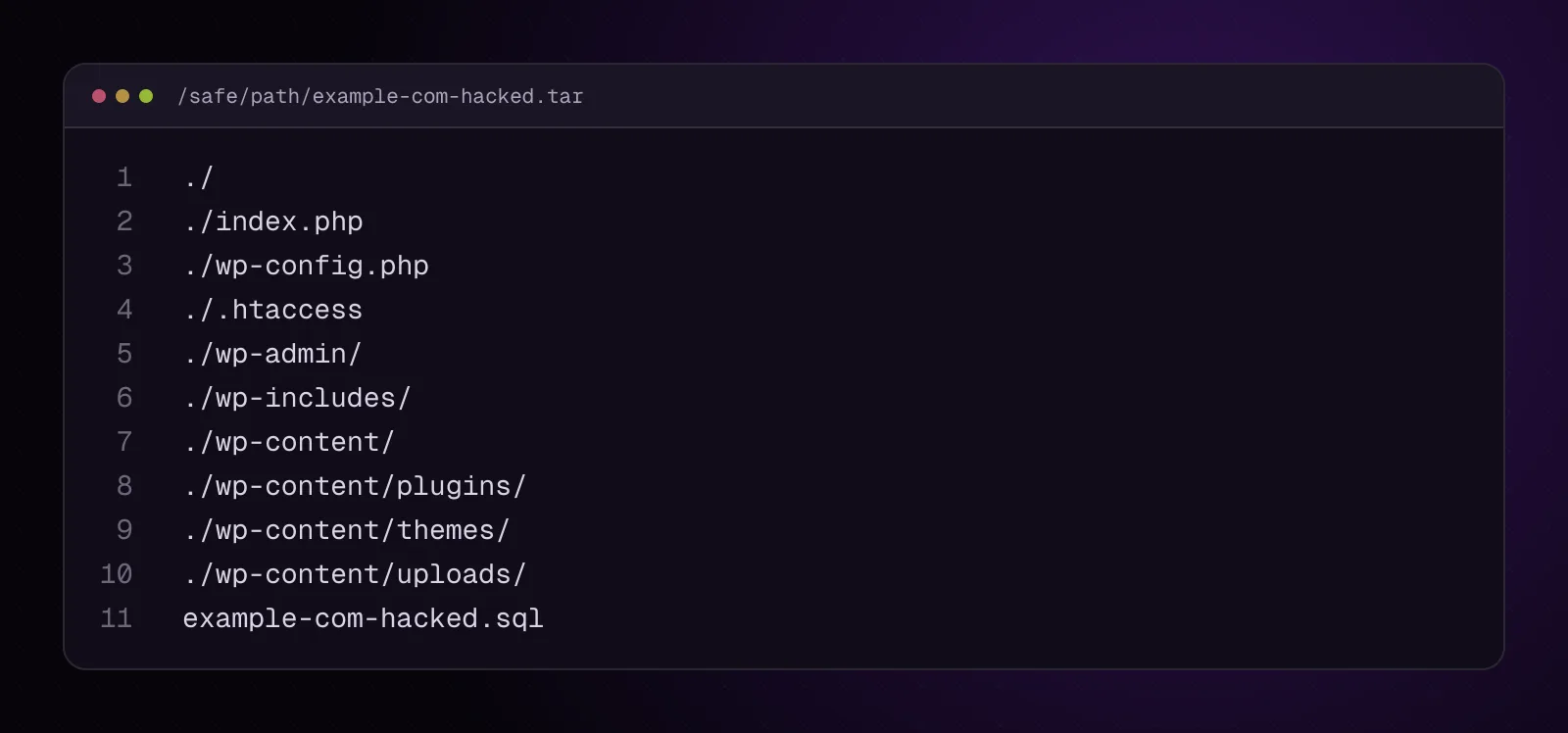
The illustrative listing shows the database export and key WordPress paths present in the same compromised backup archive.
If you used a host file manager instead, open the downloaded archive with an archive viewer and make the same checks. Check the database export separately if your host produced it as another file.
Do not treat file count or archive size alone as verification. You need to see the paths and database export you intended to preserve.
Should I test restoring the infected backup?
Test an infected backup only in an isolated environment when you need to prove it can be reconstructed or investigate it there. Do not overwrite production merely to test the evidence copy.
An isolated restore should have no public route serving the copied site. Avoid sending mail, processing payments, running scheduled jobs against outside systems or accepting public traffic from that copy.
For a straightforward incident, verifying the archive and database dump may be enough before cleanup begins. A forensic investigator may require a different preservation process when the incident has evidentiary, contractual or legal consequences.
How do I keep backup handling from spreading the infection?
Treat every copied file as untrusted data and avoid executing PHP, scripts or binaries from the backup. Inspection does not require running the compromised application.
Keep the archive closed unless you need to inspect or restore it in an isolated environment. If you extract it, extract it into a directory that is not served by a web server.
Do not double-click or run unfamiliar scripts copied from the server. Do not install a plugin from the compromised archive onto another WordPress site.
The same rule applies to later cleanup work: compare, scan and inspect the preserved copy, but do not turn it into another live site by accident. How to clean a hacked WordPress site and stop it happening again covers the wider recovery process.
What changes for different kinds of WordPress sites?
The backup principle stays the same, but the data boundary and timing change with the site.
WooCommerce stores: Keep the file archive and database export as close together in time as practical. Orders, stock changes, customer records and other store data can continue changing while the store remains open.
Multisite: Preserve the shared WordPress files and the complete network database. Do not export only the tables for the subsite where the first symptom appeared.
Shared hosting: Preserve every potentially affected WordPress directory on the account. Keep account-level logs, malware reports and host snapshots when the provider makes them available, because another site under the same account may matter to the investigation.
Membership and course sites: Preserve the database before changing users. Account, enrollment, subscription and progress data may live in WordPress tables or plugin-created tables.
News sites: Record the backup time clearly. New articles, corrections and editorial changes can otherwise make later comparisons between the backup and the live database harder to interpret.
If the hosting provider suspects compromise outside your WordPress files, ask the host to investigate the account or server layer. A WordPress archive cannot establish that the underlying hosting environment is clean.
What should I do after the hacked-site backup is safe?
Once you have verified the compromised files and database are preserved, continue to chapter 5, How to Scan WordPress for Malware, Online and on the Server. Scan before deleting findings so you can compare what the scanners report against the preserved copy.
Frequently asked questions
Is it safe to download malware from my WordPress server?
You can preserve an infected site as data, but treat every copied file as untrusted. Keep the backup outside a web-served directory, do not execute copied PHP or scripts, and use an isolated environment if you need to extract or restore it.
Can I back up only wp-content on a hacked WordPress site?
No, wp-content alone does not preserve the whole compromised WordPress installation. Keep the complete WordPress file tree, including wp-config.php and relevant hidden files, plus a separate database export.
Does a WordPress file backup include the database?
Usually no. WordPress files normally live in the server's WordPress directory, while the database is stored separately in MySQL or MariaDB. Export the database and keep that dump with the matching file copy.
Should I put the infected backup in cloud storage?
Cloud storage can hold the backup if the provider permits that content and access is restricted appropriately. Label the archive as compromised and do not place it in a public or automatically web-served location.
Can I restore the infected backup later if cleanup goes wrong?
The backup can preserve data needed after a failed cleanup, but restoring the whole compromised copy also restores whatever malicious files or database changes it contains. Prefer retrieving specific known-needed data or use an isolated restore while investigating what is safe.
Should I scan the backup before I keep it?
Keep the original preservation copy before modifying its contents. You can scan a copy or inspect the preserved archive during chapter 5, while retaining the original compromised set unchanged for comparison.
Sources
- FAQ My site was hacked (opens in a new tab)
- Backups, Advanced Administration Handbook (opens in a new tab)
- Backing Up Your WordPress Files (opens in a new tab)
- Backing Up Your Database (opens in a new tab)
- wp db export (opens in a new tab)
- wp core version (opens in a new tab)
- wp plugin list (opens in a new tab)
- wp theme list (opens in a new tab)
- GNU tar 1.35 manual (opens in a new tab)
How this article was made: drafted with AI assistance from a researched brief, then checked against primary documentation before publishing.