Is it hacked? The first hourChapter 3 of 329 min read
Locked Out of WordPress Admin After a Hack: How to Get Back In
Locked out of WordPress after a hack? Use the access path you still control to recover a trusted administrator account, verify its email and end old sessions.
 By Hamza Ahmad AslamAI & WordPress Developer | Speed Optimization & Site Security
In this guide
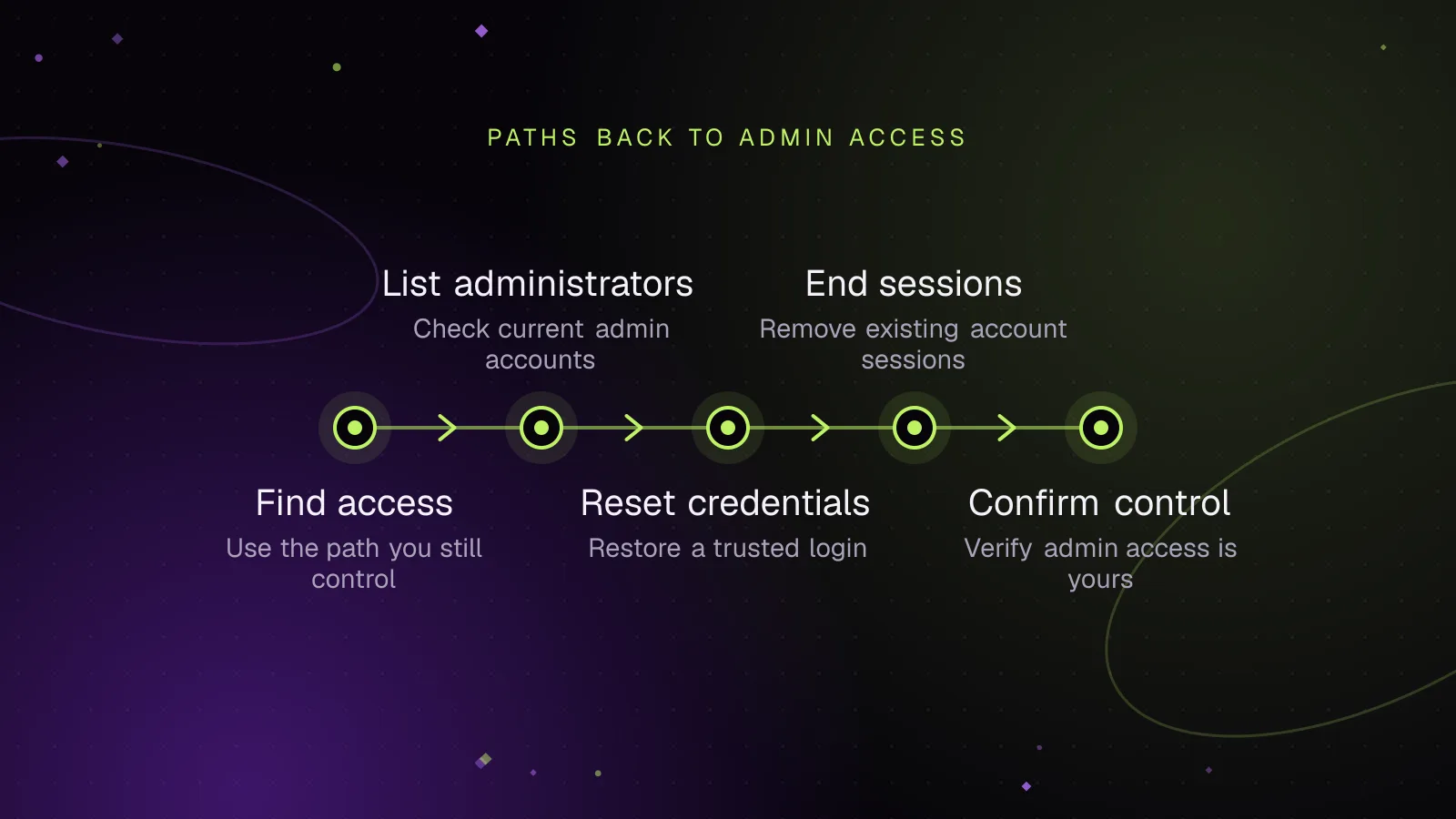
When a WordPress site is hacked and you can't login to admin, recovery means using another access path you still control. Confirm which administrator account exists, reset only that account, restore its email if needed, then end its existing sessions. Do not start deleting users, plugins or suspicious files yet.
What does being locked out after a WordPress hack mean?
Being locked out means you no longer have a trusted administrator login, although WordPress or another part of the hosting account may still be accessible.
A failed login alone does not prove that an attacker changed your account. WordPress documents ordinary login failures caused by passwords, cookies, redirects and URL configuration as well. If chapter 2 established signs of compromise, treat an unexplained account change as part of that incident rather than as routine password troubleshooting.
The recovery methods on this page use a path outside the affected administrator session: its registered email address, SSH with WP-CLI, database access or help from the hosting account you control.
What might I see when an attacker has changed my WordPress access?
You might see your old password rejected, find that the reset email never arrives, or discover that the administrator account no longer has the details you expect.
Other useful signs include:
- Your known administrator email no longer matches the account.
- Your administrator account is missing.
- Your account exists but no longer has its previous role.
- An unfamiliar administrator appears.
- A password or email-change notification arrives that you did not initiate.
WordPress's hacked-site documentation specifically covers cases where an administrator account has been hijacked and points owners to password recovery or direct database access.
Why can't I log in to WordPress admin after a hack?
An attacker with enough WordPress access can change account details, while broader access may let them alter users or interfere with the email path you rely on for recovery.
Your recovery email matters because WordPress's normal "Lost your password?" flow sends a reset link to the email address associated with the user account. The current WordPress login documentation (opens in a new tab) recommends that route when you still control the mailbox and site email works.
An attacker who also controls that mailbox has another way to regain the WordPress account. Treat email account recovery as part of restoring control.
Which access path do I still control?
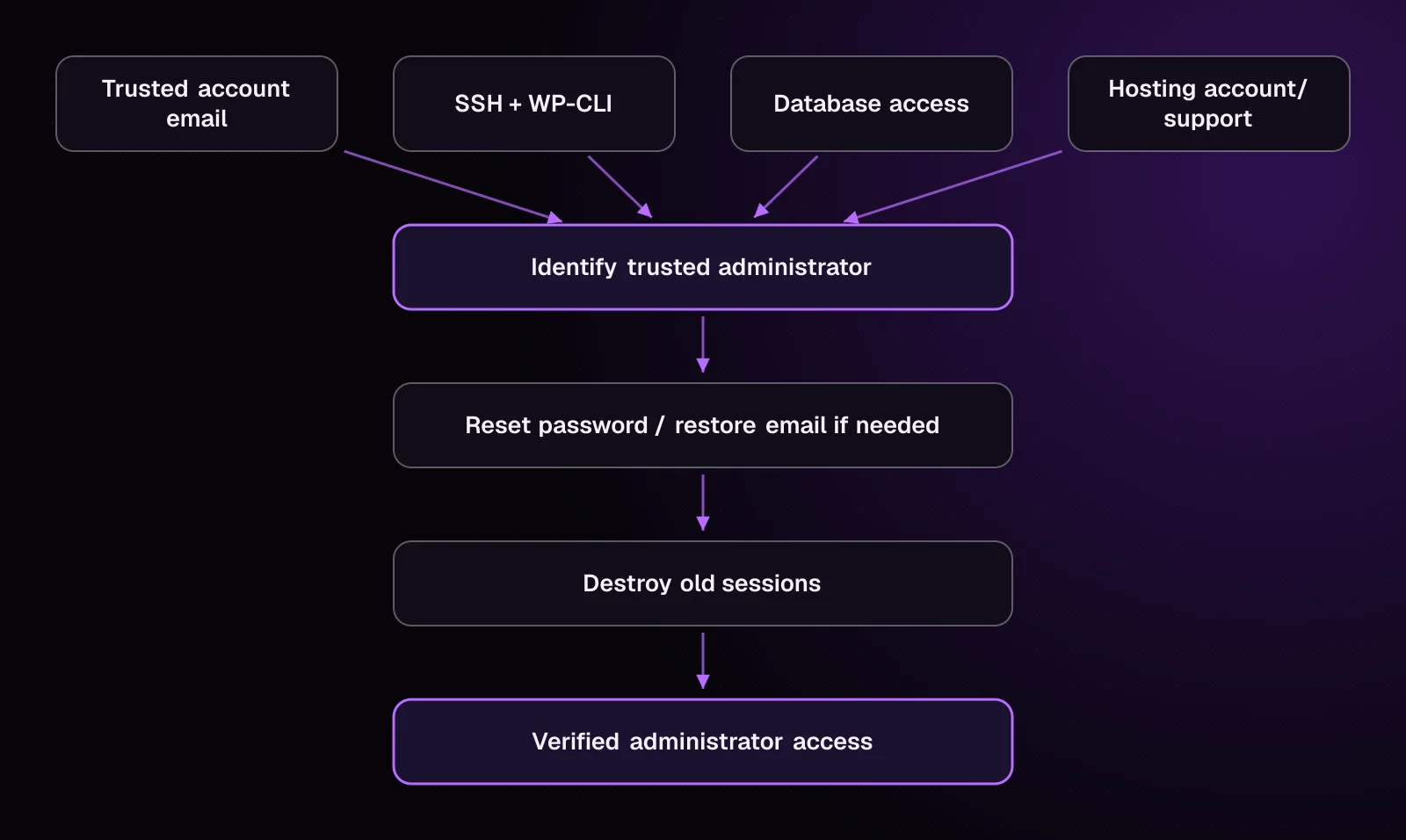
Choose the narrowest trusted path that still works, and change as little as possible.
-
Try the registered email first. Open
https://example.com/wp-login.php, select "Lost your password?", and submit the known username or account email. Use this only if you trust that mailbox. Check that the reset message arrives and that its site address is the site you are recovering. -
Use WP-CLI if you control SSH. This lets you inspect the current users before changing one. Work from the WordPress installation directory. Confirm that
wp user listruns against the intended site before continuing. -
Use database access if SSH is unavailable. Hosting panels commonly expose database administration. First identify the correct WordPress database and table prefix. Make a database export before writing to a user row.
-
Use host support when you control hosting but lack the technical access above. Ask the host to help restore access to the hosting account or the site's database. Do not ask them to guess which WordPress user is yours without first identifying the account.
If you control none of the email, SSH, database or hosting paths, regain control of the underlying hosting or account ownership before changing WordPress.
How do I list the current WordPress administrators from the command line?
Use wp user list to see which accounts WordPress currently considers administrators before resetting anything.
From the WordPress installation directory, run:
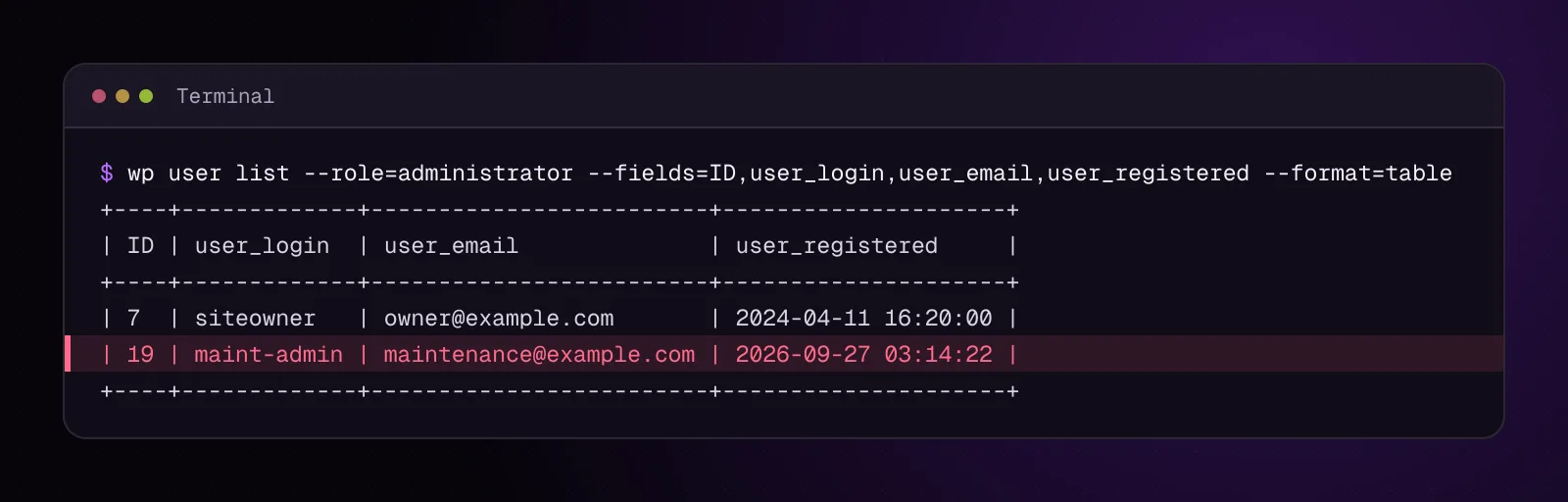
wp user list --role=administrator --fields=ID,user_login,user_email,user_registered --format=table
The WP-CLI user list documentation (opens in a new tab) confirms --role, --fields and --format=table. Check the output against the administrator login and email you expect.
Example output, illustrative:
+----+------------+------------------------+---------------------+
| ID | user_login | user_email             | user_registered     |
+----+------------+------------------------+---------------------+
| 7  | siteowner  | owner@example.com      | 2024-04-11 16:20:00 |
| 19 | maint-admin| maintenance@example.com| 2026-09-27 03:14:22 |
+----+------------+------------------------+---------------------+
Do not delete maint-admin merely because you do not recognize it. Record the account for the later investigation.
Without SSH, open the users table through your hosting database tool and inspect the account you intend to recover. Avoid changing role metadata simply to make an account an administrator unless you have established that its role was altered.
How do I reset an administrator password safely with WP-CLI?
Reset the password through an interactive prompt so the password itself is not placed in the command line.
-
Replace
USERNAMEwith theuser_login, email or user ID you verified in the previous section. -
Run:
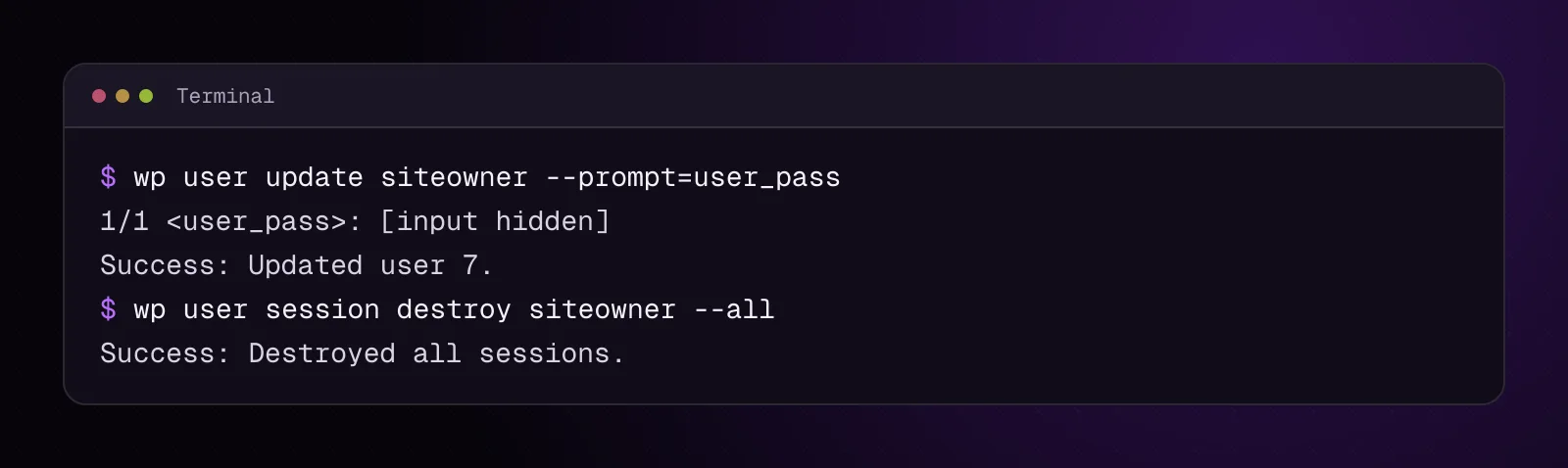
wp user update USERNAME --prompt=user_pass
-
Enter a new unique password when WP-CLI prompts for
user_pass. The current WordPress password-reset documentation (opens in a new tab) also documents WP-CLI as a password-reset route, while the current login handbook documents--prompt=user_passspecifically to keep the selected password out of shell history. -
Run the administrator listing again and confirm that the account still exists with the expected login and email. Then test the new credentials at
https://example.com/wp-login.php.
WP-CLI also provides wp user reset-password USERNAME --show-password, which generates a password and prints it. --show-password can expose the generated value in terminal output, screenshots or recorded support sessions, so the interactive update is the better fit when you are choosing the replacement password yourself.
What if the hacker changed my administrator email address?
Restore the user email only after you have confirmed that you control the destination mailbox and identified the correct WordPress user.
First list the account again if necessary. Then replace USERNAME with the verified login, email or ID, and replace OWNER_EMAIL with the mailbox you control:
wp user update USERNAME --user_email=OWNER_EMAIL
The WP-CLI user update reference (opens in a new tab) documents --user_email for changing the user's email address.
Run the administrator listing afterward and confirm that the user_email field now contains OWNER_EMAIL. Log in and open Users > Profile, or the equivalent profile screen for that user, and verify the same address there.
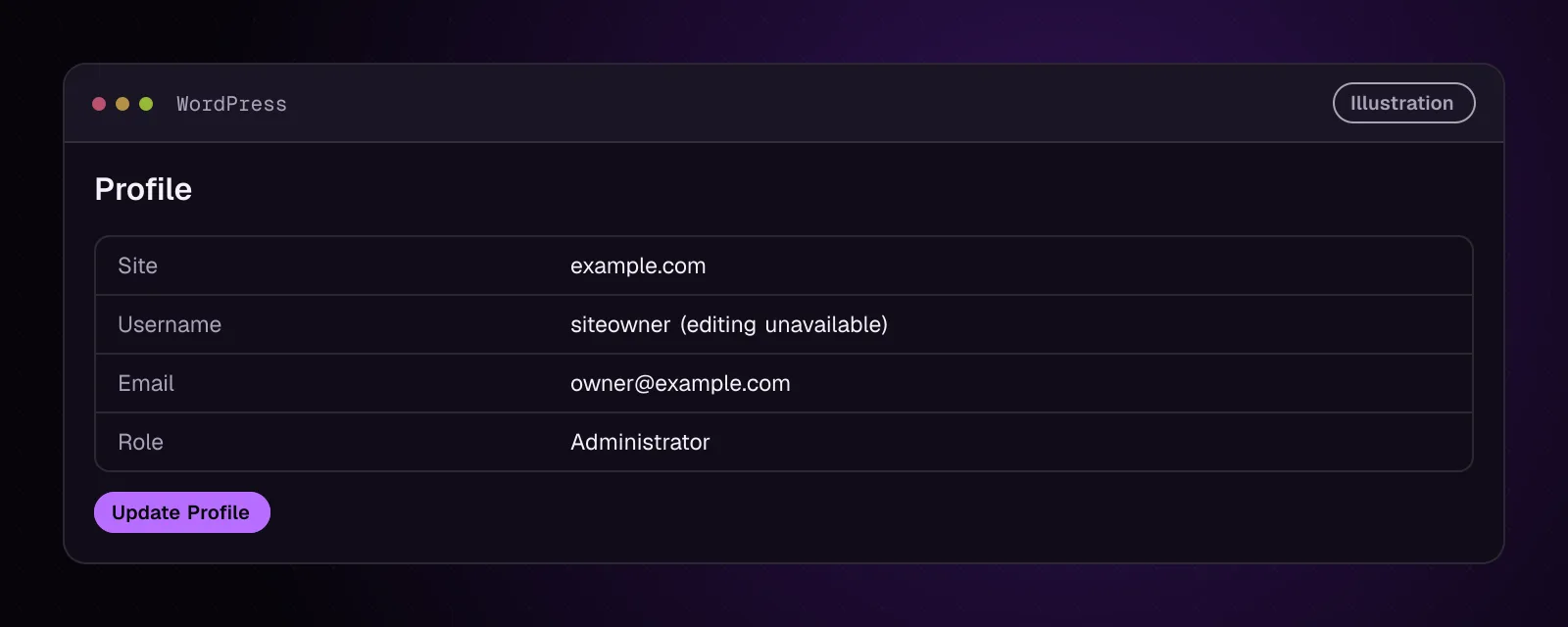
Do not confuse this user email with the site's Administration Email Address under Settings > General. They are separate values.
How do I end the compromised account's existing sessions?
Destroy all sessions for the recovered user so an existing WordPress session for that account cannot remain usable.
- List the account's recorded sessions. Replace
USERNAMEwith the recovered user:
wp user session list USERNAME --format=table
- Once you have recovered access, destroy that user's sessions:
wp user session destroy USERNAME --all
The --all option in the WP-CLI session command documentation (opens in a new tab) destroys all sessions for that user. This also ends your own current WordPress session for the account, so expect to sign in again.
- Check the result:
wp user session list USERNAME --format=table
The list should no longer show the previous sessions. Sign in again with the recovered credentials and confirm that a new session is created only for the login you just performed.
What if I only have database or hosting-panel access?
If database access is your only working path, use WordPress's documented manual password-reset method and limit the edit to the account you verified.
-
Back up the database before the update. Use the hosting panel or database tool's export function and keep the export unchanged. Confirm that the export completed before editing a row.
-
Find the table prefix. If you have file-manager access, open
wp-config.phpand locate the$table_prefixvalue. WordPress installations can use a prefix other thanwp_. -
Identify the account before changing it. Replace
TABLE_PREFIXwith the site's prefix, including any trailing separator it contains. ReplaceUSERNAMEwith the login you expect.
SELECT ID, user_login, user_email
FROM TABLE_PREFIXusers
WHERE user_login = 'USERNAME';
Check that the returned ID, login and email describe the account you intend to recover.
- Reset only that user's password. Replace
ACCOUNT_IDwith the numeric ID returned above andNEW_PASSWORDwith a new temporary password.
UPDATE TABLE_PREFIXusers
SET user_pass = MD5('NEW_PASSWORD')
WHERE ID = ACCOUNT_ID;
This is the database reset method documented by WordPress. The temporary MD5 value permits the initial login, and WordPress replaces it with its current password hash after a successful login.
- Test the login. Sign in through
wp-login.php. Once you have access, set a new unique password through your WordPress profile, then end the account's old sessions.
In phpMyAdmin, the equivalent documented route is to edit the intended row in the users table, enter the new value for user_pass, select MD5 as the function and save it.
How do I confirm that I control WordPress admin again?
You control the WordPress administrator again when the recovered credentials work and the account has the identity and access you expected.
Check these items before moving on:
- Sign out, open a fresh login page and sign in with the recovered account.
- Open the user profile and verify its login identity and email.
- Confirm that the account has the administrator access it should have.
- Review the administrator list again and record unfamiliar accounts for investigation.
- Confirm that the old sessions you destroyed are gone.
- Keep the database export or other incident evidence untouched.
Do not start malware cleanup from this section. The next chapter first preserves the compromised state.
How do I keep the attacker from taking the account back?
Protect the recovery paths that can be used to reset WordPress again, especially the email and hosting accounts.
Change a compromised email or hosting password from a trusted device, review those services for unfamiliar sessions where their controls provide that option, and enable their available multi-factor authentication. If you cannot establish control of the server itself, involve the hosting provider before relying on WordPress changes.
Do not perform every site-wide credential rotation during this recovery step. Chapter 22 handles full credential rotation after the investigation establishes which secrets need replacement.
Once the incident is understood, use WordPress security hardening: a practical checklist for 2026 to review the site's longer-term security settings.
What changes for different kinds of WordPress sites?
The recovery principle stays the same, but the account you need to verify depends on the site type.
Multisite: A subsite administrator does not establish control of the whole network. WordPress reserves Network Admin access for Super Admins, so check the network's Super Admin users as well as the affected site's users. With WP-CLI, wp super-admin list lists users with Super Admin capabilities.
Membership and course sites: Recover the compromised administrator first. Do not bulk-reset member or student passwords merely because one administrator was compromised. The incident investigation should determine whether those accounts or credentials were exposed.
WooCommerce stores: Confirm that the recovered account still has the store access it is supposed to have. Record any unfamiliar administrator or shop-management account for investigation rather than deleting it during access recovery.
What should I do after I regain administrator access?
Continue to chapter 4, How to Back Up a Hacked WordPress Site Before You Clean It. Preserve the compromised site before removing accounts, files, plugins or malware.
Frequently asked questions
Can a hacker change my WordPress admin username?
WordPress does not provide a normal profile field for changing user_login, so an unexpected login identity deserves investigation. An attacker with broader database or application control may still alter or replace user records. Identify the account by its ID, email and role rather than assuming a familiar display name proves ownership.
Can I reset a WordPress password without wp-admin?
Yes. WordPress documents password recovery through the normal reset email, WP-CLI, phpMyAdmin and MySQL. Choose the method tied to an access path you still trust, and back up the database before a direct database update.
What if the WordPress password reset email never arrives?
First confirm that you entered the username or email currently attached to the account and that you still control that mailbox. If the email path cannot be trusted or does not work, use WP-CLI or the documented database reset route instead of repeatedly requesting messages.
Should I create a new administrator account after a hack?
Do not create one by default. Recover a known administrator when you can identify it safely, because adding another privileged account creates another change during the incident. Create a replacement only when the existing account cannot be recovered or your later investigation gives you a specific reason to replace it.
Can an old WordPress login session still work after I change the password?
Do not rely on a password change as your only response to previously authenticated sessions. After recovering the account, explicitly destroy all of that user's WordPress sessions and sign in again. WP-CLI provides wp user session destroy USERNAME --all for this purpose.
Is it safe to edit the WordPress users table after a hack?
Direct database editing should be a fallback when safer WordPress or WP-CLI paths are unavailable. Export the database first, identify the exact account and change only the field required for recovery. WordPress documents an MD5-based temporary password reset for this case and rehashes that password after a successful login.
Sources
- Logging In (opens in a new tab)
- Reset your password (opens in a new tab)
- FAQ My site was hacked (opens in a new tab)
- wp user list (opens in a new tab)
- wp user update (opens in a new tab)
- wp user reset-password (opens in a new tab)
- wp user session (opens in a new tab)
- wp user session list (opens in a new tab)
- wp user session destroy (opens in a new tab)
- Editing wp-config.php (opens in a new tab)
- Network Admin (opens in a new tab)
- wp super-admin list (opens in a new tab)
How this article was made: drafted with AI assistance from a researched brief, then checked against primary documentation before publishing.