Is it hacked? The first hourChapter 6 of 3212 min read
How Was My WordPress Site Hacked? Finding the Entry Point in the Logs
Trace a WordPress compromise back to its likely entry point by building a timeline from file changes, logs, accounts and the software present at the time.
 By Hamza Ahmad AslamAI & WordPress Developer | Speed Optimization & Site Security
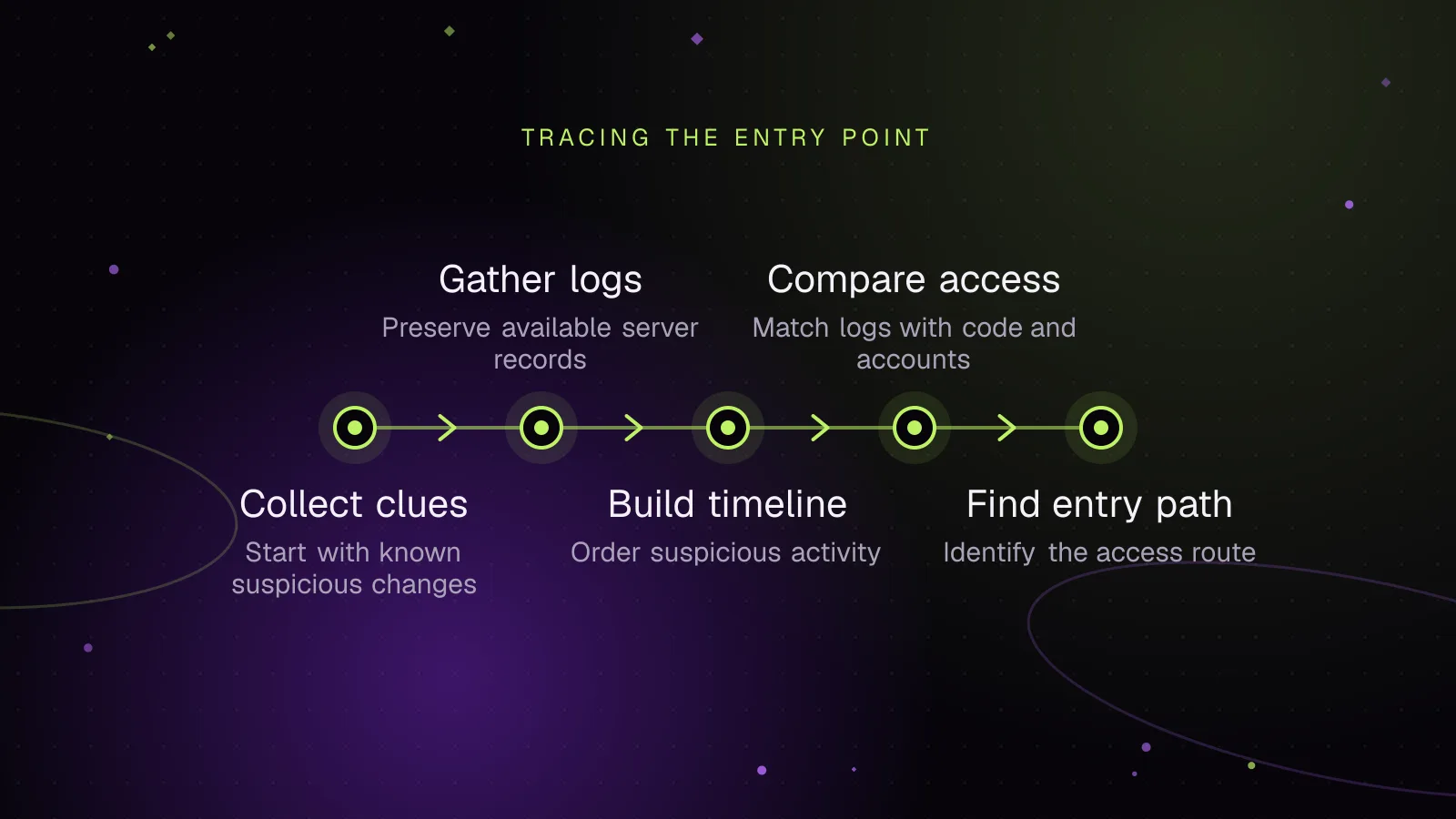
In this guide
Finding the entry point answers "how was my WordPress site hacked?" by matching the first known malicious change with requests, accounts, installed software and hosting records from the same period. The entry point is the path used for initial unauthorized access, rather than a backdoor the attacker added later. Sometimes the evidence identifies that path. Sometimes the available records only support "unknown."
What does the entry point of a WordPress hack mean?
The entry point is the access path that let an attacker make the first unauthorized change to the site or its hosting account.
For example, the evidence may point to vulnerable plugin code, a stolen administrator credential, untrusted code that was installed intentionally, or access through a compromised hosting account. A malicious PHP file discovered later may be persistence rather than the entry point.
That distinction matters. Removing a backdoor without closing the original access path can leave the site exposed to the same route.
WordPress's hacked-site forensics guidance (opens in a new tab) describes forensics as finding how the attacker got in so that the attack vector can be addressed.
What clues should I have before I start reading logs?
Start with the earliest suspicious event you can identify, because that gives you a narrow period to investigate instead of searching an entire log without a target.
-
Record the earliest symptom from chapters 1 through 5. This may be the first redirect, malicious file, changed option, unknown administrator, spam page or scanner finding. Keep its exact path, account name or database location. Check that your notes identify the earliest event you know about, rather than the most obvious symptom you found later.
-
Preserve the timestamps already available on suspicious files and records. Do not edit, reinstall or delete those files before recording their metadata. Check that each suspicious item has a path and timestamp written into the incident notes.
-
Write down account changes you already found, including unknown administrators and unexpected role changes. Include the username exactly as stored. Check that legitimate administrators have confirmed which accounts they recognize.
-
Keep the evidence preserved in chapter 4, How to Back Up a Hacked WordPress Site Before You Clean It, and the findings from chapter 5, How to Scan WordPress for Malware, Online and on the Server. Check that you are investigating copies or preserved records where practical instead of changing the only evidence.
For a suspicious file on a Linux server with GNU Coreutils, stat can show its last data modification time and last status-change time. Replace PATH_TO_SUSPECT_FILE with the full file path.
stat --format='%n | modified=%y | changed=%z' PATH_TO_SUSPECT_FILE
The modified value records the file's last data modification. The changed value is the last inode status change, not a creation timestamp. Without SSH, open the file in the host's file manager and record the timestamps it exposes. Check that the timestamp is in your incident notes before continuing.
How do WordPress attackers usually get initial access?
Investigate four broad paths: vulnerable software, compromised credentials, untrusted code and access inherited from a compromised hosting account.
Vulnerable software means a request reached installed WordPress core, plugin or theme code that contained an exploitable flaw. The existence of an affected version still needs to be correlated with the request and incident time.
Compromised credentials include WordPress administrators and credentials for SFTP, SSH or the hosting control panel. A valid login can produce changes that look similar to normal administrator work.
Untrusted code includes modified, pirated or otherwise unverified plugin and theme packages. The question is what code was installed at the time, where it came from and whether the first malicious change followed its installation or update.
Hosting-account compromise sits outside WordPress. If an attacker already had filesystem access through the hosting account, there may be no WordPress exploit request to find.
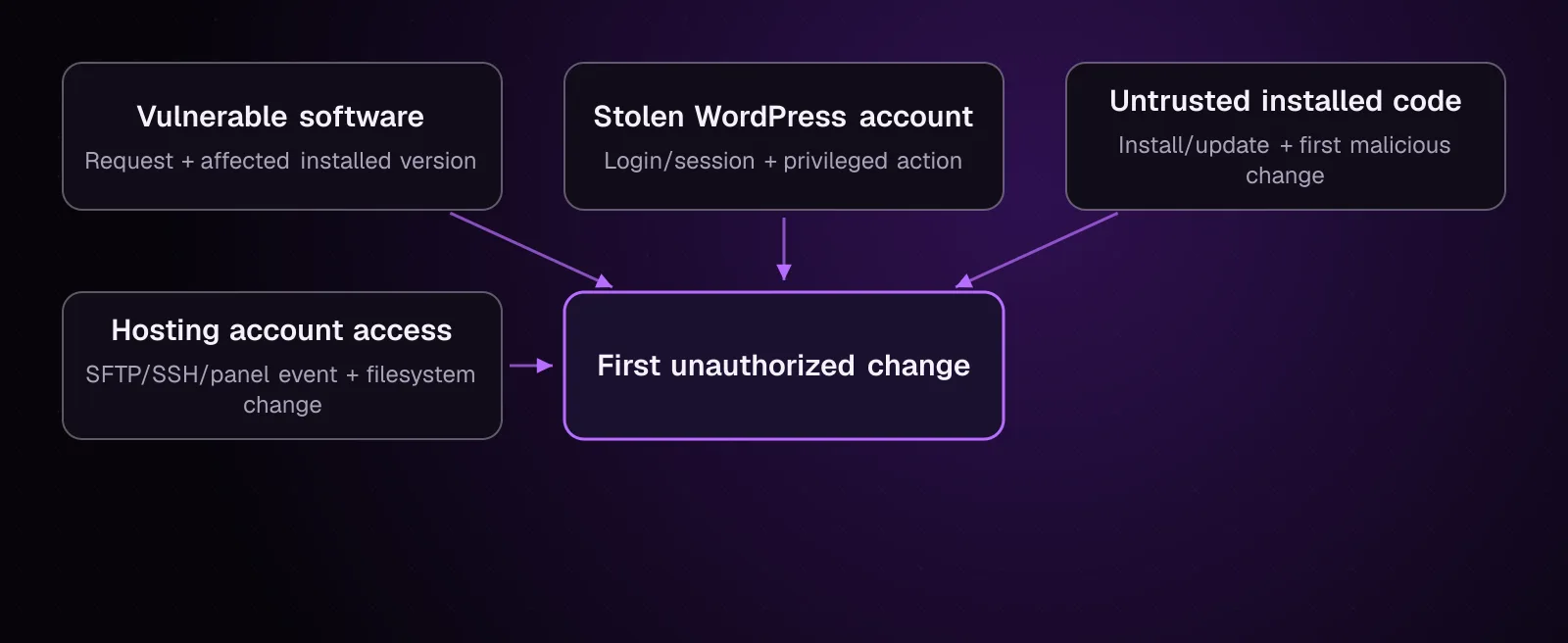
The diagram separates the main entry-point theories so each can be tested against the same incident timeline.
Which logs should I collect before they disappear?
Collect the available server and account records before normal log rotation or provider retention removes older entries.
-
Download the web access logs covering the suspected period. Apache documents that its access log records requests processed by the server, while its format and location depend on configuration. See the Apache log documentation (opens in a new tab). Check that the downloaded file contains requests from before and after your earliest suspicious timestamp.
-
Download web-server error logs for the same period. Errors close to a suspicious request can add context about PHP execution, missing files or server processing. Check that the error-log timestamps overlap the access-log period.
-
Ask the host for security and authentication records it retains. Request relevant SFTP, SSH and control-panel authentication records, plus account-level web logs if your own panel exposes only part of them. Retention is provider-specific. Check which date range the host has available.
-
If the server runs Nginx, preserve its request logs as well. Nginx's access-log documentation (opens in a new tab) confirms that
access_logwrites requests in the configured format and thatcombinedis predefined. Check that the copy contains the request path, time, response status and client address fields you need for correlation.
Do not assume that an IP address in a web log always identifies the originating device. Apache's documentation notes that an intervening proxy can cause the logged address to be the proxy address.
How do I build a timeline around the first suspicious change?
Build the timeline outward from the earliest event you can support with evidence.
-
Put the earliest suspicious file, database or account change at the center of the timeline. Record its timestamp and the timezone shown by the source. Check that you have not silently mixed local server time with UTC or another timezone.
-
Look immediately before and after that event in the access and authentication records. Search for the affected path, endpoint or account rather than searching only for one IP. Check that the results cover both requests leading into the event and follow-up requests.
-
Add software state beside the event. Record the WordPress, plugin and theme versions that were installed then if you can establish them. Check that you distinguish the incident-time version from a version installed during later cleanup.
-
Add account events and hosting authentication records to the same sequence. Check that every conclusion points back to a timestamped event or preserved artifact.
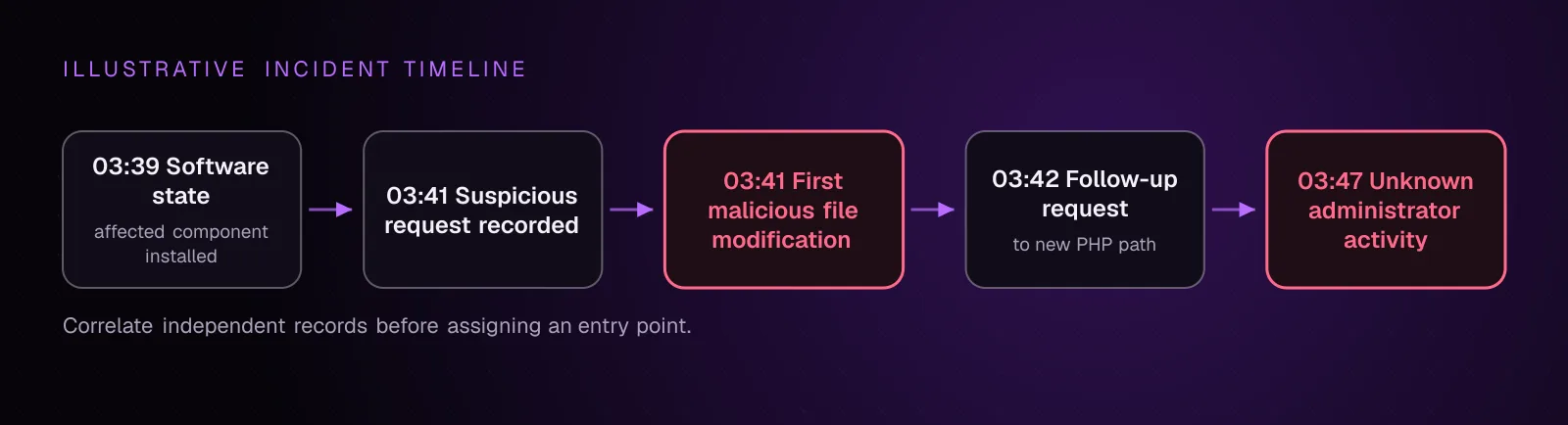
The useful question is which independent records converge around the first unauthorized change.
What should I look for in web access logs?
Look for requests that line up with the affected component and time, especially unusual POST requests, upload-related endpoints and access to unexpected PHP paths.
If you know a suspicious path, use GNU grep with -F to search for it as a fixed string. Replace SUSPECT_PATH with part of the request path and ACCESS_LOG with the copied log file.
grep -F 'SUSPECT_PATH' ACCESS_LOG
Check that each returned line is from the relevant time period and note its HTTP method, path, response status, client address and user agent where present.
To narrow an endpoint to POST requests, replace SUSPECT_ENDPOINT and ACCESS_LOG:
grep -F 'POST ' ACCESS_LOG | grep -F 'SUSPECT_ENDPOINT'
Check the surrounding chronology in the original log. A matching request tells you that the request was recorded. It does not prove that exploitation succeeded.
Example output, illustrative only:
198.51.100.24 - - [18/Sep/2026:03:41:12 +0000] "POST /wp-admin/admin-ajax.php HTTP/1.1" 200 418 "-" "ExampleClient/1.0"
198.51.100.24 - - [18/Sep/2026:03:41:15 +0000] "GET /wp-content/uploads/example-cache.php HTTP/1.1" 200 91 "-" "ExampleClient/1.0"
203.0.113.52 - - [18/Sep/2026:03:42:03 +0000] "GET /shop/ HTTP/1.1" 200 18431 "-" "ExampleBrowser/1.0"
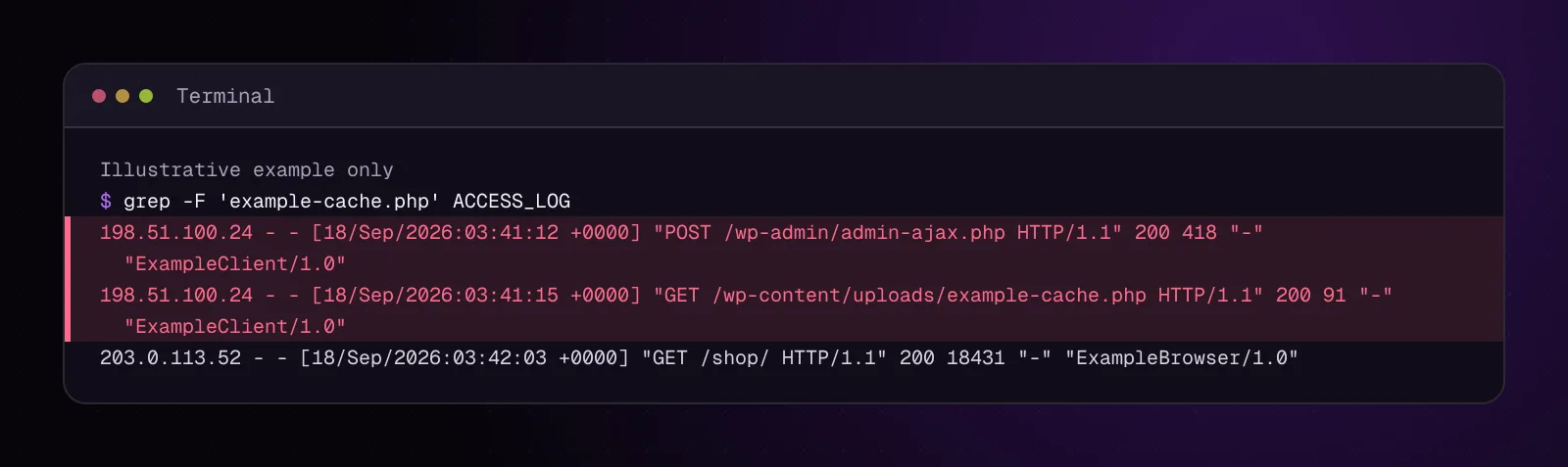
The two requests from the same sample address deserve correlation with the file timestamp and affected code, but the lines alone do not establish the entry point.
Without SSH, download the log and use the text editor's exact-text search for the same path and endpoint.
How do I compare the log trail with installed plugins and themes?
Record the software present during the incident, then test whether the suspicious request maps to code that was installed at that time.
Run the following from the WordPress directory. The documented fields show plugin and theme status, installed version and any update version currently reported. wp core version --extra shows extended core version information.
wp plugin list --fields=name,status,version,update,update_version --format=table
wp theme list --fields=name,status,version,update,update_version --format=table
wp core version --extra
The field names and table format are documented for wp plugin list (opens in a new tab). Check that the command output has been saved with the incident notes.
Without SSH, use Plugins in wp-admin to record installed plugin names and displayed versions. Appearance > Themes exposes theme details including the version. If cleanup already changed the site, compare against your preserved backup or deployment records instead.
A current update notice does not establish what version ran when the incident happened. Keep the incident-time inventory separate from today's state.
Use WordPress plugin vulnerability monitoring: from alert to fix when checking whether a recorded version had a relevant disclosed issue. If the suspicious change followed an update itself, also review WordPress plugin supply chain security: when the update itself is the attack.
How do I investigate a possible stolen WordPress account?
Compare known administrators and any surviving WordPress sessions with the incident timeline.
First list administrator accounts:
wp user list --role=administrator --fields=ID,user_login,user_email,user_registered --format=table
Replace nothing in this command. Check that every administrator is recognized and that unexpected registration times have been added to your timeline.
Without SSH, open Users in wp-admin and compare usernames, email addresses and roles with your approved account list. Do not delete an unknown account until its details have been preserved.
For a specific administrator, replace SUSPECT_USER with its ID, email address or login:
wp user session list SUSPECT_USER --format=table
The wp user session list documentation (opens in a new tab) shows session fields including login time, expiration time, IP and user agent. The command only helps when relevant sessions still exist. Check whether any surviving session overlaps the incident period and record the full row.
A suspicious session plus administrator actions around the first malicious change supports an account-compromise theory. It still needs comparison with web and host records. An absent session does not prove that the account was unused.
How do I investigate a possible compromised hosting account?
Expand the investigation beyond the WordPress directory and ask whether account-level access can explain the first unauthorized change.
Compare SFTP, SSH and control-panel authentication records with the first malicious timestamp. Ask the provider whether it can identify successful account authentication, source addresses and changes affecting the hosting account during that period.
On shared hosting, examine sibling applications under the same account. If another site was compromised first and both applications were writable by the same account, the visible WordPress infection may be a later event.
Also compare hosting-account password changes, newly added access methods and unfamiliar authorized SSH keys if your provider records or exposes those events. Do not invent missing history when the host does not retain it.
When can I say I found the entry point?
Say you found the entry point when several independent facts identify the same access path and fit the order of events.
For a software exploit, that may mean the affected version was installed, a request reached the relevant endpoint, the request immediately precedes the unauthorized change and the resulting artifact matches what that access path could modify.
For stolen credentials, the sequence may instead contain a successful authentication, a privileged session and administrator actions before the first malicious change.
For hosting compromise, account-level authentication followed by filesystem changes may explain an incident even when no WordPress exploit request exists.
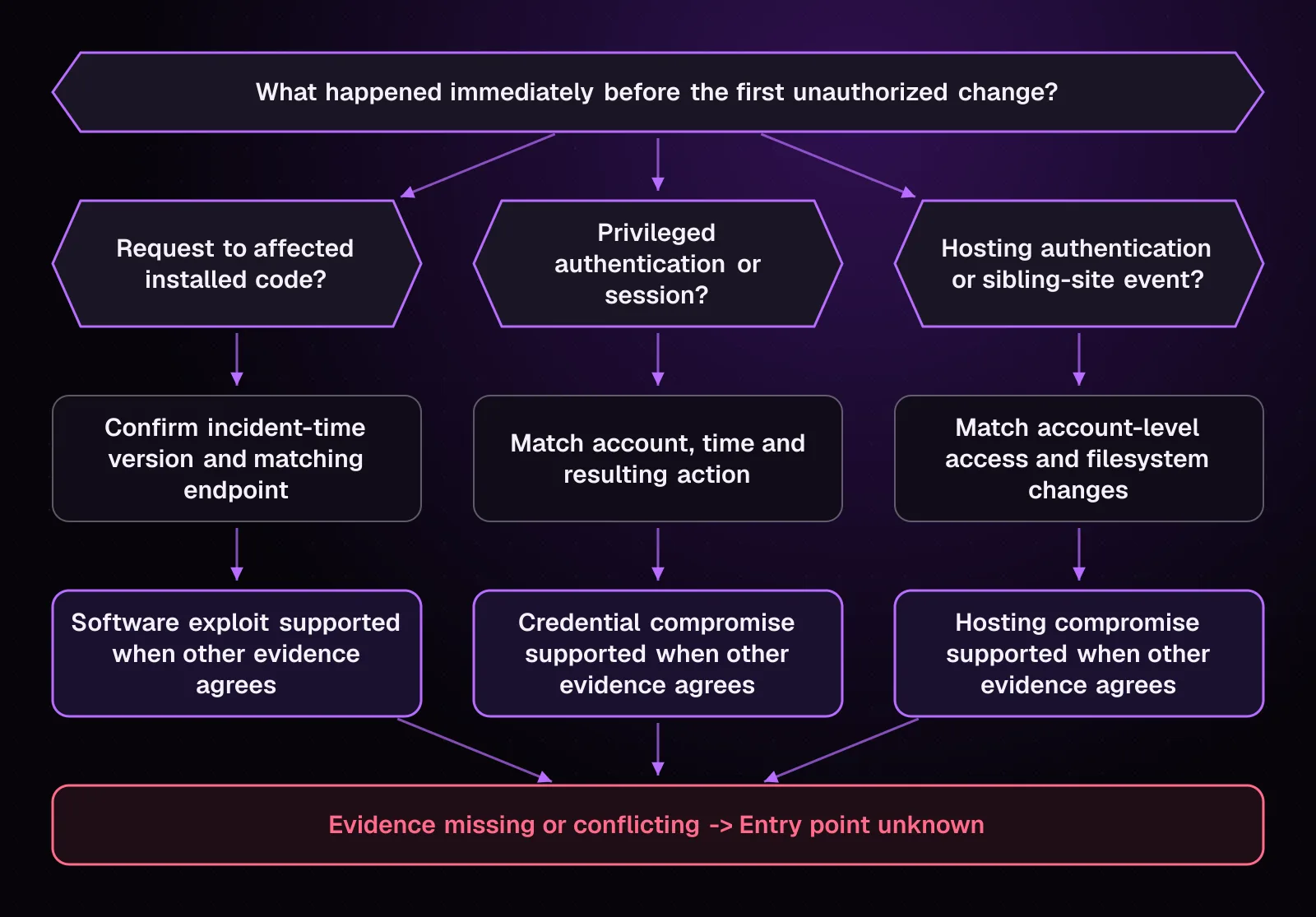
If the necessary logs are gone, record the cause as unknown or unresolved. Do not promote the most plausible theory to a confirmed cause.
What should I fix once the access path is identified?
Close the identified access path, preserve the evidence that established it and continue with the cleanup chapter that matches the infection.
-
Save the relevant log lines, software inventory, account records and suspicious artifacts before changing them. Check that another person could read the incident notes and see why the entry-point conclusion was reached.
-
If vulnerable software is implicated, preserve its name and incident-time version, then update, remove or replace it as required during cleanup. Check afterward that the affected version is no longer executable on the site.
-
If a credential is implicated, replace the affected credential and terminate unauthorized access as part of the account-cleanup procedure. Check that the old credential no longer authenticates.
-
If the evidence points to the hosting account or server, involve the host or a qualified server investigator. WordPress-only cleanup cannot establish that the underlying account or server is safe. Check that the provider has addressed the access path before treating the WordPress recovery as finished.
Do not delete malware merely because you identified how it arrived. Persistence elsewhere still has to be removed.
How do I keep enough evidence for the next incident?
Keep server request logs, relevant authentication records, software inventories and an incident record long enough for your operational needs, with access restricted to people who need them.
For self-managed Apache or Nginx servers, configure logging before an incident and verify that rotation does not remove the period you need. Apache supports configurable access and error logs. Nginx supports configurable access_log and log_format directives. Hosting customers should use the provider's supported logging and retention controls rather than changing server files they do not manage.
Record plugin, theme and core versions during deployments or security events. That makes later comparison stronger than relying on today's installed version.
For Multisite, this command records the site IDs, URLs and last-updated values exposed by WP-CLI:
wp site list --fields=blog_id,url,last_updated --format=table
Check that all expected network sites appear and preserve the output beside the other incident records.
If application debugging is specifically required on a safe copy, WordPress documents WP_DEBUG, WP_DEBUG_LOG and WP_DEBUG_DISPLAY in its debugging documentation (opens in a new tab). Do not turn production error output into a public incident log.
What changes for different kinds of WordPress sites?
The same timeline method applies, but the evidence boundary changes with the site.
WooCommerce stores: Correlate suspicious changes to payment or checkout code with checkout requests, extension changes and payment-provider records. If payment data may have been affected, involve the payment provider or a qualified forensic investigator rather than making assumptions from WordPress logs alone.
Multisite: Compare events across every affected subsite, shared network plugins and themes, and network administrators. A change that appears site-specific may have originated from network-level code or access.
Shared hosting: Request account-level authentication and web-server records from the host and inspect sibling sites under the same account. The application that showed malware first may not be the application that was compromised first.
Membership and course sites: Include administrator, instructor and staff accounts in the account timeline when those roles have privileged access. Separate ordinary member activity from actions that could change code, settings or other users.
News sites: Compare unexplained publishing and author-account changes with the normal editorial schedule. High publishing volume can create many legitimate changes close together, so identify the first unauthorized event before attributing nearby activity to the attacker.
What should I do after the first-hour investigation is complete?
Preserve the timeline and move into the infection-specific cleanup work. Continue with chapter 7, WordPress Redirect Hack: Remove Redirects to Spam Sites, when redirects are part of the evidence you found.
Frequently asked questions
Can I find how WordPress was hacked after the malware is already deleted?
Sometimes. Web access logs, hosting authentication records, surviving account sessions, backups and deployment history may still preserve the sequence even after a malicious file has gone. If cleanup also removed the relevant logs or timestamps, the original entry point may remain unknown.
What if my hosting company has no old access logs?
Build the strongest timeline available from backups, file metadata, account records, database findings and any external records you already preserved. State clearly that the missing access logs limit the conclusion rather than filling the gap with an assumption.
Does a vulnerable plugin prove that the plugin caused the hack?
No. It establishes that an affected component may have been present, but it does not establish that an attacker used that flaw. Stronger attribution needs surrounding evidence such as a matching request, incident-time version and resulting unauthorized change.
Can file modification times tell me exactly when WordPress was hacked?
No. A file modification time records when that file's data was last modified, not who changed it or how access was gained. Use it as a point on the timeline and compare it with independent request, account and hosting records.
How do I tell a stolen password from a plugin exploit?
Compare authentication and session evidence with requests to the affected software and the first unauthorized change. A confirmed privileged login followed by administrator actions supports credential misuse, while a matching unauthenticated request against vulnerable installed code supports a software path when the other evidence also lines up.
What if I cannot prove how the attacker got in?
Record the entry point as unknown and continue the cleanup. Remove persistence, replace exposed credentials, update affected software and improve future evidence collection without presenting an unsupported cause as established fact.
Should I enable WordPress debug logging to investigate a hack?
Do not treat WordPress debug logging as a permanent security log. WordPress documents it for debugging and says the debugging tools are intended for development and staging, so use server and authentication records for incident evidence and enable application debugging only when the troubleshooting task requires it.
Sources
- FAQ My site was hacked (opens in a new tab)
- wp plugin list (opens in a new tab)
- wp theme list (opens in a new tab)
- wp core version (opens in a new tab)
- wp user list (opens in a new tab)
- wp user session list (opens in a new tab)
- wp site list (opens in a new tab)
- Apache HTTP Server log files (opens in a new tab)
- Nginx ngx_http_log_module (opens in a new tab)
- Debugging in WordPress (opens in a new tab)
- GNU Grep 3.12 manual (opens in a new tab)
- GNU Coreutils stat invocation (opens in a new tab)
How this article was made: drafted with AI assistance from a researched brief, then checked against primary documentation before publishing.