The common infectionsChapter 7 of 3210 min read
WordPress Redirect Hack: Remove Redirects to Spam Sites
A WordPress redirect hack can hide in files, database values, server rules or browser code. Trace the redirect, remove its source, close the entry point and test the conditions that triggered it.
 By Hamza Ahmad AslamAI & WordPress Developer | Speed Optimization & Site Security

In this guide
A WordPress redirect hack sends visitors or search engines to an unauthorized site by changing WordPress files, database values, server rules or injected browser code. Confirm where the redirect starts before deleting anything, then replace or remove the confirmed source, close the access path and retest the conditions that triggered it.
What does a WordPress redirect hack look like?
A WordPress redirect hack is an unauthorized redirect that sends some or all requests away from the page the visitor requested. It can happen before WordPress loads, inside PHP, through stored database content or after the page reaches the browser.
Legitimate redirects also exist. WordPress, plugins, a CDN or the web server may intentionally redirect HTTP to HTTPS, move an old URL, send a logged-in user to another page or consolidate URLs. Google's spam policies (opens in a new tab) distinguish legitimate redirects from redirects that unexpectedly send users to unrelated content.
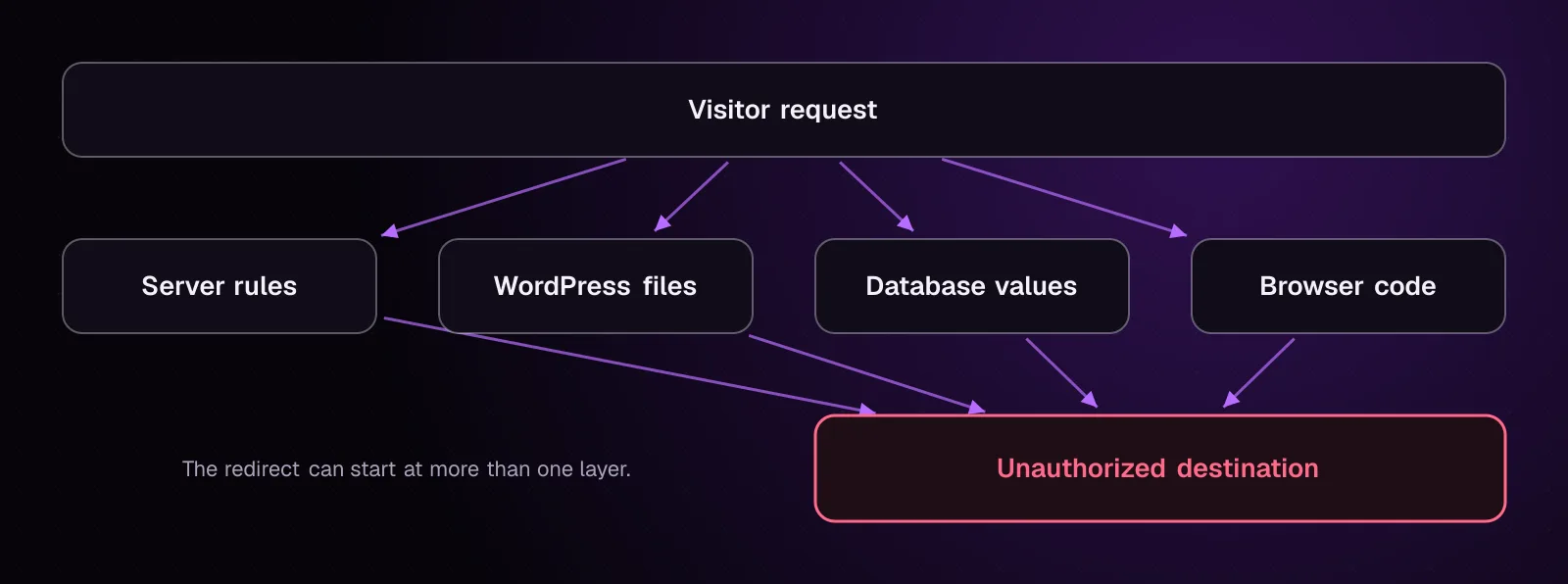
A redirect destination you did not configure is evidence to investigate. Record the requested URL, destination URL, device, referrer and whether you were logged in before changing the site.
What do visitors see when WordPress has a redirect hack?
Visitors may be sent to an unrelated spam, scam or harmful site while the WordPress page looks normal to you. The redirect may affect every request or only a narrow set of visits.
Common patterns include:
- Redirecting only visitors who arrive from a search result.
- Redirecting only mobile devices or selected user agents.
- Redirecting logged-out visitors while administrators see the expected page.
- Running JavaScript after the legitimate page begins loading.
- Targeting particular pages, such as products, checkout or account URLs.
Google documents hacked redirects whose behavior changes by referrer, user agent or device. That is why opening the homepage normally from your own computer is not enough to clear the site.
How does a redirect hack get into WordPress?
A redirect hack can follow any access path that lets an attacker change executable code, stored content or server configuration. Do not infer the original entry point from the location of the redirect alone.
Possible paths include a compromised plugin or theme, stolen administrator or hosting access, a vulnerable component, an exposed server account or an existing backdoor. The visible redirect may then be placed in a plugin, theme, WordPress core file, must-use plugin, drop-in, database record or server rule.
Chapter 6, How Was My WordPress Site Hacked? Finding the Entry Point in the Logs, covers the access-path investigation. Preserve the findings from that work while cleaning the redirect.
Why does the redirect happen only for some visitors?
Conditional redirect code checks request details before sending the visitor elsewhere. Google specifically documents hacked redirects that vary by referrer, user agent or device.
A request from Google Search may therefore behave differently from direct navigation. A mobile user agent may get a redirect while a desktop user agent gets the correct page.
Reproduce those conditions instead of repeatedly refreshing one browser. The curl manual documents -I for headers, --referer for the HTTP referrer and --user-agent for the User-Agent header: curl command-line documentation (opens in a new tab).
curl -I https://example.com/

curl -I \
  --referer "https://www.google.com/" \
  --user-agent "Mozilla/5.0 (Linux; Android 14) AppleWebKit/537.36 Chrome/126.0 Mobile Safari/537.36" \
  https://example.com/
Use your affected URL instead of https://example.com/. The sample user-agent string is illustrative.
If the first request is normal and the second returns an unexpected Location header, you have reproduced a conditional server-side redirect. If neither does but the browser still leaves the site, inspect the browser's Network panel and page source for browser-side code.
How do I confirm that the redirect comes from my site?
Confirm the first point where the request changes before editing WordPress.
- Request the affected URL without following redirects. Record the HTTP status and any
Locationheader.
curl -I https://example.com/
Example output, illustrative:
HTTP/2 302
location: https://spam.example/offer
content-type: text/html; charset=UTF-8
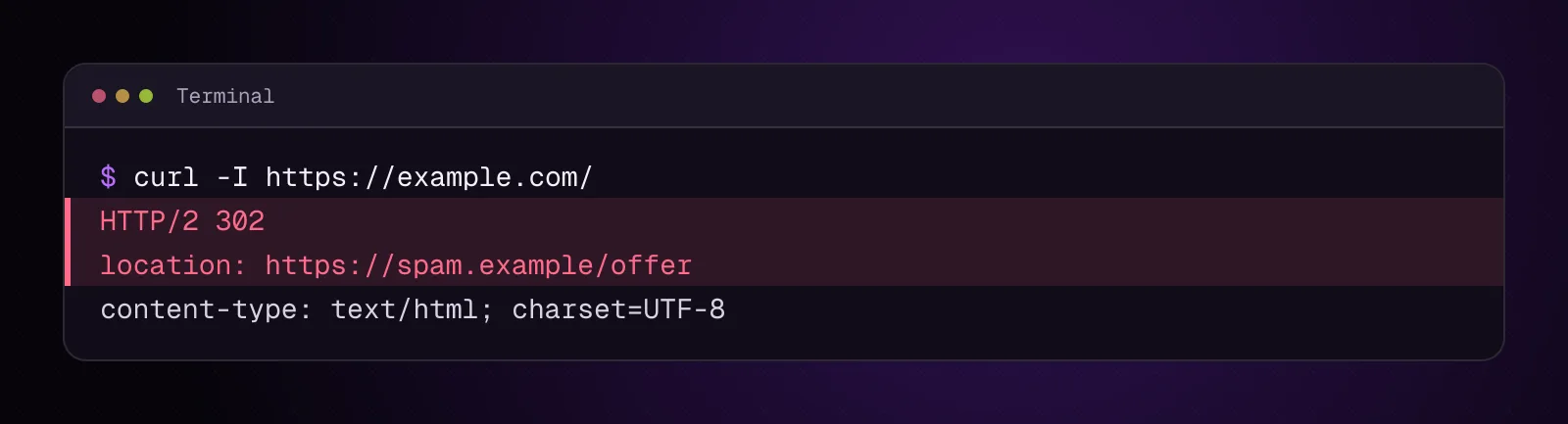
A server-side Location header shows that the redirect happened before browser JavaScript could run. Check server, PHP and WordPress layers next.
-
Repeat the request with the same conditions reported by the visitor. Test the affected path, referrer and device class separately. Confirm whether changing one condition changes the result.
-
Open Google Search Console and check the Security Issues report if Google has reported hacking or harmful behavior. Search Console documentation says this report shows security issues Google detected. A clean report does not prove that every conditional redirect is absent.
-
Compare the server response with the browser. If the server returns the expected page but the browser later leaves it, inspect scripts, tag-manager entries, injected HTML and stored content.
-
Check the configured WordPress addresses so an intentional domain change is not confused with malware:
wp option get home
wp option get siteurl
Without SSH, check Settings > General in wp-admin if those fields are available in your installation. Confirm that both addresses belong to the site you intend to run.
Which WordPress files should I check for a malicious redirect?
Check WordPress core integrity first, then plugins, themes, must-use plugins, drop-ins and web-server configuration.
- Verify WordPress core against WordPress.org checksums.
--include-rootalso warns about non-WordPress items in the root directory. The command is documented in WP-CLI's core checksum reference (opens in a new tab).
wp core verify-checksums --include-root
A successful checksum result clears the checked core files. Investigate every changed core file and unexpected root item instead of assuming it is malicious.
- Verify plugins that have WordPress.org checksums. WP-CLI documents
--allfor checking all installed plugins: plugin checksum verification (opens in a new tab).
wp plugin verify-checksums --all
Custom and commercial plugins may not have WordPress.org checksums. Compare those files with a trusted clean package from the developer or your own source repository.
- Inventory must-use plugins and drop-ins. These can load outside the normal Plugins screen.
wp plugin list --status=must-use
wp plugin list --status=dropin
Review every listed file. A drop-in can include files such as object-cache.php, while must-use plugins can load automatically.
- Inventory themes and their versions:
wp theme list --fields=name,status,version,update,update_version --format=table
Compare custom or third-party theme files against a trusted package or source repository.
- On Apache installations that permit per-directory configuration, inspect
.htaccess. Apache documents that.htaccesscan contain rewrite rules and that those rules run in per-directory context: Apache.htaccessdocumentation (opens in a new tab).
A shortened, harmless example of an unauthorized rule looks like this:
RewriteEngine On
# ...other rules...
RewriteRule "^" "https://spam.example/" [R=302,L]
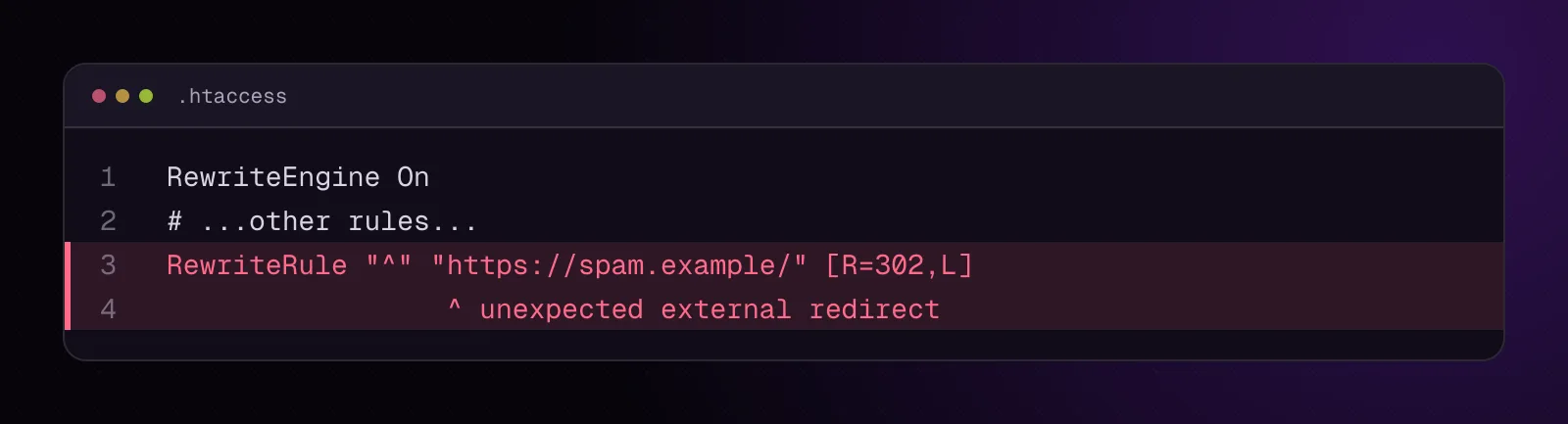
Do not copy that rule into your site. It is an illustrative pattern for recognizing an external redirect.
On Nginx, check the active server configuration with your host or server administrator. Do not add Apache rules to an Nginx server.
Chapter 11 covers hidden PHP backdoors in depth. If you find unexplained PHP loaders, encoded code or files that reappear, continue that investigation there.
How do I check the database for the spam domain or redirect code?
Search for a destination hostname you have already observed, because that gives you a precise value with fewer false positives. Do not begin with bulk replacement.
If the redirect goes to spam.example, search every table sharing the WordPress table prefix. WP-CLI documents --all-tables-with-prefix for this purpose: WP-CLI database search (opens in a new tab).
wp db search 'spam.example' --all-tables-with-prefix
Example output, illustrative and shortened:
wp_options: option_value
wp_postmeta: meta_value
wp_example_settings: setting_value
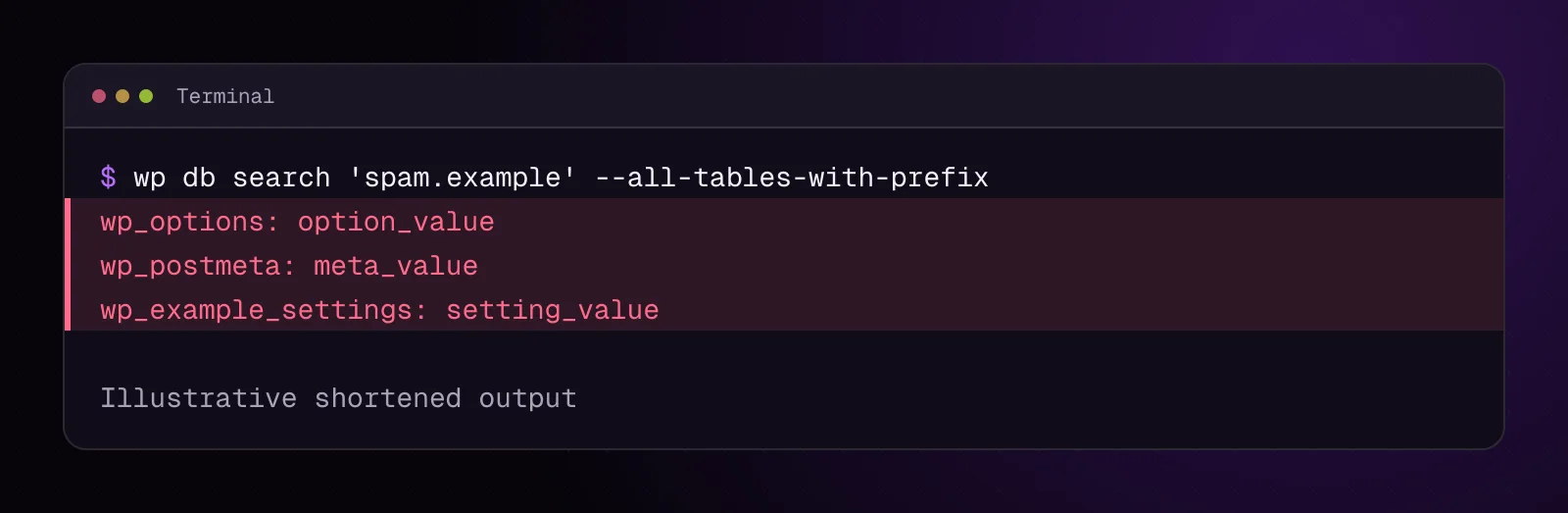
Without SSH, open phpMyAdmin for the WordPress database and use its database search for the same hostname. Record the table, row and column containing every match before editing anything.
A match is a lead, not permission to delete the row. A URL can appear inside serialized PHP data or structured plugin settings. Chapter 12, on database malware, covers safe cleanup of stored values and serialized data.
How do I remove a WordPress redirect hack step by step?
Remove only sources you have confirmed, then close the route that allowed them to be written.
1. Preserve the database before cleanup
Export the current database before editing rows:
wp db export before-redirect-cleanup.sql
Keep a full file backup through your host or file manager as well. Confirm that the SQL export exists and that the file backup contains wp-config.php, .htaccess where used and the complete wp-content directory.
2. Remove the confirmed server rule
If you identified an unauthorized line in .htaccess, remove only that malicious block. Keep legitimate WordPress and application rules unchanged.
Without SSH, edit .htaccess through the host's file manager. Save the original copy first, then remove the confirmed redirect lines.
Retest the affected request with curl -I. The unexpected Location header should disappear.
3. Replace changed WordPress core files
If the checksum check identifies modified WordPress core files, record the installed WordPress version first, then replace core from the matching official WordPress.org release.
wp core version
Put the version printed by that command in WP_VERSION, then run:
wp core download --version=WP_VERSION --skip-content --force
wp core verify-checksums --include-root
The download command changes WordPress core files. --skip-content avoids installing the bundled content directory, while --force overwrites existing core files.
Without SSH, replace the affected core files with clean copies from the matching official WordPress release through the host's file manager. Run the checksum check again where WP-CLI becomes available, or compare the replacement package before upload.
4. Replace a compromised plugin or theme
For a WordPress.org plugin whose clean version is known, replace the installed files. Put its slug in PLUGIN_SLUG and the intended version in PLUGIN_VERSION.
wp plugin install PLUGIN_SLUG --version=PLUGIN_VERSION --force
For a WordPress.org theme, put its slug in THEME_SLUG and intended version in THEME_VERSION:
wp theme install THEME_SLUG --version=THEME_VERSION --force
These commands overwrite the installed plugin or theme files. Do not use them for custom packages that are absent from WordPress.org.
For custom or commercial code, upload a clean trusted package through the file manager or your normal deployment process. Confirm that the suspicious file or injected lines are gone afterward.
5. Remove confirmed database injection carefully
Use the database search results to identify the owning option, post, metadata record or plugin table. Edit only the malicious value using the component's own settings screen when possible.
For serialized or structured values, do not run a broad SQL REPLACE() across the database. Use chapter 12's database-cleanup procedure so lengths and structure remain valid.
Search again after the edit:
wp db search 'spam.example' --all-tables-with-prefix
The confirmed malicious hostname should no longer appear unless you intentionally retained evidence in a table or record outside the live application path.
6. Remove persistence and close the access path
A deleted redirect can return if a backdoor, stolen credential or vulnerable component still has write access. Follow the evidence from chapter 6 and inspect any persistence you found.
Update or remove the vulnerable component, revoke unauthorized accounts and rotate credentials that may have been exposed. If server-level files change again after WordPress is clean, ask the host to investigate the account and server boundary.
The broader cleanup sequence in How to clean a hacked WordPress site and stop it happening again covers credential rotation, software replacement and post-cleanup work.
How do I check that the malicious redirect is gone?
Retest the same URL under every condition that reproduced the redirect before cleanup.
- Start a private browser session while logged out.
- Test direct navigation to the affected URL.
- Test the mobile path if mobile visitors were affected.
- Test the same referrer condition that triggered the problem.
- Repeat the header request:
curl -I https://example.com/

curl -I \
  --referer "https://www.google.com/" \
  --user-agent "Mozilla/5.0 (Linux; Android 14) AppleWebKit/537.36 Chrome/126.0 Mobile Safari/537.36" \
  https://example.com/
- Repeat core checksums, plugin checksums and the database hostname search.
- Clear application, host and CDN caches where your stack uses them, then run the tests again.
Do not treat cache clearing as malware removal. It only removes cached responses or content; it does not delete the source that created a malicious redirect.
How do I stop the redirect from coming back?
Preventing recurrence requires removing persistence and closing the original access path. The visible redirect is one artifact of the compromise.
Check for the same account, vulnerable component or server-level access identified in chapter 6. Replace modified code from trusted sources and remove unknown persistence.
Keep WordPress, plugins and themes patched after the incident. Restrict administrative access to people who need it and remove unused software.
If you use Cloudflare, Cloudflare WAF rules for WordPress that block attacks, not customers explains how to add request filtering without treating the WAF as a substitute for fixing vulnerable code.
What changes for different kinds of WordPress sites?
The same investigation applies, but the paths you must test depend on how the site is used.
WooCommerce stores: Test product, cart, checkout and account URLs separately. A redirect can target high-value paths instead of the full storefront. If payment-card data may have been exposed, contact the payment processor and an appropriate forensic specialist.
Multisite: Check network-activated plugins, shared themes, must-use plugins and each affected site's stored options. One shared component can alter requests across several sites.
Shared hosting: Check sibling sites and account-level server rules when several installations redirect. Ask the host to investigate if cleaned sites are modified again.
Membership and course sites: Test both logged-in and logged-out requests. Conditional code may deliberately leave administrator or authenticated sessions unchanged.
What should I investigate after removing the redirect?
If you found hidden PHP persistence, continue with chapter 11. If the redirect lived in stored WordPress data, chapter 12 covers database malware cleanup in depth.
The next infection chapter is chapter 8, Japanese Keyword Hack in WordPress: Remove the Spam Pages. Continue there if search results contain unauthorized Japanese spam pages or indexed URLs instead of, or alongside, the redirect.
Frequently asked questions
Why does my WordPress site redirect only from Google?
Malicious code can inspect the HTTP referrer and redirect visitors who arrive from a search result while allowing direct visits through. Reproduce the behavior with the same affected URL and referrer, then trace the redirect through server headers, files and stored data.
Why does the redirect happen on mobile but not desktop?
Conditional redirect code can check the User-Agent header or other request details before redirecting. Test a logged-out mobile browser and compare its response with a desktop request instead of assuming the desktop result applies to every visitor.
Can a WordPress redirect hack be stored in the database?
Yes. A malicious hostname or browser-side script can be stored in options, post content, metadata or a plugin's own tables. Search for a confirmed destination or distinctive harmless fragment, then inspect each match before editing it.
Can `.htaccess` cause a hacked WordPress redirect?
Yes, on Apache installations where .htaccess processing and the required directives are enabled. Rewrite rules there can issue external redirects before WordPress handles the request, so compare the file with your expected server configuration.
Why does the redirect return after I delete the suspicious code?
Something may still have permission to recreate it. Look for a backdoor, compromised administrator or hosting account, vulnerable component, server-level persistence or another infected site sharing the same account.
Does clearing the WordPress cache remove a redirect hack?
No. Clearing a cache may remove a stored redirect response or old injected output, but it does not remove malicious PHP, database content or server rules. Remove the confirmed source first, clear the relevant caches, then retest.
Sources
- Google Search spam policies (opens in a new tab)
- Google Search Console getting started (opens in a new tab)
- curl man page (opens in a new tab)
- WP-CLI core checksum verification (opens in a new tab)
- WP-CLI plugin checksum verification (opens in a new tab)
- WP-CLI plugin list (opens in a new tab)
- WP-CLI theme list (opens in a new tab)
- WP-CLI database search (opens in a new tab)
- WP-CLI database export (opens in a new tab)
- WP-CLI core download (opens in a new tab)
- WP-CLI plugin install (opens in a new tab)
- Apache .htaccess tutorial (opens in a new tab)
How this article was made: drafted with AI assistance from a researched brief, then checked against primary documentation before publishing.