The common infectionsChapter 8 of 3211 min read
Japanese Keyword Hack in WordPress: Remove the Spam Pages
Japanese spam pages can appear in Google while your normal WordPress pages look unchanged. Find the affected URLs, remove their source, clean injected content and verify the response Google receives.
 By Hamza Ahmad AslamAI & WordPress Developer | Speed Optimization & Site Security

In this guide
A Japanese keyword hack adds unauthorized search pages or content, often using Japanese text, to a compromised WordPress site. Remove it by identifying the affected URLs, finding the code or database content that generates them, cleaning that source, and checking what Google receives afterward. Do not delete pages based on language alone because a legitimate multilingual site may contain Japanese content.
What is the Japanese keyword hack?
The Japanese keyword hack is search spam placed on your site without permission, usually as injected pages, altered content or generated URLs intended to appear in search results. Google classifies unauthorized page and content injection as forms of hacked content (opens in a new tab).
The phrase describes the visible symptom, not one specific piece of malware. Two infected sites can generate similar Japanese spam while using different files, database records or compromised accounts.
A legitimate Japanese translation is different. It belongs to your publishing workflow, appears in WordPress or your translation system, and maps to URLs you intended to publish. Treat language as a clue, then establish which URLs and content were unauthorized.
What does a Japanese keyword hack look like to the owner and visitors?
A Japanese keyword hack often appears as unfamiliar Japanese titles, snippets or URLs associated with your domain while the pages you normally visit remain unchanged.
You may notice:
- Google results for URLs you never created.
- Japanese product, shopping or promotional text under your domain.
- Large groups of unfamiliar URL paths or query strings.
- Search Console examples that do not match your published content.
- A spam URL that changes, disappears or serves different content when opened directly.
Google says page injection can add new hacked pages while existing pages show no visible signs of compromise. Its guidance also notes that content injection can be harder for owners and visitors to spot.
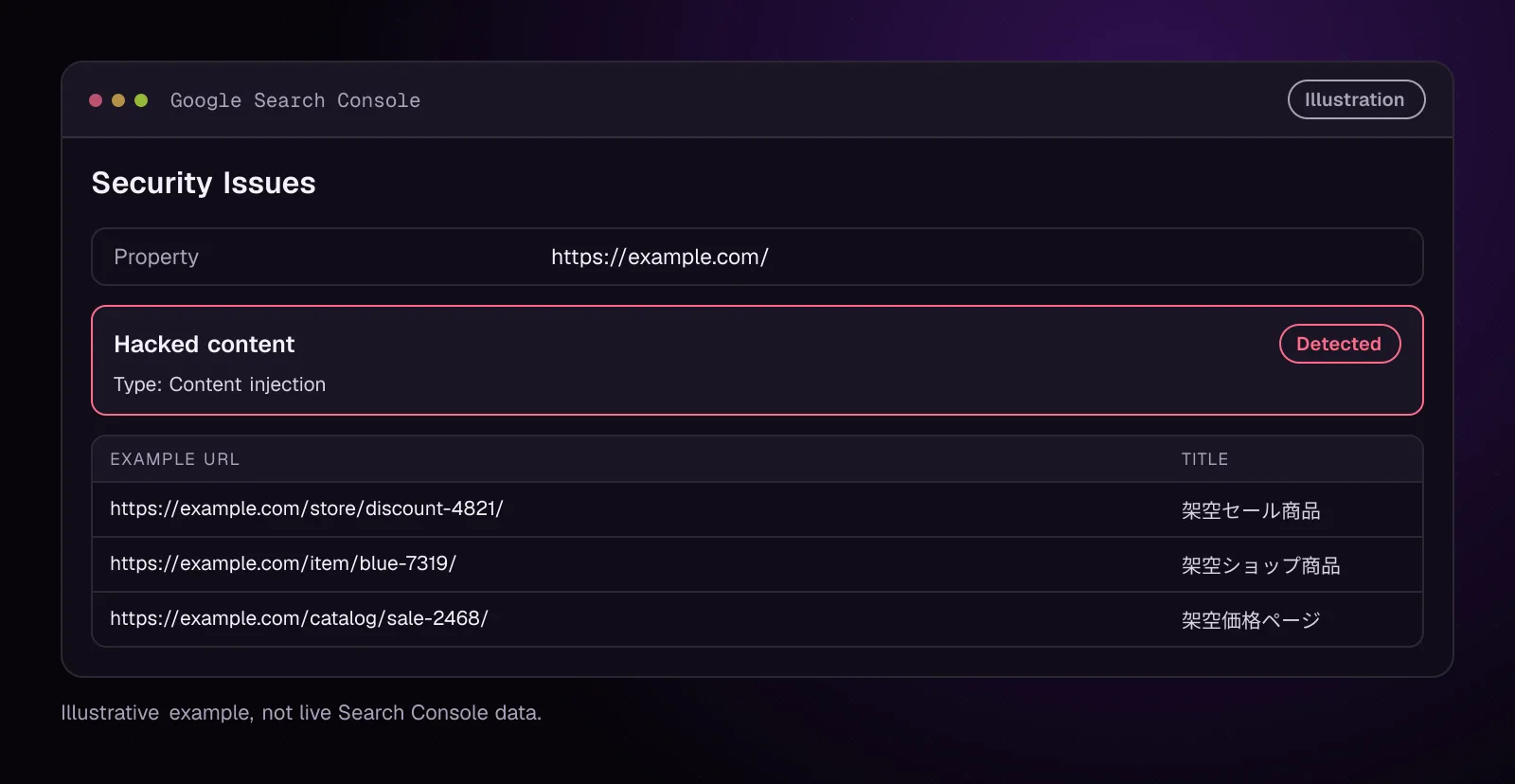
The figure is illustrative. Use the URLs and text reported for your own property as evidence.
How does Japanese search spam get into WordPress?
Japanese search spam can originate from compromised application code, stolen account access, injected database content or another persistent access path.
Do not decide that one plugin, theme or account caused the incident from the visible spam alone. First establish where the output is being produced.
An attacker with sufficient access may alter existing code, add code, insert pages, change stored content or create a mechanism that generates pages only when matching requests arrive. Google documents code injection, page injection, content injection and redirects as forms of hacked content.
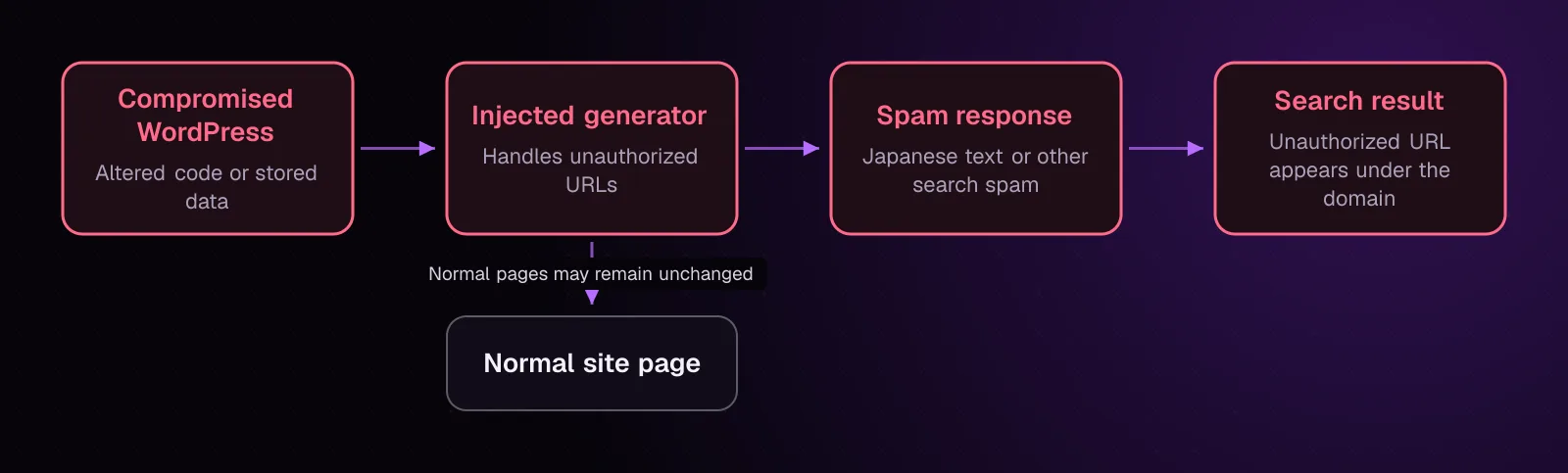
Chapter 11 examines hidden PHP and backdoors in depth. Chapter 12 covers database malware and persistent database changes.
Why can Google see spam pages that I cannot find in WordPress?
Google can see spam pages that are generated dynamically or conditionally even when no matching WordPress page exists in wp-admin.
For example, compromised code can inspect an incoming URL and generate a response before your normal template finishes. Another infection may alter output based on request details. The resulting URL may therefore have no corresponding entry under Pages or Posts.
Google defines cloaking as presenting different content to users and search engines with the intent to manipulate search rankings. Its spam policies (opens in a new tab) also state that hacked sites sometimes use cloaking to make compromises harder for site owners to detect.
Cloaking is only one possible mechanism. Do not assume every Japanese keyword hack uses it.
How do I confirm which Japanese spam URLs belong to the hack?
Confirm the affected set by combining Search Console evidence, direct URL tests, sitemap review and repeated strings from known spam pages.
-
Open Search Console and check Security Issues for the property. Google's Security Issues guidance (opens in a new tab) says verified owners can see warnings there when Google suspects hacked content.
-
Record several reported or discovered spam URLs before changing anything. Keep their full paths and any distinctive title, phrase, hostname or redirect destination.
-
Open each URL in a normal browser. Record whether it returns spam, your normal site, an error page or a redirect.
-
Inspect representative URLs with Search Console URL Inspection. Run Test live URL and use View tested page when available. Google's URL Inspection documentation (opens in a new tab) says the live test fetches the current URL and can expose rendered HTML and HTTP response data.
-
Check your submitted and generated sitemaps. An unfamiliar URL appearing in search does not mean it belongs in a legitimate sitemap. Record any sitemap that contains the hacked URLs before removing its generator.
-
Search Google for your domain plus a distinctive spam phrase you already confirmed. Search results are discovery evidence, not proof that the current server still emits the spam.
Create a small working list with a confirmed spam URL, one known spam phrase and any repeated URL pattern. That list becomes your test set during cleanup.
Where should I look for the code or data generating the spam pages?
Look through WordPress core integrity, plugins, themes, must-use code, unexpected files and the database until you can connect the spam output to its source.
Check WordPress core files
From the WordPress root, verify core files against WordPress.org checksums:
wp core verify-checksums --include-root
The documented --include-root option also checks the installation root for items outside the normal WordPress core set. Read each warning rather than deleting every unfamiliar root file. Hosting tools and valid application files may also live there.
Without SSH, compare the installation through your host's file manager and use a trusted copy of the same WordPress release for any file you investigate. Do not overwrite anything yet.
Check plugins
Verify plugins distributed through WordPress.org:
wp plugin verify-checksums --all
WP-CLI documents --all as checking all installed plugins. A plugin without WordPress.org checksums cannot be cleared by this test, so compare commercial or custom code with its known clean source instead.
See the plugin checksum command documentation (opens in a new tab).
Without SSH, inspect plugin directories in the host file manager. Compare suspect plugin files with the exact clean version from their trusted source.
Search the database for confirmed spam text
Take a short phrase copied from a confirmed injected page. Put that text in place of SPAM_PHRASE:
wp db search 'SPAM_PHRASE' --all-tables-with-prefix
wp db search searches text columns. The documented --all-tables-with-prefix option includes tables matching the configured prefix even when a plugin has not registered them with WordPress. See the WP-CLI database search documentation (opens in a new tab).
Without SSH, use phpMyAdmin's database search feature for the same confirmed phrase. Search the database belonging to this installation and inspect matches before editing them.
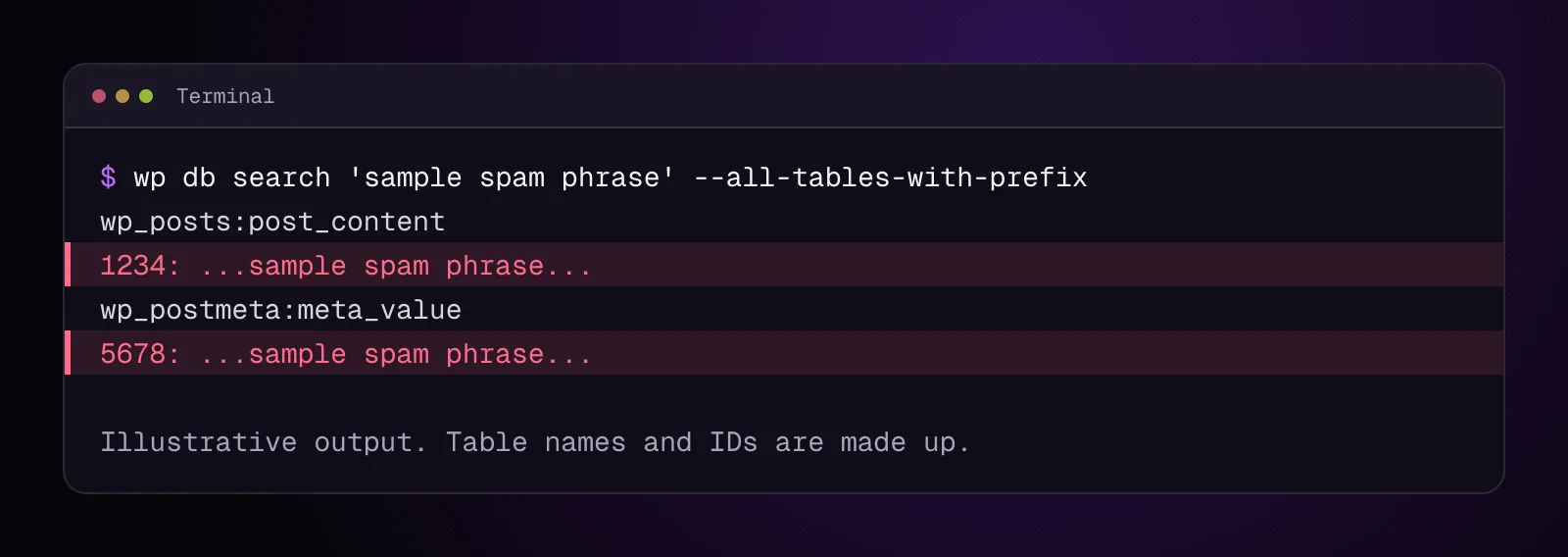
A database match tells you where the text is stored. It does not establish that every matching row is malicious.
Inspect code that participates in the response
Check the active theme, plugins, wp-content/mu-plugins/, and unexpected PHP files identified during the incident. Follow calls and includes until you know which code produces the confirmed spam response.
A harmless shortened example of the kind of unexpected addition you might find is shown below:
<?php
get_header();

/* Unexpected injected output found during investigation. */
echo '<p>sample spam phrase</p>';

get_footer();
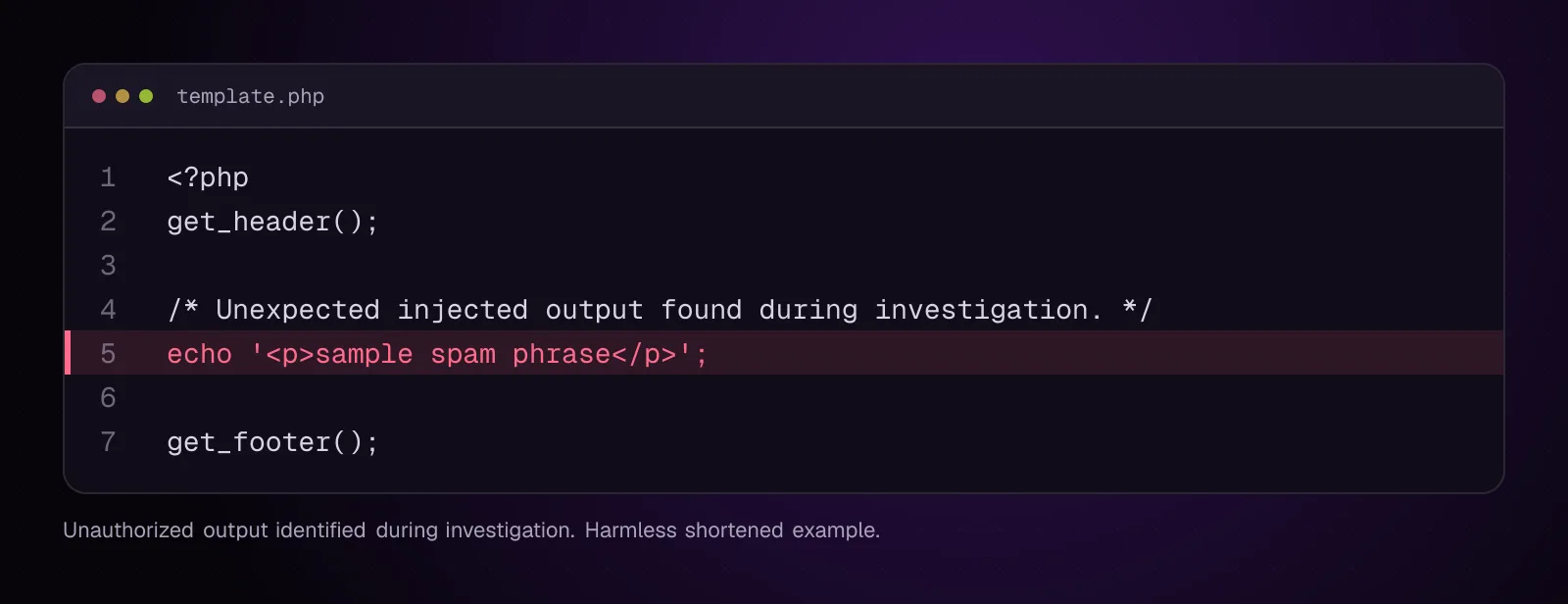
Do not search for that sample line on your site. Your evidence is the phrase, URL or altered file already confirmed during your investigation.
How do I remove Japanese keyword spam from WordPress?
Remove the confirmed generator, injected records and altered trusted code while preserving legitimate content.
Back up the current compromised state
SAFE_PATH must be a private directory outside every public web root.
- Export the database before deleting records:
wp db export /SAFE_PATH/japanese-spam-before-cleanup.sql
- From the WordPress root, create a file archive in the same private location:
tar -czf /SAFE_PATH/japanese-spam-files-before-cleanup.tar.gz .
wp db export exports the WordPress database. GNU tar documents -c for archive creation, -z for gzip compression and -f for the archive filename.
Without SSH, export the database through phpMyAdmin and download the site files through your host's backup or file-manager tools.
Check that both backup files exist and can be opened before changing the site.
Remove confirmed injected WordPress posts
If investigation proves that specific WordPress post IDs were created by the attacker, replace SPAM_POST_ID with the confirmed numeric ID:
wp post delete SPAM_POST_ID --force
The --force option bypasses Trash and permanently deletes that post, so use it only after the backup and only for a confirmed injected record.
Without SSH, delete the same confirmed item from Posts or Pages in wp-admin and then empty Trash. If the database match belongs to an option, custom table or other structure, inspect its owning code before changing the row. Chapter 12 covers those cases in depth.
Replace altered WordPress core files with the installed release
If core checksum failures confirm altered core package files, first record the installed release:
wp core version
Put the version printed by that command in WP_VERSION, then replace core package files with that same official release:
wp core download --version=WP_VERSION --skip-content --force
wp core verify-checksums --include-root
--version selects the release, --skip-content omits the default themes and plugins, and --force overwrites existing core files. This is a repair, not a WordPress upgrade.
Without SSH, download the matching official WordPress release and replace its core files through the host file manager while preserving wp-content and your configuration. Re-run your integrity check afterward.
Replace a confirmed altered plugin from a trusted copy
For a WordPress.org plugin, record its installed version first. Put its directory slug in SLUG:
wp plugin get SLUG --field=version
Put that output in VERSION, then reinstall the same release:
wp plugin install SLUG --version=VERSION --force
wp plugin verify-checksums SLUG
The forced install overwrites that installed plugin's files. Do not use it on custom or commercial code that is unavailable from WordPress.org. Restore those from a trusted copy of the same release instead.
Without SSH, replace the plugin directory with the known clean matching package through the file manager, then verify the site behavior.
After each removal, retest one confirmed spam URL and one normal page. If the spam remains, continue tracing the request because another generator or persistence mechanism still exists.
For the wider cleanup sequence around accounts, credentials and affected components, use How to clean a hacked WordPress site and stop it happening again.
What should hacked Japanese spam URLs return after removal?
A hacked URL with no legitimate replacement should stop serving spam and return an appropriate missing-page response, normally HTTP 404 or 410.
Google says URLs for content that no longer exists can return 404 Not Found or 410 Gone. If a legitimate replacement exists, use the site's normal permanent redirect process to that relevant replacement instead.
Do not redirect every hacked URL to the home page. Also check that a custom missing-page design still sends an actual 404 response rather than returning HTTP 200.
For each sample URL, verify:
- The injected content is gone.
- The response no longer changes into another spam page.
- An invalid URL with no replacement returns the site's intended 404 or 410 response.
- A legitimate URL still returns its normal page.
How do I check that Google and visitors no longer receive the spam?
Retest the same URLs and phrases you recorded before cleanup, using both ordinary browsing and Search Console's live inspection.
- Open each representative spam URL in a browser and confirm the injected text or redirect has disappeared.
- Search the database again with the same confirmed phrase:
wp db search 'SPAM_PHRASE' --all-tables-with-prefix
- Run Search Console's Test live URL for representative affected URLs. Inspect the rendered HTML or response information where available.
- Search your current files for the specific altered file or generator identified during investigation using your editor, IDE or host file manager.
- Check Security Issues again after the site itself is clean.
Search results can continue reflecting previously indexed content after the server has been repaired. The current server response and live inspection tell you whether your cleanup changed what can be fetched now.
If Search Console reports a security issue that provides a review workflow, follow Google's instructions after all affected areas are fixed. Do not request review while a tested URL still serves injected content.
How do I stop Japanese spam pages from returning?
Stop recurrence by removing the entry path and persistence mechanism, then monitor for new unauthorized URLs.
Finish these actions after the visible pages are gone:
- Update vulnerable or outdated components after you have preserved incident evidence.
- Remove accounts and access credentials that investigation confirms were unauthorized.
- Rotate credentials that may have been exposed.
- Remove remaining backdoors found in files or the database.
- Check scheduled or persistent code that can recreate removed content.
- Review file permissions and limit unnecessary write access.
- Keep supported WordPress, plugin and theme releases current.
- Monitor Search Console and server changes for the same URL or phrase pattern.
WordPress's security handbook recommends current software, backups, restricted file write access and monitoring. The site's WordPress security hardening: a practical checklist for 2026 covers the post-incident hardening work in one sequence.
Removing search results without removing their generator leaves the compromise in place.
What changes for different kinds of WordPress sites?
The investigation boundary changes when one installation can affect several sites or when Japanese content may be legitimate.
Multisite: Check every site's URLs and tables plus network-wide plugins, must-use code and shared themes. Start by listing the sites:
wp site list --fields=blog_id,url,last_updated --format=table
Then put a phrase copied from a confirmed injected page in SPAM_PHRASE:
wp db search 'SPAM_PHRASE' --network
WP-CLI documents --network for searching tables registered across a Multisite installation. Its database-search documentation also states that --all-tables-with-prefix overrides --network, so choose the scope you intend rather than combining them.
Without SSH, identify each site's table prefix in phpMyAdmin and search the network tables methodically.
Shared hosting: Search sibling WordPress installations if the same spam phrase, altered file pattern or unfamiliar code appears under more than one document root. A compromise with access beyond one installation may require your host to inspect the account or server boundary.
News sites: Separate injected URLs from legitimate articles, author archives, category archives and other high-volume publishing URLs before removing anything. Use your CMS records and editorial history to establish ownership of each suspect URL.
Multilingual sites: Confirm whether Japanese content belongs to an intended locale, translation workflow or editorial record. Do not classify a page as malicious from its language.
What should I investigate next after removing the spam generator?
If the remaining symptom is another kind of search spam, continue to chapter 9, WordPress Pharma Hack: Remove Spam Only Google Can See. If your evidence points instead to hidden PHP, persistence or stored database code, continue the investigation in chapter 11 or chapter 12 before considering the incident closed.
Frequently asked questions
Why is my WordPress site showing Japanese text in Google?
Unauthorized pages or content may have been added to the site and indexed by Google. Confirm the URLs in Search Console and test their current responses before changing WordPress content, because legitimate Japanese pages can produce the same language symptom.
Can the Japanese keyword hack exist without Japanese text on my pages?
Yes. The spam may exist on separate generated URLs, appear only under certain request conditions, or have disappeared from the current page while an indexed version remains in search. Test known affected URLs rather than checking only the home page.
Why are thousands of strange URLs appearing for my domain?
One injected generator can respond to many different request paths without creating a separate WordPress Page for every URL. Establish a few representative patterns, then find the code or stored data responsible instead of manually deleting URLs one at a time.
Is a Japanese keyword hack the same as cloaking?
No. Cloaking is one technique in which search engines and users receive different content for ranking manipulation. A Japanese keyword hack may use cloaking, but it can also expose the same injected pages to every requester.
Should I delete every Japanese page from a hacked WordPress site?
No. Delete only content that you have confirmed was introduced by the compromise. Japanese translations, articles, products or other intended content should remain.
How long do hacked Japanese URLs stay visible in Google after cleanup?
There is no fixed removal time for every hacked URL. Google must recrawl and process the changed responses, and a Search Console security review may follow a separate process when one is required. Verify the server first, then use Search Console to track Google's view of representative URLs.
Sources
- Spam policies for Google web search (opens in a new tab)
- Why is my site labeled as dangerous in Google Search? (opens in a new tab)
- URL Inspection tool (opens in a new tab)
- Troubleshoot Google Search crawling errors (opens in a new tab)
- wp core verify-checksums (opens in a new tab)
- wp core download (opens in a new tab)
- wp plugin verify-checksums (opens in a new tab)
- wp plugin install (opens in a new tab)
- wp db search (opens in a new tab)
- Hardening WordPress (opens in a new tab)
- GNU tar 1.35 manual (opens in a new tab)
How this article was made: drafted with AI assistance from a researched brief, then checked against primary documentation before publishing.