The common infectionsChapter 11 of 3210 min read
How to Find a Backdoor in WordPress: Web Shells and Hidden PHP
Find a hidden WordPress backdoor without executing suspicious code. Check core, plugins, uploads, must-use plugins and drop-ins, then remove confirmed persistence safely.
 By Hamza Ahmad AslamAI & WordPress Developer | Speed Optimization & Site Security

In this guide
To find a backdoor in WordPress, compare the site's files with trusted copies, inventory unexpected PHP, and inspect suspicious files as text without executing them. A backdoor is unauthorized code or another hidden access mechanism that lets an attacker regain control after the visible infection or compromised account is removed.
What is a WordPress backdoor?
A WordPress backdoor is a hidden mechanism that gives an attacker unauthorized access after the site's obvious infection has been cleaned.
The backdoor is persistence. It may be a PHP file, injected code inside a legitimate file, a malicious plugin, a must-use plugin, a drop-in, or another server-side mechanism.
The original entry point is different. A vulnerable plugin, stolen administrator password, compromised hosting account, or tampered software update may have provided the first access. The attacker can then plant a backdoor so that fixing the first weakness does not remove their access.
A web shell is one form of backdoor. It is server-side code reachable through the web that accepts instructions from an unauthorized operator. Do not try to invoke a suspected shell to prove what it does.
What signs suggest a backdoor is still on the server?
A backdoor is likely still present when changes return after you remove them, or when unexplained executable files appear where your known application does not put them.
Look for evidence such as:
- malware files returning after deletion;
- administrator accounts or files being recreated;
- unfamiliar PHP files in uploads or other data directories;
- modified WordPress core files;
- unknown must-use plugins or drop-ins;
- unexplained PHP inserted into a theme, plugin, or configuration file;
- requests in server logs that repeatedly target an unusual PHP path;
- recent file changes that line up with the incident.
One clue is not a verdict. A custom site can have legitimate PHP that would look unusual on a standard installation.
How do backdoors get planted in WordPress?
Attackers can plant a backdoor after they gain enough access to create or modify executable files.
That first access may come through vulnerable code, compromised credentials, a hosting account, or compromised software. If an update itself introduced malicious code, investigate the package and source as described in WordPress plugin supply chain security: when the update itself is the attack.
Removing the backdoor therefore solves only one part of the incident. You still have to find and close the access path that allowed it to be written.
Where can a WordPress backdoor hide?
A backdoor can hide anywhere the compromised account or vulnerable process was able to write executable code.
Check these locations against the site's documented design:
wp-content/plugins/wp-content/themes/wp-content/mu-plugins/- WordPress drop-ins directly under
wp-content/ wp-content/uploads/and any custom upload directorieswp-config.php- the WordPress root
wp-admin/wp-includes/- other writable directories belonging to the hosting account when the evidence points outside this installation
WordPress documents wp-content/mu-plugins as the default must-use plugin directory. MU plugins load automatically and appear separately from ordinary plugins in wp-admin. WordPress also supports special drop-in files under wp-content, including files such as object-cache.php and db.php.
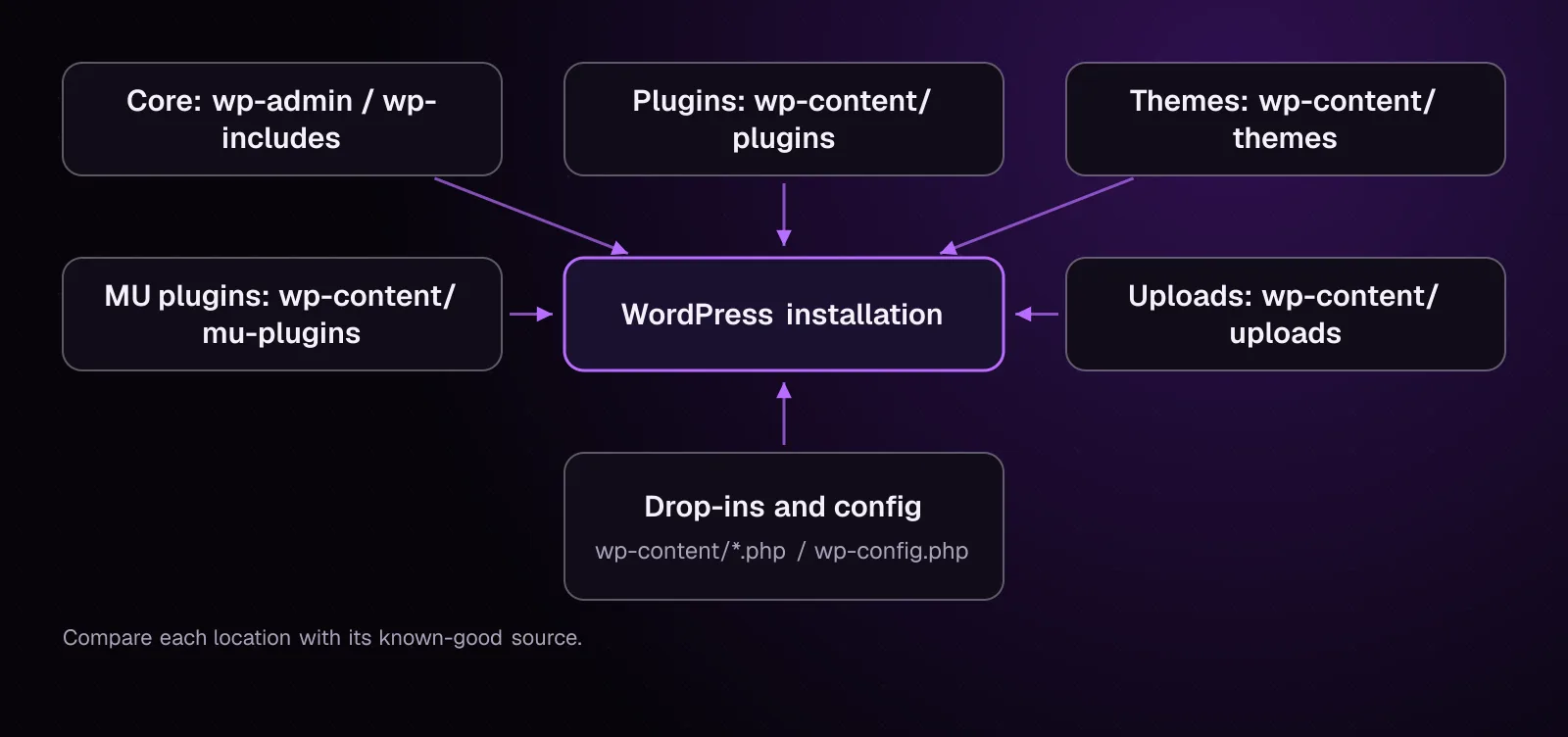
The diagram shows the main code and writable locations that need comparison with known-good files.
Inventory must-use plugins and drop-ins
- List both special plugin types with WP-CLI.
wp plugin list --status=must-use --skip-plugins --skip-themes
wp plugin list --status=dropin --skip-plugins --skip-themes
The wp plugin list documentation (opens in a new tab) confirms both must-use and dropin as valid status filters.
WP-CLI's global --skip-plugins and --skip-themes parameters prevent normal plugins and themes from loading. Must-use plugins still load, so do not treat this output as independent evidence when an MU plugin may be compromised.
Without SSH, open wp-admin's Plugins screen and check its Must-Use and Drop-ins sections where available. Also inspect wp-content/mu-plugins and files directly under wp-content through the host's file manager.
- Compare every listed file with your deployment records, vendor package, repository, or host documentation.
Do not delete an unfamiliar drop-in merely because its name is unusual. Caching, database, hosting, and deployment systems can install legitimate drop-ins.
How do I use WordPress checksums to narrow the file search?
Use official checksums to identify WordPress core or WordPress.org plugin files that differ from the published package.
Check WordPress core
- Run the core checksum check from the WordPress directory.
wp core verify-checksums --include-root
The --include-root option (opens in a new tab) also warns about non-WordPress items found in the root.
wp core verify-checksums runs before WordPress loads, according to its current WP-CLI documentation. That reduces exposure to compromised application code during this particular check.
Example output, illustrative:
Warning: File doesn't verify against checksum: wp-includes/example-file.php
Warning: File should not exist: wp-admin/cache-old.php
Error: WordPress installation doesn't verify against checksums.
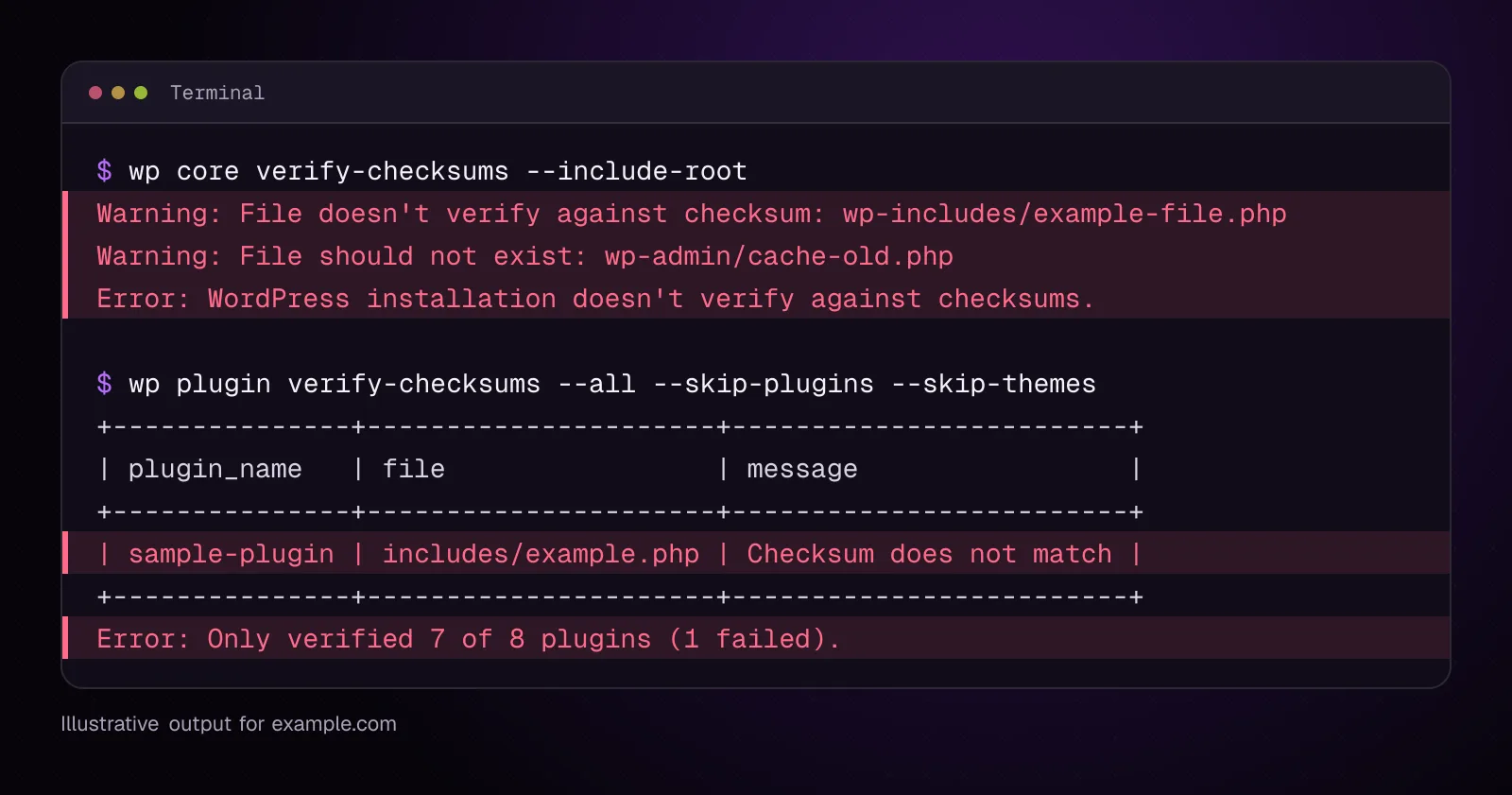
The warnings identify files for investigation; they do not by themselves establish why a file changed.
- Verify plugins that came from WordPress.org.
wp plugin verify-checksums --all --skip-plugins --skip-themes
The wp plugin verify-checksums command (opens in a new tab) checks installed plugin files against WordPress.org checksums and accepts --all.
A checksum failure can come from malware, a manual customization, corruption, or a package difference. Investigate the file and its expected source before removing it.
Checksum success also has limits. It does not validate your custom code, premium plugins without WordPress.org checksums, uploads, wp-config.php, arbitrary files elsewhere in the account, or every persistence mechanism.
Without SSH, download the matching WordPress and plugin releases from their trusted sources and compare the server files locally. A host file manager can also show unexpected files, but it does not provide WordPress.org checksum verification by itself.
How do I look for unexpected PHP files outside normal code directories?
Inventory executable-looking files in data directories, then decide whether each one belongs to the site's known design.
- From the WordPress root, list PHP files under the default uploads directory.
find wp-content/uploads -type f -name '*.php' -print
GNU find documents -name matching and file-tree searches (opens in a new tab). This command only prints paths. It does not classify them as malware.
Example output, illustrative:
wp-content/uploads/old-cache.php
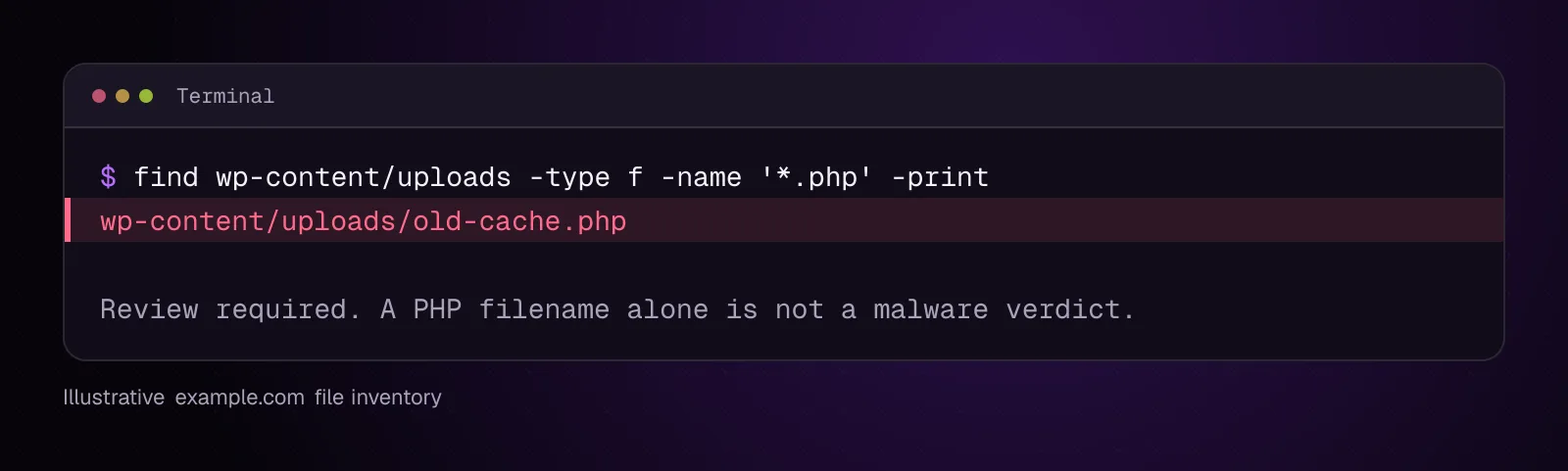
If the site's upload directory was moved or customized, inspect that configured location instead. WordPress documents wp-content/uploads as its normal default when no override is in use.
Without SSH, search the uploads directory recursively in the hosting file manager. Some control panels have a filename search; otherwise inspect each year, month, or custom subdirectory.
- If you know when the compromise began and the server has GNU
find, list files modified after that point.
This example uses an illustrative incident time of September 27, 2026:
find . -type f -newermt '2026-09-27 00:00:00' -print
GNU find documents -newermt for selecting files whose modification time is newer than a supplied date. Timestamps can be changed, copied, or preserved, so use this list as another lead rather than proof.
If the host does not provide GNU find, use the modification dates displayed by its file manager instead.
How do I inspect a suspicious PHP file safely?
Read a suspicious PHP file as text, preserve its metadata and path, and never request it through a browser.
- Record the file's metadata. Replace
SUSPECT_FILEwith the exact path you are investigating.
stat -- SUSPECT_FILE
Record the path, owner, size, modification time, and any incident notes. If you do not have SSH, use the host file manager's file information or properties view.
- Read only text from the file.
head -n 120 -- SUSPECT_FILE
head prints the beginning of a file without asking PHP or the web server to execute it. If the suspicious section lies later in the file, use a trusted local text editor or the host file manager's plain-text viewer.
Do not paste an unknown PHP file into an online execution service. Do not open its public URL.
A safe incident note might look like this:
<?php
// Expected application code above.

// [suspicious code shortened]

// Expected application code below.
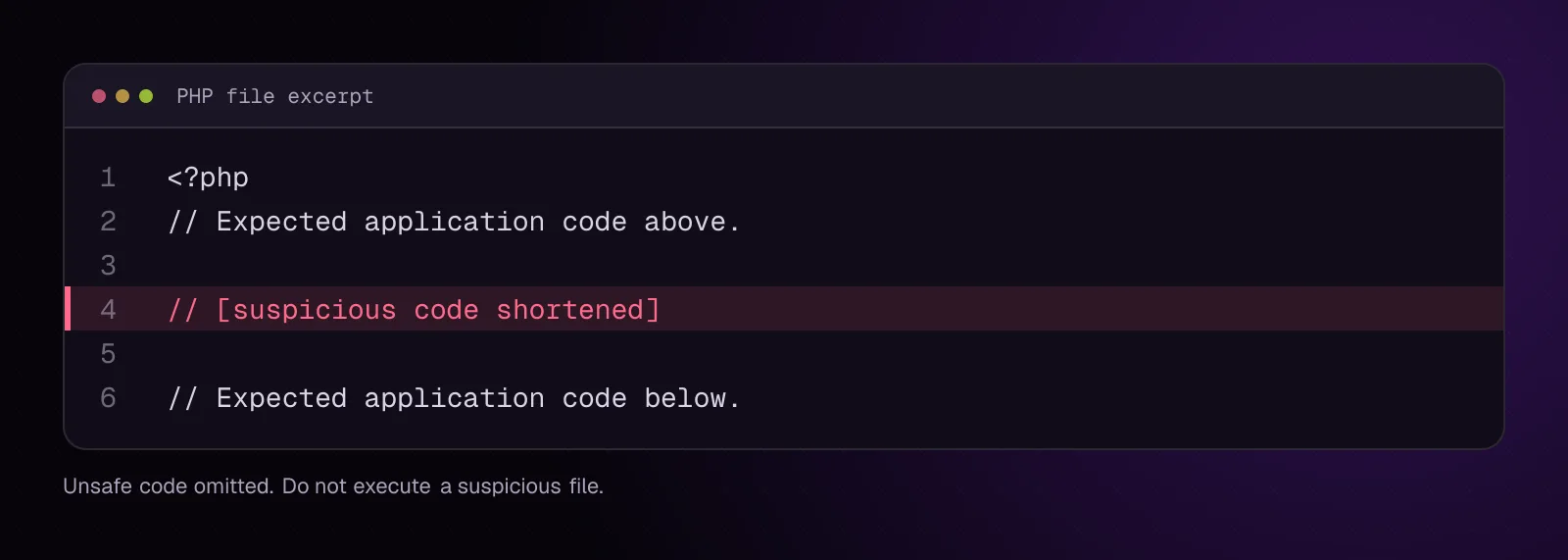
Document only the minimum harmless excerpt needed to identify the location. Keep the untouched evidence copy private.
How do I remove a confirmed WordPress backdoor?
Preserve a private copy first, then delete a confirmed standalone malicious file or replace a compromised legitimate component from its trusted source.
Remove a confirmed standalone malicious file
- Copy it to the private evidence location before changing the live site.
Replace SUSPECT_FILE with the confirmed file path.
cp -- SUSPECT_FILE /SAFE_PATH/
Without SSH, download the file to protected incident storage, then confirm that the downloaded copy exists before proceeding.
- Remove the confirmed malicious file.
rm -- SUSPECT_FILE
This command deletes SUSPECT_FILE from the live filesystem. Check that the path no longer exists, then watch for it being recreated.
With a host file manager, select that exact file and delete it only after the private copy has been preserved.
Replace modified WordPress core files
- Record the installed WordPress release.
wp core version
Put the version printed by this command in WP_VERSION.
- Replace core files with that same official release.
wp core download --version=WP_VERSION --skip-content --force
--version selects the requested WordPress release, --skip-content avoids installing bundled themes and plugins, and --force overwrites existing core files. This is a replacement, not an update to a newer WordPress version.
- Verify the replacement.
wp core verify-checksums --include-root
Without SSH, download the same WordPress release, replace wp-admin, wp-includes, and the appropriate root core files through SFTP or the host file manager, while preserving wp-config.php and wp-content. WordPress's hacked-site guidance also warns that simply overwriting files can leave attacker-added files behind, so investigate unexpected paths separately.
Replace a compromised WordPress.org plugin
Use the plugin's known clean version when the package is available from WordPress.org. Replace SLUG and VERSION with the plugin slug and the version you have confirmed the site should run.
wp plugin install SLUG --version=VERSION --force --skip-plugins --skip-themes
--force overwrites the installed plugin package. Verify it afterward with its checksum command.
For commercial or custom plugins, obtain the exact trusted package from the vendor, deployment repository, or developer instead. Do not substitute an unrelated release.
How do I check that no known backdoor remains?
Repeat the checks that exposed the backdoor and confirm that every known indicator is gone.
- Run the core and plugin checks again.
wp core verify-checksums --include-root
wp plugin verify-checksums --all --skip-plugins --skip-themes
- Repeat the uploads inventory.
find wp-content/uploads -type f -name '*.php' -print
-
Recheck must-use plugins, drop-ins, the WordPress root,
wp-config.php, and every exact suspicious path you recorded earlier. -
Recheck the indicator that exposed the persistence. If a file used to return, confirm that it stays absent. If an unexplained request targeted a shell path, review current server logs for further requests to that path.
A clean checksum result does not mean the entire account is clean. It answers only the locations covered by those checks.
Why does a backdoor return after I delete it?
A deleted backdoor can return when another persistence mechanism, another compromised account, another infected installation, or the original write vulnerability remains active.
Do not keep deleting the same regenerated file without finding what recreates it. Compare its creation time with access logs and other modified files, inspect MU plugins and drop-ins, and search sibling installations when they share the same account.
Chapter 19 covers repeated reinfection and the process for finding what keeps restoring malware.
How do I stop new backdoors from being planted?
Stop new backdoors by closing the original access path and reducing unnecessary write access after cleanup.
Replace vulnerable or compromised components with trusted copies, update software as part of the recovery plan, rotate affected credentials, and remove unused code. Review WordPress security hardening: a practical checklist for 2026 after the incident is contained.
WordPress's hardening documentation (opens in a new tab) recommends restricting file write access as much as the installation permits. File ownership and permissions depend on the hosting model, so do not copy a permission scheme blindly onto a managed or shared environment.
If evidence suggests the compromise exists above your hosting account, contact the host. A server-level compromise requires investigation and remediation at that level.
What changes for different kinds of WordPress sites?
The search scope changes when code or hosting resources are shared.
Multisite: Treat shared plugins, themes, must-use plugins and drop-ins as network-wide code. A backdoor in shared code can run for more than one site in the network, so inspect the shared files once and test the affected network afterward.
Shared hosting: Search other writable WordPress installations owned by the same account when timestamps, recreated files, logs, or other evidence points to cross-site infection. Ask the host for help if you cannot inspect all account-level paths or processes.
Membership and course sites: Confirm unfamiliar LMS, membership and integration PHP with the developer or vendor before removing it. Custom handlers and integration files may be legitimate application code.
News sites: Confirm custom editorial, publishing and newsroom code against the deployment repository or developer's known-good copy before replacement. Site-specific PHP can live outside a typical off-the-shelf plugin layout.
What should I investigate after removing a backdoor?
After file-based persistence is removed, investigate WordPress data for injected options, content or other malicious database records. Chapter 12, How to Remove Malware from the WordPress Database, continues with that database investigation.
Frequently asked questions
What is the difference between a WordPress backdoor and malware?
Malware is a broad term for malicious software or code. A backdoor is a specific access or persistence mechanism that lets an unauthorized party get back into the site or server. A compromised site can contain malware without a backdoor, or several backdoors alongside other malicious code.
Can a WordPress backdoor hide in the uploads folder?
Yes. An attacker who gained file-write access can place executable code in writable directories, including uploads. PHP found there should be investigated against the site's design, but the filename or extension alone is not enough to declare it malicious.
Does a strange PHP filename prove it is a backdoor?
No. Custom plugins, integrations, deployment tools and hosting systems can create unfamiliar PHP files. Establish what created the file, compare it with a trusted source, inspect it as text, and correlate it with other incident evidence.
Can WordPress checksums find every backdoor?
No. Core checksums cover WordPress core files, while plugin checksums cover supported WordPress.org plugin packages. They do not establish the integrity of every custom file, upload, configuration file, premium package, MU plugin, drop-in or server-level mechanism.
Can a backdoor survive a WordPress core reinstall?
Yes. Replacing WordPress core does not remove a backdoor stored in wp-content, an upload directory, wp-config.php, another installation, the database, or infrastructure outside the replaced core files. An attacker-added file can also remain if a reinstall only overwrites known files.
Why does malware return after I delete the backdoor I found?
Another persistence mechanism may still exist, or the original access path may still allow files to be written again. Recheck other WordPress installations, MU plugins, drop-ins, accounts, logs and the original vulnerable component rather than assuming the first backdoor was the only one.
Sources
- wp core verify-checksums – WP-CLI Command (opens in a new tab)
- wp plugin verify-checksums – WP-CLI Command (opens in a new tab)
- wp plugin list – WP-CLI Command (opens in a new tab)
- wp core download – WP-CLI Command (opens in a new tab)
- wp plugin install – WP-CLI Command (opens in a new tab)
- Must-Use Plugins – Advanced Administration Handbook (opens in a new tab)
- Hardening WordPress – Advanced Administration Handbook (opens in a new tab)
- FAQ My site was hacked – Documentation (opens in a new tab)
- GNU Findutils: Base Name Patterns (opens in a new tab)
- GNU Findutils: Comparing Timestamps (opens in a new tab)
- GNU Coreutils: cp invocation (opens in a new tab)
- GNU Coreutils: rm invocation (opens in a new tab)
How this article was made: drafted with AI assistance from a researched brief, then checked against primary documentation before publishing.
Message
Ask me about your site
Tell me what is wrong or what you need built. I reply by email.