The common infectionsChapter 10 of 3210 min read
How to Find and Remove Hidden Admin Users in WordPress
Find every privileged WordPress account, preserve evidence, remove a confirmed rogue administrator without losing legitimate content, and check for persistence.
 By Hamza Ahmad AslamAI & WordPress Developer | Speed Optimization & Site Security
In this guide
A hidden admin user in WordPress is an unauthorized account with administrator or equivalent high-level access that an attacker created, changed or concealed. Find every privileged account, preserve its details, remove confirmed unauthorized access, then investigate how it was created. Deleting the account alone does not prove the site is clean.
What is a hidden admin user in WordPress?
A hidden admin user is an account with unauthorized privileged access, even when its username and profile look ordinary.
The account may have the Administrator role, an unexpected custom role, individual capabilities added to another role, or Multisite super-admin privileges. "Hidden" can also mean malicious code keeps the account out of a normal Users screen.
Do not judge an account only by its name. A username such as elliot.gray can look like a member of staff while belonging to an attacker. Compare every privileged account with the people and systems that should have access.
What signs suggest an attacker added or changed an administrator?
Treat an administrator as suspicious when its identity, timing or permissions do not match your expected staff and service accounts.
Check for:
- an administrator nobody responsible for the site recognizes;
- a registration date that does not match when that person received access;
- an unexpected email address on a known username;
- a staff account whose role changed without an approved reason;
- a new privileged account near the time other compromise signs appeared;
- an account missing from your expected staff, agency and integration roster.
Registration time is evidence, not proof. An attacker with enough access to alter stored data may also alter account fields.
In wp-admin, open Users > All Users. The WordPress Users screen documentation (opens in a new tab) confirms that the table exposes the username, email, role and post count, and that users can be edited or deleted there.
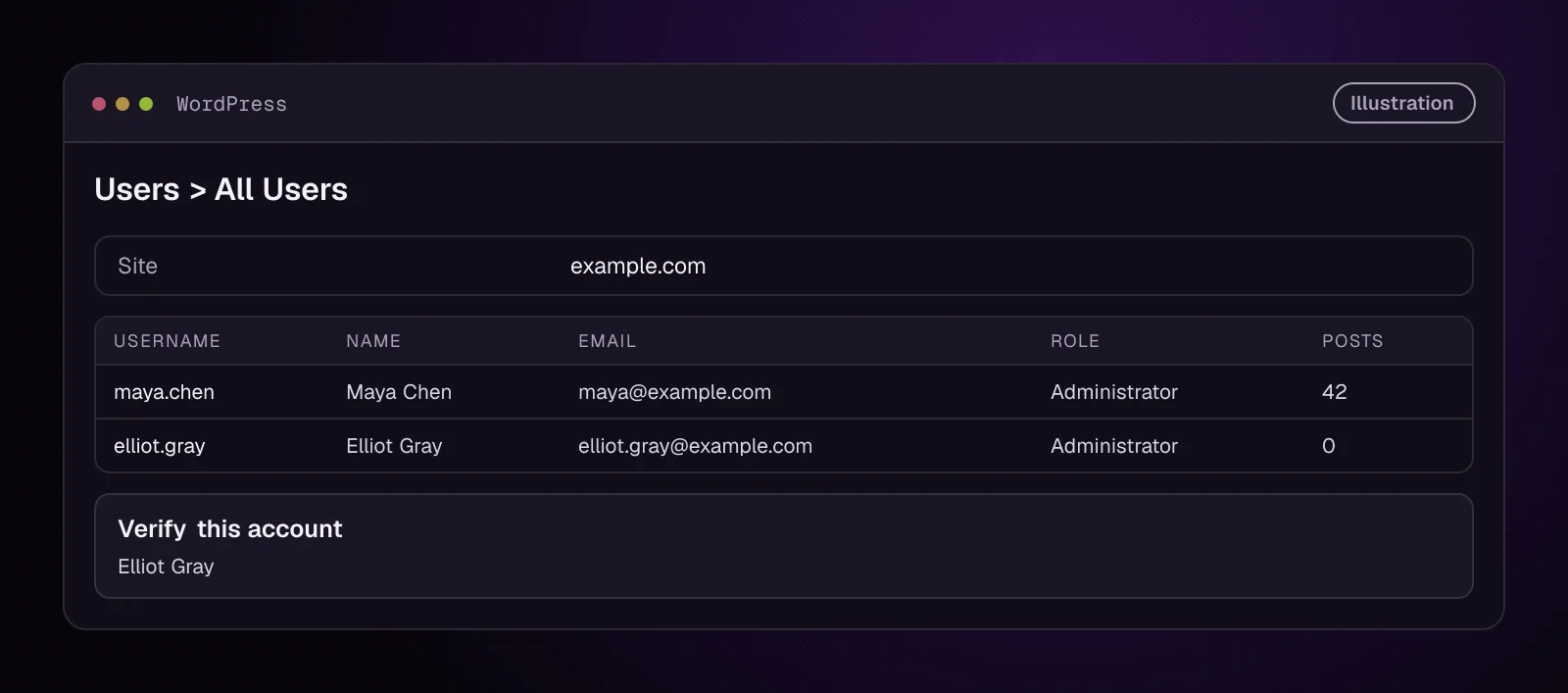
The figure is illustrative. Verify each account against your own records before changing it.
How does an attacker create or hide an administrator account?
An attacker can create or conceal privileged access after obtaining another route into WordPress, its code or its database.
Common paths include a stolen administrator credential, compromised hosting access, malicious PHP already running on the site, a vulnerable component, or direct unauthorized database access. Malicious code can also interfere with user queries or admin screens so an account is harder to notice.
This chapter does not assume which path was used. Preserve the account first, then remove it and investigate persistence.
If you suspect the server account itself was compromised, involve the host or a qualified incident-response professional. A WordPress-only cleanup cannot establish the integrity of a compromised server account.
How do I list every WordPress administrator?
List administrators in wp-admin, WP-CLI and the database, then compare them with your approved access roster.
-
Open Users > All Users in wp-admin and filter by Administrator. Record every username, email and role.
-
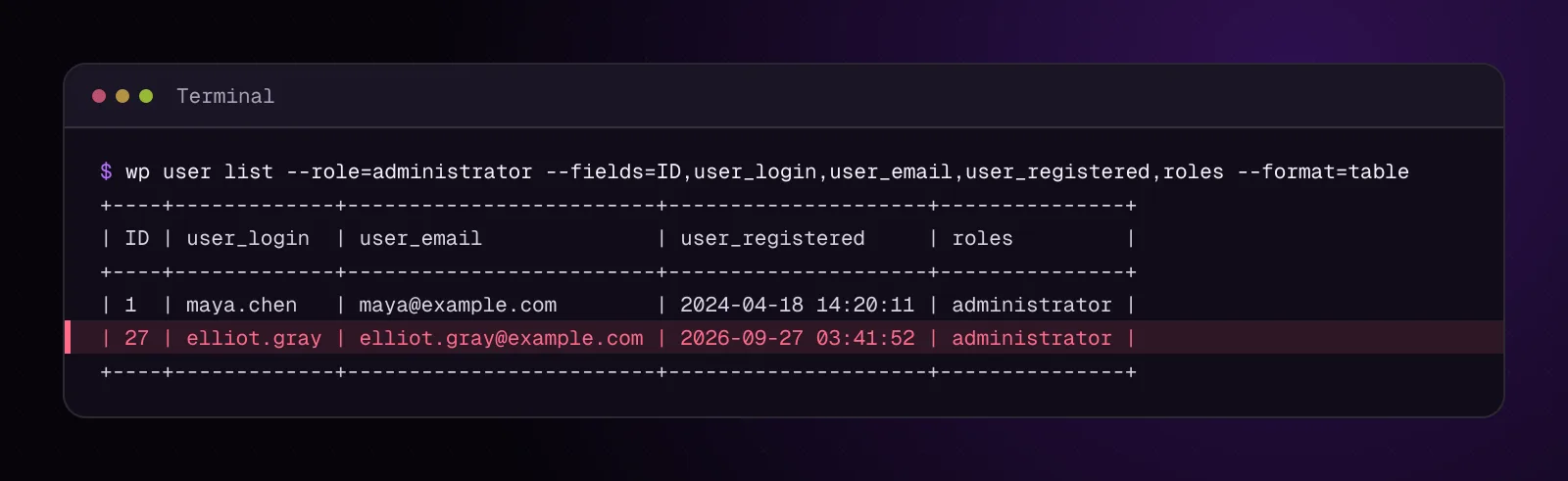
Over SSH, run the administrator listing:
wp user list --role=administrator --fields=ID,user_login,user_email,user_registered,roles --format=table
Example output, illustrative:
+----+-------------+--------------------------+---------------------+---------------+
| ID | user_login  | user_email               | user_registered     | roles         |
+----+-------------+--------------------------+---------------------+---------------+
| 1  | maya.chen   | maya@example.com         | 2024-04-18 14:20:11 | administrator |
| 27 | elliot.gray | elliot.gray@example.com  | 2026-09-27 03:41:52 | administrator |
+----+-------------+--------------------------+---------------------+---------------+
Replace nothing in this command. Check that every row matches a person or service that should be an administrator.
- Run the administrator listing again without normal plugin and theme code:
wp user list --role=administrator --fields=ID,user_login,user_email,user_registered --skip-plugins --skip-themes
The wp user list global parameters (opens in a new tab) document --skip-plugins and --skip-themes. --skip-plugins does not skip must-use plugins, so malicious code in an MU plugin can still affect this check; chapter 11 covers finding hidden PHP and other code-level persistence.
Compare this result with the normal WP-CLI listing and wp-admin. An account that appears only after plugins and themes are skipped is strong evidence that loaded code is altering the user query or its output.
- Query the stored capability rows directly in phpMyAdmin or the MySQL client. This is read-only and does not load WordPress plugins, themes or must-use plugins:
SELECT u.ID, u.user_login, u.user_email, u.user_registered, m.meta_value
FROM TABLE_PREFIXusers u
JOIN TABLE_PREFIXusermeta m ON m.user_id = u.ID
WHERE m.meta_key = 'TABLE_PREFIXcapabilities'
  AND m.meta_value LIKE '%administrator%';
Replace every TABLE_PREFIX with the value of $table_prefix from wp-config.php. For example, if $table_prefix is wp_, use wp_users, wp_usermeta and the meta key wp_capabilities.
On Multisite, each site has its own capabilities key. The main site uses TABLE_PREFIXcapabilities; site 2 normally uses TABLE_PREFIX2_capabilities, site 3 uses TABLE_PREFIX3_capabilities, and so on. Run the query with the capabilities key for each site you are checking.
Without SSH, run the same SQL in phpMyAdmin's SQL tab. Check that every returned account is expected.
An account that appears in this database query but not in wp-admin or the normal wp user list is being hidden from the WordPress-level listing. Treat that difference as evidence of malicious code to find in chapter 11.
- List every WordPress user as a second inventory. This catches suspicious accounts assigned another role.
wp user list --fields=ID,user_login,user_email,user_registered,roles --format=table
If you do not have SSH, use Users > All Users in wp-admin. On a large site, use the search, role filters and pagination until every expected privileged account has been reconciled.
How do I check for privileges that are not obvious from the username?
Check roles and effective capabilities, because the username alone says nothing about what a user can do.
WordPress combines role-based permissions with capabilities assigned directly to a user. The wp user list-caps command (opens in a new tab) lists the capabilities WordPress resolves for that account.
- For each suspicious or unexpectedly powerful account, run:
wp user list-caps SUSPECT_USER --format=list
Put the user ID, email or login you are checking in SUSPECT_USER.
Compare the result with what that person's job requires. Investigate unexpected administrative capabilities rather than assuming the displayed role tells the whole story.
Without SSH, inspect the user's assigned role under Users > All Users > Edit. Core wp-admin does not present the same full effective-capability list. If custom roles or direct user capabilities are involved, preserve the database and have the role configuration reviewed before changing it.
- On Multisite, list network super administrators separately:
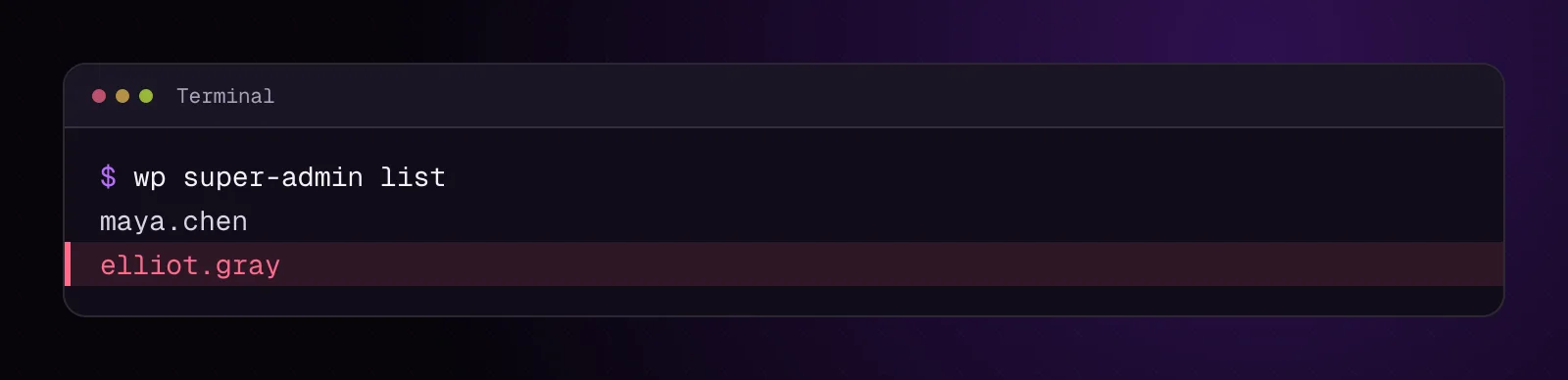
wp super-admin list
wp super-admin list (opens in a new tab) lists users with super-admin capabilities.
Example output, illustrative:
maya.chen
elliot.gray
Without SSH, a legitimate Super Admin can open Network Admin > Users and compare the network's privileged users with the approved roster.
What should I preserve before deleting a suspicious user?
Preserve the database, the account details and its content ownership before deleting a confirmed rogue account.
- Export the database to a private location outside every web root:
wp db export /SAFE_PATH/before-rogue-user-removal.sql
SAFE_PATH means a private directory outside every public web root. Check that the SQL file exists there and is not reachable through the website.
Without SSH, use the host's database backup function or phpMyAdmin Export and store the resulting file somewhere the web server does not publish.
- Save the suspicious user's identifying fields:
wp user get SUSPECT_USER --fields=ID,user_login,user_email,user_registered,roles --format=json > /SAFE_PATH/suspect-user.json
Put the user ID, email or login in SUSPECT_USER. Check that /SAFE_PATH/suspect-user.json contains the account you intended to preserve.
Without SSH, record the user ID, login, email, registration time and role from wp-admin. Save screenshots or incident notes outside the compromised site.
- Review content ownership before removal. In wp-admin, click the user's Posts count and inspect legitimate material attributed to that person.
If the account owns legitimate posts, decide which trusted user should receive them. Do not delete content merely because its current author account is malicious.

How do I remove an unauthorized WordPress administrator?
Destroy active access, remove Multisite super-admin status when applicable, then delete the confirmed rogue user while reassigning legitimate posts.
- End every current WordPress session for the rogue account:
wp user session destroy SUSPECT_USER --all
Put the rogue user's ID, email or login in SUSPECT_USER. The --all option destroys all sessions for that user.
Without SSH, changing the user's password prevents future authentication with the old password, but incident response should still account for other credentials and persistence. If your host provides WP-CLI through a control-panel terminal, run the same command there.
- On Multisite, remove confirmed unauthorized super-admin privileges before deleting or removing the account:
wp super-admin remove SUSPECT_USER
Put the confirmed unauthorized user's ID, email or login in SUSPECT_USER. Check with wp super-admin list and confirm the login no longer appears.
- Delete the confirmed rogue user and reassign its posts to a trusted account:
wp user delete USER_ID --reassign=TRUSTED_USER_ID
Put the rogue account's numeric ID in USER_ID. Put the numeric ID of the legitimate account that should receive its posts in TRUSTED_USER_ID.
The documented wp user delete (opens in a new tab) command deletes the user from the current site, while --reassign assigns its posts to the specified user ID.
Without SSH, use Users > All Users > Delete. On WordPress's Delete Users screen, choose "Attribute all posts and links to" and select the intended legitimate user rather than deleting their attributed content.
On Multisite, do not assume site-level deletion removes the account from the network. WP-CLI documents that normal wp user delete removes the user from the current site, while --network deletes that user from the network database. Review every site and owned post before considering network deletion.
How do I check that the hidden administrator is gone?
Repeat the inventories you used before removal and verify the intended content owner.
- List administrators again:
wp user list --role=administrator --fields=ID,user_login,user_email,user_registered,roles --format=table
- List all users again:
wp user list --fields=ID,user_login,user_email,user_registered,roles --format=table
- On Multisite, repeat:
wp super-admin list
Confirm that the rogue login is absent from every place where it held access. Then open several posts that were reassigned and check that the author is the intended trusted user.
In wp-admin, repeat Users > All Users and Network Admin checks. Do not rely on the disappearance of one row as the only verification.
What if the rogue administrator comes back?
If a deleted rogue administrator returns, assume an unresolved access path or persistence mechanism is recreating it.
Do not continue deleting the same account as the sole response. Preserve the new account's registration time and details, compare them with the previous occurrence, and investigate executable code, scheduled behavior, stolen credentials and database changes.
Chapter 11, How to Find a Backdoor in WordPress: Web Shells and Hidden PHP, covers code-level persistence. Chapter 12 covers database malware that can restore unauthorized access.
How do I stop attackers from adding another administrator?
Close the original access path, rotate affected credentials and review machine-to-machine access rather than relying on account deletion.
- Change credentials that may have been exposed: WordPress administrator passwords, hosting credentials, SSH or SFTP credentials, database credentials and other affected secrets. End old sessions for affected legitimate accounts after changing their passwords:
wp user session destroy TRUSTED_ADMIN --all
Put each affected legitimate administrator's ID, email or login in TRUSTED_ADMIN. Check that the command reports the user's sessions were destroyed.
- Review integrations tied to privileged users. WordPress Application Passwords are separate, revocable credentials for scripts and integrations. The Application Passwords documentation (opens in a new tab) explains how to review and revoke them.
If an integration needs API access, use Application passwords for safer WordPress integrations rather than sharing a person's main login password.
-
Patch or remove the vulnerable component that provided the original entry point. Inspect code and database persistence before returning the site to normal operation.
-
Apply the site's broader controls after cleanup. Use WordPress security hardening: a practical checklist for 2026 to review updates, access, files and ongoing monitoring.
What changes for different kinds of WordPress sites?
The removal process stays evidence-first, but each site type has additional privileged accounts or content risks to review.
WooCommerce stores: Review administrators and Shop Managers separately. WooCommerce documents Shop Manager as a role that can manage store settings, products, orders, refunds and customers, so a suspicious store-management account matters even without the Administrator role.
Multisite: List super administrators as well as each site's administrators. Removing a user from one site does not by itself establish that the user has been removed from the network.
Membership and course sites: Compare staff, instructor and management roles with an approved roster. A large subscriber or student population is expected and should not be treated as evidence of compromise by itself.
News sites: Review authorship before deletion. Reassign legitimate published posts to the intended editorial account so account removal does not destroy legitimate work.
What should I investigate after removing the rogue account?
Removing the rogue account restores one piece of access control, but it does not establish that the attacker's persistence is gone. Continue with chapter 11, How to Find a Backdoor in WordPress: Web Shells and Hidden PHP, and investigate what created or restored the unauthorized account.
Frequently asked questions
Can a hacker hide a WordPress administrator from the Users screen?
Yes. Malicious code running inside WordPress can interfere with admin behavior or user queries, so the normal Users screen should not be your only check. Compare wp-admin with command-line inventories and a direct database query, then investigate code or database persistence when the results differ.
Why is there an administrator account I did not create?
It may have been created by another authorized administrator, an agency, an integration, or an attacker. Verify the username, email, registration time and purpose against your approved access records before deciding that the account is malicious.
Should I delete an unknown WordPress admin immediately?
Preserve the database and account details first when you can do so without allowing ongoing harm. Confirm that the account is unauthorized, review its content ownership, end its sessions, and then delete it with the correct reassignment choice.
What happens to posts when I delete a WordPress user?
WordPress asks what should happen to content attributed to that user. You can reassign posts to another account, while choosing the deletion option for owned content can remove that content, so check authorship before confirming deletion.
Can a deleted hacker account come back?
Yes, if the attacker still has another access path or persistence mechanism capable of recreating it. A returning account is a reason to investigate code, credentials, scheduled behavior and database changes rather than repeatedly deleting the user.
Is a WordPress super admin the same as an administrator?
No. Super Admin is a Multisite network privilege, while Administrator is a role for an individual site. A Multisite investigation therefore needs both site-level administrator checks and a separate super-admin inventory.
Should I reset every user's password after finding a rogue administrator?
Do not assume every user credential was exposed from the rogue account alone. Rotate credentials shown by the investigation to be affected, and widen the reset if evidence indicates broader credential theft or compromise.
Sources
- Users screen (opens in a new tab)
- Roles and Capabilities (opens in a new tab)
- User Roles and Capabilities (opens in a new tab)
- wp user list (opens in a new tab)
- wp user get (opens in a new tab)
- wp user list-caps (opens in a new tab)
- wp user delete (opens in a new tab)
- wp user session destroy (opens in a new tab)
- wp super-admin list (opens in a new tab)
- wp super-admin remove (opens in a new tab)
- Editing wp-config.php (opens in a new tab)
- Roles and Capabilities Documentation - WooCommerce (opens in a new tab)
How this article was made: drafted with AI assistance from a researched brief, then checked against primary documentation before publishing.
Message
Ask me about your site
Tell me what is wrong or what you need built. I reply by email.