The common infectionsChapter 14 of 3211 min read
Nulled WordPress Plugins and Themes: Find and Remove Malware
Identify plugins and themes from untrusted sources, preserve suspicious packages, remove them without running their uninstall code, install trusted replacements and check for persistence elsewhere.
 By Hamza Ahmad AslamAI & WordPress Developer | Speed Optimization & Site Security

In this guide
Nulled plugins malware should be treated as untrusted code: preserve the suspicious package, remove it and replace it with a copy from WordPress.org or the original vendor. A nulled WordPress plugin or theme is an unofficial redistributed copy of paid or restricted software whose source or modifications cannot be trusted enough to keep on a compromised site. Its visible version number does not prove that its files match the vendor release.
What are nulled WordPress plugins and themes?
Nulled WordPress plugins and themes are unofficial redistributed copies of commercial or restricted WordPress software, often modified before distribution.
The term commonly covers cracked packages with license checks changed or removed, but the incident-response problem is broader. You have software from a source that cannot establish what happened to the files between the original developer and your server.
That distinction matters. A commercial plugin obtained directly through its developer account is not suspicious merely because it is absent from WordPress.org. A custom plugin from your own development process is different again.
WordPress's security documentation says to get plugins and themes from trusted sources such as WordPress.org or known companies. That source rule is the useful one during cleanup. See the WordPress hardening guidance (opens in a new tab).
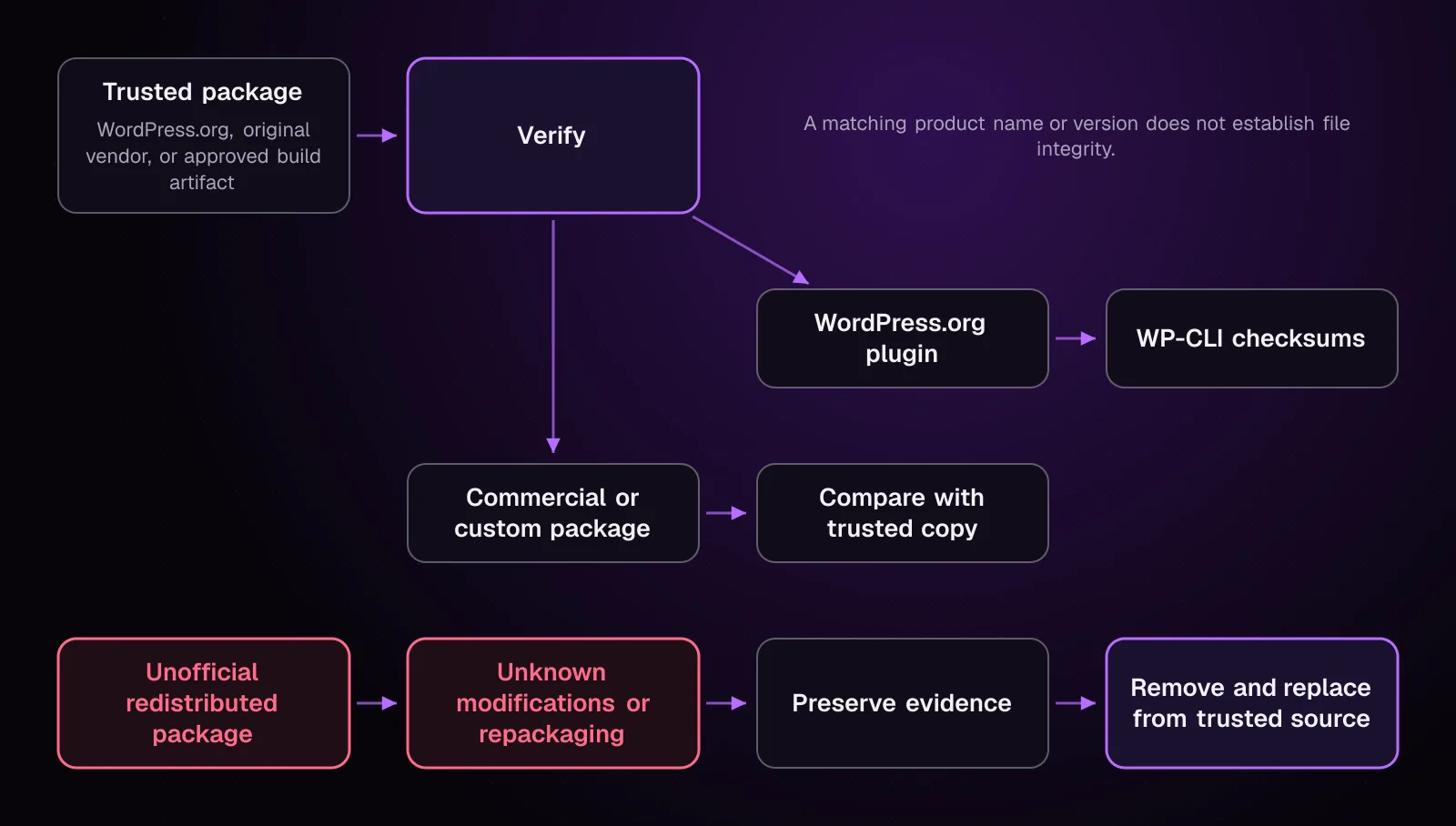
The official package can be checked against its trusted source. The redistributed copy has an extra party in that path, so its contents need independent verification or replacement.
What signs suggest a nulled plugin or theme contains malware?
Unexpected files, unexplained changes and behavior outside the extension's purpose are signs that an untrusted package may contain malicious changes.
Look for evidence such as:
- files present in the installed package but absent from the trusted vendor copy;
- checksum failures for plugins that WordPress.org can verify;
- PHP files appearing in locations the plugin should not create;
- unexpected outbound requests or injected browser output;
- unfamiliar administrator accounts;
- new must-use plugins or drop-ins;
- changes returning after you remove the visible infection;
- spam, redirects or injected content that starts while the package is active.
None of those proves that every unofficial copy contains malware. The problem is that the package's origin leaves you without a trustworthy basis for accepting its files.
A package can also continue performing its advertised function while running unrelated code. Normal front-end behavior therefore does not clear it.
How does malware get into a nulled plugin or theme?
Malware can enter a nulled package when a third party modifies, repackages or replaces files before redistributing it.
The person installing the package normally sees the product name, version and familiar interface. Those values come from files inside the package and can remain unchanged after other files have been edited or added.
This is one reason the version shown in WordPress is weak evidence. Two packages can report the same version while containing different code.
This problem also exists beyond deliberate piracy. A legitimate developer account, build process or update source can itself be compromised. WordPress plugin supply chain security: when the update itself is the attack covers that separate failure path.
How do I identify plugins and themes that came from an untrusted source?
Inventory every installed plugin and theme, then record where each package came from before deciding what to remove.
1. List every plugin and theme
From the WordPress directory, run:
wp plugin list --fields=name,status,version,update,update_version --format=table --skip-plugins --skip-themes
wp theme list --fields=name,status,version,update,update_version --format=table --skip-plugins --skip-themes
The documented wp plugin list (opens in a new tab) and theme equivalent provide the installed name, status and version fields. The global --skip-plugins --skip-themes parameters stop ordinary plugins and themes from loading during the investigation.
Must-use plugins still load even with --skip-plugins. That matters on a compromised site because malicious must-use code can still affect commands that load WordPress. Chapter 11, How to Find a Backdoor in WordPress: Web Shells and Hidden PHP, handles hidden PHP and must-use persistence in depth.
If you do not have SSH, open Plugins > Installed Plugins and Appearance > Themes in wp-admin. Record every item and visible version. If wp-admin cannot be trusted, use your host's file manager to inspect wp-content/plugins and wp-content/themes as well.
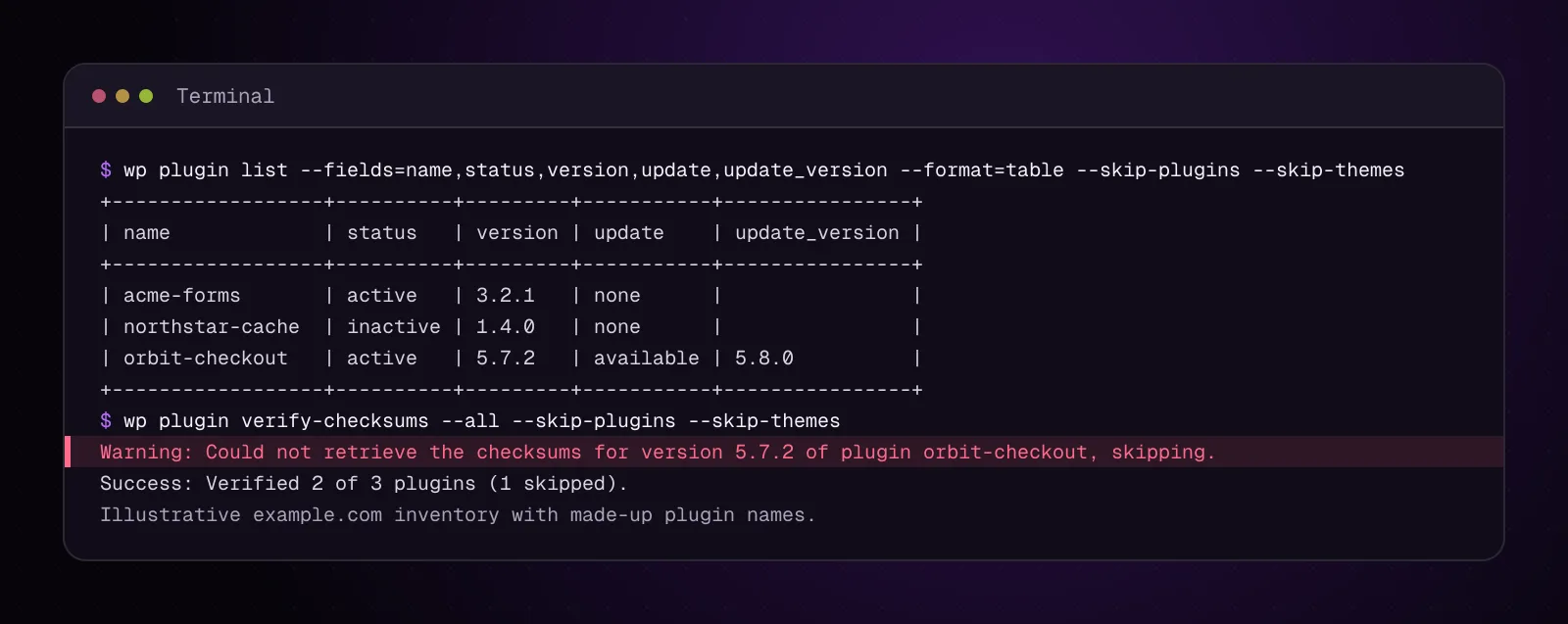
The terminal example is illustrative. A failed or unavailable checksum result needs investigation, rather than an automatic malware verdict.
2. Record the source of each extension
For every commercial, custom or unfamiliar package, determine which of these applies:
- It came from WordPress.org.
- It came directly from the developer or vendor account.
- It came from your organization's source repository or deployment artifact.
- Its source cannot be established.
- It came from an unofficial download, mirror, bundle or redistribution site.
Keep invoices, account download records, deployment records or repository tags that identify the legitimate source. You do not need proof of purchase to inspect code, but you do need a trusted package if you intend to compare or reinstall it.
3. Compare doubtful packages with the source they should match
Download the same release from the trusted source to a private workstation or /SAFE_PATH. SAFE_PATH means a private directory outside every web root.
If both directory trees are available on a Unix-like system, compare them recursively:
diff -ru /SAFE_PATH/TRUSTED_PLUGIN wp-content/plugins/PLUGIN
Replace TRUSTED_PLUGIN with the extracted directory from the trusted package and PLUGIN with the installed plugin directory. GNU diff -r compares directories recursively and -u uses unified output.
No output means the compared files are identical under those options. Any reported addition or change needs an explanation before you keep the installed package.
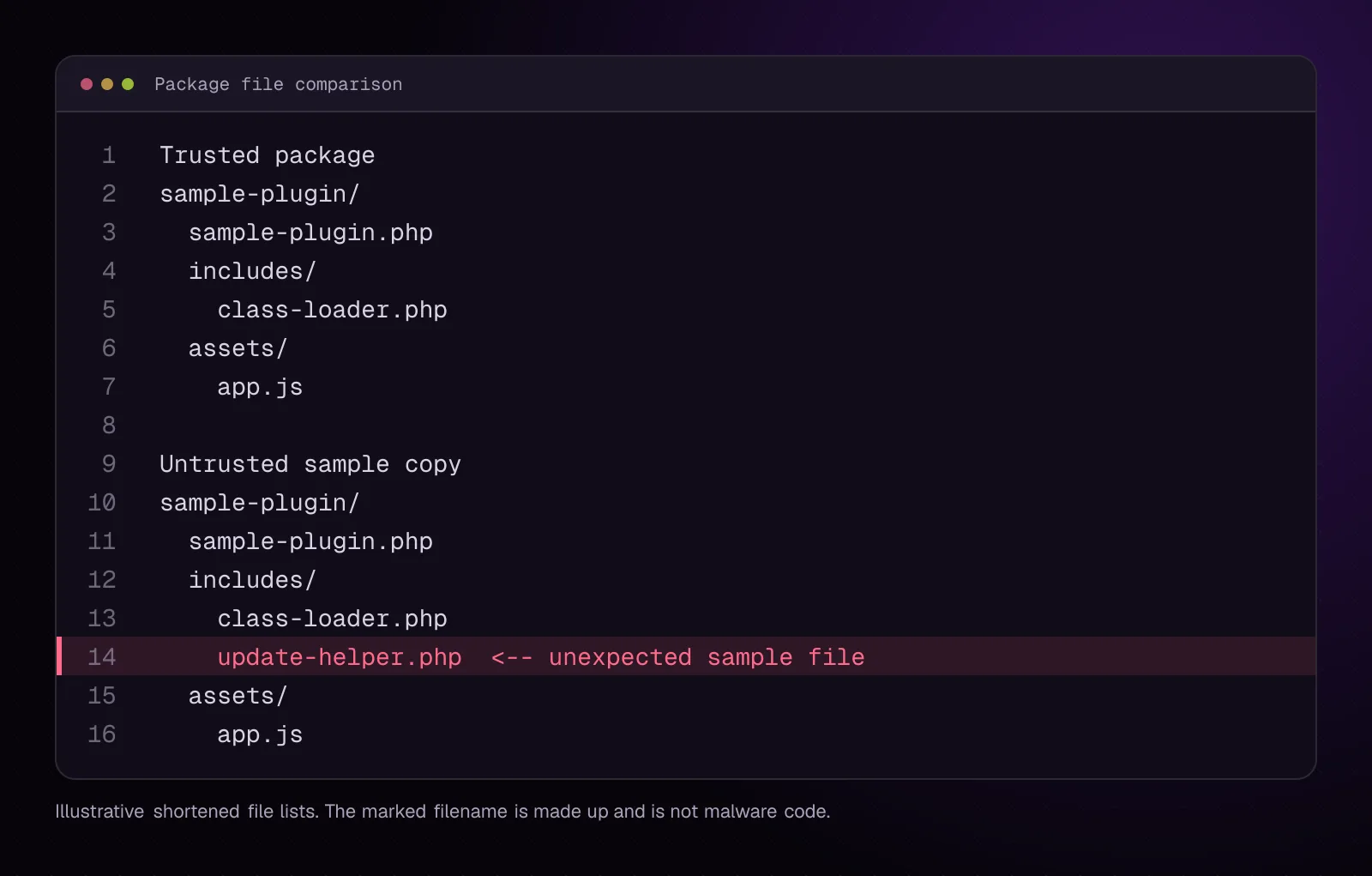
Without SSH, extract the trusted ZIP on your computer and compare its file tree with a copy downloaded through the host's file manager. Compare file names and contents, not the version string alone.
Can WordPress checksums prove that a nulled plugin is clean?
No. WP-CLI checksums can verify supported WordPress.org plugin files, but they cannot establish that every premium, custom or unofficial package is clean.
Run the documented checksum command across installed plugins:
wp plugin verify-checksums --all --skip-plugins --skip-themes
wp plugin verify-checksums (opens in a new tab) compares plugin files against checksums from WordPress.org. Its --all option checks all installed plugins for which that verification is available.
A successful result is strong evidence that the checked files match the WordPress.org release being verified. It does not inspect unrelated files elsewhere on the site.
A failure also needs interpretation. Modified files, added files or a version mismatch can produce checksum errors. Investigate the difference instead of treating the command as a malware scanner.
Premium and custom packages need a trusted copy from the vendor, your build system or your source repository. Compare those files directly.
How do I preserve a suspicious plugin or theme before removing it?
Archive the suspicious package outside the web root and record its name and version before changing it.
This preserves evidence if you later need to determine what the package contained.
1. Record the inventory
Keep the output from the earlier plugin and theme lists with the incident notes. Record which source supplied each suspect package.
2. Archive a suspicious plugin
From the WordPress root:
tar -czf /SAFE_PATH/PLUGIN-before-removal.tar.gz wp-content/plugins/PLUGIN
tar -tzf /SAFE_PATH/PLUGIN-before-removal.tar.gz
Replace PLUGIN with the plugin directory name. The first command creates a gzip-compressed archive. The second lists its contents so you can confirm that the evidence copy contains the expected files.
SAFE_PATH must be a private directory outside every web root. Do not store this archive under public_html, htdocs, www, wp-content/uploads or another served directory.
3. Archive a suspicious theme
tar -czf /SAFE_PATH/THEME-before-removal.tar.gz wp-content/themes/THEME
tar -tzf /SAFE_PATH/THEME-before-removal.tar.gz
Replace THEME with the theme directory name.
Without SSH, use the hosting file manager's archive or compression function if available, then move or download the archive somewhere private. Confirm that you can open it before deleting the server copy.
How do I remove a nulled plugin safely?
Deactivate the untrusted plugin, delete its files without running its uninstall routine, then install a trusted replacement if the site still needs it.
1. Deactivate the plugin
wp plugin deactivate PLUGIN --skip-plugins --skip-themes
Replace PLUGIN with the plugin slug shown by the inventory.
This changes the plugin's activation state. Confirm with:
wp plugin list --fields=name,status,version --format=table --skip-plugins --skip-themes
Without SSH, use Plugins > Installed Plugins > Deactivate.
2. Delete the untrusted files
Only continue after you have preserved the evidence copy.
wp plugin delete PLUGIN --skip-plugins --skip-themes
The documented delete command removes the plugin files without running the plugin's uninstall process. That distinction is useful when the plugin itself is untrusted.
Confirm that the plugin no longer appears in the inventory and that its directory is gone. A file manager user can delete the corresponding directory under wp-content/plugins after deactivation.
3. Install the legitimate package
For a plugin available from WordPress.org, reinstall the release you intend to use:
wp plugin install PLUGIN --version=VERSION --force --skip-plugins --skip-themes
Put the WordPress.org plugin slug in PLUGIN and the required release in VERSION. The wp plugin install (opens in a new tab) documentation confirms that --version selects a particular WordPress.org release and --force overwrites an installed copy.
For a commercial plugin, download a fresh ZIP from the vendor account and place it in /SAFE_PATH. Then install that exact file:
wp plugin install /SAFE_PATH/TRUSTED_PLUGIN.zip --force --skip-plugins --skip-themes
Replace TRUSTED_PLUGIN.zip with the trusted ZIP filename.
Without SSH, use Plugins > Add New > Upload Plugin with the trusted ZIP. Activate it only after confirming its source and checking the site.
How do I remove a nulled theme safely?
Switch to a trusted installed theme first, delete the untrusted theme, then install its legitimate replacement if the site requires it.
1. Activate a trusted theme
wp theme activate TRUSTED_THEME --skip-plugins --skip-themes
Replace TRUSTED_THEME with the slug of a trusted installed theme.
Confirm it is active with the theme inventory. In wp-admin, use Appearance > Themes > Activate.
2. Delete the untrusted theme
After preserving the evidence archive:
wp theme delete THEME --skip-plugins --skip-themes
Replace THEME with the untrusted theme slug. This removes that theme from the filesystem.
Confirm that it no longer appears in wp theme list and that its directory has disappeared from wp-content/themes.
3. Install the trusted replacement
For a commercial theme, download a fresh ZIP from its vendor and place it outside the web root:
wp theme install /SAFE_PATH/TRUSTED_THEME.zip --force --skip-plugins --skip-themes
The WP-CLI theme installer accepts a local ZIP path, and --force permits replacement of an installed version.
If you lack SSH, use Appearance > Themes > Add New > Upload Theme with the trusted ZIP.
How do I check for code the nulled package left behind?
Check administrators, must-use plugins, drop-ins, uploads and the database because deleting the original package does not remove files or records it created elsewhere.
1. Review administrator accounts
wp user list --role=administrator --fields=ID,user_login,user_email,user_registered --skip-plugins --skip-themes
Confirm every administrator with the site owner or your account records.
Remember that must-use plugins still load. Chapter 10, How to Find and Remove Hidden Admin Users in WordPress, explains how to check for hidden accounts. Chapter 11, How to Find a Backdoor in WordPress: Web Shells and Hidden PHP, covers backdoors and persistence without trusting WordPress's normal plugin layer.
2. List must-use plugins and drop-ins
wp plugin list --status=must-use --fields=name,status,version --format=table --skip-plugins --skip-themes
wp plugin list --status=dropin --fields=name,status,version --format=table --skip-plugins --skip-themes
Account for every result. WordPress documents must-use plugins under wp-content/mu-plugins by default, while the WP-CLI plugin list supports both must-use and dropin status filters.
3. Look for PHP in uploads
find wp-content/uploads -type f -name '*.php' -print
This is a triage check, not proof of infection. Investigate every result against the software that created it. Do not delete an unfamiliar file until you know whether the site requires it.
A file manager user can search the uploads directory for files ending in .php.
4. Search the database for indicators you already know
If the suspicious files, logs or redirects gave you a distinctive domain, string or marker, search for that exact value:
wp db search 'KNOWN_INDICATOR' --all-tables-with-prefix
Replace KNOWN_INDICATOR with a specific string from your incident evidence. --all-tables-with-prefix includes tables sharing the WordPress table prefix even when a plugin did not register them with $wpdb.
This command is read-only. For phpMyAdmin, search the database for the same known value. Chapter 12, How to Remove Malware from the WordPress Database, covers database investigation and cleanup in depth.
Chapter 11 covers backdoors and hidden PHP in depth. Chapter 13, WordPress Core Files Modified? Check and Restore Them, covers altered core files.
How do I check that the replacement is clean?
Verify the replacement against its trusted source, then repeat the behavior that exposed the incident.
For a WordPress.org plugin, rerun its checksum verification:
wp plugin verify-checksums PLUGIN --skip-plugins --skip-themes
Replace PLUGIN with its WordPress.org slug. A successful verification means the checked plugin files match the WordPress.org checksums for the installed release.
For commercial or custom software, compare the installed directory with the trusted package as described earlier.
Then retest the original symptom. Check affected pages, redirects, administrator accounts, unexpected files and any incident indicators you recorded.
If malicious changes return, do not keep replacing the same visible file. Persistence remains somewhere else on the site, account, server or deployment path.
How do I stop untrusted packages from being installed again?
Use one controlled source for each plugin and theme, remove archived nulled packages from server-accessible storage and document how updates are obtained.
Do not keep suspect ZIP files on the production server for convenience. Preserve incident evidence in /SAFE_PATH or another controlled evidence location.
For WordPress.org software, install through WordPress.org or another controlled deployment path. For commercial software, use the original vendor account or your approved artifact repository.
Document who can add code and where packages come from. Apply the source, update and access controls in WordPress security hardening: a practical checklist for 2026.
What changes for different kinds of WordPress sites?
The source-verification rule stays the same, but the impact of removing an extension changes with the site.
WooCommerce stores: Commercial payment, shipping and checkout extensions often come directly from their vendors. Verify them against the ZIP supplied through the vendor account rather than treating absence from WordPress.org as suspicious. Test checkout, payment callbacks, shipping calculations and order handling after replacement.
Multisite: Check network-activated plugins and network-enabled themes as well as site-specific extensions. One untrusted package can supply code to multiple sites, so inventory the network before deciding that a package belongs to only one subsite.
Membership and course sites: Membership and LMS extensions commonly store configuration and business data in the database. Confirm the package against the legitimate vendor copy before removal so licensed commercial software is not mistaken for a nulled package. Test access rules, enrollment and scheduled jobs after replacement.
What should I investigate after removing a nulled package?
After removing the untrusted package and checking for persistence, investigate whether any legitimate installed extension also has a known vulnerability or unsafe configuration. Chapter 15, Hacked Through a Vulnerable Plugin: Find It and Close the Hole, takes that investigation next.
Frequently asked questions
Does every nulled WordPress plugin contain malware?
No. An unofficial package can be unchanged, modified only around licensing, or contain unrelated malicious changes. The security problem is that its source does not give you enough evidence to trust the installed files, so replace or verify it against an authoritative copy.
Can a nulled plugin work normally and still be unsafe?
Yes. Its advertised features can keep working while added code performs unrelated actions. Normal page output and a familiar settings screen do not prove that the package matches the developer's release.
Can WP-CLI verify premium plugin files?
wp plugin verify-checksums verifies plugin files against WordPress.org checksums. A premium plugin distributed only by its vendor needs a trusted vendor package or another authoritative build artifact for comparison.
Is deleting a nulled plugin enough after a WordPress hack?
No. Code that already executed may have created administrators, must-use plugins, drop-ins, files outside its directory or database changes. Check those locations and follow the wider incident-cleanup chapters before treating the site as clean.
Can I replace a nulled plugin without losing its settings?
Plugin settings are often stored separately from plugin files, so deleting files does not automatically mean the settings disappear. The exact behavior belongs to that plugin, however, so back up the site and database and consult the legitimate plugin's documentation before replacement.
Why does a nulled plugin have the same version number as the official plugin?
The version value comes from package metadata and can remain unchanged when other files are modified. Matching version numbers therefore identify the claimed release, not the integrity of every installed file.
Sources
- Hardening WordPress (opens in a new tab)
- wp plugin list (opens in a new tab)
- wp theme list (opens in a new tab)
- wp plugin verify-checksums (opens in a new tab)
- wp plugin deactivate (opens in a new tab)
- wp plugin delete (opens in a new tab)
- wp plugin install (opens in a new tab)
- wp theme activate (opens in a new tab)
- wp theme delete (opens in a new tab)
- wp theme install (opens in a new tab)
- wp user list (opens in a new tab)
- wp db search (opens in a new tab)
How this article was made: drafted with AI assistance from a researched brief, then checked against primary documentation before publishing.
Message
Ask me about your site
Tell me what is wrong or what you need built. I reply by email.