The common infectionsChapter 13 of 3210 min read
WordPress Core Files Modified? Check and Restore Them
A checksum mismatch shows that an installed WordPress core file differs from the official release. Verify the right version and locale, save evidence, restore trusted core files, and check again.
 By Hamza Ahmad AslamAI & WordPress Developer | Speed Optimization & Site Security

In this guide
WordPress core files modified means installed core files differ from the official files for that WordPress version and locale, or unexpected files exist inside core locations. Verify the differences before changing anything, preserve suspicious files as evidence, then replace affected core from the matching official release. A checksum mismatch can also come from corruption or an intentional local edit, so the mismatch alone does not prove malware.
What does it mean when WordPress core files are modified?
A modified WordPress core file is a file whose contents no longer match the official checksum for the WordPress release it is supposed to belong to.
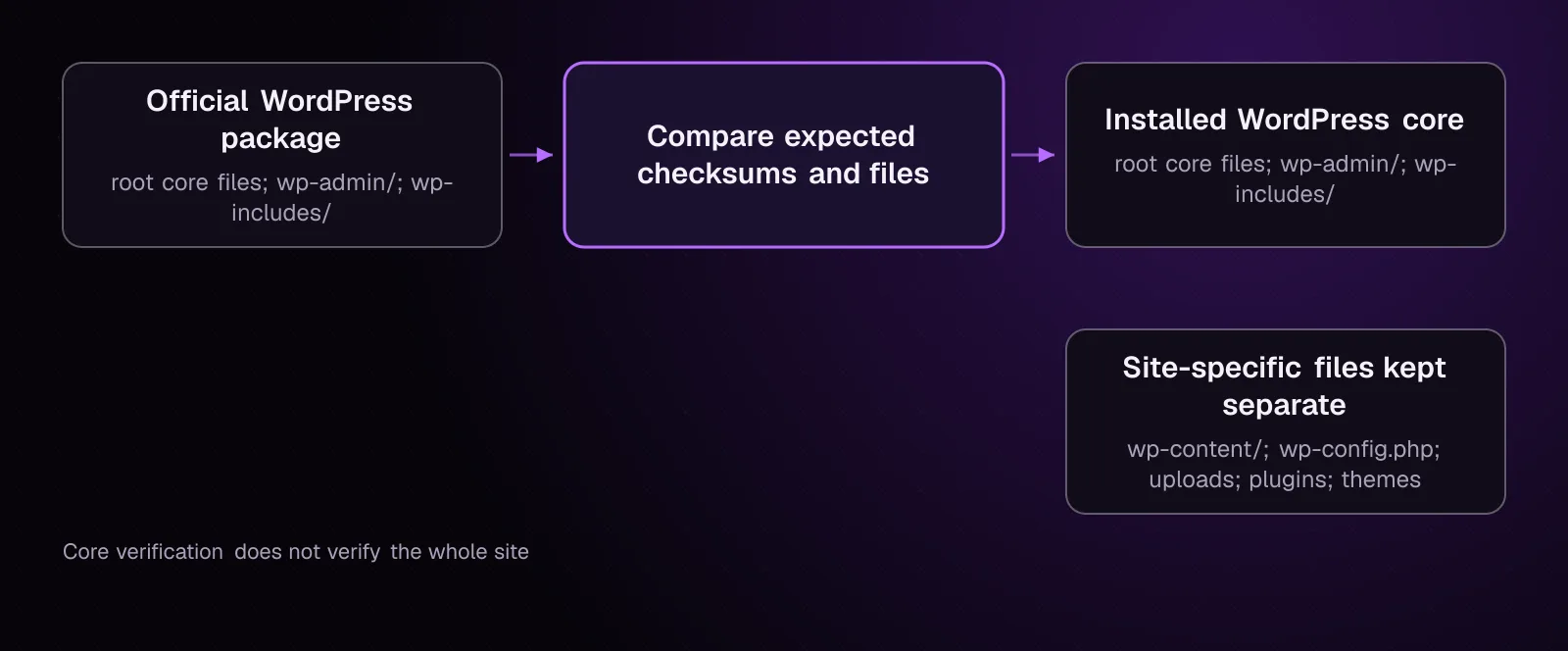
WordPress core includes files under wp-admin, wp-includes, and WordPress-owned files in the installation root. wp-content contains site content such as plugins, themes, and uploads and needs separate investigation.
A checksum is a fingerprint calculated from a file. WP-CLI can compare installed core files with checksums supplied by WordPress.org. Its wp core verify-checksums documentation (opens in a new tab) confirms that the command downloads MD5 checksums for the WordPress version and compares them with installed files.
A mismatch can mean:
- malware changed an existing core file;
- a file became corrupted;
- someone intentionally edited core;
- the wrong WordPress version or locale was used for the comparison.
An extra file can also appear in a core directory without altering any official file.
What might I see when hacked core files are involved?
Hacked core files may cause injected output, redirects, PHP errors, failed requests, or checksum warnings, but altered core does not have to create a visible symptom.
Code added to a commonly executed file can affect many requests. An unexpected PHP file under wp-admin or wp-includes can provide another execution path without changing an official file.
Do not diagnose the incident from the symptom alone. Redirects, injected content, and errors can also originate from plugins, themes, wp-content, database content, server configuration, or another compromised site on the account.
How do attackers change WordPress core files?
Attackers change core after gaining a way to write files on the server.
That write access may come from another part of the compromise. Once available, it can be used to overwrite a trusted core file or create a new file beside trusted files.
Replacing modified core therefore removes one part of the infection. It does not close the route that allowed the change. Chapter 11, on backdoors, covers persistence that may restore malware after cleanup.
How do I verify WordPress core against official checksums?
Verify the installed release and locale first, then run the checksum check against those exact values.
The core version, checksum, and download commands run on WP-CLI's before_wp_load hook, before the normal WordPress loading process. That makes the core checksum command particularly useful during an incident because it does not need the site's plugin or theme code.
- Change to the WordPress installation directory and record the package information.
wp core version --extra --skip-plugins --skip-themes
The wp core version documentation (opens in a new tab) confirms that --extra displays extended information, including the package language in its example output.
Write down the displayed WordPress version and package language. Use them as WP_VERSION and WP_LOCALE below.
If you do not have SSH, look at Dashboard > Updates for the installed release and language information available for that installation. The checksum documentation specifically directs users to that screen when version or locale values need to be supplied.
Check that the version shown matches the installation you intend to repair.
- Verify core against that release and locale.
wp core verify-checksums --version=WP_VERSION --locale=WP_LOCALE --skip-plugins --skip-themes
Replace WP_VERSION with the installed release and WP_LOCALE with its locale, such as the values reported by the previous command.
--skip-plugins and --skip-themes are valid WP-CLI global parameters. The documentation notes that --skip-plugins does not suppress must-use plugins. For this particular core command, WP-CLI performs verification before WordPress loads, so normal plugins, themes, and must-use plugins are not loaded by the checksum operation itself.
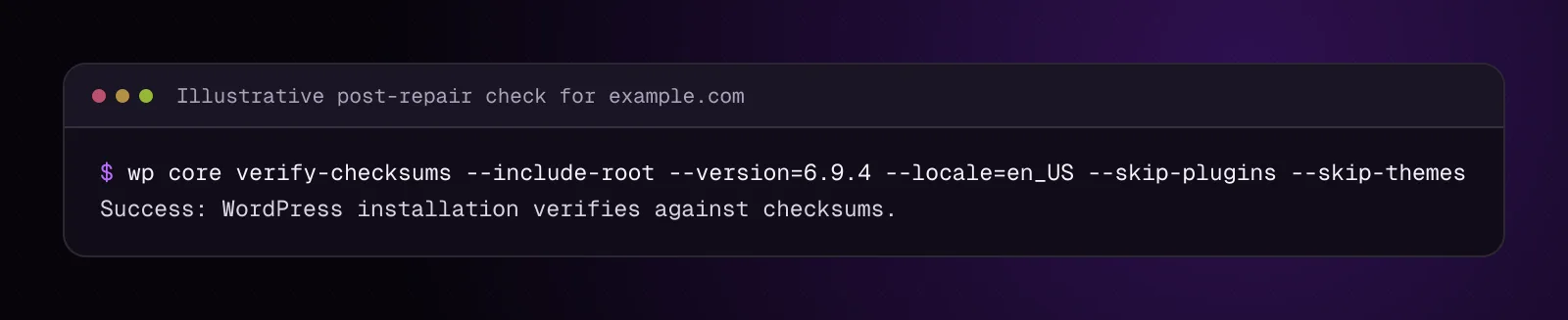
A clean result ends with:
Success: WordPress installation verifies against checksums.
A failed result lists differences before the final error. Save the complete output with your incident notes.
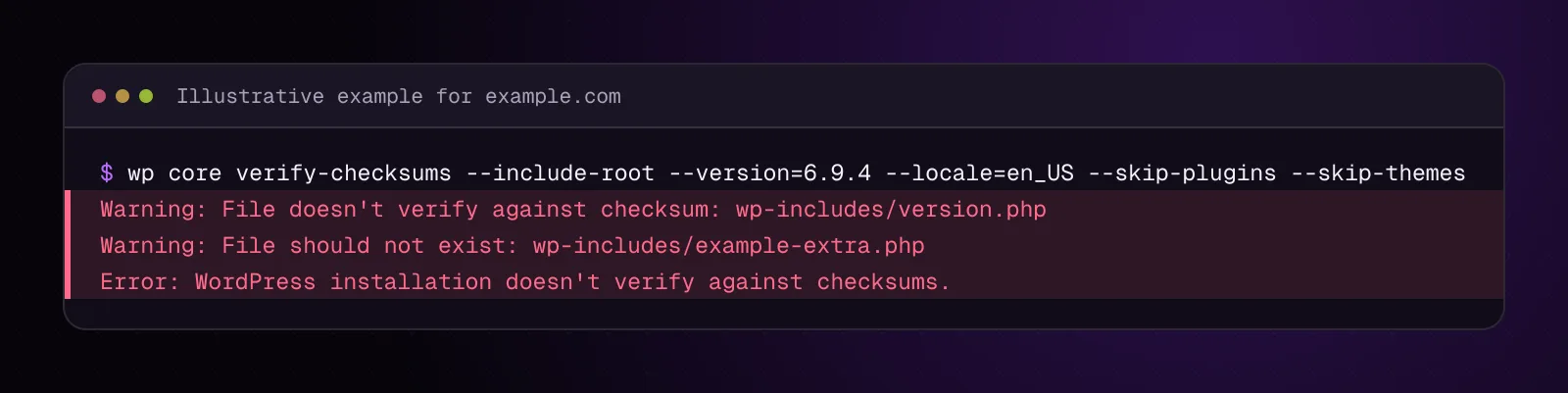
The WordPress Developer Blog security-checking guide (opens in a new tab) documents both checksum failures and warnings for files that should not exist.
What does each checksum warning mean?
Each checksum warning identifies a difference from the expected WordPress package, not the cause of that difference.
File doesn't verify against checksum means the file exists but its contents do not match the expected checksum for the version and locale being checked.
For example:
Warning: File doesn't verify against checksum: wp-includes/version.php
File should not exist means WP-CLI found an item in a checked core location that is absent from the expected WordPress package.
For example:
Warning: File should not exist: wp-includes/example-extra.php
The second filename is illustrative. Do not assume an unexpected file is malicious from its name alone. Preserve it and determine why it exists.
If the final output says that the installation does not verify against checksums, investigate every preceding warning.
Why should I use --include-root during a hacked-site check?
Use --include-root because it extends the inventory to the WordPress root and warns about non-WordPress items there.
Run a second check:
wp core verify-checksums --include-root --version=WP_VERSION --locale=WP_LOCALE --skip-plugins --skip-themes
The WP-CLI documentation defines --include-root as checking all files and folders in the root directory and warning when non-WordPress items are found.
Keep both checksum outputs. The first confirms official core-file contents. The --include-root run gives you the extra root-level inventory.
What should I preserve before replacing a modified core file?
Preserve every suspicious file and its original path before overwriting or deleting it.
That copy may help establish what changed, locate related persistence, or explain how the incident spread. Chapter 4 covers the broader incident backup. For this repair, also keep the exact files flagged by the checksum run.
- Make a private evidence directory outside every web root.
mkdir -p /SAFE_PATH/core-evidence
SAFE_PATH means a private filesystem location that is not served by any website on the account.
- Archive the suspicious paths from the WordPress root.
tar --create --file=/SAFE_PATH/core-evidence/suspect-core-files.tar SUSPECT_PATH_1 SUSPECT_PATH_2
Replace SUSPECT_PATH_1 and SUSPECT_PATH_2 with the exact relative paths reported by the check. Add further paths as needed.
GNU tar's archive creation documentation (opens in a new tab) confirms that --create creates an archive and --file specifies its archive file.
If you lack SSH, download the flagged files through the host's file manager before replacing them. Keep the directory structure or write each original path in your incident notes.
Confirm that /SAFE_PATH/core-evidence/suspect-core-files.tar exists and is outside every public web directory before proceeding.
How do I restore WordPress core files from a trusted source?
Restore core from the official package for the same intended WordPress version and locale, while leaving wp-content and your live wp-config.php separate.
Do not turn incident cleanup into an unplanned WordPress update. Chapter 21 covers the full core reinstall procedure.
- Create a separate clean directory outside the web root.
mkdir -p /SAFE_PATH/clean-core
Confirm that the directory is private.
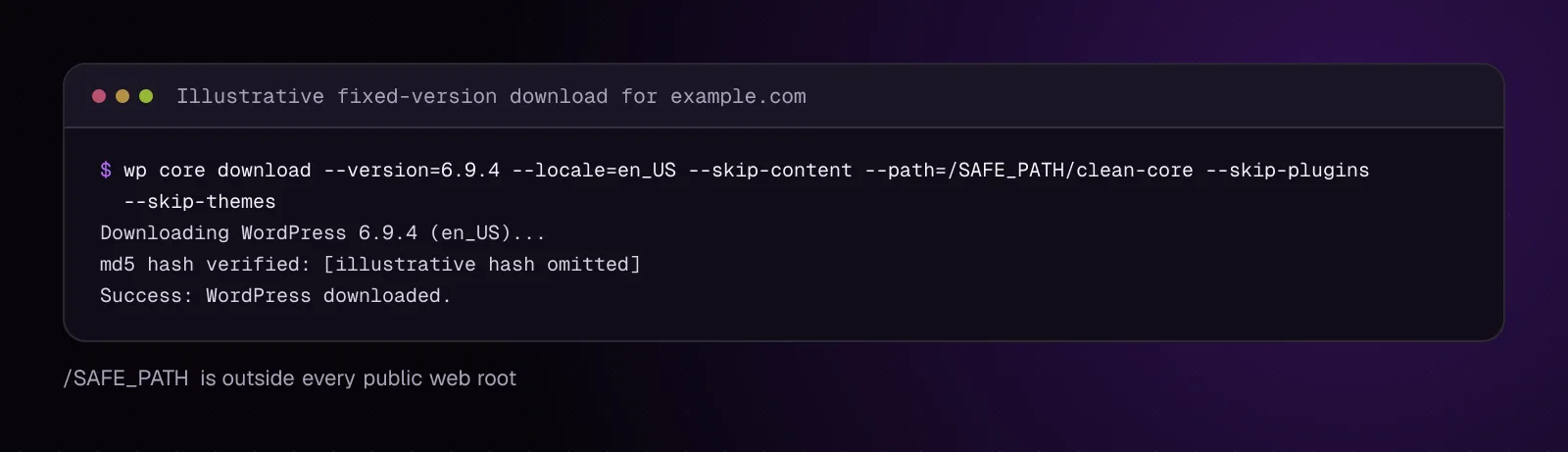
- Download the matching WordPress release into that directory.
wp core download --version=WP_VERSION --locale=WP_LOCALE --skip-content --path=/SAFE_PATH/clean-core --skip-plugins --skip-themes
The wp core download documentation (opens in a new tab) confirms that --version selects a release, --locale selects its language, --skip-content omits default themes and plugins, and --path selects the destination.
The command also verifies the downloaded build's MD5 before extraction.
- After preserving evidence, overwrite the live WordPress core files with the same release.
From the WordPress root, run:
wp core download --version=WP_VERSION --locale=WP_LOCALE --skip-content --force --skip-plugins --skip-themes
--force overwrites existing files. --skip-content keeps the download from installing the package's default plugin and theme content.
This command changes existing WordPress core files in the target directory. It does not remove arbitrary extra files that an attacker added.
For a site without SSH, download the matching release from WordPress.org, extract it locally, and replace the official root files plus wp-admin and wp-includes through the host's file manager. Keep wp-content and the live wp-config.php untouched.
The official manual WordPress update instructions (opens in a new tab) describe replacing wp-admin, wp-includes, and the WordPress root files while preserving the site's existing content and configuration.
- Handle unexpected files separately.
If the checksum check reported an unexpected file, compare its path with the clean package and your incident evidence. After you have established that the item is an unwanted extra file, remove that exact path:
rm -- SUSPECT_CORE_PATH
Replace SUSPECT_CORE_PATH with one exact file path you already preserved and confirmed should not exist. This deletes that file from the live installation.
Do not use a wildcard or delete an unfamiliar root file merely because --include-root reported it. If you use a hosting file manager, select only the confirmed unwanted file and delete it there.
The step worked when the intended core files have been replaced, confirmed unwanted extras are gone, and your evidence copies remain under /SAFE_PATH.
Should I repair one core file or replace the whole core set?
Replace from known official source files when incident scope is uncertain rather than hand-editing malicious lines out of core.
A single-file replacement can be reasonable when you know exactly why one file differs and have verified the trusted source for that exact release. During a compromise, multiple files or hidden additions may be involved.
Replacing the same-version core set also avoids keeping unnoticed edits inside official files. You still need to deal separately with unexpected files because overwriting a package does not delete files absent from that package.
Do not copy wp-content from the clean package over your site's wp-content. Do not replace your site's wp-config.php with wp-config-sample.php.
How do I check that WordPress core is clean after replacement?
Run the same version-specific checksum verification again, including the root inventory, then test normal site behavior.
- Verify the repaired core.
wp core verify-checksums --include-root --version=WP_VERSION --locale=WP_LOCALE --skip-plugins --skip-themes
Review every warning rather than relying only on the final success line. A legitimate custom root file can still produce an --include-root warning and should be documented rather than deleted blindly.
- Load the public site and
/wp-admin/.
Check the pages that previously failed, redirected, or displayed injected output. Test an authenticated admin page if you still have trusted administrator access.
If the core mismatch returns after a clean replacement, something still has write access. Continue the incident investigation instead of replacing the same files repeatedly.
What if the checksum passes but the site is still hacked?
A passing core checksum means the checked WordPress core matches the expected package; it does not clear the rest of the site.
Core verification does not establish that these areas are clean:
- plugins and themes;
- uploads and other
wp-contentfiles; - database content and options;
- users and credentials;
- server configuration;
- files outside the WordPress installation;
- persistence supplied by another site or account.
Chapter 12, on database malware, covers malicious database content. Chapter 11 covers backdoors and persistence.
For the broader cleanup sequence, use How to clean a hacked WordPress site and stop it happening again.
How do I stop WordPress core files from being changed again?
Stop the write path that caused the modification, then apply post-cleanup hardening.
Find the entry point, remove remaining malicious code, replace compromised credentials where required, update vulnerable software through a planned update process, and correct unnecessary filesystem write access. If the compromise appears to extend to the server or hosting account, involve the host or a qualified incident responder.
Repeatedly restoring core without removing persistence leaves the attacker or malicious process able to change it again.
After cleanup, work through WordPress security hardening: a practical checklist for 2026. Chapter 27 covers the guide's post-hack security work in sequence.
What changes for different kinds of WordPress sites?
The verification method stays the same, but you need to account for shared core files and other installations under the same account.
Multisite: WordPress core is shared by the network. One altered file under the shared WordPress installation can affect every site even when the visible symptom appears on only one subsite. Verify the shared installation once, then investigate site-specific content and data separately.
Shared hosting: If the account contains several separate WordPress installations, verify each installation. File write access obtained through one compromised application may have reached neighboring files when account permissions allowed it.
Keep each installation's version, locale, checksum output, and evidence separate so you do not restore one site's files with another site's release.
What should I investigate after restoring WordPress core?
Continue with chapter 14, Nulled WordPress Plugins and Themes: Find and Remove Malware. Keep any plugin, theme, or persistence findings for their dedicated cleanup steps rather than treating a clean core checksum as the end of the incident.
Frequently asked questions
Does a failed WordPress checksum mean the site was hacked?
No. A failed checksum proves that a checked core file differs from the expected WordPress package. Malware is one possible cause, but corruption, an intentional edit, or checking against the wrong version or locale can also produce a mismatch.
Can I delete a WordPress core file that fails its checksum?
Do not delete it merely because the checksum failed. Preserve the file first, identify whether it is an expected core file or an unwanted addition, then replace expected core files from the matching official release. Deleting a required core file can break WordPress.
Does reinstalling WordPress core delete my posts or uploads?
Replacing the official core files while preserving wp-content, wp-config.php, and the database does not remove posts or uploads. Use the same installed release during incident repair unless you are deliberately performing an update.
Does `wp core verify-checksums` check plugins and themes?
No. It verifies WordPress core against WordPress.org checksums. Plugins, themes, uploads, database content, and other files need their own investigation.
Why does WP-CLI report that a file should not exist?
WP-CLI found a file in a checked location that is absent from the expected WordPress package. Preserve and investigate it before removal because an extra file can be malicious, site-specific, or otherwise intentional.
Can a hacked site pass the WordPress core checksum test?
Yes. Malware can live outside the checked core files, including in plugins, themes, uploads, database records, or other server files. A passing core check establishes the integrity of the checked WordPress core, not the whole installation.
Should I update WordPress while replacing hacked core files?
Keep repair and update as separate operations unless you have already planned the update. Restore the installed release first so you can verify the repair against a known version, then perform the required WordPress update through the normal update procedure after the incident state is understood.
Sources
- wp core verify-checksums – WP-CLI Command (opens in a new tab)
- wp core download – WP-CLI Command (opens in a new tab)
- wp core version – WP-CLI Command (opens in a new tab)
- Website security checks – WP-CLI for site owners and administrators (opens in a new tab)
- Updating WordPress – Documentation (opens in a new tab)
- GNU tar: How to Create Archives (opens in a new tab)
- mkdir invocation – GNU Coreutils (opens in a new tab)
- rm invocation – GNU Coreutils (opens in a new tab)
How this article was made: drafted with AI assistance from a researched brief, then checked against primary documentation before publishing.
Message
Ask me about your site
Tell me what is wrong or what you need built. I reply by email.