The common infectionsChapter 12 of 3210 min read
How to Remove Malware from the WordPress Database
WordPress database malware can hide in posts, options, metadata, users and plugin tables. Find confirmed indicators, inspect each match, back up first, then make targeted changes without damaging serialized data.
 By Hamza Ahmad AslamAI & WordPress Developer | Speed Optimization & Site Security

In this guide
WordPress database malware is unauthorized code, links, redirects, spam or persistence data stored in WordPress database records. Find it by searching for a confirmed indicator, inspect every match, export the database, then remove only the data you can identify as malicious. Database cleanup must also include finding what wrote the bad data, or the infection can return.
What does WordPress database malware mean?
WordPress database malware means malicious or unauthorized data has been stored in the database that WordPress or a plugin later reads, displays or acts on.
The database server itself does not have to be infected. MySQL or MariaDB may be working normally while a WordPress record contains an injected script, spam link, redirect destination, altered setting or persistence value.
This distinction matters during cleanup. Repairing tables or reinstalling the database server does not identify malicious application data. You need to find the affected records and determine what each value should contain.
What does database malware look like on a WordPress site?
Database malware can appear as injected scripts, spam text, unwanted links, redirect destinations, altered settings or records used by malicious code for persistence.
Common symptoms include:
- A page contains spam that is absent from the theme files.
- Visitors are sent to an unfamiliar hostname.
- Content changes after you save or publish it.
- Spam returns after infected files were replaced.
- A stored setting contains an unfamiliar URL or shortened script.
- A plugin-owned record contains content you did not configure.
A harmless shortened representation might look like this:
<script>[injected script shortened]</script>
Do not identify malware from <script> or another generic string alone. News sites, analytics settings, embeds, page builders and plugins can store legitimate scripts. Start from a hostname, phrase, marker or value that you have already confirmed belongs to the incident.
How does malware get written into the WordPress database?
Malware reaches the database through something that already has permission to write there, such as compromised application code, stolen privileged access or direct database access.
The stored value does not tell you which route was used. Preserve evidence before changing it, then investigate the files, accounts, credentials and request history around the same incident.
Chapter 11, How to Find a Backdoor in WordPress: Web Shells and Hidden PHP, covers file-based persistence that can write malicious records back into the database.
Which WordPress tables can contain malicious data?
Any table that stores application data can contain an unwanted value, so follow the known indicator instead of limiting the investigation to a fixed table list.
WordPress core uses tables for posts, post metadata, options, users, user metadata and other data. Plugins can create their own tables. On Multisite, WordPress also has per-site and network-wide data.
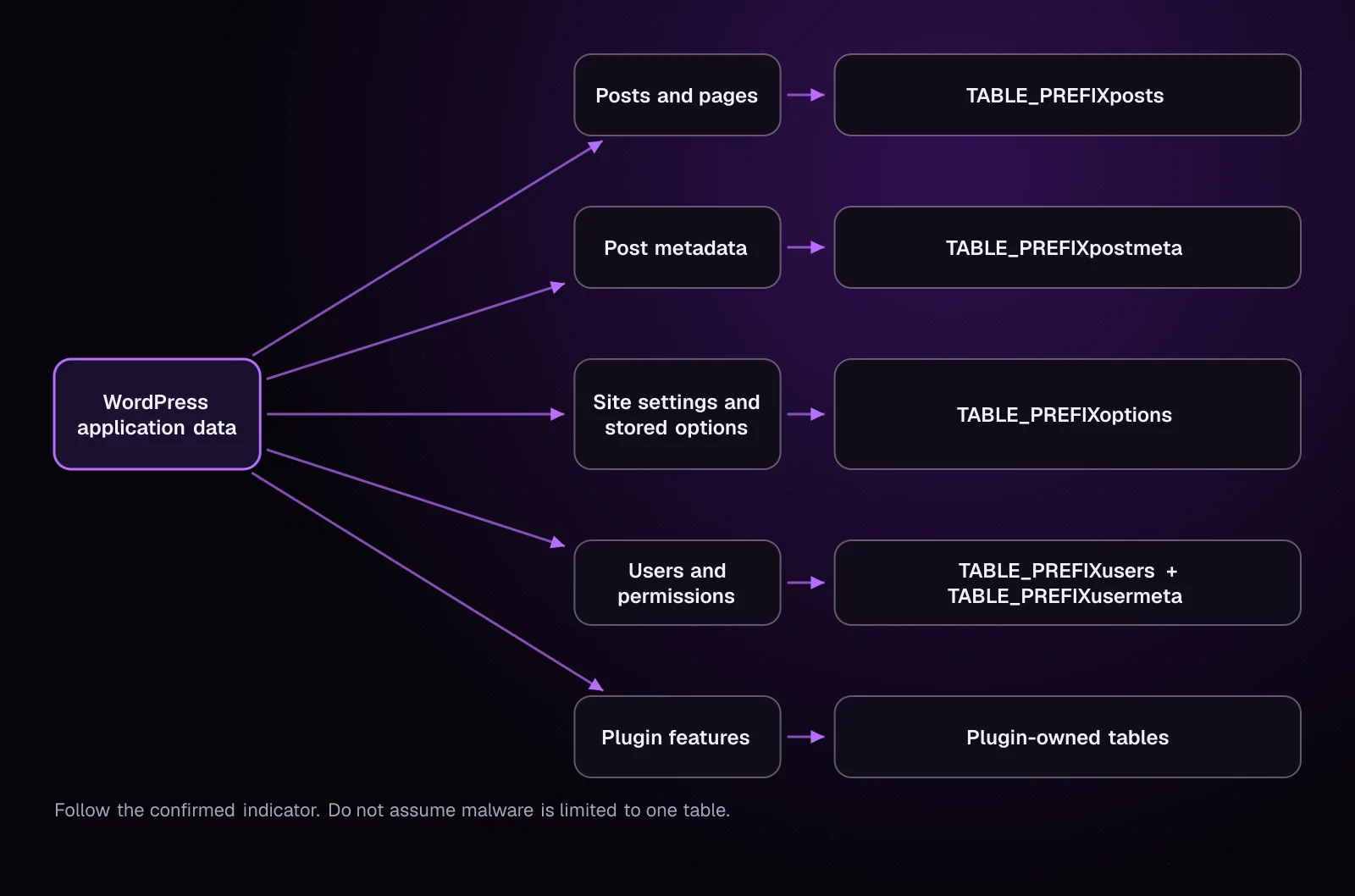
The diagram shows why one fixed list is incomplete: the source feature determines where its data is stored.
If you have SSH, list every table using the WordPress prefix:
wp db tables --all-tables-with-prefix --skip-plugins --skip-themes
The wp db tables documentation (opens in a new tab) confirms that --all-tables-with-prefix includes matching tables even when they are not registered on $wpdb.
WP-CLI accepts --skip-plugins --skip-themes as global parameters. Must-use plugins still load, so a compromised must-use plugin can still execute during WP-CLI bootstrap. Chapter 11 covers those files.
Without SSH, open the selected WordPress database in phpMyAdmin and review its table list. Do not delete an unfamiliar table merely because its name is unfamiliar. First determine which application created it and inspect its contents.
How do I search the database for a known malicious string?
Search for a confirmed malicious hostname, spam phrase or harmless incident marker, then record every matching table and column before changing anything.
For a made-up malicious hostname, run:
wp db search 'spam.example' --all-tables-with-prefix --skip-plugins --skip-themes
wp db search (opens in a new tab) searches text columns and reports the table, column, match and primary-key information. --all-tables-with-prefix also searches matching plugin tables that are not registered on $wpdb.
Example output, illustrative:
example_posts:post_content
42:<p>Normal article text</p><a href="https://spam.example">sample spam</a>
example_options:option_value
317:https://spam.example/redirect
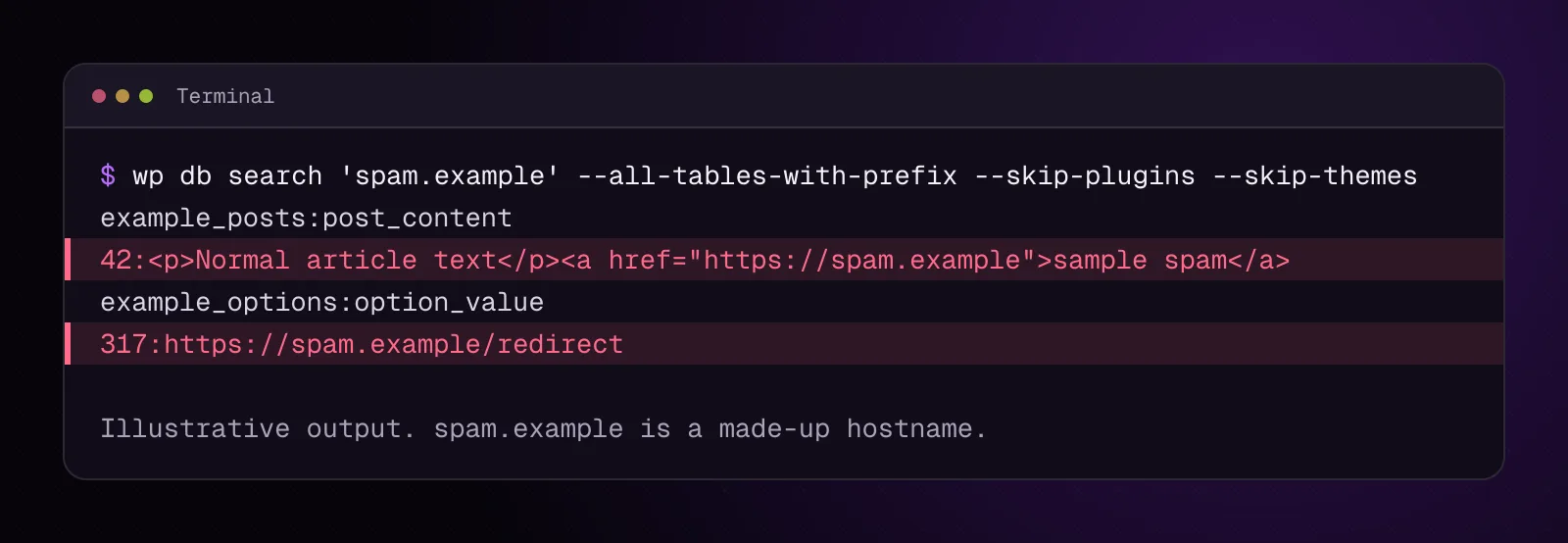
The hostname is deliberately fictional. Replace spam.example with the exact indicator you confirmed during the incident.
On Multisite, search all tables registered for the network when that is the intended scope:
wp db search 'spam.example' --network --skip-plugins --skip-themes
A search without --network is limited to the current site's registered tables on Multisite. You can instead use --url=SITE_URL when you mean one specific subsite. Put that subsite's URL in SITE_URL.
Without SSH, use phpMyAdmin's search or SQL facilities against the database. Search for the same confirmed string and record the table, column and row identifier for each result.
How do I inspect a match without changing the database?
Inspect a match with a read-only SELECT that shows the row identifier and enough surrounding data to decide what the record represents.
For a match in the posts table:
SELECT ID, post_type, post_status, post_title, post_content
FROM TABLE_PREFIXposts
WHERE ID = RECORD_ID;
Replace TABLE_PREFIX with the site's database prefix, including its trailing underscore, and RECORD_ID with the numeric ID reported by the search.
From SSH, the same reviewed read-only query can be executed through WP-CLI:
wp db query "SELECT ID, post_type, post_status, post_title, post_content FROM TABLE_PREFIXposts WHERE ID = RECORD_ID;"
wp db query (opens in a new tab) executes the SQL you supply using the database credentials from wp-config.php.
For an options-table match, inspect that record instead:
SELECT option_id, option_name, option_value, autoload
FROM TABLE_PREFIXoptions
WHERE option_id = RECORD_ID;
In phpMyAdmin, run the matching SELECT in its SQL page. A SELECT reads the record and does not make the cleanup change.
Record the table, column, primary key and original value in your incident notes. Confirm which WordPress feature or plugin owns the value before deciding how to change it.
How do I back up the database before removing malware?
Export the current database to a private location outside every web root before making the first cleanup change.
With SSH:
wp db export /SAFE_PATH/example-com-before-db-cleanup.sql
SAFE_PATH means a private directory outside every public web root. Do not place the SQL dump under public_html, htdocs, the WordPress directory or another served path.
The wp db export command (opens in a new tab) exports the database using the credentials in wp-config.php.
Without SSH, use the hosting database backup facility or phpMyAdmin's export function, then store the resulting SQL file somewhere that the web server cannot serve publicly.
Confirm that the export completed and that the file exists before editing anything. Keep the pre-cleanup copy until recovery and verification are finished.
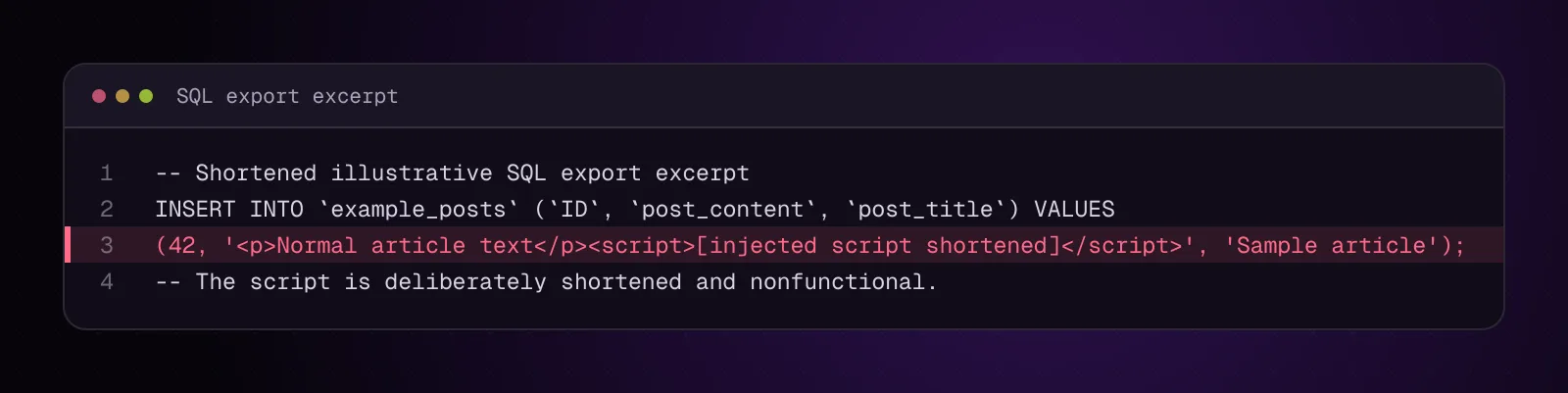
A backup is also useful evidence. Run a WordPress backup restore test and prove recovery works separately explains how to prove that a backup can be restored rather than assuming an export is enough.
How do I remove malicious database content without breaking serialized data?
Use an application-aware edit where possible, or use WP-CLI search-replace for a defined string replacement because it understands PHP serialized data.
PHP serialization stores both values and their lengths. A blind SQL REPLACE() can change a string without fixing its serialized length, leaving the stored value unusable.
First preview a defined replacement:
wp search-replace 'known-bad.example' 'replacement.example' TABLE_NAME --dry-run --skip-plugins --skip-themes
Replace TABLE_NAME with the exact table you identified. Replace the two hostnames with the exact old and intended new values. Use this only when replacing one known value with another is the correct cleanup.
The wp search-replace documentation (opens in a new tab) states that the command handles PHP serialized data and that --dry-run reports proposed changes without saving them.
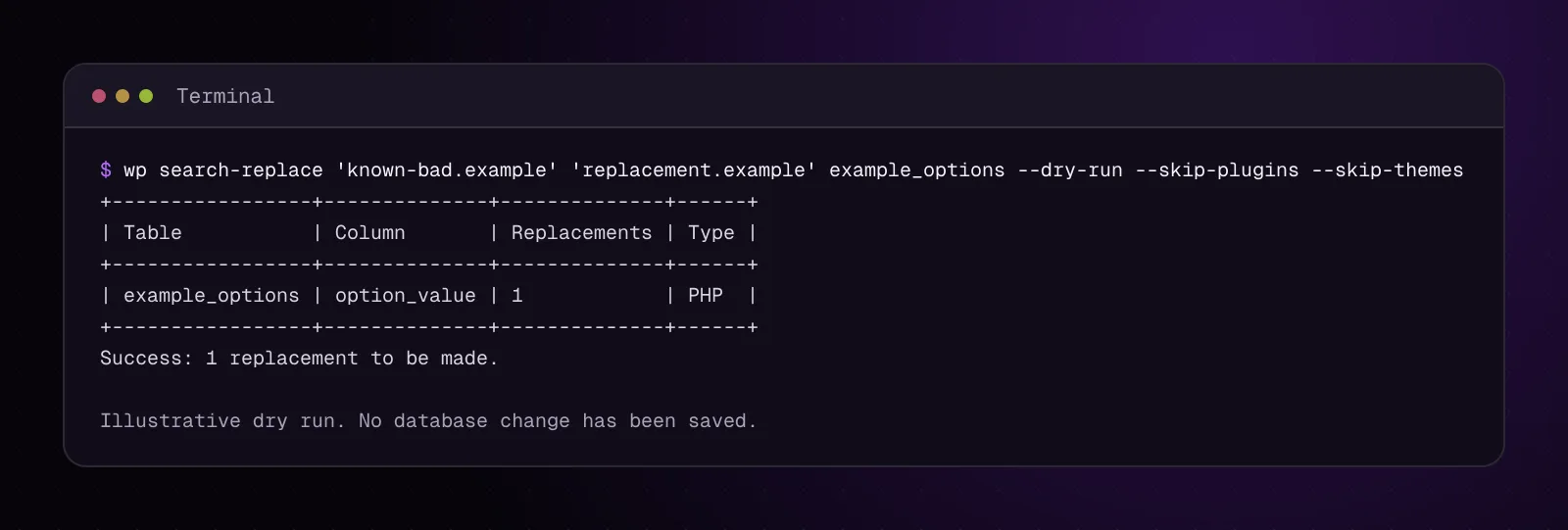
Check the dry-run report. If it shows an unexpected table or more affected rows than your investigation identified, stop and inspect those records.
After the database backup exists and the dry run matches your intended scope, run the same replacement without --dry-run:
wp search-replace 'known-bad.example' 'replacement.example' TABLE_NAME --skip-plugins --skip-themes
This command writes the replacement to matching values in TABLE_NAME.
If the malware is a larger injected script or spam block rather than one replaceable string, edit the owning page, post or plugin setting through wp-admin where possible. That lets the application save its own data structure.
Without SSH, make the equivalent targeted edit through the page, post or plugin screen that owns the value. If no application screen exists, use phpMyAdmin only after you have identified the exact row and understand its storage format.
When should I edit one record instead of running search and replace?
Edit one record when the investigation identifies one or a few specific affected rows and there is no reason to change every occurrence of the string.
Examples include one compromised page, one altered plugin option or one membership profile value. A broad replacement can modify legitimate references that happen to contain the same text.
For a single WordPress post, open that exact post in wp-admin, remove the confirmed injected material, save it, then repeat the database search. For a plugin-owned setting, use that plugin's own settings screen when it provides one.
If direct database editing is unavoidable, keep the original value from your backup and incident notes. Change only the identified row, then retrieve it again with a read-only SELECT to confirm the final value.
How do I check that the WordPress database is clean afterward?
Repeat every search used during the investigation and retest the site behavior that first exposed the infection.
For the sample hostname:
wp db search 'spam.example' --all-tables-with-prefix --skip-plugins --skip-themes
On a Multisite investigation that covered the whole network:
wp db search 'spam.example' --network --skip-plugins --skip-themes
A zero-result search means that specific string was not found in the searched scope. It does not prove that every malicious value has been identified.
Then check the affected page, redirect, spam result or setting again. Clear only the caches involved in that test if cached output could still show the old content.
If several confirmed indicators were found during the incident, repeat the search for each one separately.
Why does database malware come back after I remove it?
Malicious database content returns when the process that wrote it still has access or when another persistence mechanism recreates it.
Possible writers include malicious PHP files, compromised must-use plugins, scheduled code, stolen administrator credentials or direct database credentials. Do not keep deleting the same database row while leaving the writer active.
Chapter 11, How to Find a Backdoor in WordPress: Web Shells and Hidden PHP, covers hidden PHP and web shells. Chapter 19 covers persistence mechanisms that can restore malicious changes after cleanup.
How do I stop malware from being written back into the database?
Remove the writer and close the path that allowed it to write before treating the database cleanup as durable.
Work through these checks:
- Finish the file and backdoor investigation from chapter 11. Confirm that known malicious files and hidden PHP persistence are gone.
- Review privileged WordPress accounts and remove unauthorized access through the recovery procedure from the earlier account chapter.
- Change credentials that may have been exposed, including database credentials when the incident evidence warrants it.
- Patch or replace the vulnerable application component that provided the entry path once you identify it.
- Repeat the known database searches after those changes and after normal site traffic resumes.
How to clean a hacked WordPress site and stop it happening again gives the wider recovery sequence around the database work.
What changes for different kinds of WordPress sites?
The search method stays the same, but the acceptable scope and the records you can safely change depend on the site.
WooCommerce stores: Avoid broad replacements across order, customer and extension tables. Orders can continue changing during an incident, so identify the exact malicious record and preserve current commerce data before making an edit.
Multisite: Choose the scope deliberately. --network searches registered tables across the network, while --url=SITE_URL sets the target site context. A default wp db search on Multisite covers the current site's registered tables rather than every subsite.
Membership and course sites: Treat enrollment, access, profile and plugin-owned tables as application data. Confirm what owns a matching row before changing it, since a value can control access or enrollment state.
News sites: Inspect post content and post metadata carefully. Legitimate embeds, syndicated material, advertising code and editorial scripts can resemble infection indicators when the search term is too broad.
What should I investigate after cleaning the database?
After the known database indicators are gone and the writer has been addressed, verify that WordPress itself is still trusted code. Chapter 13, WordPress Core Files Modified? Check and Restore Them, takes you through the core-file integrity check next.
Frequently asked questions
Can WordPress malware live only in the database?
Yes. Harmful scripts, spam, redirects or unauthorized application data can be stored in database records even when the corresponding WordPress files have not been modified. You still need to investigate how the attacker obtained permission to write those records.
Which WordPress database table is most likely to contain malware?
There is no table you can safely treat as the universal malware table. Posts, options, metadata, users and plugin-owned tables can all contain data used by the site, so search for a confirmed incident indicator and follow each match.
Can I search a WordPress database for a malicious domain?
Yes. wp db search 'DOMAIN' --all-tables-with-prefix can search text columns in tables using the WordPress prefix, and --network provides a network-wide registered-table scope for Multisite. Confirm the domain is malicious before using its presence as a cleanup decision.
Is it safe to run search and replace on a hacked WordPress database?
It can be appropriate after you have a backup, know the exact old and new values, restrict the scope and inspect a --dry-run. Avoid broad replacements whose matches include legitimate content or data structures you have not identified.
Can malware hide inside serialized WordPress options?
An unauthorized value can be stored inside a serialized option or metadata value. Use the application's own settings interface when possible, or a tool such as WP-CLI search-replace that is documented to handle PHP serialized data rather than applying a blind SQL string replacement.
Why does malicious database content return after I delete it?
Something with write access is usually recreating the record. Check for malicious files, scheduled persistence, compromised privileged accounts and exposed database access, then repeat your known-indicator searches after removing that writer.
Should I delete unknown WordPress database tables after a hack?
No. Plugins can create legitimate tables that WordPress core does not register on $wpdb. Identify the software that owns the table and inspect its contents before deciding whether any record or the table itself should be removed.
Sources
How this article was made: drafted with AI assistance from a researched brief, then checked against primary documentation before publishing.
Message
Ask me about your site
Tell me what is wrong or what you need built. I reply by email.