Monitoring11 min read
Run a WordPress backup restore test and prove recovery works
Run a WordPress backup restore test safely, verify files, data and critical tasks, time recovery, and record gaps before an emergency on your site.
 By Hamza Ahmad AslamAI & WordPress Developer | Speed Optimization & Site Security
On this page
- What a WordPress backup restore test must prove
- Define recoverable assets
- Restore in isolation, not over production
- Restore the same backup set you intend to trust
- Verify content and business tasks against the backup point
- Use this restore log and acceptance checklist
- Record recovery gaps and elapsed time
- If the restore or move fails, reset the isolated target and try again
- Put the verified restore path into normal maintenance
- Frequently asked questions
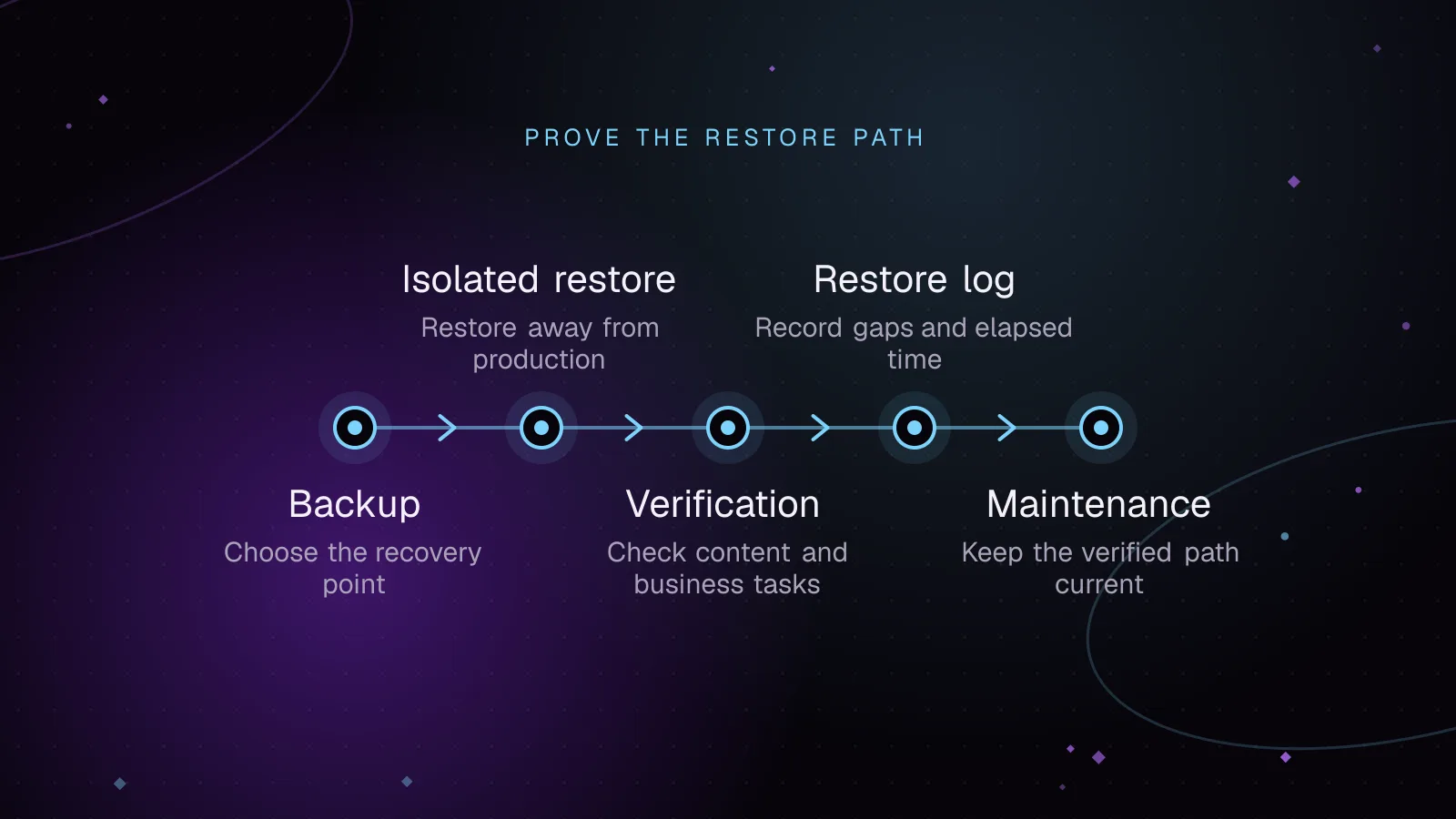
A WordPress backup restore test should end with a working isolated copy, a timed recovery log, and a pass/fail record for the business tasks that matter. Restore a representative backup away from production, verify the files and database together, run defined checks, and record anything missing or unavailable.
What a WordPress backup restore test must prove
For a typical WordPress site, recovery needs both the database and the site files. The WordPress backup guidance (opens in a new tab) says you need both to fully restore a typical site and recommends treating them as one backup set created around the same time so they stay consistent. The database and files hold different parts of the site.
Do not assume payment or mail credentials sit outside that backup. WooCommerce gateways built on WC_Settings_API store their settings in WordPress options, so a database restore can bring live gateway keys into the isolated copy. WooCommerce Stripe, for example, uses the woocommerce_stripe_settings option.
Mail plugins can behave the same way. WP Mail SMTP stores plugin options in wp_options and can also read credentials from wp-config.php constants. A full files-and-database restore can therefore carry live mail settings too.
Reserve "outside dependency" for access that the backup does not contain. Examples include DNS or registrar access, a hosting account, object-storage credentials held outside WordPress, or keys available only through server environment variables.
Define recoverable assets
Write the acceptance target before you touch a backup. This stops a successful homepage load from becoming a false pass.
| Recovery item | What you expect to recover | Evidence to collect |
|---|---|---|
| Database | Posts, pages, users, settings and plugin-created tables that existed at the backup point | Open known records and complete one safe write |
| Site files | Themes, plugins, uploads, custom code and other required files | Load media, theme output and custom functionality |
| Configuration | The configuration needed for the isolated target to connect and boot | Confirm the restored copy uses only test resources |
| Restored secrets | Payment or mail credentials that may arrive in the database or files | Confirm live credentials are removed or replaced before testing |
| External dependencies | Host, DNS, object-storage or environment-level access required for recovery but absent from the backup | Mark each one available or unavailable |
The WordPress file backup guidance (opens in a new tab) explains that files and the database are separate. It also calls out wp-content and wp-config.php as important parts of a file backup. Your recovery plan may rebuild WordPress core from a clean distribution instead of storing it, but that choice needs to be written down.
After creating your first backup, run one restore drill before you depend on it. Repeat the drill when the backup tool, host, restore method or site architecture changes. Set the ongoing schedule from how much change you can afford to lose and how quickly the site must return.
Restore in isolation, not over production
A restore test needs a target that cannot overwrite the live site. A local installation, private development site or separate staging environment can work. WordPress documents development copies (opens in a new tab) as a way to work without interrupting the live installation.
Give the restore target its own database credentials and its own file path. Do not allow normal browser traffic to reach a restored WooCommerce copy until you have made it safe.
Before the first page load, give the copy a URL different from production, disable WP-Cron, disable Action Scheduler's default queue runner, and block outgoing mail. WordPress checks for due WP-Cron tasks on page loads, so place this in the restored wp-config.php before browsing the copy:
define( 'DISABLE_WP_CRON', true );
WooCommerce Subscriptions has another safeguard, but do not depend on it alone. Its staging-site handling (opens in a new tab) switches to staging mode when the current site URL differs from the stored live URL. If the URL stays the same, Subscriptions can remain in live mode. Its staging mode also continues to trigger scheduled renewal and expiration events by default, although automatic subscription payments and subscription-related emails are suppressed.
After the database import, but still before the first browser request, clear or replace production gateway keys and switch each gateway you intend to exercise to its test or sandbox mode. Keep outbound mail blocked because WordPress, WooCommerce or another plugin may still send mail even when Subscriptions itself is in staging mode.
If the site uses WooCommerce Subscriptions, confirm the staging-mode notice or status appears when you first open the safe copy. Never run a restored WooCommerce copy under the production URL with live gateway keys in place.
Start the recovery timer before you retrieve the backup and credentials. That captures the access steps that would also exist during an incident.
Restore the same backup set you intend to trust
Use the restore path that matches the artifact you have. For a host snapshot or backup plugin package, use that product's documented restore flow on the isolated target. For separate file and database backups, WordPress documents the typical restore order as files first, then the database.
For a raw SQL dump, use a new empty database when possible. After restoring the files, replace the database constants in the restored wp-config.php with the isolated target's own credentials before running any reset or import command. Then confirm which database WP-CLI will use:
wp config get DB_NAME
wp config get DB_HOST
Both values must point to the isolated test database. Do not run wp db reset or wp db import while that wp-config.php still points at production.
If you need to empty a reused isolated database and its database user can drop and create that database, run the reset without --yes so you see the confirmation before it proceeds:
wp db reset
wp db import backup.sql
wp db reset runs DROP DATABASE and CREATE DATABASE statements using the database credentials loaded from wp-config.php. The database user therefore needs permission to drop and create that database. If your host does not give that user permission to create databases, recreate the empty test database through the host's database panel instead.
The wp db import reference (opens in a new tab) says the import uses database credentials from wp-config.php, does not create the database, and only performs the tasks defined in the SQL.
That last point matters during a restore drill. Importing a dump over an old staging database can leave a table that the dump never contained. A later check could mistake that leftover table for recovered data. Starting with an empty database makes everything present after the import attributable to the backup.
After the import, sanitize the restored payment and mail configuration before allowing a browser request. Make sure the restored URL differs from production, live gateway keys are cleared or replaced, outbound mail is blocked, WP-Cron remains disabled, and any required Action Scheduler runner protection is in place.
You do not need FileZilla. WordPress lists host backup software, FTP clients and shell access as ways to move site files. Use the method that fits your backup format and access level.
A staging URL must differ from production if you rely on WooCommerce Subscriptions to detect the clone as staging. If your restore tool does not handle stored URLs, use a method that understands serialized WordPress data. WP-CLI's wp search-replace command (opens in a new tab) handles serialized data, and its --dry-run flag reports changes without saving them.
Verify content and business tasks against the backup point
Check the restored site against what existed when the backup was created, not against production now. Content created after the backup point is outside that recovery point. Content that should have existed at the backup point but is missing is a recovery gap.
Use checks that prove both read and write behavior:
- Log in to WordPress admin with an authorized test account after the safety controls are in place.
- Open a known page or post that existed before the backup point.
- Load representative images and downloadable files.
- Save a disposable draft, refresh the page and confirm the change persists.
- Open functionality provided by custom code or a business-critical plugin.
- For a WooCommerce demo, open a product, add it to the cart and reach checkout with live payment credentials already removed or replaced.
- Record any task you cannot run because a required outside service is unavailable.
A pass means the expected item is present and the defined task works on the restored copy. A failure means something that should have been recoverable is missing or broken. Unavailable means the restore reached an outside dependency that you intentionally did not provide to the test environment.
Use this restore log and acceptance checklist
Copy this log for each drill. Fill it with the backup identifier and the exact target you used.
| Restore log field | Value to record |
|---|---|
| Backup identifier | |
| Backup creation time | |
| Backup storage location | |
| Isolated restore target | |
| Database target | |
| Recovery started at | |
| Files restored at | |
| Database restored at | |
| Acceptance checks finished at | |
| Elapsed recovery time | Acceptance checks finished at minus recovery started at |
| Overall result | Pass, failed, or incomplete |
| Recovery gaps | |
| Unavailable dependencies | |
| Manual steps to add to the runbook |
The next table is an illustrative demo scenario. Every row, item name, path, status and result below is illustrative, and every result is an expected result rather than an observed outcome.
| Illustrative row | Illustrative demo item | Illustrative backup scope | Expected classification | Expected acceptance evidence |
|---|---|---|---|---|
| Illustrative A1 | Illustrative page named Restore marker | Included in illustrative database backup | Expected survived | The illustrative page opens with content from before the illustrative backup point |
| Illustrative A2 | Illustrative file illustrative-product-photo.jpg | Included in illustrative uploads backup | Expected survived | The illustrative image loads from the restored media path |
| Illustrative A3 | Illustrative WooCommerce product and cart data | Included in illustrative database and plugin files | Expected survived | The illustrative product opens and can be added to the cart without a live payment |
| Illustrative A4 | Illustrative path wp-content/uploads/private-reports/illustrative-report.csv | Excluded by the illustrative backup policy | Expected failed, lost | The illustrative required file is absent, so the backup policy needs correction |
| Illustrative A5 | Illustrative object-storage key held only in a server environment variable | Excluded from the illustrative WordPress backup | Expected unavailable dependency | The illustrative outside credential is unavailable and is recorded separately |
| Illustrative A6 | Illustrative production payment gateway credential | Included in the illustrative database backup, then cleared or replaced before browser access | Expected restored and neutralized | The illustrative live credential does not remain active on the restored copy |
| Illustrative A7 | Illustrative administrator login and draft save | Included in illustrative database and files | Expected survived | The illustrative user can log in and save a disposable draft |
Replace the illustrative rows with your own acceptance criteria before the test. If a required item is marked lost, the drill has found a backup gap. If a dependency is unavailable by design, decide before an incident whether that blocks recovery or has a separate recovery procedure.
Record recovery gaps and elapsed time
Use one timing rule on every drill: start when the responder begins retrieving the backup or access needed for recovery, and stop when the required acceptance checks finish. Record the file restore, database restore and acceptance milestones separately so the slow step is visible.
Treat the measured elapsed time as evidence for that tested backup, target and procedure only. A local restore time is not a promise for a different host, database size or recovery path. Treat the exercise as a small WordPress disaster recovery test with the same timer and acceptance rules each time.
Classify each gap so the next action is clear:
- Fix a backup gap when a required file, table or record from the backup point is missing.
- Fix a procedure gap when recovery depends on a manual step that was not documented.
- Fix an access gap when the person running the drill cannot reach a backup, credential or account they need.
- Record an unavailable dependency when the test intentionally excludes an outside service or account that is not contained in the backup.
Keep the failed acceptance row with the restore log after you fix it. On the next drill, that row becomes a regression check.
If the restore or move fails, reset the isolated target and try again
An isolated target is disposable. If a move or restore attempt fails, reset or recreate that target, correct the procedure, and restore the same backup again. Do not turn production into the retry target.
Whether the staging database is restored depends on the backup and restore scope. For an SQL dump, wp db import only performs the tasks defined in that SQL. It does not prove that unrelated tables already present in the target came from the backup.
For a valid drill, import into a new empty database or empty the isolated target first. Before using wp db reset, replace any restored production database credentials in wp-config.php with the isolated database credentials and confirm DB_NAME and DB_HOST with wp config get. The reset command drops and recreates the database named by that configuration, so it must never run against a wp-config.php that points at production.
If the test database user lacks permission to create the database, recreate the empty database through the host's database controls instead of using wp db reset. Then import the backup into that empty target.
If the package is files-only, the database is not restored. Check the package contents and the target database credentials before every retry.
Put the verified restore path into normal maintenance
Once recovery is repeatable, keep it as the fallback behind testing WordPress plugin updates before they reach production so update work starts with a known recovery path. If you want backup ownership, restore drills and recovery documentation handled as ongoing operations, the WordPress maintenance service covers that work.
Frequently asked questions
Can I test a WordPress backup on a local computer instead of staging?
Yes, if the local environment can run the site and you keep external side effects isolated. Give the copy a different URL and neutralize scheduled jobs, live payment credentials and outgoing mail before browser access. Record the result as proof for that local target, not as a recovery-time promise for a different server.
What if the backup restores but an external integration cannot be tested?
If the integration needs an outside account or network access that you intentionally withheld, mark the check unavailable. Do not mark restored payment or mail credentials unavailable merely because you removed them for safety; record them as restored and neutralized.
Does missing content always mean the restore failed?
Compare the restored copy with the backup creation point. Content created later is outside that backup; content that should have existed at the backup point but is absent is a recovery gap.
Should a WooCommerce restore test place a payment?
A restore drill does not need a live transaction. Remove or replace live gateway credentials first, then use an already configured gateway test mode if payment behavior is part of your acceptance criteria. Otherwise, stop before the external payment step and record that check as unavailable.
How this article was made: drafted with AI assistance from a researched brief, then checked against primary documentation before publishing.
Share this article
Enjoyed this? Get the next article by email.
Keep reading
 Monitoring
7 min read
How to test WordPress plugin updates before they reach production
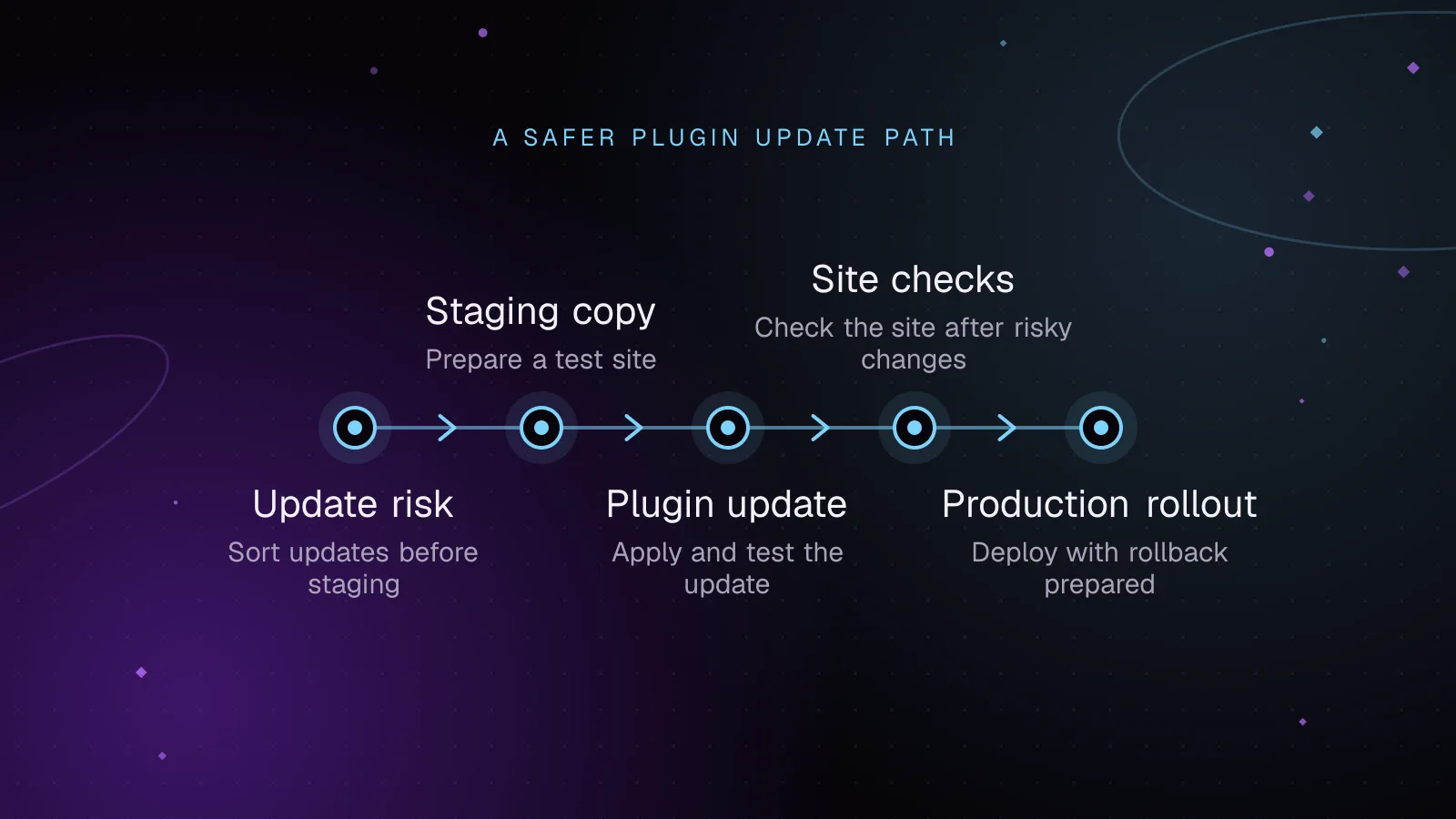
To test WordPress plugin updates safely, copy production to staging, a private test copy, review what changed, update in controlled batches, and run the site flows that matter before production. Keep a pre-update backup and the previous plugin package or version ready so you can reverse a bad release quickly.
- WordPress
- Plugins
- Monitoring
 Monitoring
7 min read
WordPress cron monitoring: prove scheduled jobs ran
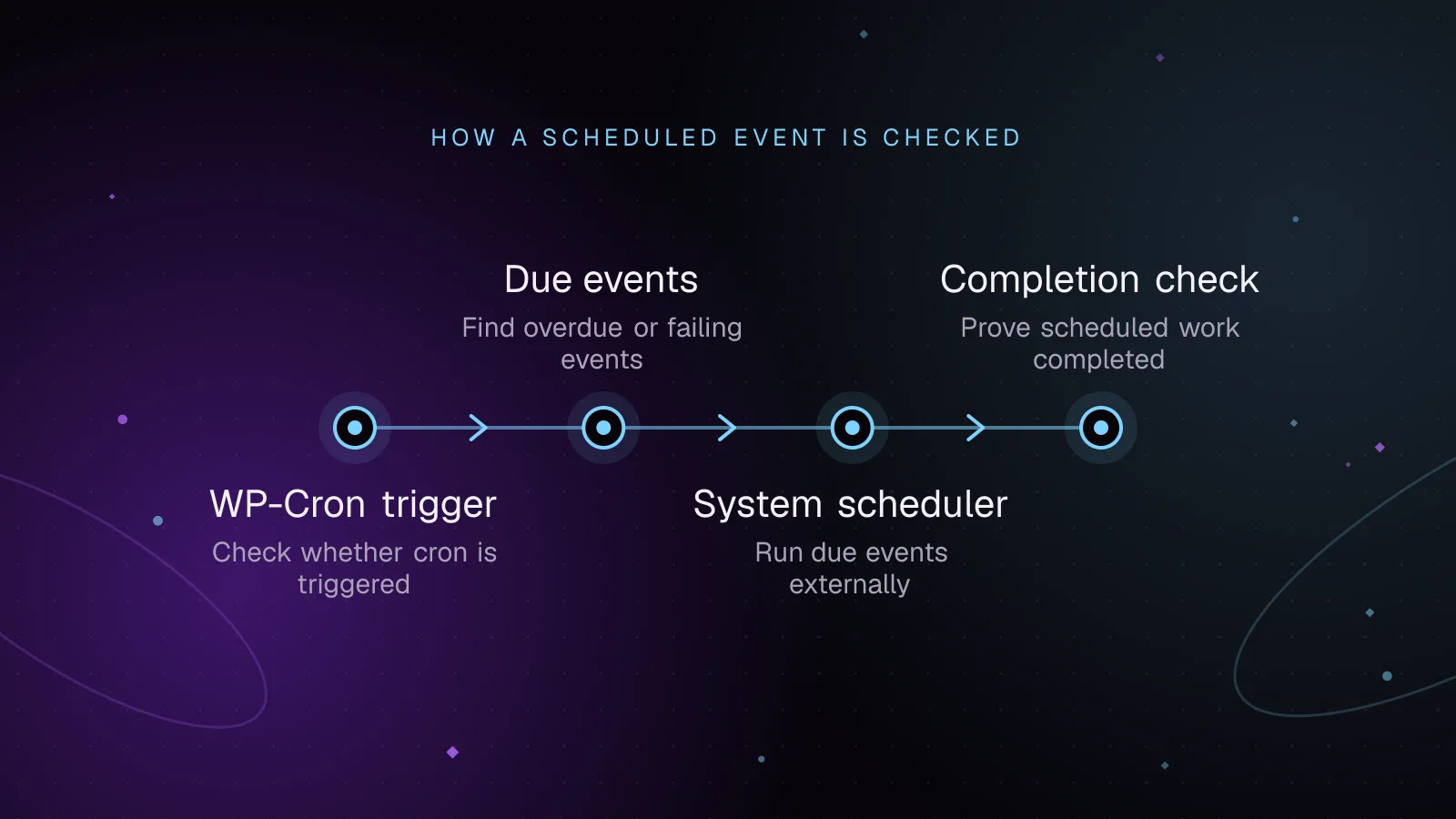
If WordPress cron not running is delaying posts, emails, imports, or backups, first prove whether WP-Cron can spawn and whether events are already overdue. Then move the trigger to a system scheduler when timing matters, and monitor both overdue events and a success heartbeat from the jobs you care about.
- WordPress
- Monitoring
- Cron
 Monitoring
7 min read
The WordPress debug log: turn it on safely, find it, and read it
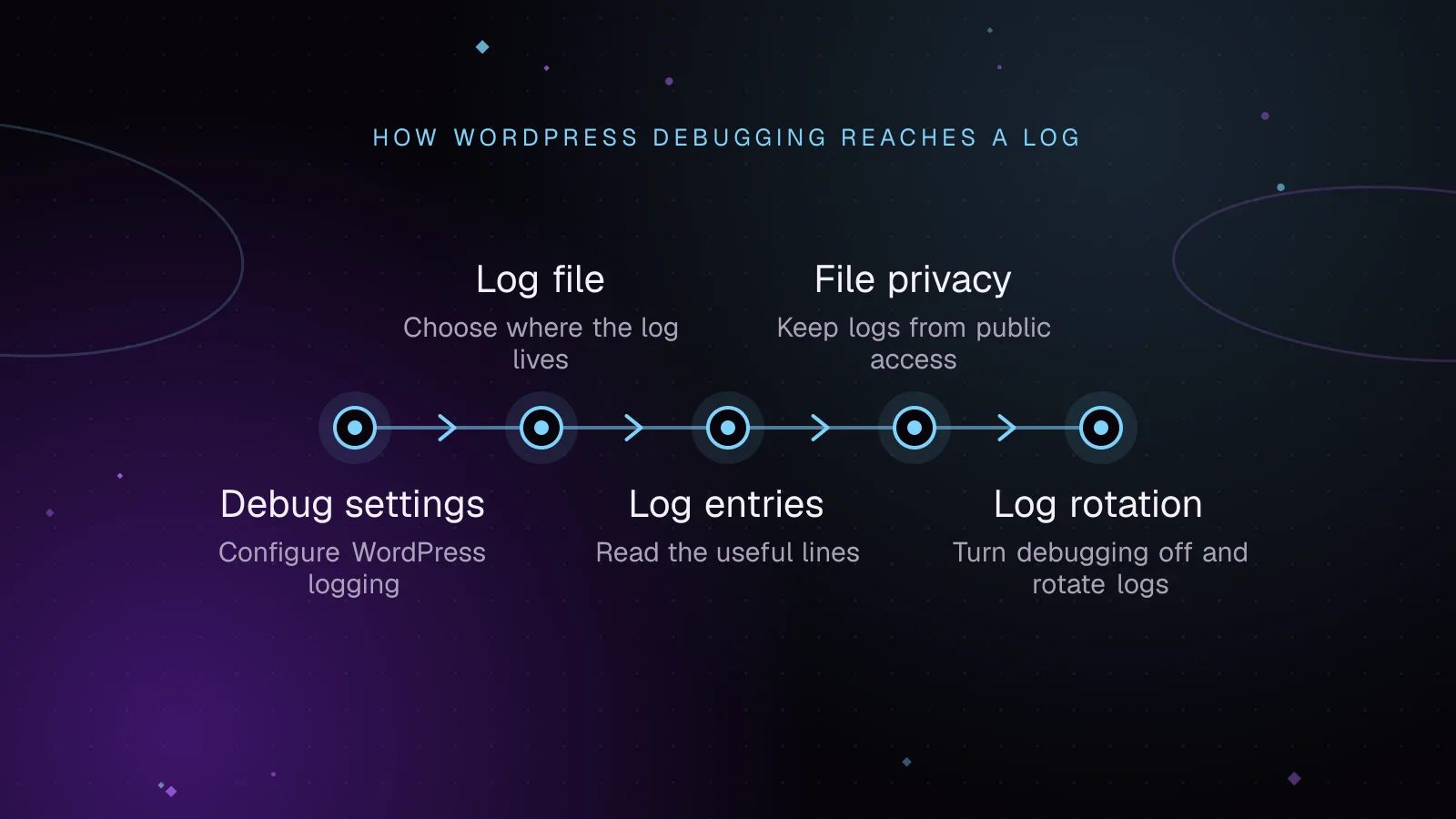
To turn on the WordPress debug log, set WP_DEBUG and WP_DEBUG_LOG to true in wp-config.php, then set WP_DEBUG_DISPLAY to false so errors are not printed into pages.
- WordPress
- Monitoring
- PHP