The common infectionsChapter 15 of 329 min read
Hacked Through a Vulnerable Plugin: Find It and Close the Hole
A vulnerable plugin may explain how an attacker got in, but the version alone is not proof. Preserve the evidence, check the files and logs, install the fix, then verify the path is closed.
 By Hamza Ahmad AslamAI & WordPress Developer | Speed Optimization & Site Security

In this guide
A wordpress plugin vulnerability hacked site needs two separate jobs: determine whether the flaw was used, then remove the vulnerable path. A vulnerable version is evidence of exposure, not proof of exploitation. Record what was installed, preserve the incident evidence, fix or remove the plugin, and investigate what the attacker changed.
What does it mean when a WordPress plugin has a vulnerability?
A WordPress plugin vulnerability is a security flaw in legitimate plugin code that allows an action the developer did not intend. The result depends on the flaw, the site's configuration and the privileges needed to reach it.
Examples include flaws that permit unauthorized requests, changes to stored data, file uploads or code execution. WordPress documents common classes such as SQL injection, cross-site scripting and cross-site request forgery in its security documentation (opens in a new tab).
Keep three cases separate:
- A legitimate plugin has a vulnerable version.
- A legitimate plugin's files were modified after an intrusion.
- A plugin update or package itself contained malicious code.
The third case is a supply-chain incident. WordPress plugin supply chain security: when the update itself is the attack covers that problem. Chapter 14, Nulled WordPress Plugins and Themes: Find and Remove Malware, covers untrusted copies obtained outside legitimate distribution channels.
What might I see if a plugin vulnerability was exploited?
You might find files, users, settings or database content that should not be there, but none of those symptoms identifies the entry point by itself.
Possible results include:
- new or modified PHP files;
- unauthorized administrator accounts;
- changed WordPress options or plugin settings;
- redirects to other sites;
- injected spam pages or links;
- altered posts, products or account data;
- scripts added to pages or checkout flows.
The same symptoms can come from stolen credentials, another vulnerable component, a compromised hosting account or an existing backdoor.
Use chapter 6, How Was My WordPress Site Hacked? Finding the Entry Point in the Logs, when you need to tie an observed change to the request that caused it.
How can a plugin vulnerability lead to a WordPress hack?
A plugin vulnerability leads to a hack when an attacker reaches the affected code and the flaw gives them an unauthorized capability.
The exact effect matters. A flaw might let an unauthenticated visitor change an option. Another might require a logged-in subscriber. Another might permit a dangerous upload or allow data to reach a database query without the intended checks.
Do not turn the vulnerability description into a broader claim. Record:
- the affected plugin versions;
- any configuration or feature required for the flaw;
- the privilege level required;
- the request path or action involved, if documented;
- what a successful exploit can change.
That gives you conditions you can compare with your site rather than assuming every installation of an affected release was compromised.
How do I identify the plugin version that was installed during the incident?
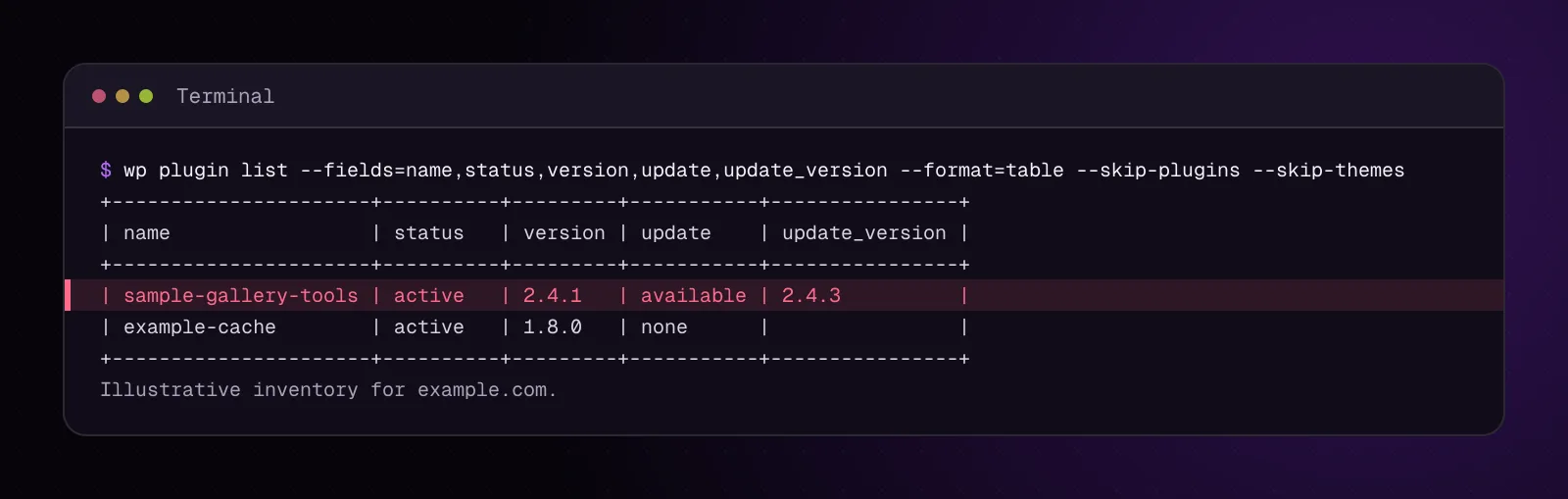
Record the present plugin inventory first, then use dated evidence to establish which version was present when the suspicious activity happened.
- From the WordPress directory, record every plugin, its state and its installed version. The
wp plugin listdocumentation (opens in a new tab) confirms these fields and the global skip parameters.
wp plugin list --fields=name,status,version,update,update_version --format=table --skip-plugins --skip-themes
WP-CLI normally boots WordPress for this command. --skip-plugins --skip-themes prevents ordinary plugins and themes from loading, which reduces the chance that compromised code changes what you see. Must-use plugins still load.
Without SSH, open Plugins > Installed Plugins in wp-admin and record the plugin names, versions and update notices. If wp-admin is unreliable, use the host's file manager and preserve the plugin directory before making changes.
Example output, illustrative:
+----------------------+----------+---------+-----------+----------------+
| name                 | status   | version | update    | update_version |
+----------------------+----------+---------+-----------+----------------+
| sample-gallery-tools | active   | 2.4.1   | available | 2.4.3          |
| example-cache        | active   | 1.8.0   | none      |                |
+----------------------+----------+---------+-----------+----------------+
- Record details for the plugin you are investigating. Replace
PLUGINwith its plugin slug.
wp plugin get PLUGIN --fields=name,title,version,status,author --format=table --skip-plugins --skip-themes
- Compare that version with evidence from the incident date. Use host backups, deployment records, release records and any preserved server snapshots. If you restore an old backup for analysis, restore it to an isolated copy rather than over the live site, then run the same inventory there.
A current patched version cannot tell you which version was active when the intrusion happened.
How do I check whether the suspicious plugin files were also modified?
For a WordPress.org plugin with checksum data, compare the installed files with the official checksums before replacing anything.
Replace PLUGIN with the plugin slug:
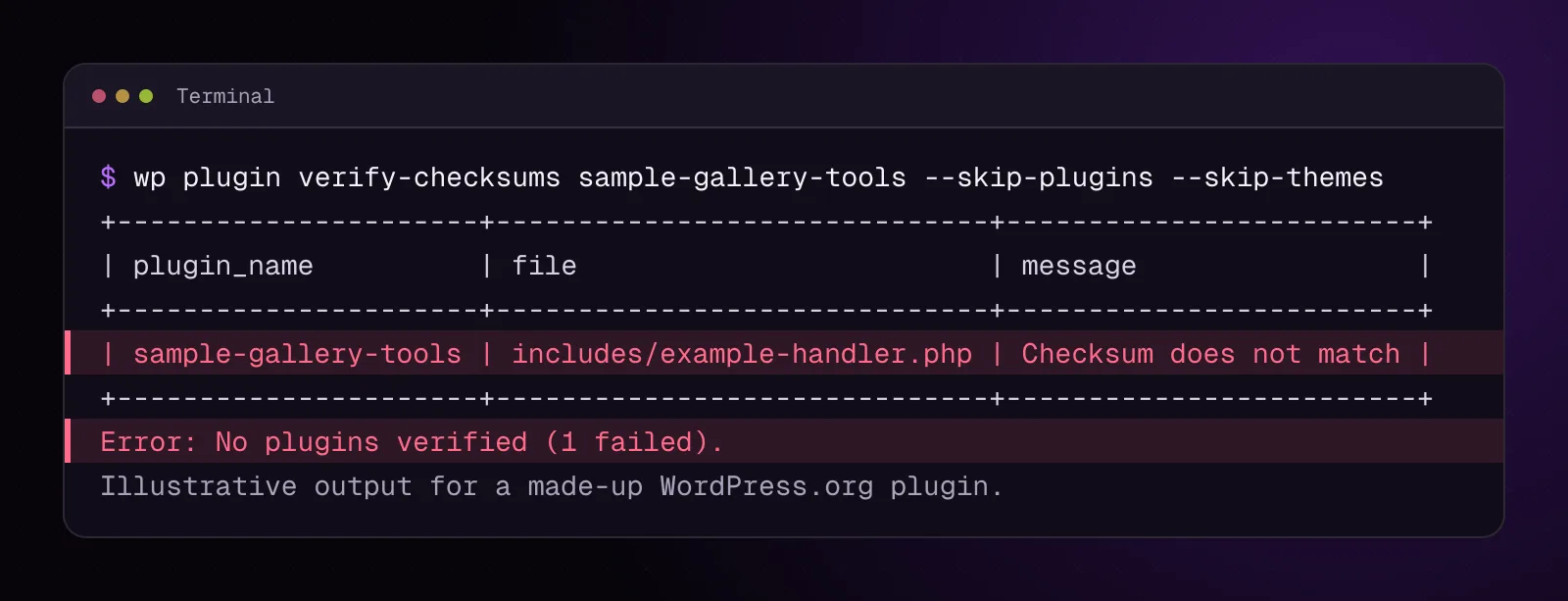
wp plugin verify-checksums PLUGIN --skip-plugins --skip-themes
The wp plugin verify-checksums command (opens in a new tab) compares plugin files with WordPress.org checksums. A checksum difference means the file differs from that published package. It does not tell you who changed it or why.
Example output, illustrative:
+----------------------+------------------------------+-------------------------+
| plugin_name          | file                         | message                 |
+----------------------+------------------------------+-------------------------+
| sample-gallery-tools | includes/example-handler.php | Checksum does not match |
+----------------------+------------------------------+-------------------------+
Error: No plugins verified (1 failed).
If checksum data is unavailable, preserve the plugin directory and compare it with the exact trusted vendor package for the installed release.
Does finding a vulnerable version prove that it caused the hack?
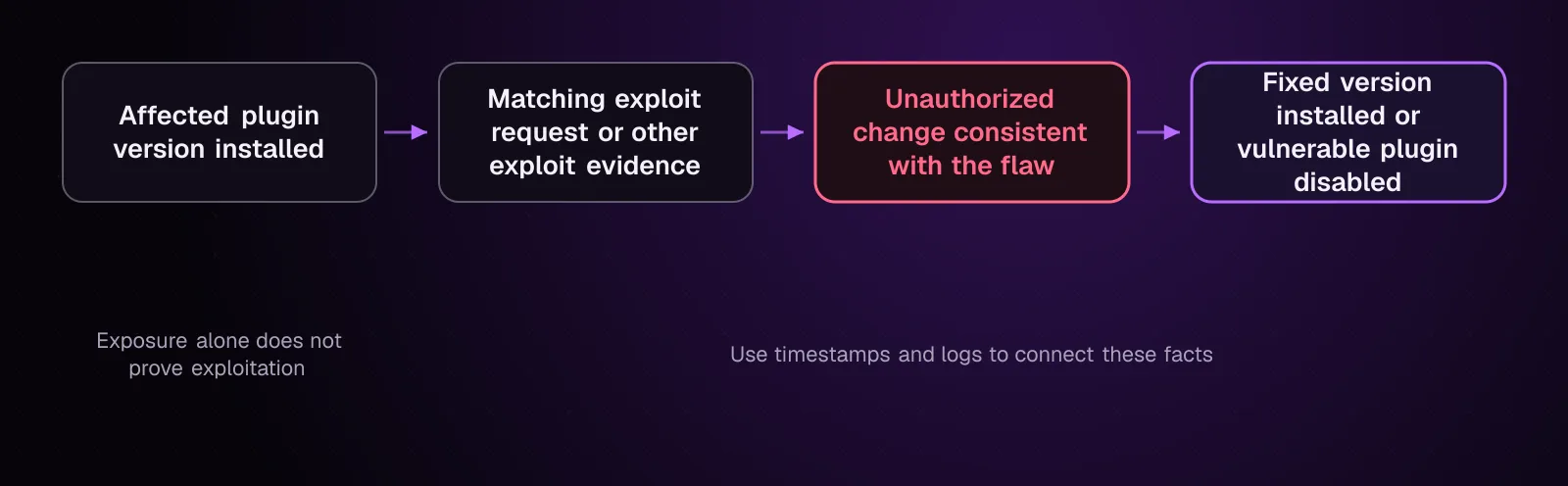
No. A vulnerable installed version proves exposure to a known flaw only when the site's version and required conditions match the affected range.
Build an evidence chain instead:
- Confirm that the installed version at the incident time was affected.
- Confirm that any required feature, endpoint or configuration existed.
- Check access logs for requests matching the documented vulnerable path.
- Compare request timestamps with the first unauthorized file, account, setting or database change.
- Check whether the resulting change matches what that vulnerability permits.
- Look for competing entry points before naming the plugin as the cause.
The strongest finding connects the affected version, a matching request and a resulting change in sequence. Chapter 6 covers the log work in depth.
What should I do with a vulnerable plugin during cleanup?
Preserve evidence first, then disable the vulnerable code when the site can operate without it.
- Back up the database before changing plugin state.
/SAFE_PATHmeans a private directory outside every web root.
wp db export /SAFE_PATH/before-vulnerable-plugin-fix.sql --skip-plugins --skip-themes
Check that the SQL file exists in /SAFE_PATH and has a nonzero size. Without SSH, export the database through your hosting backup tool or phpMyAdmin to storage that is not publicly served.
- Preserve the current plugin files. Run this from
wp-content/plugins, replacingPLUGINwith the plugin directory name:
tar -czf /SAFE_PATH/PLUGIN-before-fix.tar.gz PLUGIN
Check that the archive exists outside the web root before continuing. With a file manager, download or archive the same plugin directory to private storage.
- Deactivate the plugin if the site can operate without it:
wp plugin deactivate PLUGIN --skip-plugins --skip-themes
The wp plugin deactivate command (opens in a new tab) changes the plugin's activation state. On Multisite, use this only when the plugin is active for an individual site.
For a network-activated plugin, use:
wp plugin deactivate PLUGIN --network --skip-plugins --skip-themes
In wp-admin, use Plugins > Installed Plugins and select Deactivate. For a network-active Multisite plugin, make the change from Network Admin.
Confirm that the plugin now appears inactive and that required site functions still behave as expected.
How do I update a vulnerable plugin from a trusted source?
Install the vendor's documented fixed release from the same trusted distribution source you normally use, after preserving the old files and database.
For a WordPress.org plugin where the fixed release is available through the update system:
wp plugin update PLUGIN --skip-plugins --skip-themes
The wp plugin update documentation (opens in a new tab) confirms that the command updates the named plugin and removes the old version during the update process.
If you must install a specific WordPress.org release named by the security advisory, replace VERSION with that fixed version:
wp plugin install PLUGIN --version=VERSION --force --skip-plugins --skip-themes
--version=VERSION selects that WordPress.org release. --force overwrites the installed plugin version.
For a commercial plugin, download the fixed package directly from the vendor account or other vendor-authorized source. Save it in /SAFE_PATH, then install that local ZIP:
wp plugin install /SAFE_PATH/PLUGIN-fixed.zip --force --skip-plugins --skip-themes
Do not copy selected files from the compromised directory into the clean package unless the plugin vendor documents those files as site-specific data that must be retained.
Without SSH, follow the vendor's update instructions or use WordPress's documented plugin management screens (opens in a new tab). Confirm the installed version afterward.
What if no fixed version exists?
Keep the vulnerable plugin disabled or remove it, then replace the function it provided.
After the backups above exist, deletion removes the plugin files:
wp plugin delete PLUGIN --skip-plugins --skip-themes
Check wp-content/plugins and the wp-admin plugin list to confirm that the plugin directory is gone.
Do not delete plugin database data blindly. Some extensions store orders, form submissions, membership data or settings that remain useful after the plugin files are removed.
How do I look for changes made through the plugin before it was fixed?
Use the vulnerability's documented effect to decide where to inspect, then widen the search if the evidence shows persistence.
Check the areas that the flaw could change:
- Inspect newly created or modified files if the flaw involved file creation or code execution.
- Review administrator and other privileged accounts if user creation or privilege changes were possible.
- Review affected plugin settings and WordPress options when the flaw allowed configuration changes.
- Inspect relevant posts, products, metadata or custom plugin tables if unauthorized data changes were possible.
- Compare the timestamps with access logs and the incident timeline.
Chapter 10, How to Find and Remove Hidden Admin Users in WordPress, handles unauthorized accounts. Chapter 11, How to Find a Backdoor in WordPress: Web Shells and Hidden PHP, covers persistent PHP access. Chapter 12, How to Remove Malware from the WordPress Database, covers malicious stored content and options.
If you find modified core files, use chapter 13, WordPress Core Files Modified? Check and Restore Them.
How do I check that the vulnerable path is closed?
Confirm that the affected release is no longer reachable, then retest the exact condition you established during the investigation.
- Record the plugin state and version again:
wp plugin get PLUGIN --fields=name,title,version,status,author --format=table --skip-plugins --skip-themes
Confirm that the version matches the vendor's fixed release, or that the plugin is inactive or removed.
- For a WordPress.org plugin, verify the replacement files again:
wp plugin verify-checksums PLUGIN --skip-plugins --skip-themes
A successful checksum check confirms those plugin files match WordPress.org's package. It does not prove that the rest of the site is clean.
- Retest only the defensive condition relevant to the flaw. Confirm that the previously exposed action now requires the intended authentication, authorization or file restrictions according to the vendor's fix.
Do not run public exploit code against a production site as a cleanup check.
How do I stop vulnerable plugins from staying exposed?
Use a repeatable update and vulnerability-response process so an alert reaches someone who can assess and patch the affected sites.
Keep an inventory of installed plugins, remove components you no longer use and apply security fixes from trusted sources. WordPress's plugin management documentation also provides per-plugin automatic update controls where that update model fits your change process.
WordPress plugin vulnerability monitoring: from alert to fix covers the alert, assessment, testing and update workflow without waiting for the next incident.
What changes for different kinds of WordPress sites?
The investigation scope changes when the vulnerable plugin controls shared network features, money, accounts or publishing workflows.
WooCommerce stores: Treat payment and checkout extensions as higher-scope components when the flaw affected those paths. Preserve transaction-related evidence before changing the affected software. If card data may have been exposed, contact the payment processor and a qualified forensic professional rather than drawing conclusions from WordPress logs alone.
Multisite: Check whether the plugin was network activated or merely available to individual sites. Do not limit the investigation to one subsite until you know where the vulnerable code ran.
Membership and course sites: Review privileged member, instructor, enrollment and account actions if the vulnerability affected permissions or user data.
News sites: Plan replacement around publishing dependencies, but keep the vulnerable component disabled until a fixed release or replacement path is available.
What should I investigate after closing the plugin flaw?
Follow the infection that the intrusion left behind: chapters 10 through 13 cover unauthorized users, backdoors, database malware and changed core files. If the affected site is a store and checkout code or payment pages were changed, continue with chapter 16, WooCommerce Credit Card Skimmer: Detect and Remove Checkout Malware.
Frequently asked questions
Does an outdated WordPress plugin mean my site was hacked?
No. An outdated version may be vulnerable, but that does not show that anyone exploited it. Match the affected version and conditions to your incident logs and resulting changes before assigning an entry point.
How do I know if a plugin vulnerability was exploited?
Look for a matching vulnerable version, a request consistent with the flaw, and a resulting unauthorized change at the corresponding time. The more of that chain you can establish, the stronger the attribution.
Should I delete a vulnerable plugin or update it?
Use the vendor's fixed release when you still need the plugin and a trusted fix exists. If no fix exists or you no longer need the component, keep it disabled and remove the plugin files after preserving the evidence and necessary data.
Can an inactive WordPress plugin still be a security problem?
Deactivation stops WordPress from treating the plugin as active, but the plugin files remain installed until you delete them. Remove software you no longer need so stale code does not remain on the server.
Can a patched plugin still contain files changed during the hack?
A displayed fixed version alone is not a file-integrity check. For WordPress.org plugins, verify the replacement with official checksums, and separately investigate malicious files or persistence elsewhere on the site.
What if a vulnerable plugin has no security update?
Keep the affected release disabled and replace its function with maintained software or another implementation. Do not leave the known vulnerable component active while waiting for an uncertain future fix.
Sources
- wp plugin list (opens in a new tab)
- wp plugin get (opens in a new tab)
- wp plugin verify-checksums (opens in a new tab)
- wp plugin deactivate (opens in a new tab)
- wp plugin update (opens in a new tab)
- wp plugin install (opens in a new tab)
- wp plugin delete (opens in a new tab)
- wp db dump / export (opens in a new tab)
- Manage Plugins (opens in a new tab)
- Common Vulnerabilities (opens in a new tab)
- GNU tar manual (opens in a new tab)
How this article was made: drafted with AI assistance from a researched brief, then checked against primary documentation before publishing.
Message
Ask me about your site
Tell me what is wrong or what you need built. I reply by email.