Performance9 min read
WooCommerce checkout slow: diagnose the request that blocks payment
Find why WooCommerce checkout is slow by tracing the blocking request, isolating shipping, tax or gateway waits, and verifying payment stays correct.
 By Hamza Ahmad AslamWordPress VIP, Performance & Full-Stack Engineer
On this page
- WooCommerce checkout slow: find the request that owns the wait
- Separate browser delay from server delay
- Identify shipping, tax, and gateway calls inside the request
- Copy this redacted checkout trace worksheet
- Check errors while the same request is running
- Treat a 504 after Place order as an unfinished request path
- Verify the faster request still produces the right checkout
- Choose the next step from what the trace shows
- Frequently asked questions
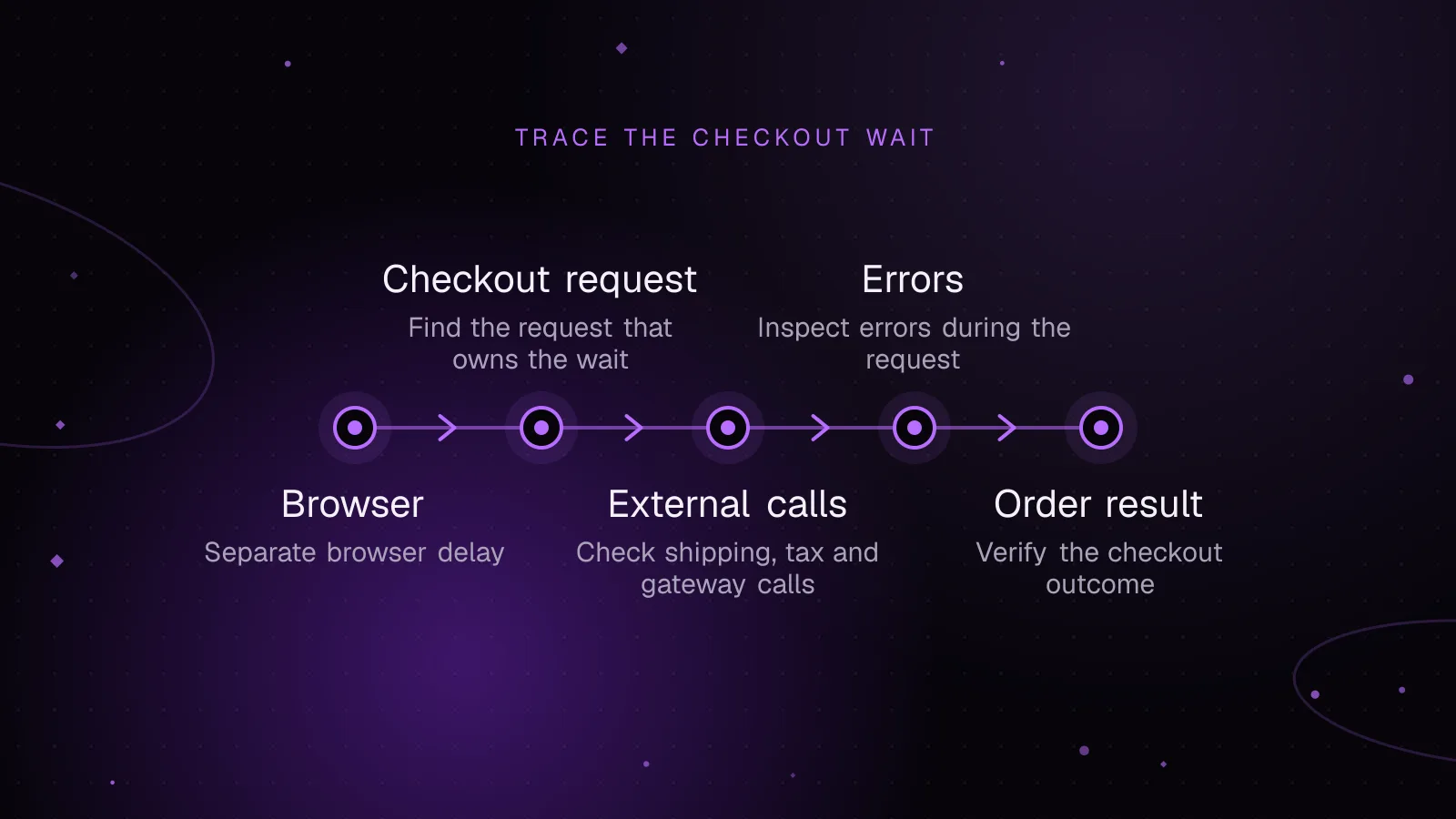
When your WooCommerce checkout is slow, start with the single browser request that begins when the delay begins. Record that request's timing, then match it to a server trace so you can separate browser delay from WooCommerce, shipping, tax, gateway, database, or server work. Change one dependency on staging, repeat the same checkout, and verify the expected totals, payment state, and errors before accepting a fix.
WooCommerce checkout slow: find the request that owns the wait
Do not start by disabling random plugins. First reproduce one specific interaction: loading checkout, changing an address, choosing shipping, or pressing Place order. Open the browser Network panel, preserve the log, perform only that interaction, and note the request that spans the visible delay.
The request depends on the checkout type. WooCommerce says stores started after version 8.3, released in November 2023, use the Cart and Checkout blocks by default. Established stores may still use the classic shortcode checkout. You can confirm the page setup with WooCommerce's Cart and Checkout customization documentation (opens in a new tab).
On classic checkout, look for requests such as ?wc-ajax=update_order_review while address or shipping data changes. WooCommerce core calculates shipping before totals during that update. When Place order is submitted, the classic ?wc-ajax=checkout handler passes the request into checkout processing.
On block checkout, filter Network requests for wc/store. The current Store API exposes POST /wc/store/v1/checkout, which accepts the final customer addresses and payment method, attempts payment, and returns the result. The Checkout API reference (opens in a new tab) documents that endpoint.
The important point is the boundary. If the customer clicks Place order and no WooCommerce request starts for a while, the wait is happening before WordPress receives the checkout request. If the request starts promptly and then waits, trace the server side of that request.
Separate browser delay from server delay
Chrome DevTools shows request phases in the Network panel. Its Network timing reference (opens in a new tab) defines Waiting (TTFB) as one network round trip plus the time the server takes to prepare the first byte. TTFB is therefore useful, but it is not a pure PHP measurement.
Use three observations:
- If there is a gap between the checkout action and the WooCommerce request starting, inspect browser JavaScript, validation, and any gateway-side browser call that runs first.
- If the WooCommerce request starts quickly and most of its time is Waiting (TTFB), match it to a server trace. The delay can sit in PHP, database work, a queue for server capacity, or a blocking outbound request.
- If the first byte arrives quickly but the customer still waits, inspect response download, redirects, browser JavaScript, and the next request in the chain.
A server trace is simply a timeline for the same server request. It should show PHP work, database calls, and outbound HTTP calls if your tracing tool records them. Match browser and server records by timestamp, HTTP method, route, and approximate request duration. Redact customer data, payment data, tokens, cookies, and authorization headers before sharing a trace.
Identify shipping, tax, and gateway calls inside the request
A browser waterfall cannot show every dependency. A payment, tax, or carrier request made by PHP happens inside the WooCommerce request from the browser's point of view.
For classic checkout, update_order_review is a useful boundary because current WooCommerce core calculates shipping and then totals before returning refreshed checkout fragments. A slow request here can therefore include shipping calculation, tax calculation, extension callbacks, database work, and outbound calls made during those steps.
Place order is a different boundary. A gateway may run browser-side work before the WooCommerce request starts, server-side work while the request is open, or both. Do not label the gateway as slow from the browser request alone. Find the matching outbound span in the server trace, or the browser-side provider request that precedes checkout.
Use this decision table to choose the next test:
| Signal | What it tells you | Next controlled test |
|---|---|---|
| WooCommerce request starts late after the user action | The delay begins in the browser or a browser-side provider step | Record a browser performance trace and isolate the script or provider request that runs first |
update_order_review waits while a carrier or tax HTTP span is open | That dependency is on the server-side recalculation path | On staging, replace only that remote dependency with a local test equivalent and repeat |
| Place order waits while a gateway HTTP span is open | The gateway call is part of the server-side wait | Repeat with the gateway in sandbox mode, then compare with an offline test method as a diagnostic control |
| WooCommerce request waits with no long outbound span | The wait is elsewhere in WordPress, PHP, the database, or server capacity | Profile the matching server transaction instead of changing payment settings |
| Browser provider call finishes slowly before WooCommerce starts | The delay is outside the server request | Inspect that provider call and the JavaScript that waits for it |
Tax and shipping behavior differs by store. Some stores calculate locally, while others use extensions that call remote services. Trace the store you have rather than assuming an external API exists.
Copy this redacted checkout trace worksheet
The artifact below is a fictional, redacted demo specification. Every sample name, scenario, and number is marked illustrative, and every result is an expected example rather than an observed result. Use sandbox or test payments only.
First record the environment. WooCommerce's System Status report (opens in a new tab) shows current version numbers for active plugins, which makes the test reproducible.
Checkout trace record

Test environment: <staging URL or environment name>
WooCommerce version: <record from WooCommerce > Status>
Checkout type: <classic | block>
Theme and version: <record>
Payment extension and version: <record>
Shipping extension and version: <record>
Tax extension and version: <record>
Payment mode: sandbox/test only
Cart contents: <fixed test cart>
Shipping address: <redacted test address>
Expected subtotal: <record>
Expected shipping total: <record>
Expected tax total: <record>
Expected order total: <record>
Expected payment state: <record for this gateway flow>
Expected validation error: <record one safe failure case>
Then capture several repeats of the same interaction before changing anything. Keep the cart, address, account state, shipping choice, and payment method fixed.
| Scenario | Run | Browser request | Total time | Waiting (TTFB) | Matching server span | Expected reading |
|---|---|---|---|---|---|---|
| Baseline sandbox Place order, illustrative | Run A, illustrative | POST /?wc-ajax=checkout, illustrative route | 2.40 s, illustrative | 2.18 s, illustrative | POST gateway.example, redacted and illustrative, 1.46 s illustrative | Gateway span occupies much of the server wait, illustrative expected reading |
| Baseline sandbox Place order, illustrative | Run B, illustrative | POST /?wc-ajax=checkout, illustrative route | 2.55 s, illustrative | 2.31 s, illustrative | POST gateway.example, redacted and illustrative, 1.52 s illustrative | Same dependency remains visible, illustrative expected reading |
| Baseline sandbox Place order, illustrative | Run C, illustrative | POST /?wc-ajax=checkout, illustrative route | 2.44 s, illustrative | 2.20 s, illustrative | POST gateway.example, redacted and illustrative, 1.49 s illustrative | Same dependency remains visible, illustrative expected reading |
| Offline payment control, illustrative | Run A, illustrative | POST /?wc-ajax=checkout, illustrative route | 0.91 s, illustrative | 0.73 s, illustrative | No gateway HTTP span, illustrative | Removing only the remote payment step reduces expected request time, illustrative |
| Offline payment control, illustrative | Run B, illustrative | POST /?wc-ajax=checkout, illustrative route | 0.88 s, illustrative | 0.71 s, illustrative | No gateway HTTP span, illustrative | Expected result remains consistent, illustrative |
| Offline payment control, illustrative | Run C, illustrative | POST /?wc-ajax=checkout, illustrative route | 0.94 s, illustrative | 0.75 s, illustrative | No gateway HTTP span, illustrative | Expected result remains consistent, illustrative |
For the illustrative set below, use the middle value after sorting the repeated timings:
Baseline median = middle(Baseline run A, Baseline run B, Baseline run C)
Variant median = middle(Variant run A, Variant run B, Variant run C)
Timing delta = Variant median - Baseline median
Dependency share = matching dependency span / total server-request duration, expressed as a percentage
The offline payment row is a diagnostic control, not a production fix. It changes checkout behavior on purpose. Return to the sandbox gateway before testing the final code or configuration change.
Do the same isolation for shipping or tax only when your trace points there. Change one thing, repeat the same procedure, and keep a note of what changed. Do not compare runs that use different carts, addresses, shipping methods, or account states unless that difference is the variable you are testing.
Do not generalize the expected pattern in this illustrative demo to another store. Use the dependency spans and repeated timings from that store's own request path.
Check errors while the same request is running
A timeout can hide a PHP error or extension failure. On staging, use the logging configuration in the WordPress debugging documentation (opens in a new tab): enable WP_DEBUG and WP_DEBUG_LOG, disable WP_DEBUG_DISPLAY, and turn off PHP error display so debug messages are not printed into checkout responses.
define( 'WP_DEBUG', true );
define( 'WP_DEBUG_LOG', true );
define( 'WP_DEBUG_DISPLAY', false );
@ini_set( 'display_errors', 0 );
With WP_DEBUG_LOG set to true, WordPress writes the log to the content directory, usually wp-content/debug.log. You can instead set WP_DEBUG_LOG to a valid custom file path, such as a log file outside the public web root.
This matters during checkout testing because WP_DEBUG_DISPLAY defaults to true when debugging is enabled. Leaving display enabled can put PHP errors or warnings into a response and change the request you are trying to measure.
Match the log timestamp to the browser request and server trace. A clean browser response does not tell you whether a warning or recoverable error happened during the request. A failed browser response also does not identify which dependency failed without server evidence.
If checkout stays slow after disabling ordinary plugins, keep tracing. WooCommerce core, the theme, custom code, PHP, the database, server capacity, DNS, network latency, and remote services can still sit on the request path. Plugin isolation answers one question; it does not prove the remaining stack is fast.
Treat a 504 after Place order as an unfinished request path
An HTTP 504 means a gateway or proxy did not receive a response from its upstream server in time. That is the definition in MDN's 504 reference (opens in a new tab). The status code does not identify whether PHP, the database, server capacity, or a server-side remote call caused the upstream delay.
When a WooCommerce checkout timeout appears after Place order, correlate the 504 with the origin trace and logs. Look for the last span that started but did not finish before the proxy gave up.
Do not assume the payment failed just because the browser received a 504. Check the WooCommerce order and the sandbox gateway state before repeating the payment attempt. Your correctness test should define the expected order and payment state for both success and failure paths.
Verify the faster request still produces the right checkout
A timing improvement is useful only if the same scenario still behaves as expected. Run the original checkout path again with the intended fix in place, not the temporary isolation control.
Check all of these against values recorded before the change:
- Confirm the expected subtotal, discount, shipping, tax, and final total.
- Confirm the expected shipping method remains available for the test address.
- Confirm the sandbox gateway reaches the expected payment and order state.
- Run one safe failure case and confirm the expected customer-facing error appears.
- Check that a retry follows the expected order and payment behavior for that gateway.
- Repeat the timing runs with the same cart, address, account state, shipping method, and payment method.
- Record the extension versions with the final trace so another developer can reproduce the setup.
A fast request with a missing tax, skipped shipping rate, wrong payment state, or swallowed error is a failed change.
Choose the next step from what the trace shows
If the trace points beyond checkout to broader origin performance, use the WooCommerce Core Web Vitals speed guide for the store-wide work instead of repeating it here. If you need request-level implementation help after isolating the slow dependency, the WooCommerce speed optimization service covers that work.
If the investigation shows that your classic checkout and extension set are the problem you plan to replace, follow the WooCommerce cart and checkout blocks migration plan so compatibility testing and rollback stay separate from this timing diagnosis.
Frequently asked questions
Why is wc-ajax=checkout taking so long to respond?
The classic checkout endpoint runs WooCommerce checkout processing, and extensions can add database work or blocking remote calls inside that request. Match the browser request to a server trace so you can see which span owns the wait instead of judging from the endpoint name alone.
Why is WooCommerce checkout still slow after disabling plugins?
Disabling ordinary plugins removes some extension work, but it leaves WooCommerce core, the theme, PHP, the database, server capacity, network latency, and any remaining custom code on the path. Reproduce one slow request and profile that exact transaction rather than treating plugin isolation as the final test.
Why does the checkout request return a 504 after Place order?
A 504 means a gateway or proxy timed out while waiting for an upstream server. Correlate the failed request with origin logs and a server trace, then check the WooCommerce order and sandbox gateway state before retrying payment.
How can I tell whether the payment gateway or the server is delaying checkout?
Compare the browser waterfall with the matching server trace. A provider request that delays the WooCommerce request points to browser-side gateway work; a long outbound gateway span inside the WooCommerce request points to a server-side gateway wait; no such span sends the investigation back to the server path.
How this article was made: drafted with AI assistance from a researched brief, then checked against primary documentation before publishing.
Share this article
Enjoyed this? Get the next article by email.
Keep reading
 Performance
7 min read
WooCommerce Action Scheduler: clear a backlog and keep it healthy
A WooCommerce Action Scheduler backlog means scheduled background work is arriving faster than it is being processed, or processing has stopped. Start by grouping pending and failed actions by hook, fix the hook or cron problem, then drain the queue with WP-CLI instead of deleting unknown jobs.
- WooCommerce
- WP-CLI
- Performance
 Performance
8 min read
WooCommerce cart fragments: what they cost and when to remove them
WooCommerce cart fragments keep a legacy mini cart synchronized after cart changes, but the refresh request reaches PHP and cannot use a normal full-page cache.
- WooCommerce
- Performance
- Caching
 Performance
7 min read
WooCommerce HPOS: migrate to High-Performance Order Storage safely
WooCommerce HPOS moves core order data out of WordPress post storage into dedicated WooCommerce tables. Migrate safely by checking extension compatibility, synchronizing both data stores, verifying them, switching HPOS to authoritative, then testing every order workflow before you disable synchronization.
- WooCommerce
- Database
- Performance