Performance7 min read
WooCommerce HPOS: migrate to High-Performance Order Storage safely
Migrate WooCommerce HPOS safely, check plugin compatibility, sync and verify orders, switch storage, test workflows, and roll back.
 By Hamza Ahmad AslamWordPress VIP, Performance & Full-Stack Engineer
On this page
- What High-Performance Order Storage changes
- How to check HPOS compatibility before changing storage
- Replace direct order meta reads
- Replace WP_Query order lookups
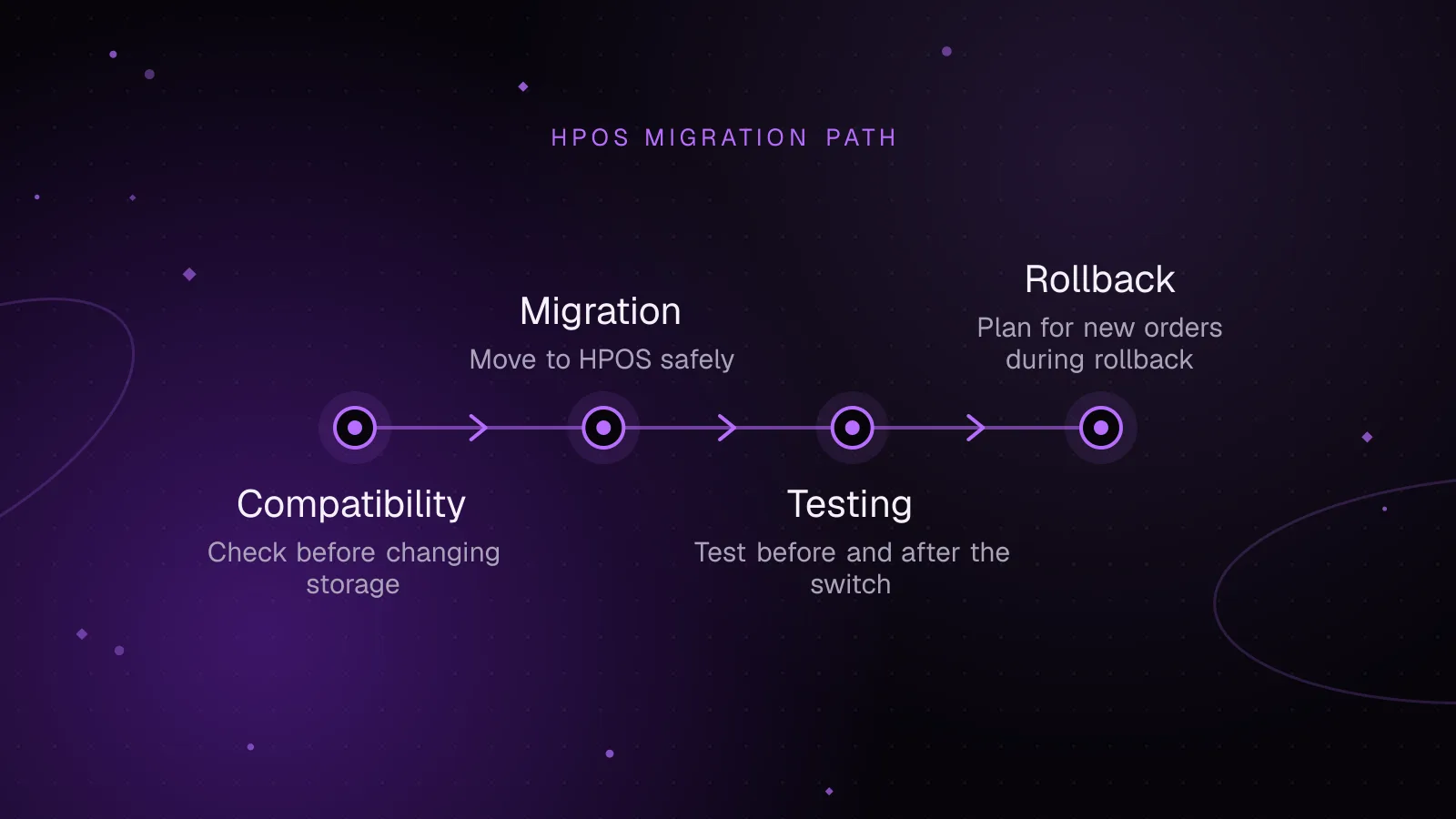
- How to migrate safely with WooCommerce HPOS
- Start with WordPress posts authoritative and enable compatibility mode
- Switch the authoritative storage but keep synchronization enabled
- Disable synchronization only after the store passes its checks
- What to test before and after the switch
- How to roll back without losing new orders
- What to do next
- Frequently asked questions
Short answer: WooCommerce HPOS moves core order data out of WordPress post storage into dedicated WooCommerce tables. Migrate safely by checking extension compatibility, synchronizing both data stores, verifying them, switching HPOS to authoritative, then testing every order workflow before you disable synchronization.
What High-Performance Order Storage changes
Before HPOS, WooCommerce stored an order as a shop_order post in the posts table, with much of its data in post meta. HPOS gives order data its own schema. The current WooCommerce HPOS documentation (opens in a new tab) lists four custom order tables.
The names below assume the default wp_ table prefix. On a site with a different database prefix, that prefix replaces wp_.
wp_wc_ordersstores the main order record and commonly queried fields.wp_wc_order_addressesstores billing and shipping addresses.wp_wc_order_operational_datastores internal order state and operational fields.wp_wc_orders_metastores order metadata that is not represented by a dedicated order property.
The wc_orders table is therefore only one part of the HPOS schema. These WooCommerce custom order tables separate order concerns that formerly shared generic WordPress storage. Order items already use their own WooCommerce tables, so HPOS does not move those from wp_posts. Order notes also are not part of these four tables.
The WooCommerce HPOS database schema (opens in a new tab) explains the performance reason. Common order fields can use dedicated columns and indexes, and many searches need fewer joins against large post-meta data. Writes also avoid scattering one order across a generic post record and many unrelated metadata rows.
HPOS became the default order storage for new WooCommerce installations in WooCommerce 8.2, released in October 2023. Existing stores are not forced through the migration automatically. They can switch after their order data and extensions are ready.
How to check HPOS compatibility before changing storage
Start in WooCommerce > Settings > Advanced > Features. Review the Order data storage setting and any compatibility warning before changing the authoritative store. WooCommerce can disable the HPOS choice when an active extension declares itself incompatible.
For a command-line view, the current HPOS CLI includes a compatibility report:
wp wc hpos compatibility-info
Treat an "uncertain" result as work to investigate, not as proof of compatibility. Check the extension's current release notes or vendor documentation, then test the exact workflows that extension owns.
A plugin that has been audited and tested can declare HPOS compatibility through FeaturesUtil::declare_compatibility(). The declaration must run on before_woocommerce_init. The feature ID remains custom_order_tables, even though the feature is now named High-Performance Order Storage.
<?php
use Automattic\WooCommerce\Utilities\FeaturesUtil;

add_action( 'before_woocommerce_init', function() {
	if ( class_exists( FeaturesUtil::class ) ) {
		FeaturesUtil::declare_compatibility( 'custom_order_tables', __FILE__, true );
	}
} );
Do not add that declaration only to silence the admin warning. The official HPOS upgrade recipe (opens in a new tab) says the code should first be examined for direct database access and WordPress post APIs used against orders.
Replace direct order meta reads
Code that treats an order ID as a post ID depends on the legacy storage layout.
Before:
<?php
$warehouse_code = get_post_meta( $order_id, '_warehouse_code', true );
After:
<?php
$order = wc_get_order( $order_id );

if ( $order ) {
	$warehouse_code = $order->get_meta( '_warehouse_code', true );
}
The second version asks WooCommerce for the order object, then lets its data store resolve where the metadata lives. That works with both supported order storage modes.
Replace WP_Query order lookups
A WP_Query against shop_order assumes orders are WordPress posts. Replace order retrieval with wc_get_orders() or WC_Order_Query.
Before:
<?php
$query = new WP_Query(
	array(
		'post_type'      => 'shop_order',
		'post_status'    => array( 'wc-processing' ),
		'posts_per_page' => 20,
		'fields'         => 'ids',
	)
);

$order_ids = $query->posts;
After:
<?php
$order_ids = wc_get_orders(
	array(
		'status' => array( 'wc-processing' ),
		'limit'  => 20,
		'return' => 'ids',
	)
);
The WooCommerce order query documentation (opens in a new tab) defines these arguments and recommends the WooCommerce query APIs instead of direct WordPress or SQL order queries.
Search custom code for direct SQL against posts or post meta too. Integrations that read the database without loading WordPress will not be fixed by changing PHP code alone.
How to migrate safely with WooCommerce HPOS
Treat the HPOS migration as a data migration, not a settings change. Take a current database backup first, then rehearse it on staging with the same plugins and custom order code as production. Keep extensions that register order-like custom post types active during the migration so their data can be included correctly.
Start with WordPress posts authoritative and enable compatibility mode
In WooCommerce > Settings > Advanced > Features, keep WordPress posts storage authoritative and enable compatibility mode. WooCommerce then synchronizes order data between legacy storage and the HPOS tables.
The same state can be managed through the current CLI commands. The WooCommerce HPOS CLI reference (opens in a new tab) documents the wc hpos namespace. The older wc cot namespace is deprecated.
wp wc hpos status
wp wc hpos compatibility-mode enable
wp wc hpos count_unmigrated
wp wc hpos sync --batch-size=500
wp wc hpos verify_data --verbose
The documented default batch size for both sync and verify_data is 500. Supplying it explicitly is useful when you want the command shown in deployment notes to match the batch size you tested.
Example output from a completed sync could look like this. These values are illustrative, not measurements from a real store.
There are 240 orders to be synced.
Order Data Sync 100%
Sync completed.
Success: 240 orders were synced.
Example output from a clean verification could look like this:
Order Data Verification 100%
Verification completed.
Success: 240 orders were verified.
Use the current verification command name, wp wc hpos verify_data. If verification reports differences, stop the switch and investigate those orders before treating HPOS as authoritative.
Switch the authoritative storage but keep synchronization enabled
After the pending sync count reaches zero and verification is clean, switch the authoritative store to HPOS. In the admin, select High-performance order storage under Order data storage.
From CLI, you can make HPOS authoritative while retaining compatibility mode:
wp wc hpos enable --with-sync
Keeping synchronization enabled at this stage gives you a current posts copy while you test production behavior. It also makes a fast rollback possible if a plugin still reads legacy order data.
Do not turn synchronization off immediately after the switch. First confirm that checkout, order administration, refunds, scheduled work, reports, and external integrations behave correctly with HPOS authoritative.
Disable synchronization only after the store passes its checks
Once every critical path works and no integration depends on posts-based order data, disable compatibility mode:
wp wc hpos compatibility-mode disable
There is no need to delete legacy order rows as part of the migration. Removing old data makes rollback harder and is separate from making HPOS authoritative.
What to test before and after the switch
Run the same test plan before migration, with compatibility mode enabled, after HPOS becomes authoritative, and again after synchronization is disabled. That isolates storage-specific failures from unrelated checkout or extension bugs.
Test these flows with the same payment, tax, shipping, and order-management extensions used in production:
- Create orders through each checkout path you support, then inspect addresses, totals, taxes, payment data, notes, and custom metadata.
- Create full and partial refunds, then confirm refund records and downstream accounting or fulfillment behavior.
- If the store uses subscriptions, create a subscription, process renewal-related flows in the supported test environment, and inspect linked order data.
- Open order lists and individual order screens, then test status changes, bulk actions, exports, emails, and any custom admin columns.
- Run the reports and analytics the business relies on, including custom reports that may contain direct SQL.
- Exercise webhooks, ERP or warehouse feeds, shipping tools, fraud systems, accounting connectors, and data warehouse jobs.
Third-party systems deserve special attention. A reporting script can continue "working" while reading stale wp_posts rows during compatibility mode. Once synchronization is disabled, that hidden dependency becomes visible.
Inspect any integration that queries the WordPress database directly. It should use a supported WooCommerce API where possible, or be rewritten deliberately for the HPOS schema if it cannot load WooCommerce.
How to roll back without losing new orders
If something fails while compatibility mode is still enabled, keep HPOS authoritative long enough to make sure the posts data is current. Run the sync and verification commands again, then switch Order data storage back to WordPress posts storage.
wp wc hpos sync
wp wc hpos verify_data --verbose
You can also use the CLI to switch back after the data stores pass the required checks:
wp wc hpos disable
If compatibility mode was already disabled, do not switch storage immediately. Re-enable compatibility mode first, synchronize the newer HPOS orders back to posts storage, verify the data, then make posts authoritative.
A database restore is a different operation. Restoring a pre-migration database after live orders have been created can discard those newer transactions. Prefer the synchronized rollback path unless you are handling a wider incident that requires a restore.
Keep the problematic extension or custom code isolated until you know why it failed. Direct reads from wp_posts, direct order-meta access, and custom SQL are common places to inspect.
What to do next
After the storage migration is stable, check the wider request path with the guide to speeding up WooCommerce. If background jobs delayed the migration or renewals, use the WooCommerce Action Scheduler article to inspect scheduled work instead of guessing.
If database time is still high, trace it with the guide to slow WordPress database queries. For a store that needs profiling, query cleanup, caching changes, and checkout work together, see the WooCommerce speed optimization service.
Frequently asked questions
Is High-Performance Order Storage safe for an existing WooCommerce store?
Yes, if you treat it as a migration rather than a settings toggle. Check extension compatibility, synchronize both stores, verify the data, keep compatibility mode during testing, and only disable it after the store's critical flows pass.
Can I enable WooCommerce HPOS if a plugin is not marked compatible?
WooCommerce can block the HPOS setting when an active plugin declares incompatibility. If compatibility is uncertain, update or replace the plugin, or confirm support with its developer before changing the authoritative order store.
Does HPOS remove orders from wp_posts and wp_postmeta immediately?
Not while compatibility mode is keeping both data stores synchronized. After HPOS is authoritative and synchronization is disabled, WooCommerce no longer needs posts and post meta as the live order datastore, although legacy records may remain.
What happens if I disable HPOS after new orders have been placed?
Make the posts datastore current before switching back. Re-enable compatibility mode if needed, sync from the authoritative HPOS store, verify both copies, then select WordPress posts storage or run wp wc hpos disable.
Share this article
Enjoyed this? Get the next article by email.
Keep reading
 Performance
7 min read
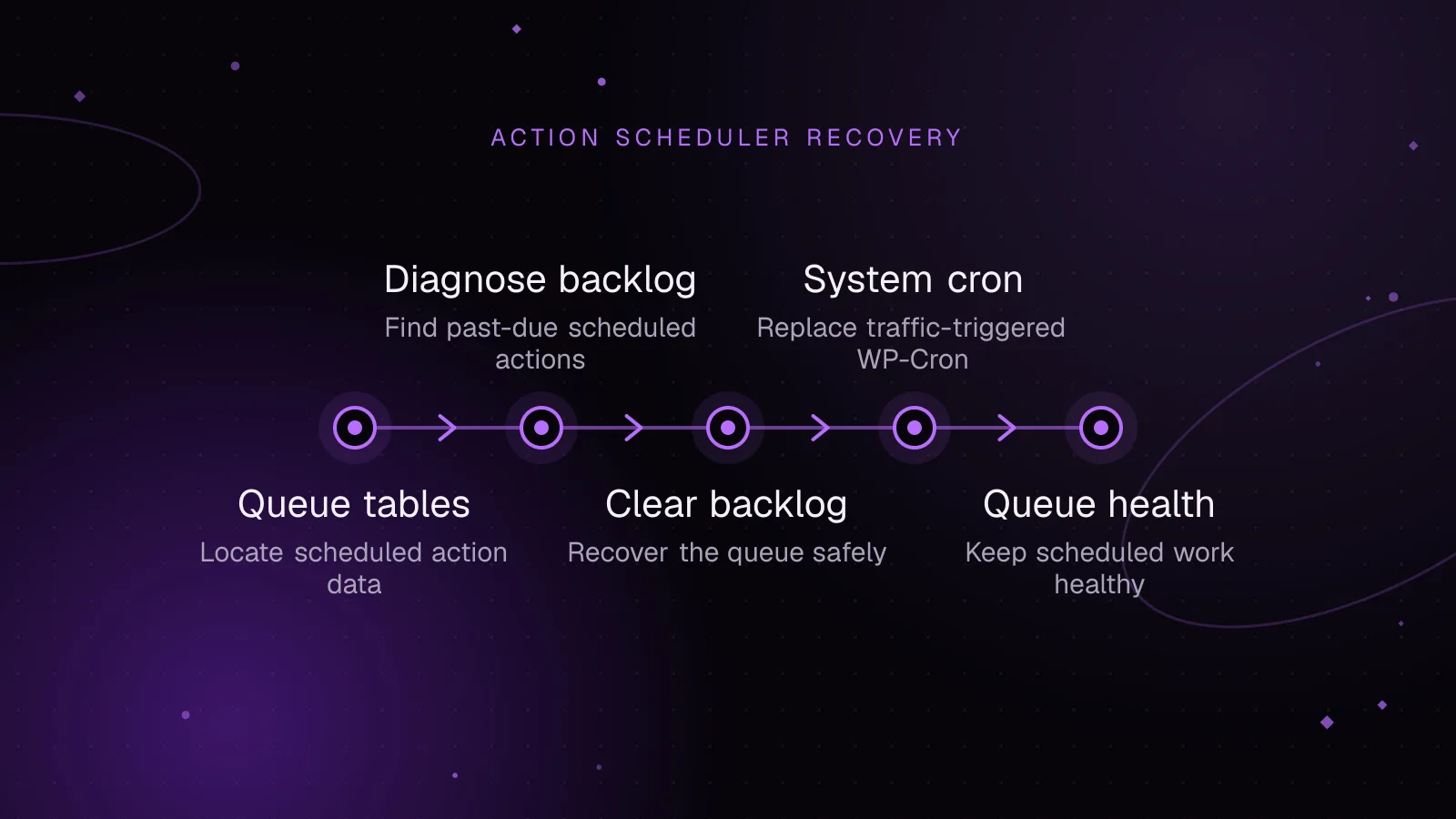
WooCommerce Action Scheduler: clear a backlog and keep it healthy
Fix a WooCommerce Action Scheduler backlog safely. Learn to inspect hooks, run the queue with WP-CLI, repair WP-Cron, and prevent repeat failures.
- WooCommerce
- WP-CLI
- Performance
 Performance
8 min read
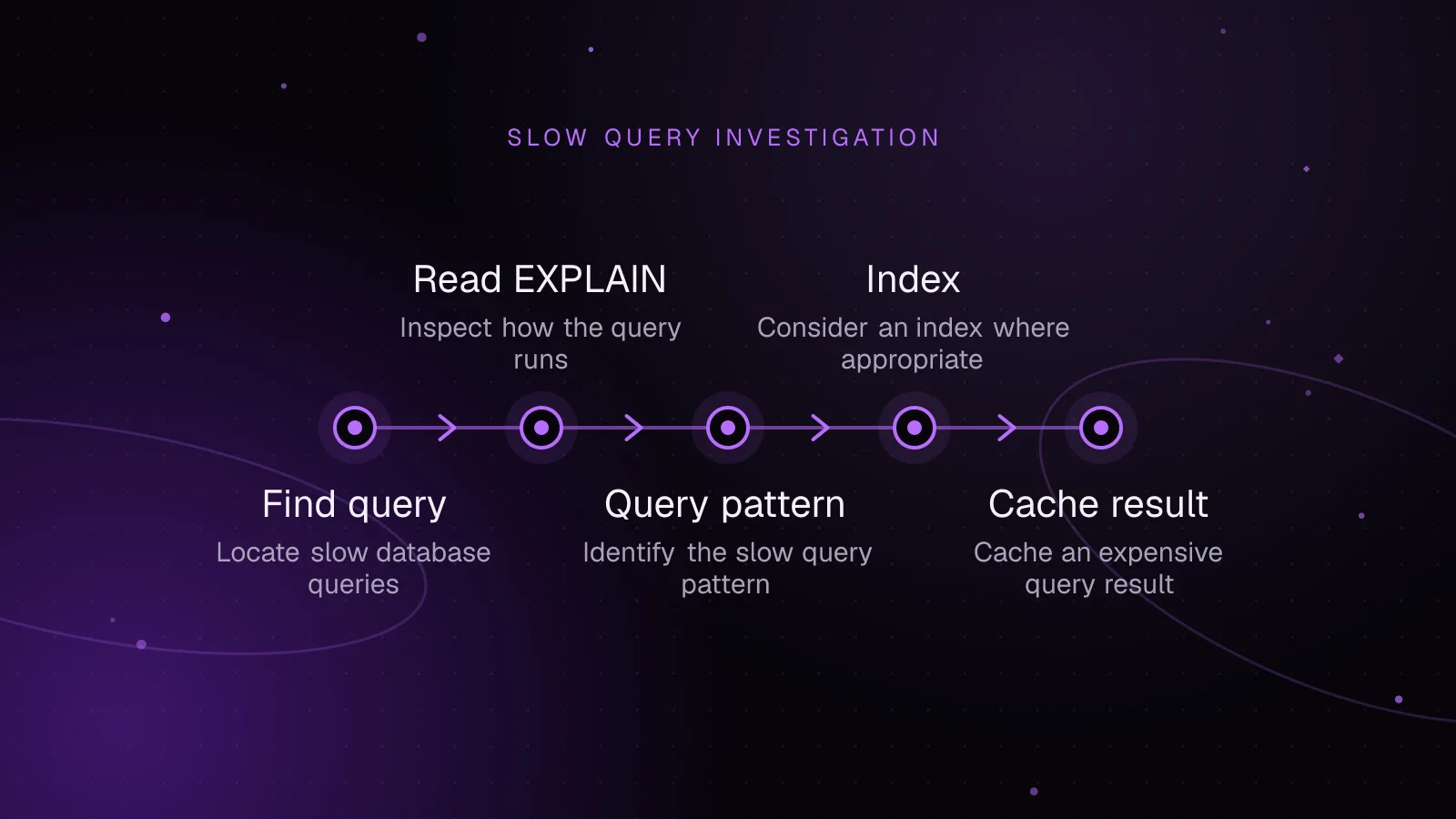
How to find and fix slow WordPress database queries
Find WordPress slow database queries, read EXPLAIN plans, fix common query patterns, add safer indexes, and cache expensive results correctly.
- WordPress
- Database
- MySQL
 Performance
8 min read
WordPress autoloaded options: measure and review wp_options
Measure WordPress autoloaded options, find the largest wp_options rows and their owners, then change autoload safely with WordPress APIs and WP-CLI.
- WordPress
- wp_options
- MySQL