Performance7 min read
WooCommerce Action Scheduler: clear a backlog and keep it healthy
Fix a WooCommerce Action Scheduler backlog safely. Learn to inspect hooks, run the queue with WP-CLI, repair WP-Cron, and prevent repeat failures.
 By Hamza Ahmad AslamWordPress VIP, Performance & Full-Stack Engineer
On this page
- What Action Scheduler does in WooCommerce
- Which tables hold scheduled actions
- How to diagnose a WooCommerce Action Scheduler backlog
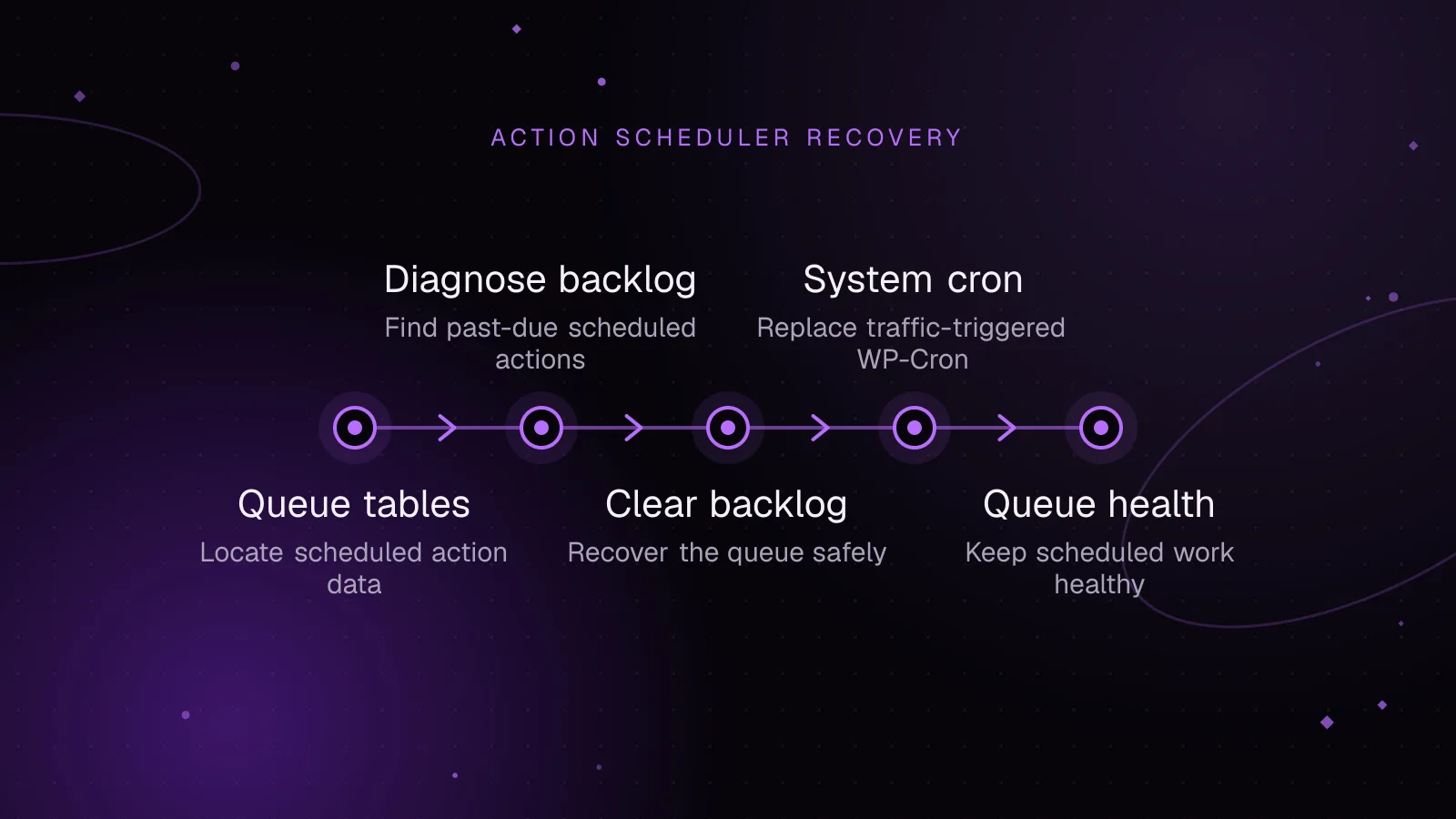
- How to clear Action Scheduler past-due actions safely
- Triage failed hooks before deleting anything
- Drain valid pending work with WP-CLI
- Clean old completed records only after triage
- How to replace traffic-triggered WP-Cron with system cron
- How to keep the queue healthy after recovery
- Keep retention separate from execution capacity
- Treat concurrency as server capacity
- Monitor count and age, not count alone
- What to do next
- Frequently asked questions
Short answer: A WooCommerce Action Scheduler backlog means scheduled background work is arriving faster than it is being processed, or processing has stopped. Start by grouping pending and failed actions by hook, fix the hook or cron problem, then drain the queue with WP-CLI instead of deleting unknown jobs.
What Action Scheduler does in WooCommerce
Action Scheduler is a job queue bundled with WooCommerce and many WooCommerce extensions. It stores work that should run later or outside the original web request. WooCommerce documents scheduled actions for tasks such as order notifications and payment processing, while extensions use the same queue for subscription payments, webhooks, emails, imports, and other background jobs. The WooCommerce scheduled actions documentation (opens in a new tab) describes the admin screen and common uses.
Open WooCommerce > Status > Scheduled Actions to inspect the queue. You can filter by status, search by hook, run a pending action, and read logs attached to an action. The same Action Scheduler screen is also available under Tools on installations that expose it there.
A pending action is work that has not completed yet. The Past-due view is not a separate stored status. Current Action Scheduler code treats it as pending work whose scheduled time is already in the past. Failed scheduled actions are different: execution started or was attempted, then the action was recorded as failed.
Which tables hold scheduled actions
Current Action Scheduler uses four custom tables, each with the WordPress database prefix:
actionscheduler_actionsstores each action, including its hook, status, schedule, arguments, group ID, attempts, and claim ID.actionscheduler_logsstores log entries tied to action IDs.actionscheduler_groupsmaps group IDs to group slugs.actionscheduler_claimsrecords claims used by queue runners while they reserve work.
With the default WordPress prefix, the actions table is wp_actionscheduler_actions. A custom prefix changes that name, so confirm $table_prefix before running SQL. The actionscheduler_actions table is the place to start when you need to see which hooks dominate a backlog.
This query counts actions by stored status and hook:
SELECT
    status,
    hook,
    COUNT(*) AS action_count
FROM wp_actionscheduler_actions
GROUP BY status, hook
ORDER BY action_count DESC, status ASC, hook ASC;
The result tells you whether one hook owns most pending or failed work. That distinction matters because a queue-wide problem and a single broken callback require different fixes.
For a direct count of currently past-due pending work, use the scheduled GMT timestamp:
SELECT
    COUNT(*) AS past_due_actions,
    MIN(scheduled_date_gmt) AS oldest_past_due_gmt
FROM wp_actionscheduler_actions
WHERE status = 'pending'
  AND scheduled_date_gmt < UTC_TIMESTAMP();
Use this as a diagnostic query, not as a deletion target. Deleting rows directly can leave related logs, recurring schedules, plugin state, or business operations in an unexpected state.
How to diagnose a WooCommerce Action Scheduler backlog
Start with the queue shape. Count pending and failed actions by hook, then inspect the oldest rows in the admin screen. Read the logs for repeated failures. A hook name usually points toward the plugin or WooCommerce component that registered the callback.
Three causes account for many backlogs.
First, default WP-Cron depends on WordPress requests to spawn due events. It is not a continuously running daemon. Low traffic can delay cron, and a site with DISABLE_WP_CRON set to true needs another runner. Action Scheduler itself schedules queue processing through WP-Cron unless you provide another execution path.
Second, one hook can fail repeatedly. A callback may throw an exception, hit a fatal error, lose access to an external API, or consume more time or memory than the request can provide. Repeated failures can keep related business work from completing even while unrelated hooks continue normally.
Third, a plugin can enqueue a burst of work faster than the site can process it. Imports, subscription events, webhooks, migrations, and batch maintenance can all create bursts. A large queue is not proof of a bug by itself. The useful questions are whether the oldest due action keeps getting older and whether completed throughput catches up.
How to clear Action Scheduler past-due actions safely
Triage failed hooks before deleting anything
Filter the Scheduled Actions screen to Failed, then group what you see by hook. Open representative log entries and identify the plugin that owns each hook. Fix the failing dependency first, such as a PHP error, missing callback, remote service failure, or exhausted server resource.
Do not bulk-delete payment, renewal, webhook, stock, email, or migration actions only because the count is large. Deletion removes evidence and may remove work the store still needs. If a hook is no longer registered because its plugin was intentionally removed, confirm that business work is obsolete before cleaning it.
Drain valid pending work with WP-CLI
Current Action Scheduler provides a dedicated WP-CLI runner. Its official WP-CLI documentation (opens in a new tab) confirms that --batch-size defaults to 100, while --batches=0 continues until no more matching actions remain.
wp action-scheduler run --batch-size=100 --batches=0
For a store with WooCommerce Subscriptions, you can target the documented subscription payment hook:
wp action-scheduler run --hooks=woocommerce_scheduled_subscription_payment --batch-size=100 --batches=0
Use hook-specific runs carefully. Action Scheduler warns that separating hooks or groups can change the execution order of actions that were scheduled in sequence.
Example output from an illustrative run:
Found 100 scheduled tasks
1 batch executed.
Success: 100 scheduled tasks completed.
The CLI runner avoids the normal web request path and is the better fit for a large queue. Do not add --force as a reflex. That flag bypasses the normal concurrency check, so it can increase pressure on PHP, the database, and external services.
Clean old completed records only after triage
Current Action Scheduler also provides clean. Its default statuses are complete and canceled, its default batch size is 20, and its default cutoff is 31 days.
wp action-scheduler clean --status=complete,canceled --before='31 days ago' --batch-size=20 --batches=0
That command deliberately leaves failed actions out. Keep it that way until you have reviewed failures and decided whether they still matter.
How to replace traffic-triggered WP-Cron with system cron
A reliable system scheduler removes traffic as the trigger for WP-Cron. WordPress documents this pattern in its system task scheduler guide (opens in a new tab).
Add this to wp-config.php so page requests stop spawning WP-Cron:
define( 'DISABLE_WP_CRON', true );
Then run due WordPress cron events from the system scheduler. This example runs as a crontab entry and assumes the WordPress install is /var/www/html and wp is available to that cron user:
* * * * * cd /var/www/html && wp cron event run --due-now >/dev/null 2>&1
wp cron event run --due-now (opens in a new tab) is a current WP-CLI command for executing due WP-Cron events. Run the cron entry as a Unix user with the required WordPress file and database permissions. Confirm the command works interactively under that same user before relying on cron.
If you choose to run Action Scheduler directly from system cron as well, avoid accidentally creating competing runners. Decide whether WP-Cron, direct Action Scheduler WP-CLI runs, or a platform-specific scheduler owns queue execution.
How to keep the queue healthy after recovery
Keep retention separate from execution capacity
Current Action Scheduler retains complete and canceled actions for 31 days through the action_scheduler_retention_period filter. Since Action Scheduler 4.0.0, failed actions use a separate three-month retention default controlled by action_scheduler_retention_period_for_failed.
This reference snippet pins the current complete and canceled retention default. Put site-specific filters in a small custom plugin or an mu-plugin, not in a parent theme.
add_filter( 'action_scheduler_retention_period', function ( $retention_period ) {
    return 31 * DAY_IN_SECONDS;
} );
Changing retention can reduce historical rows, but it does not make a broken queue process faster. Retention applies to cleanup, while queue throughput depends on workers, callback duration, database work, and external services.
Treat concurrency as server capacity
The current default for action_scheduler_queue_runner_concurrent_batches is 1. The web queue runner currently claims 25 actions per batch by default. The Action Scheduler performance documentation (opens in a new tab) warns that increasing concurrency can sharply increase server load.
This snippet pins the current concurrency default:
add_filter( 'action_scheduler_queue_runner_concurrent_batches', function ( $concurrent_batches ) {
    return 1;
} );
Do not raise that value only because pending counts look high. More concurrent batches can consume more PHP workers, database connections, and remote API capacity. Fix slow or failing hooks first, then test any concurrency change against the server limits in place.
Monitor count and age, not count alone
Track the number of past-due actions and the scheduled time of the oldest one. A temporary rise can be normal during a burst. A rising oldest age is more useful because it shows that processing is falling behind.
Watch failed counts by hook at the same time. If one hook grows while others complete, investigate that callback. If many unrelated hooks become past due together, inspect WP-Cron, PHP worker availability, database health, loopback requests, and server-level scheduling.
What to do next
If queue processing is making wp-admin slow, follow the slow WordPress admin guide and check whether background requests are competing for the same PHP workers. The WordPress PHP workers guide explains that capacity boundary in more detail.
If the backlog started during order-table work, check the WooCommerce HPOS migration guide before changing or deleting migration actions. For a store where queue pressure is part of a wider performance problem, the WooCommerce speed optimization service covers PHP, database, cache, cron, and background-processing bottlenecks together.
Frequently asked questions
Why are my WooCommerce scheduled actions past due?
Past-due actions are pending actions whose scheduled time has already passed. Check whether WP-Cron is running, whether PHP workers are available, and whether one failing hook is blocking useful throughput. Also compare the oldest due time over repeated checks to see whether the queue is catching up.
Is it safe to delete failed scheduled actions?
Review the hook and its logs before deleting failed actions. A failed row can represent a payment, webhook, renewal, migration, or other operation that still matters. Fix the underlying failure first, then decide whether the affected work needs to be retried or removed.
Does Action Scheduler depend on WP-Cron?
Its normal WordPress queue runner is scheduled through WP-Cron, although Action Scheduler can also be processed through WP-CLI or another runner. If visitor-triggered WP-Cron is disabled, another scheduler must execute the required work.
Can a large Action Scheduler table make wp-admin slow?
A large table does not prove that it caused a slow admin request. Queue processing can still compete for PHP workers and database resources, while Scheduled Actions queries themselves can become more expensive with a large history. Measure the slow request and inspect queue growth before treating row deletion as the fix.
Share this article
Enjoyed this? Get the next article by email.
Keep reading
 Performance
7 min read
WooCommerce HPOS: migrate to High-Performance Order Storage safely
Migrate WooCommerce HPOS safely, check plugin compatibility, sync and verify orders, switch storage, test workflows, and roll back.
- WooCommerce
- Database
- Performance
 Performance
7 min read
WordPress Redis object cache: setup and measurement
Set up a WordPress Redis object cache, verify the drop-in, measure hit ratio and evictions, and diagnose slow or failing cache connections safely.
- WordPress
- Redis
- Object Cache
 Performance
5 min read
How to speed up WooCommerce: a Core Web Vitals guide
Speed up WooCommerce step by step: faster LCP images, lighter JavaScript for a better INP, safe page caching and a leaner database.
- WooCommerce
- Performance
- Core Web Vitals