Performance7 min read
WordPress speculative loading: faster navigation without breaking a store
Tune WordPress speculative loading for WooCommerce, exclude risky URLs, verify browser behavior in DevTools, and measure navigation and server cost.
 By Hamza Ahmad AslamWordPress VIP, Performance & Full-Stack Engineer
On this page
- How WordPress speculative loading works
- What prefetch vs prerender changes on a store
- Eagerness controls when speculation starts
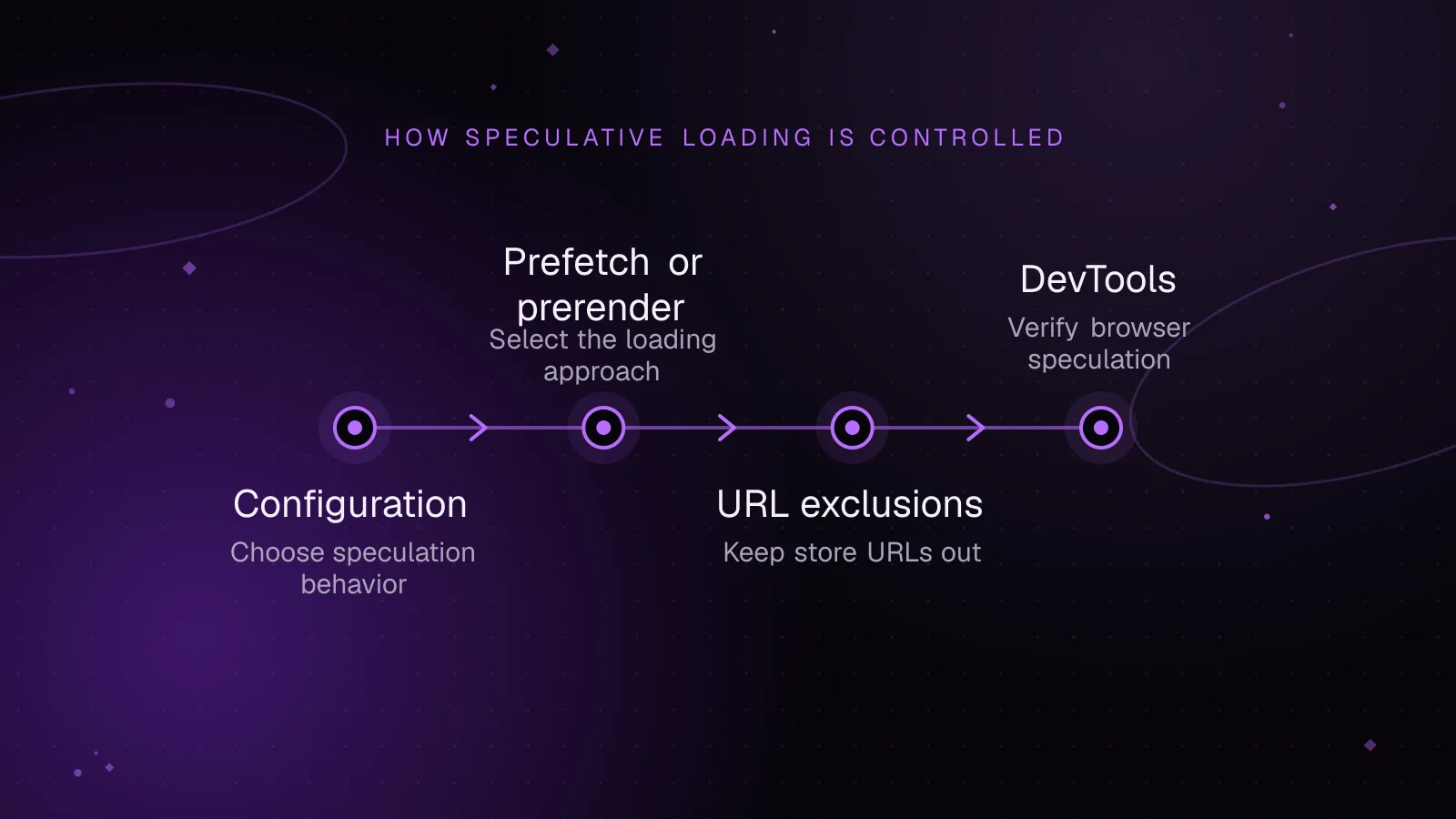
- How to change the configuration with wp_speculation_rules_configuration
- How to exclude store URLs from speculation
- Exclude links that change state
- What the printed rules look like
- How to verify speculation in Chrome DevTools
- How to measure navigation gain and server cost
- What to do next
- Frequently asked questions
Short answer: WordPress speculative loading can make page-to-page moves feel faster by asking the browser to fetch likely destinations before a visitor clicks. On a WooCommerce store, keep dynamic and state-changing URLs out of those rules, then verify what Chrome loads before making the behavior more eager.
How WordPress speculative loading works
WordPress added speculative loading to Core in WordPress 6.8. It uses the browser's Speculation Rules API, which accepts JSON instructions describing which document URLs may be fetched before a normal navigation.
Core enables the feature for logged-out visitors when pretty permalinks are enabled. The current Core auto configuration resolves to prefetch with conservative eagerness, as documented in the wp_get_speculation_rules_configuration() reference (opens in a new tab).
Since WordPress 7.1, hosting providers can change what auto resolves to with the WP_SPECULATIVE_LOADING_DEFAULT_MODE and WP_SPECULATIVE_LOADING_DEFAULT_EAGERNESS constants or matching environment variables. An explicit plugin filter still takes precedence. WordPress does not allow immediate eagerness for the document-level rules it generates.
The API is a browser hint. A supporting browser can decide whether to act on a rule based on its own limits and settings. A browser that does not support the API can ignore the speculation rules without blocking ordinary links.
What prefetch vs prerender changes on a store
prefetch fetches the destination document ahead of a likely navigation. It does not build the whole destination page or run that page's JavaScript. That makes it the lower-risk choice when you first tune a store.
prerender goes further. The browser loads the document and its subresources, renders the page in a hidden context, and can run JavaScript before the visitor activates that page. That can make activation faster, but it also means page code can run before a normal visit.
That distinction matters on checkout, account, and cart screens. Scripts on those screens can depend on session data, payment state, analytics, or browser storage. Do not add them to a broad prerender rule simply because they are common destinations.
Eagerness controls when speculation starts
WordPress accepts three document-level eagerness values:
conservativewaits for a strong sign of intent, such as the visitor starting to interact with a link.moderatelets the browser act on a weaker sign, such as sustained hover or focus.eagerlets the browser consider eligible links earlier, subject to its own resource limits.
The browser still decides which candidates it will fetch. Treat eagerness as a hint about timing, not a promise that every matching URL will load.
For most store testing, change one variable at a time. Keep prefetch while comparing conservative and moderate, then consider prerender only after the exclusion rules and page scripts have been checked.
How to change the configuration with wp_speculation_rules_configuration
The wp_speculation_rules_configuration filter (opens in a new tab) has existed since WordPress 6.8. Its value is either null or an array with mode and eagerness.
Preserve null. Core uses it to keep the feature off for logged-in visitors and for sites without pretty permalinks. The following example keeps those safeguards while changing eligible visits to prefetch with moderate eagerness.
add_filter(
    'wp_speculation_rules_configuration',
    function ( $config ) {
        if ( ! is_array( $config ) ) {
            return $config;
        }

        $config['mode']      = 'prefetch';
        $config['eagerness'] = 'moderate';

        return $config;
    }
);
Put this in a small site plugin or another controlled code location. Do not edit WordPress Core. After deployment, check the generated rules and browser behavior before assuming the filter is active.
If you need to stop speculative loading entirely from custom code, the same filter can return null. A store-wide disable is useful as a troubleshooting control, but targeted exclusions usually keep more of the speed benefit.
How to exclude store URLs from speculation
A store needs two kinds of exclusions: session-sensitive pages and URLs that change state. The first group includes cart, checkout, and account areas. The second includes links that add or remove items, log users out, change subscriptions, or trigger another server-side action through a GET request. For speculative loading in WooCommerce, those routes deserve stricter treatment than ordinary product or category pages.
WooCommerce page assignments are configurable. Check the current Cart, Checkout, and My account pages under WooCommerce page setup (opens in a new tab) before copying path patterns.
The wp_speculation_rules_href_exclude_paths filter (opens in a new tab) accepts root-relative path patterns. Each path starts with /, and * is a wildcard. WordPress automatically handles the site prefix when WordPress is installed in a subdirectory.
For a store whose assigned pages use /cart/, /checkout/, and /my-account/, this is a direct exclusion:
add_filter(
    'wp_speculation_rules_href_exclude_paths',
    function ( $exclude_paths ) {
        $exclude_paths[] = '/cart/*';
        $exclude_paths[] = '/checkout/*';
        $exclude_paths[] = '/my-account/*';

        return $exclude_paths;
    }
);
Change those patterns to match the assigned pages on your store. The /* suffix covers the page and child paths, including checkout or account endpoints beneath those paths.
Exclude links that change state
With pretty permalinks enabled, Core already excludes URLs that contain query parameters. That means a standard WooCommerce add-to-cart URL using ?add-to-cart=... falls outside the default rule. Core also excludes links marked rel="nofollow".
Do not rely on those protections for custom clean URLs. If a plugin exposes clean paths for add-to-cart, remove, logout, subscription, or another GET action that changes data, add those path patterns to the exclude filter.
You can also opt out individual links with Core's no-prefetch or no-prerender classes. no-prefetch excludes a link from prefetch and from prerender. no-prerender only blocks prerender. Use the path filter when an entire route family must stay out.
The goal is to exclude URLs from speculation when merely requesting them can change state or expose session-specific work.
What the printed rules look like
The speculation rules WordPress prints combine Core exclusions with your added paths. Core also excludes WordPress admin and login patterns, content paths, query-string URLs under pretty permalinks, and matching opt-out selectors.
Example output for an illustrative root-installed store with both PHP snippets above could look like this:
{
  "prefetch": [
    {
      "source": "document",
      "where": {
        "and": [
          {
            "href_matches": "/*"
          },
          {
            "not": {
              "href_matches": [
                "/wp-*.php",
                "/wp-admin/*",
                "/wp-content/uploads/*",
                "/wp-content/*",
                "/wp-content/plugins/*",
                "/wp-content/themes/storefront/*",
                "/*\\?(.+)",
                "/cart/*",
                "/checkout/*",
                "/my-account/*"
              ]
            }
          },
          {
            "not": {
              "selector_matches": "a[rel~=\"nofollow\"]"
            }
          },
          {
            "not": {
              "selector_matches": ".no-prefetch, .no-prefetch a"
            }
          }
        ]
      },
      "eagerness": "moderate"
    }
  ]
}
The content, uploads, plugin, and theme paths reflect each site's installation. Your active theme path can differ. The important part is that your store paths appear inside the excluded href_matches list.
How to verify speculation in Chrome DevTools
Use a logged-out browser session for the check because Core disables the feature for logged-in users by default. Open Chrome DevTools before testing the link behavior.
In the Application panel, open Background services, then Speculative loads. Chrome's speculation debugging guide (opens in a new tab) exposes three useful views:
Rulesshows the rule sets found on the current page.Speculationsshows candidate URLs and their prefetch or prerender status.Speculative loadsshows the speculative loading state associated with the current page.
If the page was already loaded before you opened these panels, reload it. The DevTools panels begin monitoring when they are opened.
Check an ordinary product or category link first. Then hover or begin interacting with it according to the configured eagerness. Confirm that an eligible URL appears.
Repeat the test with cart, checkout, account, and any custom action link. They should not become successful speculative candidates under your rules.
The Network panel gives a second check. A speculation-rules prefetch request carries Sec-Purpose: prefetch. A prerender request carries Sec-Purpose: prefetch;prerender. Inspecting this header separates speculative document traffic from a normal navigation request.
How to measure navigation gain and server cost
Measure two sides of the change: what the visitor gets and what your origin has to process. A faster transition that creates excessive unused requests is a poor trade for a busy store.
For browser behavior, repeat the same path with speculation disabled and with your chosen configuration. Use the DevTools Speculations view to confirm that the destination was prepared, then inspect the destination document in the Network panel. Compare request timing under the same test conditions rather than quoting one isolated load.
For server cost, track speculative document requests separately when your logs record the Sec-Purpose header. Compare origin request volume, cache hits and misses, and application capacity during the same traffic windows. A CDN may satisfy some prefetched documents before they reach PHP, so origin cost depends on your cache rules.
If a purge empties that cache while speculative requests are arriving, the cache-stampede guide explains how bursts of misses can overload WordPress and how to contain them.
Do not treat every speculative request as useful. In a test session, record which candidates are later activated and which are never visited. If a more eager setting produces many unused requests, step back to a less eager setting or narrow the eligible links.
What to do next
Start with Core's default behavior, add the store-specific exclusions, and verify them in DevTools. If page transitions still feel slow, use the guide to speeding up WooCommerce for the wider request and rendering path instead of making speculation more aggressive by default.
If speculative requests are reaching the origin, review the WordPress CDN caching guide before changing cache behavior around dynamic store pages. For a store that needs testing across page speed, checkout safety, and server capacity, the WooCommerce speed optimization service covers that broader work.
Frequently asked questions
Does speculative loading work in every browser?
No. The Speculation Rules API is a browser feature, and support or behavior can differ by browser. Unsupported browsers can ignore the rules while normal links continue to work.
Should a WooCommerce store use prefetch or prerender?
Start by testing prefetch, because it fetches the destination document without rendering the full page or running that page's JavaScript. Test prerender only after cart, checkout, account, and state-changing routes are excluded and the remaining page scripts are safe to run before activation.
Why are speculation rules missing while I am logged in?
WordPress disables Core speculative loading for logged-in users by default. It is also disabled by default when pretty permalinks are not configured, unless custom code changes the configuration.
How can I exclude a URL from WordPress speculation rules?
Add its root-relative path pattern with the wp_speculation_rules_href_exclude_paths filter. For one link or a small section of markup, use the no-prefetch or no-prerender class that matches the behavior you want to block.
Share this article
Enjoyed this? Get the next article by email.
Keep reading
 Performance
5 min read
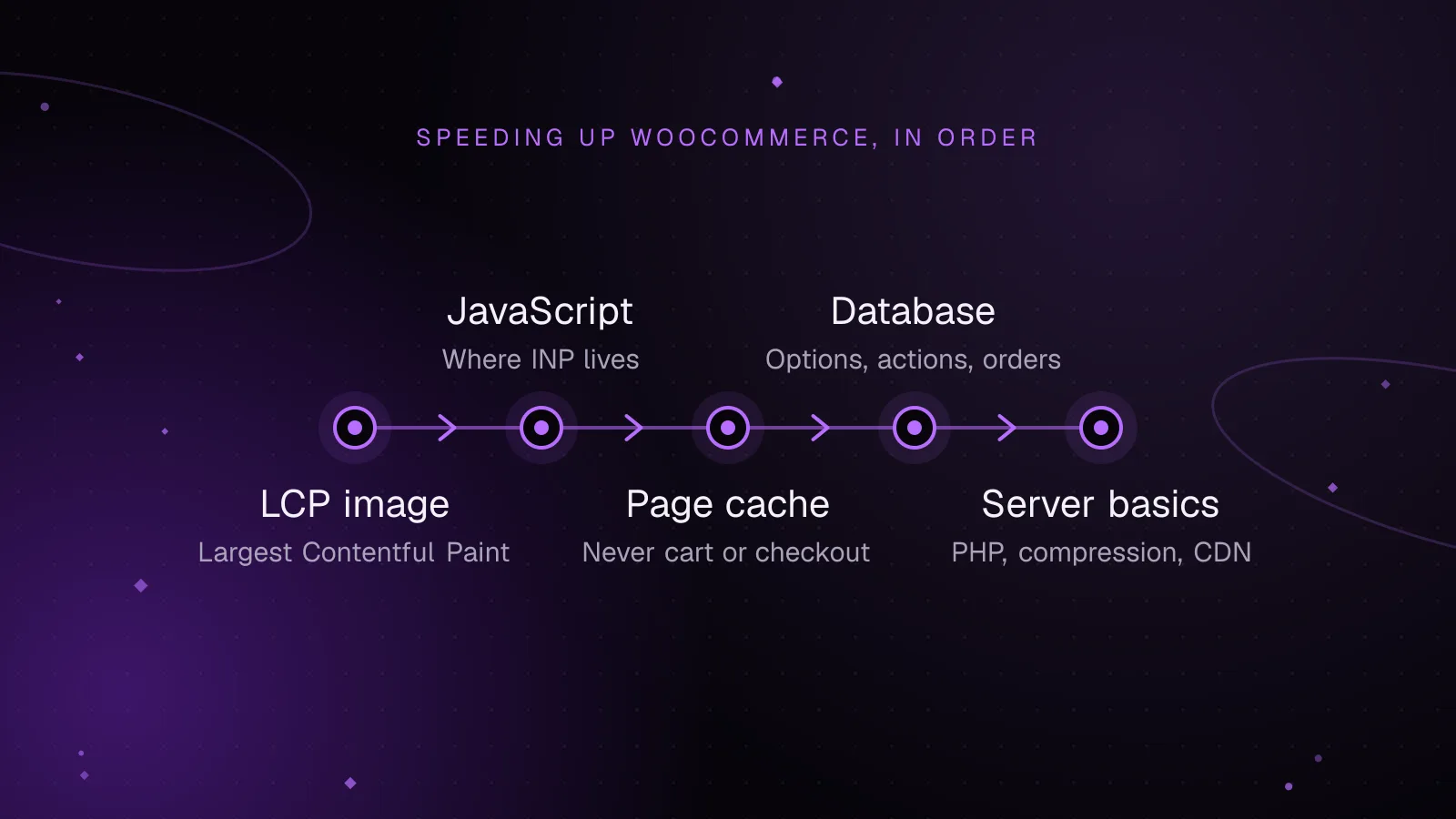
How to speed up WooCommerce: a Core Web Vitals guide
Speed up WooCommerce step by step: faster LCP images, lighter JavaScript for a better INP, safe page caching and a leaner database.
- WooCommerce
- Performance
- Core Web Vitals
 Performance
8 min read
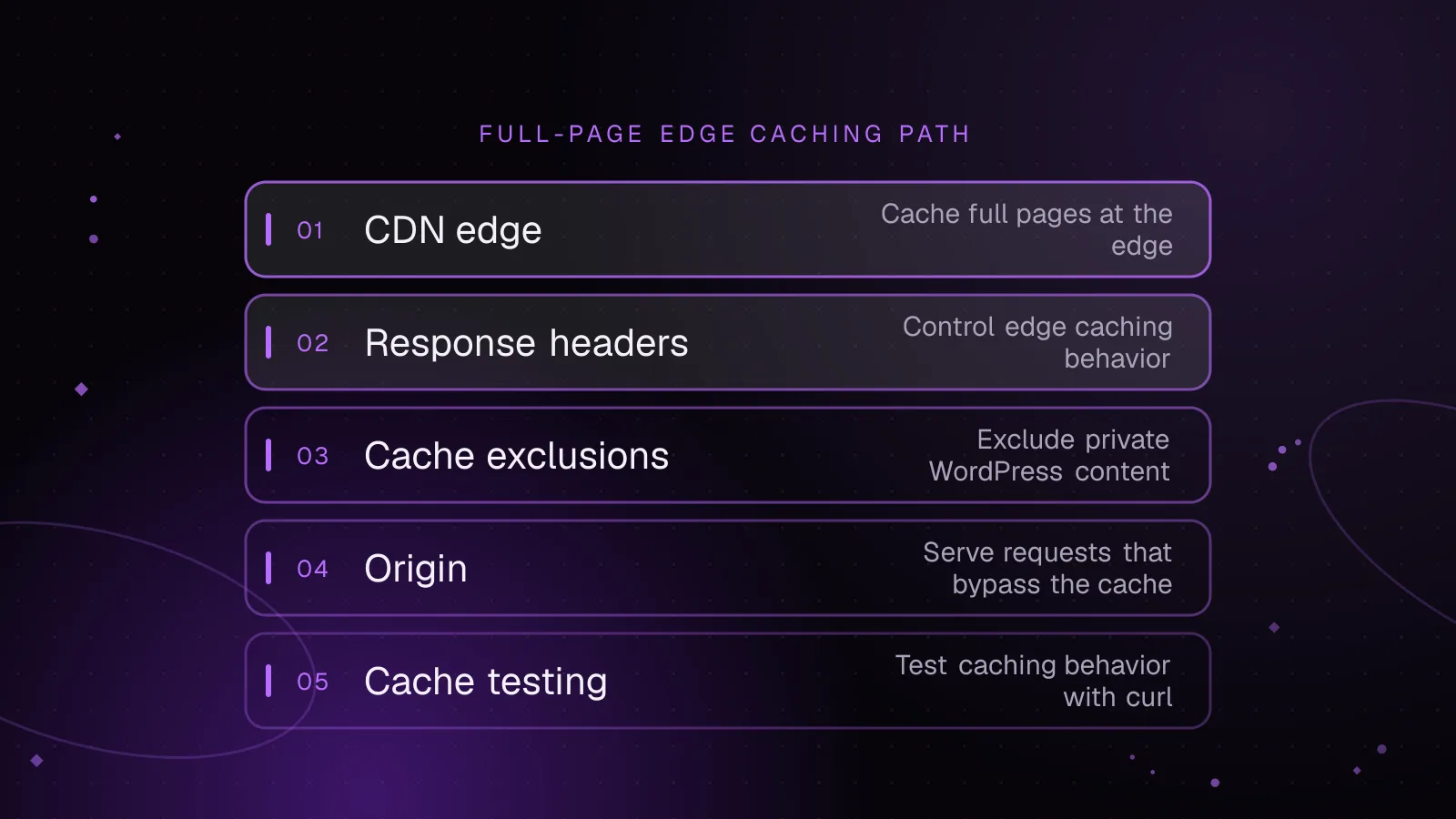
WordPress CDN caching: cache full pages safely at the edge
Set up WordPress CDN caching safely: cache public HTML at the edge, bypass WordPress and WooCommerce sessions, purge updates, and test every route.
- WordPress
- Caching
- Performance
 Performance
7 min read
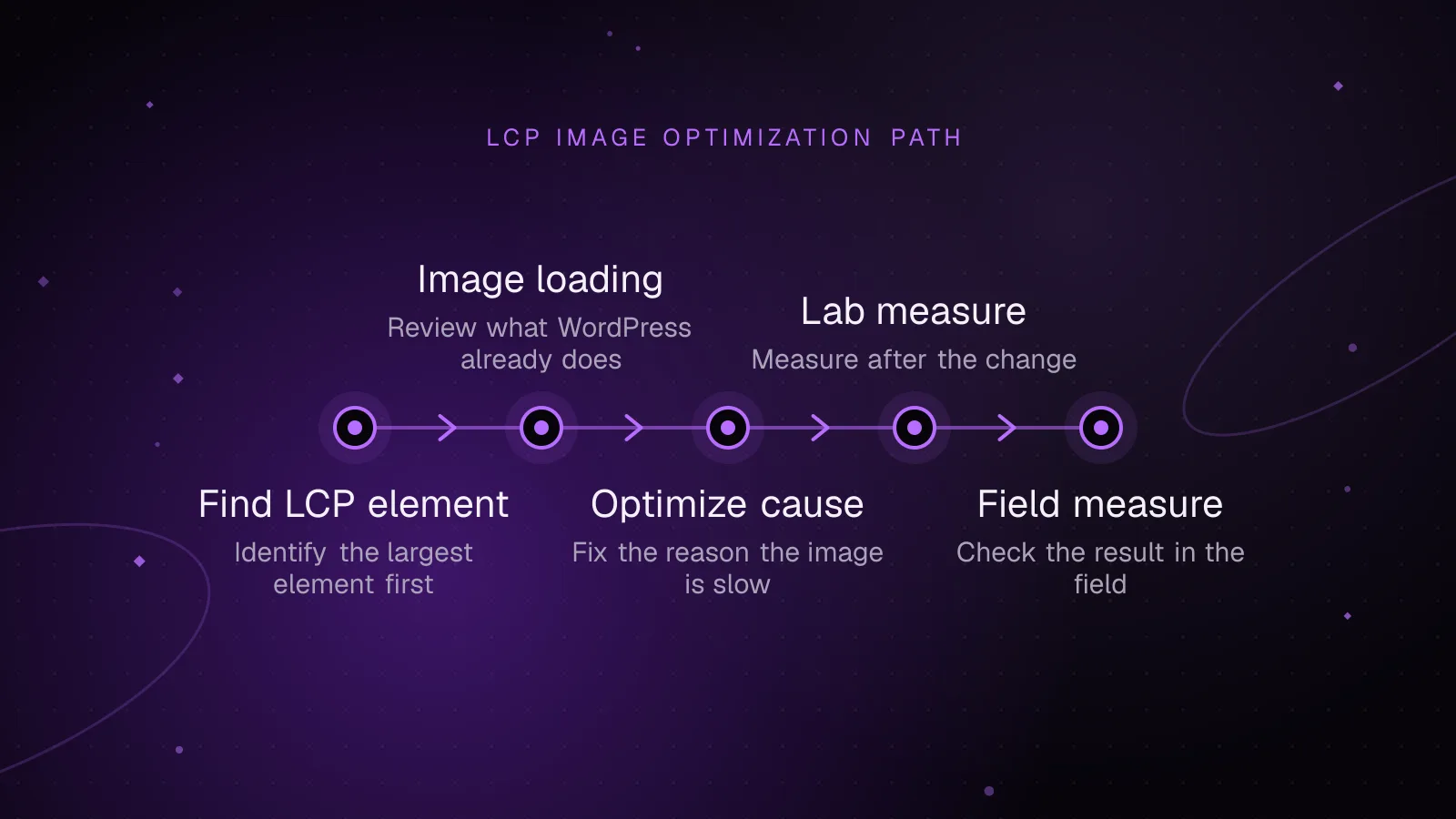
WordPress LCP image optimization: make the largest image load first
Fix a slow WordPress LCP image by finding the LCP element, removing lazy load, setting fetch priority, preloading backgrounds, and retesting.
- WordPress
- Core Web Vitals
- Performance