Development6 min read
How to write a custom WP-CLI command for your plugin
Build a WP CLI custom command for a plugin with validated arguments, dry runs, batching, progress output, formats, exit codes, staging and cron.
 By Hamza Ahmad AslamWordPress VIP, Performance & Full-Stack Engineer
On this page
- How to register a WP CLI custom command safely
- How should a WP CLI command class define arguments
- How do dry runs, WP CLI batch processing and a progress bar fit together
- How should dry runs and confirmation prompts behave
- How do table, JSON and CSV output stay script-friendly
- How should exit codes work for scripts and CI
- How should you test the command on staging and in cron
- What to do next
- Frequently asked questions
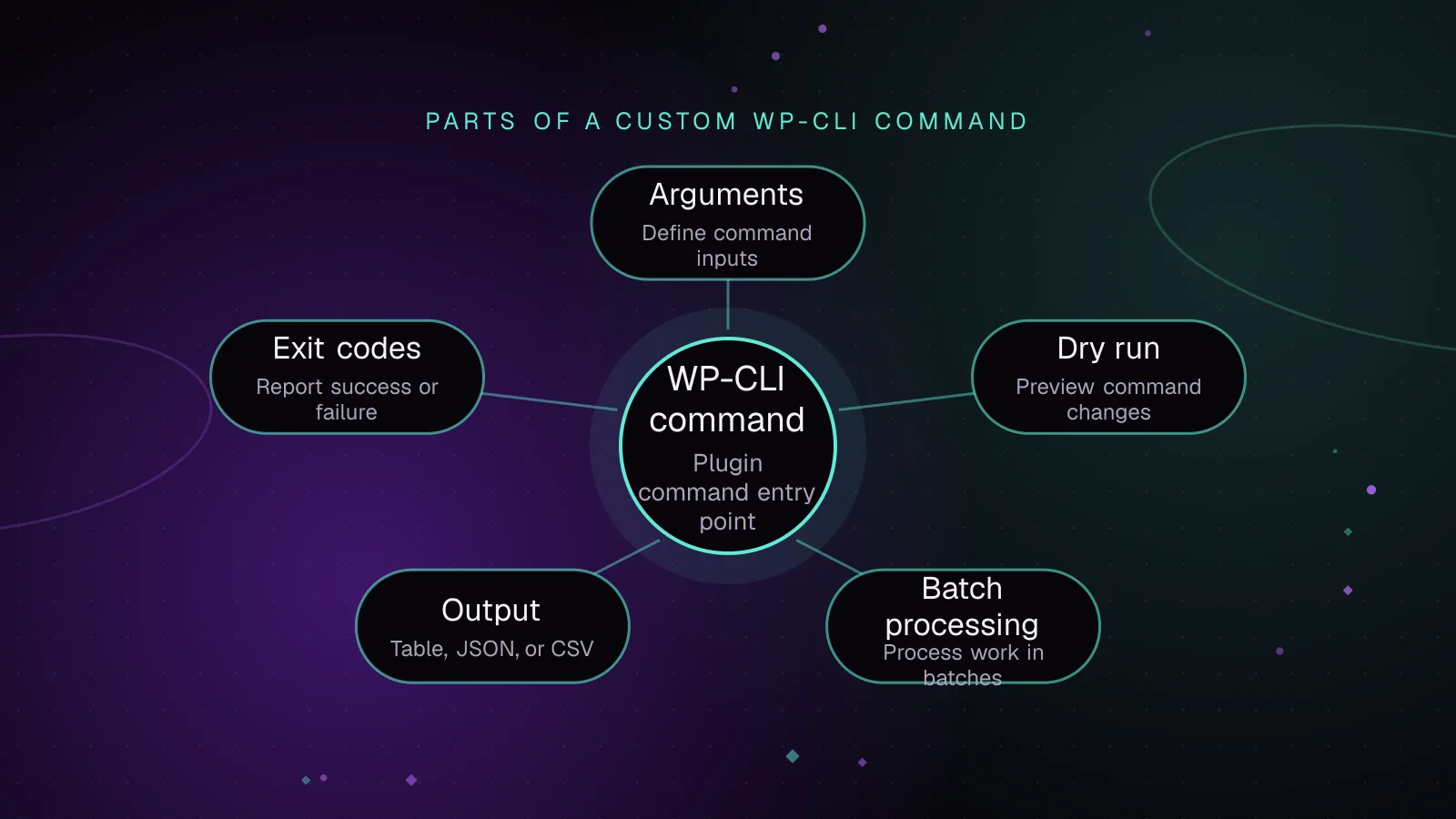
Short answer: A WP CLI custom command belongs in your plugin when a maintenance or data task needs a repeatable command-line interface. Register a command class only when WP-CLI is running, describe its arguments in PHPDoc, then add dry-run handling, bounded batches, machine-readable output and exit codes.
How to register a WP CLI custom command safely
WP-CLI defines the WP_CLI constant while it is running. Your plugin can use that check to avoid loading command code during normal web requests.
Register a class with WP_CLI::add_command() (opens in a new tab):
<?php
// In the main plugin file.
if ( defined( 'WP_CLI' ) && WP_CLI ) {
    require_once __DIR__ . '/includes/class-acme-maintenance-command.php';

    WP_CLI::add_command(
        'acme maintenance',
        'Acme_Maintenance_Command'
    );
}
A class registration gives you a command namespace. Public methods on the class become subcommands, as documented in the WP-CLI commands cookbook (opens in a new tab).
A public cleanup() method on this class is therefore available as:
wp acme maintenance cleanup
The plugin must be active for this registration code to run. Keep the namespace specific to your plugin. A generic name such as maintenance is more likely to conflict with another command.
You do not need to extend an old command base class. A plain PHP class is enough for this registration style.
Loading the CLI class inside the WP_CLI check also keeps command-only code out of normal HTTP requests. The command can still call the plugin's normal services after WordPress has loaded.
How should a WP CLI command class define arguments
WP CLI command arguments should be part of the command contract rather than values you parse by hand.
WP-CLI reads the method's PHPDoc. Argument lines in the long description form its synopsis. That synopsis drives help output and validates arguments before your method runs.
Here is the shape of the WP CLI command class used in this guide:
<?php

class Acme_Maintenance_Command {

    /**
     * Removes the legacy Acme post meta key from Acme records.
     *
     * --batch-size=<number>
     * : Number of post IDs to process in each batch.
     *
     * [--dry-run]
     * : Find matching records without changing them.
     *
     * [--yes]
     * : Answer yes to the confirmation prompt.
     *
     * [--format=<format>]
     * : Output format for the final result.
     * ---
     * default: table
     * options:
     *   - table
     *   - json
     *   - csv
     * ---
     *
     * ## EXAMPLES
     *
     *     wp acme maintenance cleanup --batch-size=200 --dry-run
     *     wp acme maintenance cleanup --batch-size=200 --yes --format=json
     *
     * @param array $args       Positional arguments.
     * @param array $assoc_args Named arguments.
     */
    public function cleanup( $args, $assoc_args ) {
        // Implementation goes here.
    }
}
--batch-size=<number> is required because it is outside square brackets. The other options are optional.
The options list restricts --format to the three values shown. The default value supplies table when the option is omitted.
Check the generated documentation before working on the implementation:
wp help acme maintenance cleanup
This also catches documentation mistakes early. If WP-CLI rejects an unsupported option before entering cleanup(), the synopsis is doing its job.
How do dry runs, WP CLI batch processing and a progress bar fit together
WP CLI batch processing keeps a large maintenance task from holding every matching row in PHP memory at once. Select a bounded set of IDs, process it, release the result, then fetch the next set.
For an ordered numeric ID, keyset pagination works well. Each query asks for IDs greater than the last processed ID. This avoids repeatedly scanning past rows with an increasing SQL offset.
The example below removes one plugin-owned meta key. Calling delete_post_meta() with only the post ID and key removes values for that key on the selected post.
<?php

class Acme_Maintenance_Command {

    private const POST_TYPE = 'acme_record';
    private const META_KEY  = '_acme_legacy_flag';

    // Use the cleanup() PHPDoc shown above for the command synopsis.
    public function cleanup( $args, $assoc_args ) {
        global $wpdb;

        $batch_size = (int) $assoc_args['batch-size'];
        $dry_run    = isset( $assoc_args['dry-run'] );
        $format     = $assoc_args['format'] ?? 'table';

        if ( $batch_size < 1 ) {
            WP_CLI::error( '--batch-size must be greater than zero.' );
        }

        $count_sql = $wpdb->prepare(
            "SELECT COUNT(DISTINCT p.ID)
             FROM {$wpdb->posts} p
             INNER JOIN {$wpdb->postmeta} pm ON pm.post_id = p.ID
             WHERE p.post_type = %s
             AND pm.meta_key = %s",
            self::POST_TYPE,
            self::META_KEY
        );

        $total = $wpdb->get_var( $count_sql );

        if ( ! empty( $wpdb->last_error ) ) {
            WP_CLI::error(
                'Could not count matching records: ' . $wpdb->last_error
            );
        }

        $total   = (int) $total;
        $matched = 0;
        $deleted = 0;
        $failed  = 0;
        $last_id = 0;

        if ( ! $dry_run && $total > 0 ) {
            WP_CLI::confirm(
                sprintf( 'Remove legacy meta from %d matching records?', $total ),
                $assoc_args
            );
        }

        $progress = null;

        if ( 'table' === $format && $total > 0 ) {
            $progress = \WP_CLI\Utils\make_progress_bar(
                'Processing Acme records',
                $total
            );
        }

        while ( true ) {
            $ids_sql = $wpdb->prepare(
                "SELECT DISTINCT p.ID
                 FROM {$wpdb->posts} p
                 INNER JOIN {$wpdb->postmeta} pm ON pm.post_id = p.ID
                 WHERE p.post_type = %s
                 AND pm.meta_key = %s
                 AND p.ID > %d
                 ORDER BY p.ID ASC
                 LIMIT %d",
                self::POST_TYPE,
                self::META_KEY,
                $last_id,
                $batch_size
            );

            $ids = $wpdb->get_col( $ids_sql );

            if ( ! empty( $wpdb->last_error ) ) {
                WP_CLI::error(
                    'Database query failed: ' . $wpdb->last_error
                );
            }

            if ( empty( $ids ) ) {
                break;
            }

            foreach ( $ids as $post_id ) {
                $post_id = (int) $post_id;
                $last_id = $post_id;
                $matched++;

                if ( ! $dry_run ) {
                    if ( delete_post_meta( $post_id, self::META_KEY ) ) {
                        $deleted++;
                    } else {
                        $failed++;
                    }
                }

                if ( null !== $progress ) {
                    $progress->tick();
                }
            }

            unset( $ids );
            $wpdb->flush();
        }

        if ( null !== $progress ) {
            $progress->finish();
        }

        if ( $failed > 0 ) {
            WP_CLI::warning(
                sprintf( '%d records could not be changed.', $failed )
            );
        }

        \WP_CLI\Utils\format_items(
            $format,
            array(
                array(
                    'matched' => $matched,
                    'deleted' => $deleted,
                    'failed'  => $failed,
                    'mode'    => $dry_run ? 'dry-run' : 'write',
                ),
            ),
            array( 'matched', 'deleted', 'failed', 'mode' )
        );

        if ( $failed > 0 ) {
            WP_CLI::halt( 2 );
        }
    }
}
The WP CLI progress bar utility (opens in a new tab) takes a message and the expected tick count. Call tick() after each item and finish() after the loop.
WP-CLI disables its progress bar when output is piped. This example also limits progress output to table mode so JSON and CSV output stay clean.
$wpdb->flush() clears results cached on the $wpdb instance, including the previous query result. It does not flush the WordPress object cache. unset( $ids ) also releases the PHP reference to the current batch.
The batch query fetches IDs only. The work stays bounded instead of creating full post objects for every match.
How should dry runs and confirmation prompts behave
A dry run should execute the same selection logic as a write run while skipping the mutation. That makes its count useful before a destructive command is approved.
The example checks --dry-run around delete_post_meta(). It also skips the confirmation prompt during a dry run.
For a write, WP_CLI::confirm() asks before changing data. Passing $assoc_args lets the documented --yes option approve the prompt for an unattended script.
Keep confirmation separate from validation. Invalid input should fail before you ask the operator to continue.
How do table, JSON and CSV output stay script-friendly
WP-CLI's format_items() utility (opens in a new tab) renders structured data in several formats, including table, JSON and CSV.
The same command can therefore serve a person at a terminal and a program consuming its output:
wp acme maintenance cleanup --batch-size=200 --dry-run --format=table
wp acme maintenance cleanup --batch-size=200 --dry-run --format=json
wp acme maintenance cleanup --batch-size=200 --dry-run --format=csv
Example output for the table command is shown below. The values are illustrative.
+---------+---------+--------+---------+
| matched | deleted | failed | mode    |
+---------+---------+--------+---------+
| 12      | 0       | 0      | dry-run |
+---------+---------+--------+---------+
Keep the structured result on standard output. Use WP-CLI warning and error helpers for diagnostic messages rather than mixing status prose into JSON or CSV.
Avoid printing a separate success sentence after machine-readable output. A caller should be able to parse the requested format as one clean result.
How should exit codes work for scripts and CI
The current WP-CLI exit code reference (opens in a new tab) defines 0 as success and 1 as command failure. WP_CLI::error() is the normal helper for a failure and exits with code 1.
A command can document another nonzero code for a result that callers need to distinguish. The example reserves 2 for a run where one or more selected records could not be changed. That 2 is this command's contract, not a WP-CLI-wide meaning.
A shell script can preserve the status:
wp acme maintenance cleanup --batch-size=200 --yes --format=json
status=$?

if [ "$status" -ne 0 ]; then
    exit "$status"
fi
Document every custom nonzero status beside the command. CI and cron wrappers can then decide whether to stop, retry or raise an alert without parsing human-readable text.
How should you test the command on staging and in cron
Start with a staging copy that contains representative plugin data. Run wp help first, then use dry-run mode with table and JSON output. Try missing required arguments and unsupported format values as well.
Confirm that a dry run leaves the database unchanged. For the write path, start with a small controlled data set and omit --yes so you see the confirmation prompt.
Run the same case again after the write. For a cleanup designed to be idempotent, the second dry run should have nothing left to change.
Automated tests should cover an empty result, a dry run, a successful write, a forced write failure and invalid input. Check standard output, standard error and the process exit status. Avoid asserting the exact progress bar text because WP-CLI can disable the bar when output is piped.
For coverage of the command's services and database paths, the guide to WordPress plugin unit testing with wp-env and PHPUnit shows how to run PHPUnit integration tests in wp-env.
Cron should use explicit paths so it does not depend on an interactive shell's working directory or PATH. For example:
/usr/local/bin/wp --path=/srv/www/example/current acme maintenance cleanup --batch-size=200 --yes --format=json >> /var/log/acme-maintenance.log 2>&1
Those filesystem paths are illustrative. Replace them with the WP-CLI binary, WordPress root and log path on your server.
Run the command manually as the same operating-system user before scheduling it. If the job needs substantial shell setup, put that setup in a script and schedule the script instead.
What to do next
If the task belongs to a WooCommerce queue rather than an operator-run command, compare the execution model with WooCommerce Action Scheduler backlog handling. A queued job can fit better when work must continue after the shell session ends.
If the command audits or repairs wp_options, use the measurement approach in the WordPress autoloaded options guide instead of turning option cleanup into a blind delete job.
For a plugin that needs command design, migrations and maintenance tooling packaged together, the custom WordPress plugin development service covers that wider build.
Frequently asked questions
Can a plugin WP-CLI command run when the plugin is inactive?
A command registered by normal plugin code is available only while that plugin is active, because WordPress must load the plugin before it can register the command. If a tool must work independently of plugin activation, package and load that command separately rather than relying on the inactive plugin.
Why does WP-CLI reject an option before my command method runs?
WP-CLI validates the supplied arguments against the synopsis generated from your command documentation. An unknown option, missing required argument or disallowed option value can therefore stop execution before the PHP method is invoked.
Should a long WP-CLI task use batches even when it runs from cron?
Cron changes how the command starts, but it does not remove PHP memory limits or the cost of holding large result sets. Batching keeps each query and its PHP data bounded, which also makes the command easier to test with smaller units of work.
How do I keep JSON output safe for another script to parse?
Send the final structured data through WP-CLI's formatting utility and avoid progress output when JSON or CSV is requested. Put warnings and errors through WP-CLI's diagnostic helpers, then let the calling script use the process exit code to detect failure.
Share this article
Enjoyed this? Get the next article by email.
Keep reading
 Development
7 min read
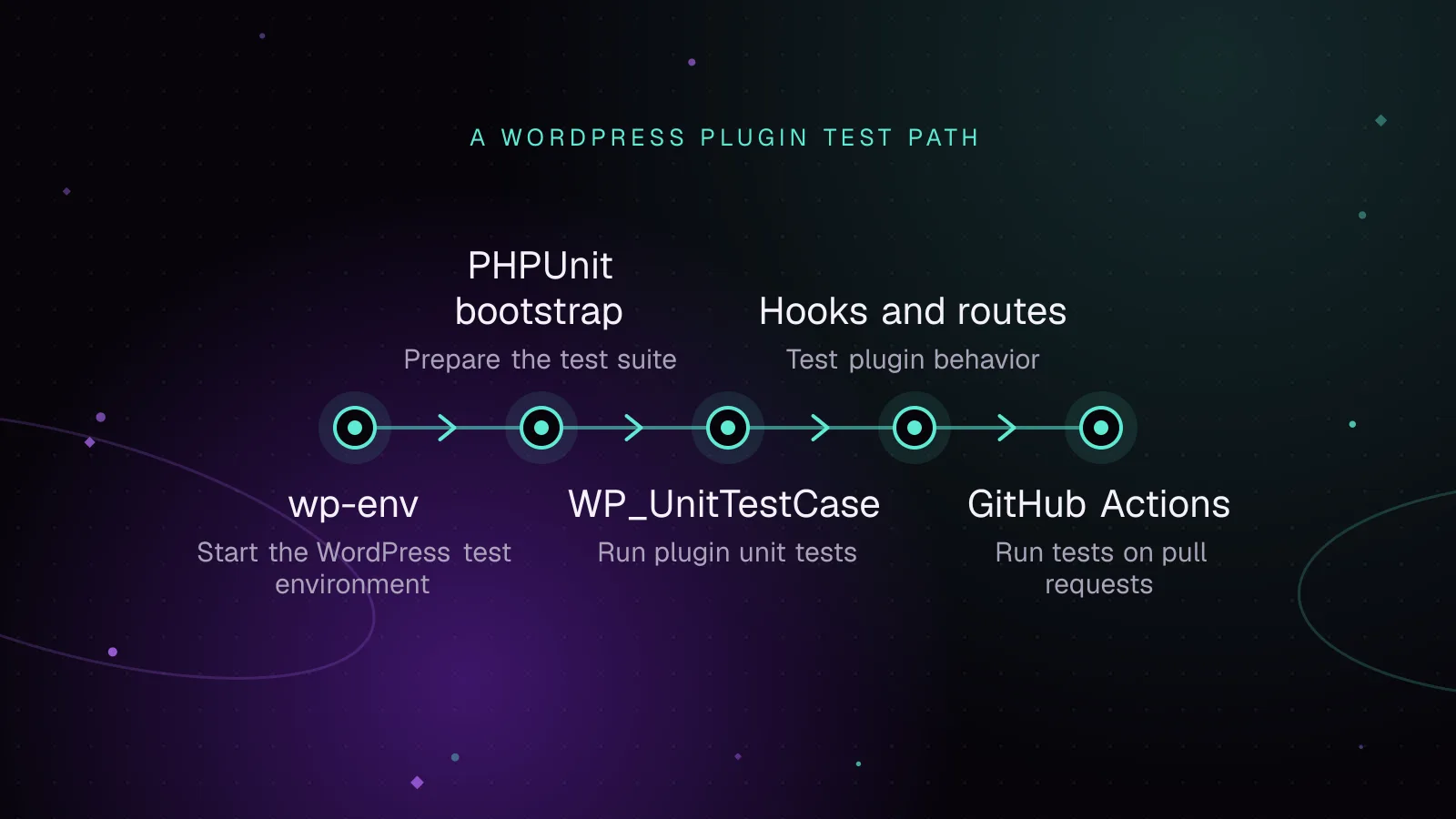
WordPress plugin unit testing with wp-env and PHPUnit
Set up WordPress plugin unit testing with wp-env and PHPUnit, write integration tests, and run the same suite in GitHub Actions on pull requests.
- WordPress
- Plugins
- PHP
 Development
5 min read
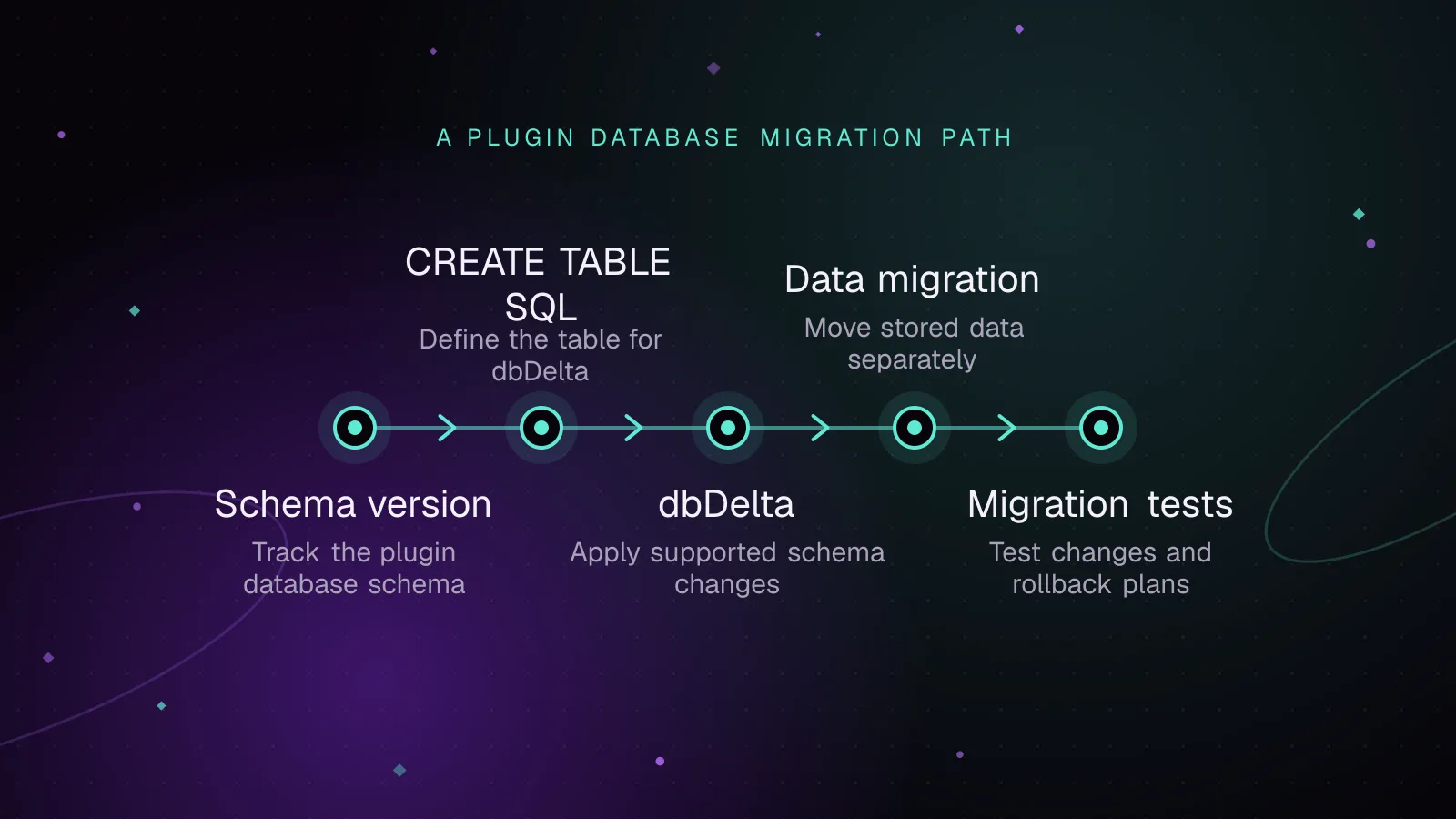
WordPress plugin database migrations with dbDelta, done safely
Run WordPress plugin database migrations safely with dbDelta, schema versions, one-time upgrades, batched data changes, multisite checks and rollback plans.
- WordPress
- Plugins
- Database
 Monitoring
7 min read
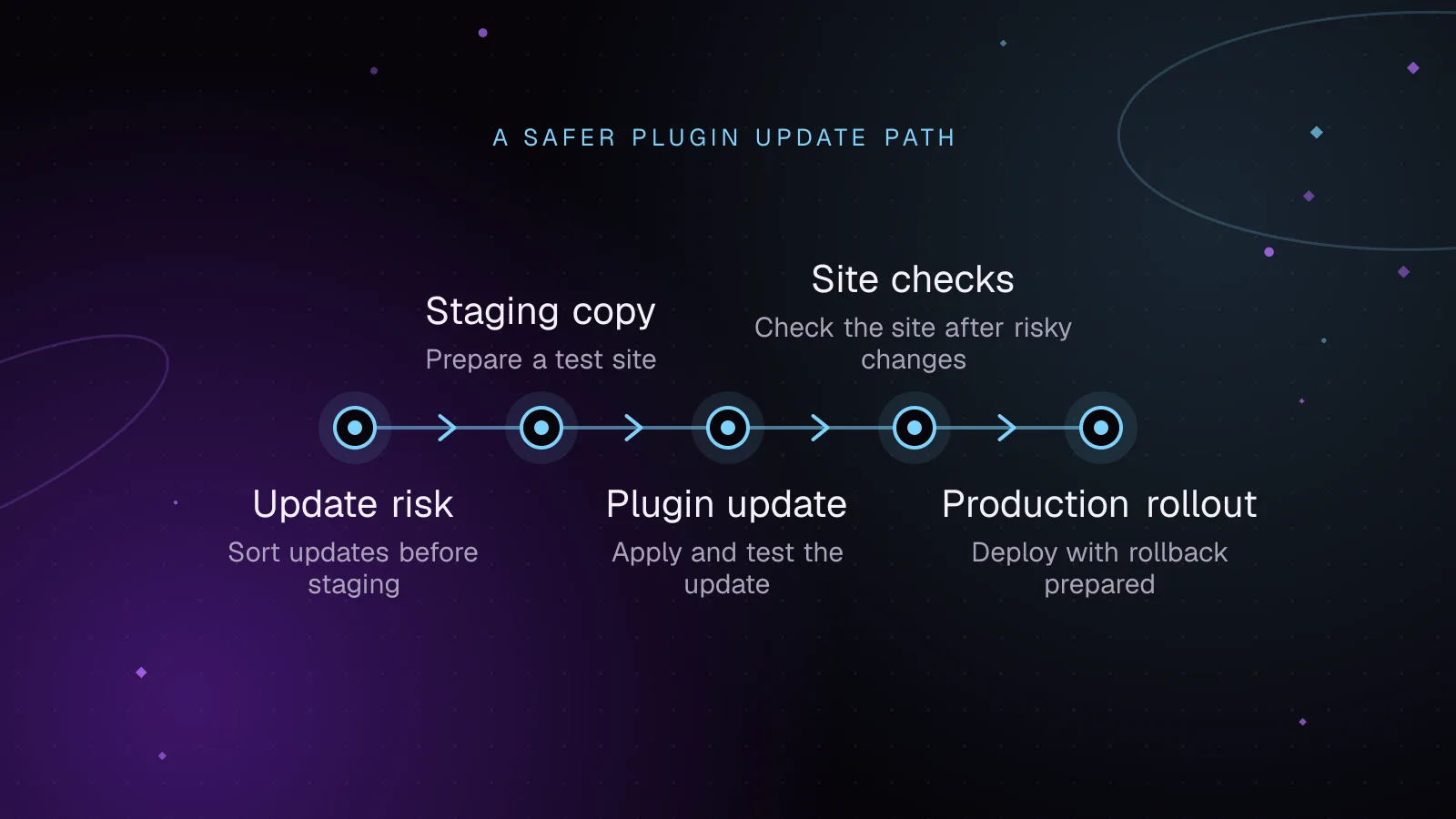
How to test WordPress plugin updates before they reach production
Test WordPress plugin updates on staging, check key site flows, deploy one change at a time, and roll back cleanly if an update causes trouble.
- WordPress
- Plugins
- Monitoring