Development5 min read
WordPress plugin database migrations with dbDelta, done safely
Run WordPress plugin database migrations safely with dbDelta, schema versions, one-time upgrades, batched data changes, multisite checks and rollback plans.
 By Hamza Ahmad AslamWordPress VIP, Performance & Full-Stack Engineer
On this page
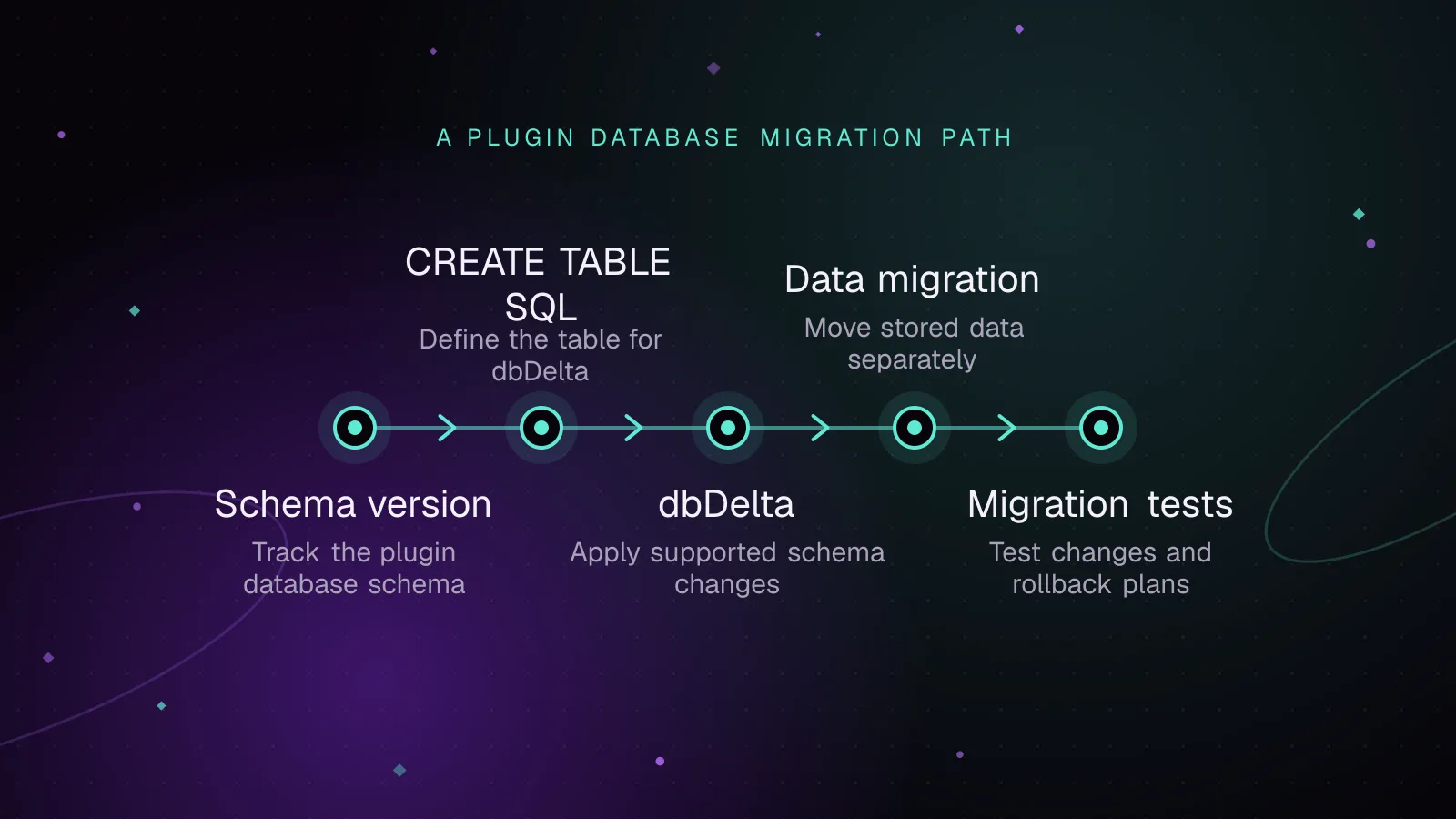
- How dbDelta expects your CREATE TABLE SQL
- Why WordPress plugin database migrations need a schema version
- What dbDelta cannot safely express
- How to move large data sets without a web request
- How migrations should work on Multisite
- How to test migrations and plan rollback
- What to do next
- Frequently asked questions
Short answer: WordPress plugin database migrations should compare a stored schema version with the version your plugin expects, then run only the missing steps. Use dbDelta() for table creation and supported schema changes, and use explicit, guarded migrations for destructive or unsupported changes.
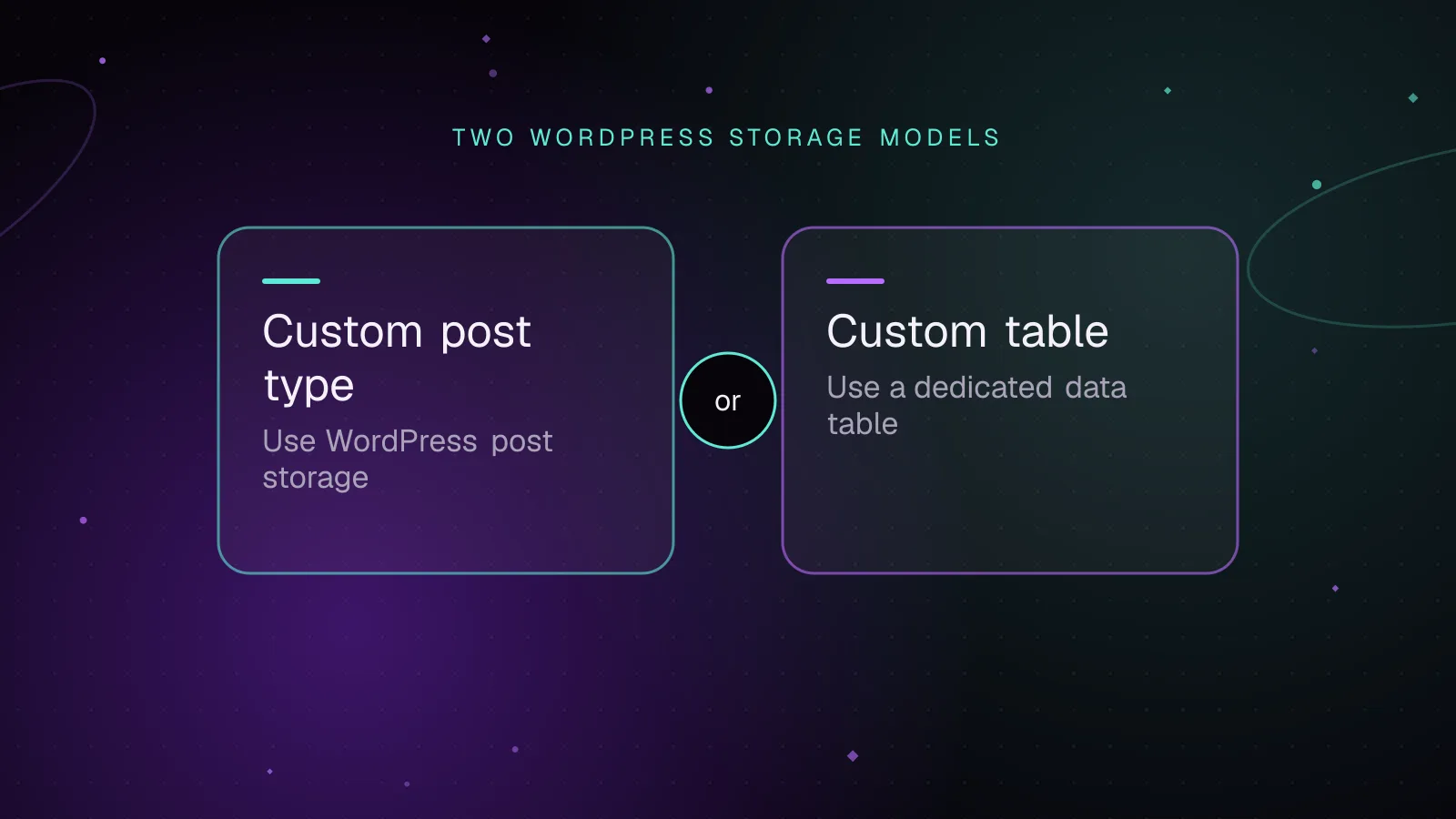
If you have not yet settled on a storage model, compare WordPress custom tables with custom post types for plugin data before you design a schema that will need migrations.
How dbDelta expects your CREATE TABLE SQL
dbDelta() compares a CREATE TABLE statement with the table that exists, then creates or alters the table as needed. WordPress does not load it by default, so your migration must include wp-admin/includes/upgrade.php before calling it. The WordPress Plugin Handbook table guide (opens in a new tab) documents the format it expects.
The formatting rules are stricter than normal SQL:
- Put each field on its own line.
- Put two spaces after
PRIMARY KEYbefore the key definition. - Use
KEY, notINDEX, for secondary indexes. - Put one space between
KEY, the key name and the opening parenthesis. - Do not wrap field names in backticks or apostrophes.
- Use lowercase field types and uppercase SQL keywords.
- Give a length to field types that accept one.
A table definition for an event queue can look like this:
function acme_create_or_update_schema() {
	global $wpdb;

	$table_name      = $wpdb->prefix . 'acme_events';
	$charset_collate = $wpdb->get_charset_collate();

	$sql = "CREATE TABLE $table_name (
		id bigint(20) unsigned NOT NULL AUTO_INCREMENT,
		event_key varchar(191) NOT NULL,
		status varchar(20) NOT NULL DEFAULT 'pending',
		source varchar(32) DEFAULT NULL,
		payload longtext NULL,
		created_at datetime NOT NULL,
		PRIMARY KEY  (id),
		KEY status_created (status,created_at)
	) $charset_collate;";

	require_once ABSPATH . 'wp-admin/includes/upgrade.php';
	dbDelta( $sql );

	$source_column = $wpdb->query(
		"SHOW COLUMNS FROM {$table_name} LIKE 'source'"
	);

	return false !== $source_column && 0 < $source_column;
}
The current dbDelta() reference (opens in a new tab) confirms that it creates tables, adds missing columns and indexes, and changes some column definitions.
If you are debugging “dbDelta not creating table,” check the SQL shape first. A statement that works in a database client can still be parsed differently by dbDelta() when its expected formatting is missing.
Why WordPress plugin database migrations need a schema version
Do not call dbDelta() or run ALTER TABLE on every request. A normal frontend request should do a cheap plugin schema version check, then return when the installed version already matches.
WordPress recommends storing a database version option for this purpose. Treat the plugin schema version as the checkpoint for database work. Since WordPress 3.1, a registered activation hook is not called when a plugin is updated, so activation alone is not enough for upgrades.
The pattern below handles a fresh install, activation and later plugin releases. The upgrade routine records each completed step separately, so a later request can resume after the last successful step.
define( 'ACME_DB_VERSION', 3 );

function acme_maybe_upgrade() {
	$installed_version = (int) get_option( 'acme_db_version', 0 );

	if ( ACME_DB_VERSION === $installed_version ) {
		return;
	}

	if ( 0 === $installed_version ) {
		if ( ! acme_create_or_update_schema() ) {
			return;
		}

		update_option( 'acme_db_version', (string) ACME_DB_VERSION, true );
		return;
	}

	if ( $installed_version < 2 ) {
		if ( ! acme_create_or_update_schema() ) {
			return;
		}

		update_option( 'acme_db_version', '2', true );
		$installed_version = 2;
	}

	if ( $installed_version < 3 ) {
		if ( ! acme_migrate_to_3() ) {
			return;
		}

		update_option( 'acme_db_version', '3', true );
	}
}

register_activation_hook( __FILE__, 'acme_maybe_upgrade' );
add_action( 'plugins_loaded', 'acme_maybe_upgrade' );
The plugins_loaded callback runs on requests, but the migration does not. Once the option equals ACME_DB_VERSION, the function returns before any schema SQL runs. That avoids the common failure mode of issuing ALTER TABLE on every request.
Keep schema versions separate from the plugin’s marketing version. A plugin release may change PHP or UI code without changing its tables.
What dbDelta cannot safely express
dbDelta() is useful for additive changes, but it does not describe every migration intent. Its current implementation adds missing columns and indexes and changes certain column definitions. It does not drop obsolete columns or indexes, and it cannot infer that one column is a renamed form of another.
Use an explicit migration when you need to remove obsolete structure, rename data or perform a change whose order matters. Guard that SQL so rerunning the step is safe.
This example removes a legacy column only when it still exists:
function acme_migrate_to_3() {
	global $wpdb;

	$table_name = $wpdb->prefix . 'acme_events';

	$found = $wpdb->query(
		"SHOW COLUMNS FROM {$table_name} LIKE 'legacy_flag'"
	);

	if ( false === $found ) {
		return false;
	}

	if ( 0 === $found ) {
		return true;
	}

	$result = $wpdb->query(
		"ALTER TABLE {$table_name} DROP COLUMN legacy_flag"
	);

	return false !== $result;
}
Do not drop a column in the same release that first stops writing its data. Older code may still run during deployment. A safer release sequence is often: stop relying on the column, deploy that code, then remove the column in a later schema version.
Make explicit migrations safe to run more than once. Two requests can reach an upgrade check close together, and a failed deployment can leave a migration half-finished.
How to move large data sets without a web request
Schema changes and data changes have different risk profiles. Adding a column may be quick on one site and expensive on another. Updating thousands of rows in one admin or frontend request adds timeout and memory risk.
For a large backfill, process rows in batches. If Action Scheduler is available to your plugin, it can queue background work. WP-CLI is a good fit when you have shell access and want direct control. WooCommerce documents how scheduled actions process background work (opens in a new tab).
The following plugin command backfills the new source field in bounded batches. WP-CLI supports plugin-defined commands through WP_CLI::add_command() (opens in a new tab).
if ( defined( 'WP_CLI' ) && WP_CLI ) {
	WP_CLI::add_command(
		'acme migrate-data',
		function ( $args, $assoc_args ) {
			global $wpdb;

			$table_name = $wpdb->prefix . 'acme_events';
			$batch_size = isset( $assoc_args['batch-size'] )
				? (int) $assoc_args['batch-size']
				: 500;

			if ( $batch_size < 1 ) {
				WP_CLI::error( 'Batch size must be at least 1.' );
			}

			$last_id = 0;
			$total   = 0;

			do {
				$rows = $wpdb->get_results(
					$wpdb->prepare(
						"SELECT id
						FROM {$table_name}
						WHERE id > %d
							AND source IS NULL
						ORDER BY id ASC
						LIMIT %d",
						$last_id,
						$batch_size
					)
				);

				if ( $wpdb->last_error ) {
					WP_CLI::error( $wpdb->last_error );
				}

				if ( ! $rows ) {
					break;
				}

				foreach ( $rows as $row ) {
					$result = $wpdb->update(
						$table_name,
						array( 'source' => 'legacy' ),
						array( 'id' => (int) $row->id ),
						array( '%s' ),
						array( '%d' )
					);

					if ( false === $result ) {
						WP_CLI::error( 'A row update failed.' );
					}

					$last_id = (int) $row->id;
					++$total;
				}

				WP_CLI::log(
					"Processed batch through ID {$last_id}."
				);
			} while ( count( $rows ) === $batch_size );

			WP_CLI::success( "Migrated {$total} rows." );
		},
		array(
			'shortdesc' => 'Backfill event source values in batches.',
			'synopsis'  => array(
				array(
					'type'     => 'assoc',
					'name'     => 'batch-size',
					'optional' => true,
					'default'  => 500,
				),
			),
		)
	);
}
Run it from the WordPress directory:
wp acme migrate-data --batch-size=500
Example output:
Processed batch through ID 1842.
Processed batch through ID 2342.
Processed batch through ID 2479.
Success: Migrated 1137 rows.
Those IDs and counts are illustrative. Your command should report its own progress and stop on database errors.
How migrations should work on Multisite
A table built with $wpdb->prefix belongs to the current site. In Multisite, each site can therefore have its own copy of the plugin table.
Network activation does not turn one site-level migration into a network-wide table migration. If every site needs the table, page through site IDs with get_sites() and request IDs only. For each site, call switch_to_blog(), run the site migration, then call restore_current_blog().
Do not store one network-wide schema version if each site owns separate tables. Store the version in each site’s options so a failed site can resume without marking the whole network complete.
On a large network, avoid looping through every site inside one browser request. Use WP-CLI or queue site IDs in batches.
How to test migrations and plan rollback
Test a fresh install, the immediately previous schema, and the oldest schema you still support. Run each path twice. The second run should make no destructive change and should not repeat an ALTER TABLE.
Add fixtures that contain data affected by renames, backfills and drops. After migration, assert the new columns and indexes exist, then assert the data still matches the intended meaning.
For production, take a verified database backup before destructive DDL. Do not depend on ROLLBACK to undo ALTER TABLE. MySQL documents many DDL statements as non-rollbackable (opens in a new tab) in a normal transaction. Plan a reverse migration where that is practical, or restore the backup if a destructive step must be undone.
Measure the migration on a staging copy with production-like row counts. A schema change that is harmless on an empty test table can lock or rebuild a large table for much longer.
What to do next
Before release, run the upgrade from each supported schema version and confirm the second run is a no-op. If a backfill needs queued work, use the patterns in WooCommerce Action Scheduler: clear a backlog and keep it healthy. If migration SQL is slow, use the guide to slow WordPress database queries to inspect it. For a plugin that needs a maintained migration design, see custom WordPress plugin development.
Frequently asked questions
Why does dbDelta keep running ALTER TABLE on every request?
The usual cause is that plugin code calls the migration routine on every request without first checking a stored schema version. A formatting mismatch can also make dbDelta() keep seeing a difference, so compare the generated SQL with WordPress’s required format.
Can dbDelta rename or delete a column?
Do not rely on dbDelta() to infer a rename or remove an obsolete column. Use an explicit, versioned migration for destructive changes, and make the step safe to rerun.
Should a plugin schema version match the plugin version?
No. Keep a separate plugin schema version so database work runs only when the table shape or stored data needs a migration. Many plugin releases do not need a database change.
Should large WordPress data migrations run during plugin activation?
Avoid doing a large backfill in the activation request. Create or adjust the required schema, then process the data in batches with Action Scheduler or WP-CLI and record enough state to resume safely.
Share this article
Enjoyed this? Get the next article by email.
Keep reading
 Development
8 min read
WordPress custom tables vs custom post types for plugin data
Compare a WordPress custom table vs custom post type so you can choose plugin storage by query patterns, scale, editing needs, indexes, and upkeep.
- WordPress
- Plugins
- Database
 Development
7 min read
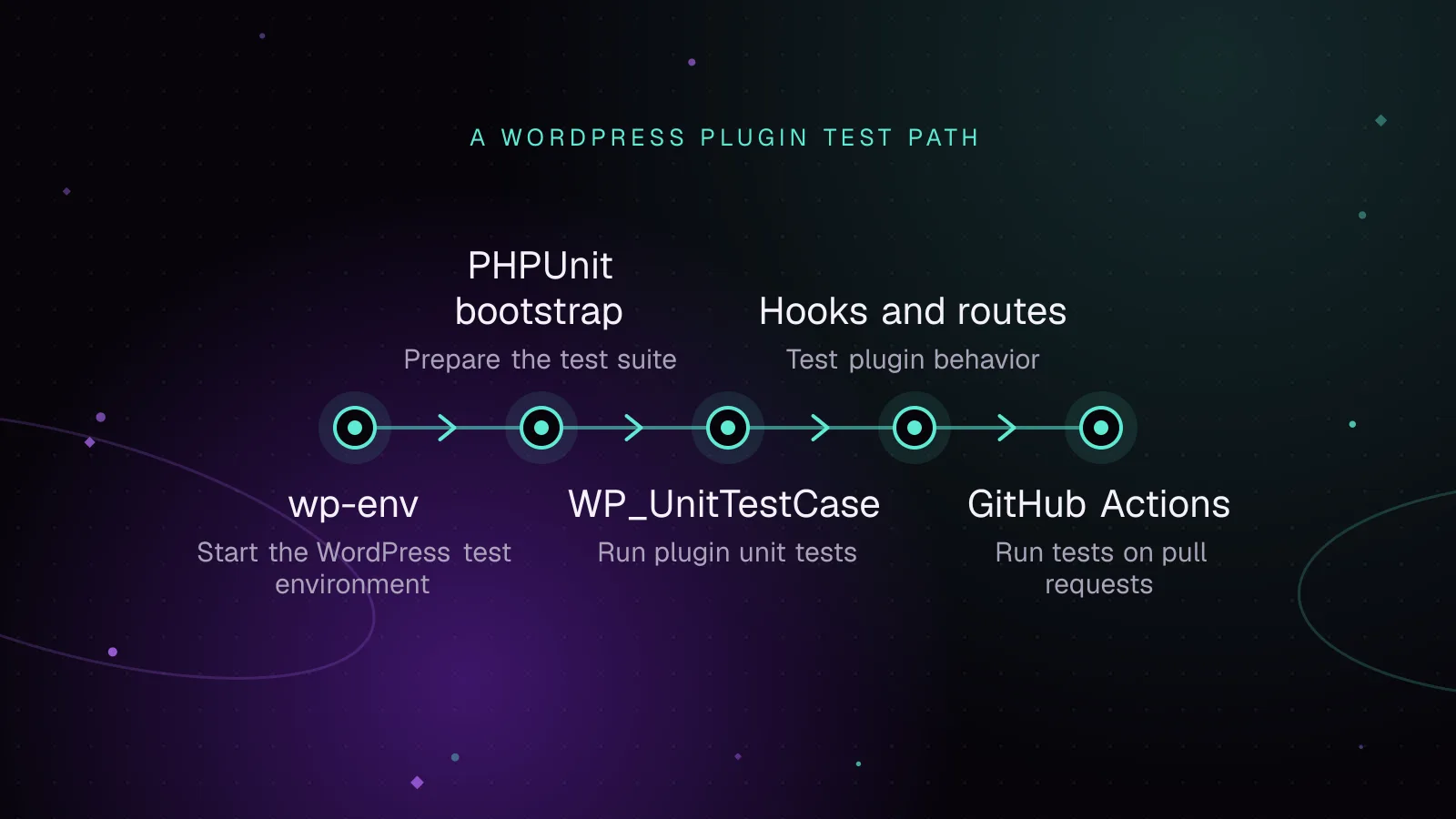
WordPress plugin unit testing with wp-env and PHPUnit
Set up WordPress plugin unit testing with wp-env and PHPUnit, write integration tests, and run the same suite in GitHub Actions on pull requests.
- WordPress
- Plugins
- PHP
 Development
6 min read
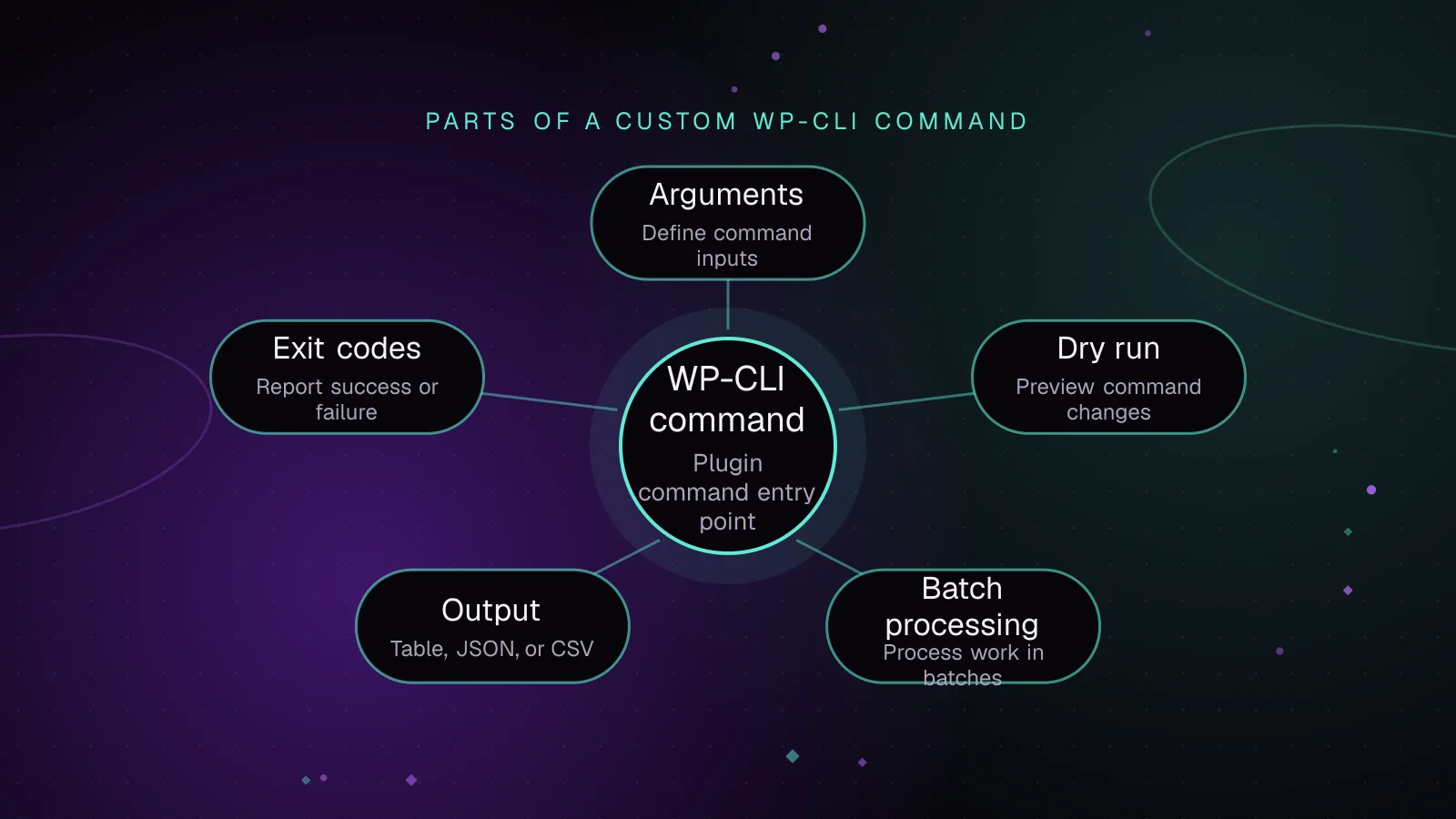
How to write a custom WP-CLI command for your plugin
Build a WP CLI custom command for a plugin with validated arguments, dry runs, batching, progress output, formats, exit codes, staging and cron.
- WP-CLI
- WordPress
- Plugins