Monitoring7 min read
Trace WooCommerce order emails not sending from order to inbox
Trace WooCommerce order emails not sending from order event to WooCommerce logs, WordPress handoff, provider delivery evidence, and the inbox.
 By Hamza Ahmad AslamAI & WordPress Developer | Speed Optimization & Site Security
On this page
- Trace WooCommerce order emails not sending step by step
- Use this diagnostic tree
- Keep a redacted test trail
- Confirm the order event and email configuration
- Include a failed-order control
- Trace generation and WordPress handoff
- Treat sent as handoff, not delivery
- Inspect provider acceptance and delivery evidence
- Check the sender rules for the destination
- Verify the destination and retry safely
- Keep the next incident easier to prove
- Frequently asked questions
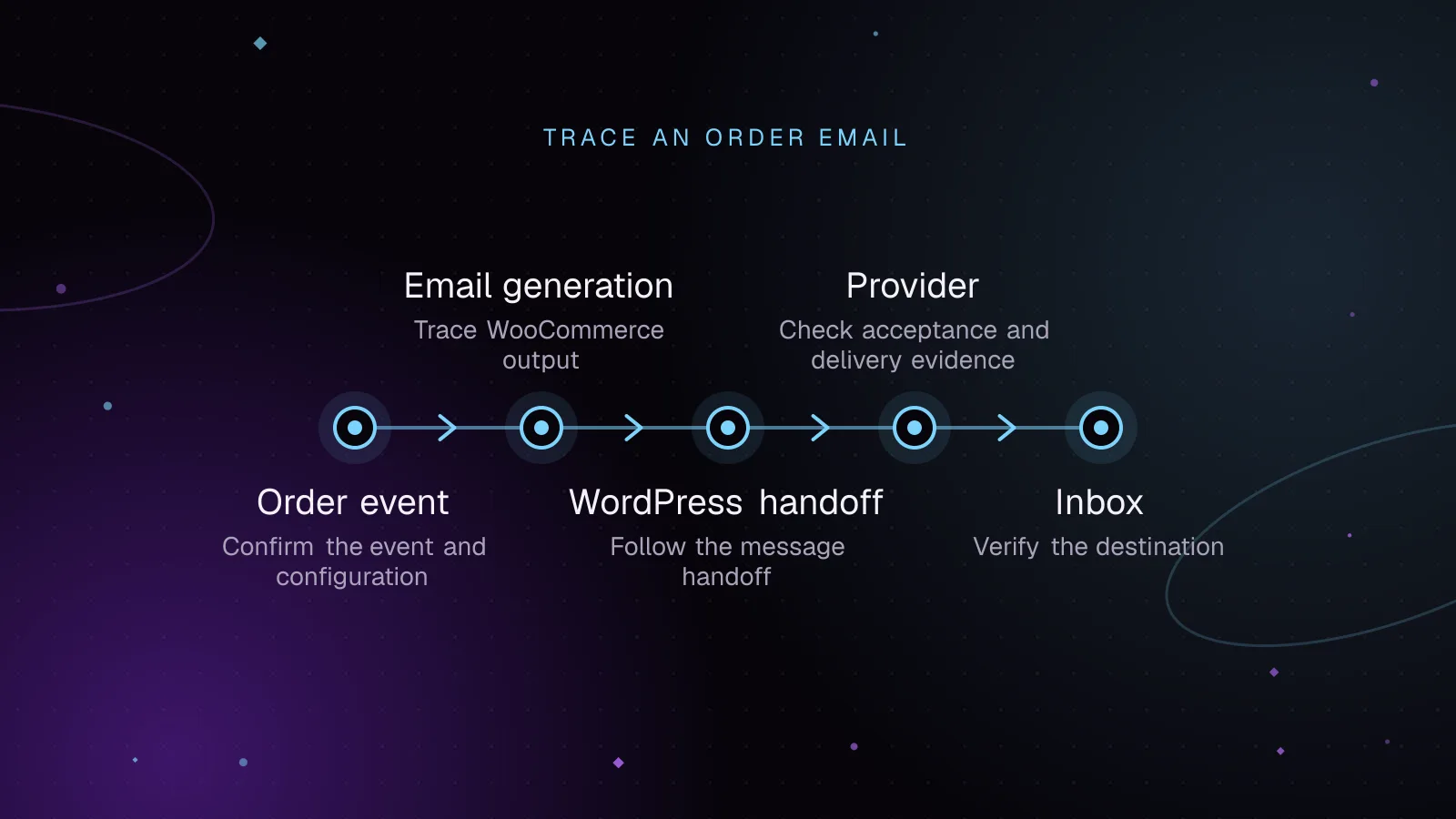
The phrase "WooCommerce order emails not sending" can describe several different failures. First prove that the expected order event happened, then trace one controlled order through WooCommerce, WordPress, your mail provider, and the destination mailbox.
Trace WooCommerce order emails not sending step by step
Treat each layer as a checkpoint. Do not install another mail plugin until you know which checkpoint failed.
The WooCommerce email troubleshooting documentation (opens in a new tab) makes the first split clear. An email can fail because WooCommerce never tried to send it, or because it was sent from the site but never reached the recipient.
Use this diagnostic tree
All rows, identifiers, addresses, times, numbers, and scenarios in the following artifact are illustrative.
| Illustrative checkpoint | Evidence to collect | Expected state | If the evidence is missing |
|---|---|---|---|
| Illustrative A. Order event | Order number, status, status history, target email type | The order reached a state that should trigger that email | Fix the order or payment event before touching mail delivery |
| Illustrative B. WooCommerce attempt | transactional-emails entry for that order and email type | An attempt is recorded, or WooCommerce records why it did not attempt one | Check logging settings, fatal errors, and conflicts |
| Illustrative C. WordPress handoff | WooCommerce status is sent | WooCommerce handed the message to wp_mail() | If failed, use the recorded local error |
| Illustrative C2. Site queue or local relay | Background mail queue or host mail log | The message left the site's queue or local relay for the external provider | Investigate the site's queue or local mail relay |
| Illustrative D. Sending provider | Matching event by time, recipient, subject, or message ID | Provider accepted or queued the message | Check transport credentials, sender setup, or provider rejection |
| Illustrative E. Recipient provider | Delivery event, bounce, rejection, deferral, or post-delivery status | Recipient service accepted the message | Follow the receiving provider's reason |
| Illustrative F. Mailbox | Search Inbox, Spam, quarantine, and rules for the exact test | Message is visible to the test recipient | Investigate filtering after delivery |
A WooCommerce sent entry ends WooCommerce's part of the trace: generation and handoff to wp_mail(). If the site queues mail for background sending or relays through the host's local mail server, inspect that queue or the host's mail log before moving to the external provider.
Keep a redacted test trail
Use one note like this while you test. Replace every value with your own evidence.
Illustrative scenario A: paid order, customer Processing email
Illustrative order: #T-1042
Illustrative recipient: cust***@example.test

Illustrative expected 12:00:00 - Order state: Processing
Illustrative expected 12:00:01 - WooCommerce generation: Processing order attempt exists
Illustrative expected 12:00:02 - WordPress handoff: WooCommerce status = sent
Illustrative expected 12:00:03 - Site queue or local relay: message leaves the site's queue or relay
Illustrative expected 12:00:04 - Sending provider: accepted, message ID = <redacted-illustrative>
Illustrative expected 12:00:07 - Recipient provider: delivered
Illustrative expected 12:01:00 - Mailbox: visible in Inbox

Illustrative scenario B: Failed order from Pending payment
Illustrative order: #T-1043
Illustrative recipient: fail***@example.test

Illustrative expected 12:10:00 - Order state: Pending payment -> Failed
Illustrative expected 12:10:01 - WooCommerce generation: store and customer Failed order attempts exist
Illustrative expected 12:10:02 - WordPress handoff: each intended notification status = sent
Illustrative expected 12:10:03 - Site queue or local relay: each intended message leaves the site's queue or relay
Illustrative expected 12:10:04 - Sending provider: accepted, or a specific rejection is recorded
Illustrative expected 12:10:07 - Recipient provider: delivered
Illustrative expected 12:11:00 - Mailbox: each intended test recipient can locate the message
The point is to find the first state without its expected evidence. You do not need every possible log once you have found that boundary.
Confirm the order event and email configuration
Start with the exact missing notification. "The order exists" is not enough because each WooCommerce email has its own trigger and recipient.
The current WooCommerce email settings reference (opens in a new tab) says the New order email goes to chosen recipients when a new order is received. The Processing order email goes to the customer after payment.
Do not assume every order record qualifies for an email. WooCommerce's troubleshooting documentation says a new order that remains in Pending payment does not trigger an email.
Open WooCommerce > Settings > Emails and inspect the exact notification. Confirm that it is enabled. For store-facing emails, confirm that its recipient list contains the address you expect.
This check explains a common puzzle: another plugin can send mail while a WooCommerce notification still never fires. A contact form proves that some WordPress mail path works. It does not prove that the WooCommerce order event occurred, the target notification was enabled, or its recipient was present.
Include a failed-order control
WooCommerce documents a specific Failed order case. When an order is marked Failed after Pending payment or On hold, WooCommerce sends one notification to the chosen store recipient or recipients and another to the customer.
For a controlled test, use a customer address you own. Begin with a test order in Pending payment, then move that test order to Failed. The expected result is two Failed order notification attempts, which you can trace separately.
Do not use a live customer's address for repeated diagnostics. Label the test order so later support work does not confuse it with a sale.
Trace generation and WordPress handoff
WooCommerce added core transactional email logging in version 10.9.0, as documented in the WooCommerce transactional email logging reference (opens in a new tab).
Open WooCommerce > Status > Logs and select the transactional-emails source. Match the controlled order and the exact notification type.
The current WooCommerce log outcomes mean:
sent: WooCommerce handed the email to the site's mail system.failed: the site's mail-sending process returned an error.disabled: that email type is turned off.skipped: a required condition was missing, such as a recipient.
Successful sends are logged at INFO, failures at WARNING, and disabled or skipped attempts at NOTICE. If you cannot see expected entries, first confirm the store runs WooCommerce 10.9.0 or later and that no code returns false from the woocommerce_email_log_enabled filter. Then check WooCommerce > Status > Logs > Settings to confirm logging is enabled and the threshold is not hiding INFO or NOTICE entries.
Treat sent as handoff, not delivery
WooCommerce sends through WordPress wp_mail(). The WordPress wp_mail() reference (opens in a new tab) says a true return value only means the sending method processed the request without errors. It does not mean the user received the email.
That distinction matters when a WooCommerce order email is not received. A sent record moves the investigation beyond WooCommerce generation, but the message may still be in a site-side background queue or the host's local mail system before it reaches an external provider.
If no WooCommerce attempt appears when the order event and settings say one should, check fatal errors around that timestamp. Run any conflict test on a staging copy of the store, not the live site, and repeat the same controlled order there. A WooCommerce conflict test switches to a default theme and temporarily deactivates all plugins except WooCommerce and the relevant WooCommerce extensions. Other plugins sending successfully does not clear WooCommerce's trigger path.
Inspect provider acceptance and delivery evidence
Next, open the activity or delivery log for the service sending mail for WordPress. Search using the same test time, recipient, subject, and any available message ID. If the service does not expose those events to you, give its support team the same identifiers and ask for the message status.
Keep these states separate:
| Provider state | What you can conclude |
|---|---|
| Accepted or queued | The sending provider took responsibility for the message |
| Rejected or bounced | The provider has a reason you can investigate |
| Delivered | The receiving service accepted the message according to the provider's record |
| Inbox-visible | The recipient can find the message in the mailbox |
SMTP acceptance does not prove inbox delivery. It proves only that one system accepted the message at that step.
If your sender is Google Workspace, Google's Email Log Search guide (opens in a new tab) gives you a provider-side trace. For outbound mail to a non-Google provider, a message appearing there confirms it was sent from Google. The receiving domain is then the next place to investigate.
For recipients in your own Google Workspace domain, such as a store-owner mailbox that receives New order emails, Email Log Search can also show post-delivery message status. Delivery logs are unavailable for messages older than 30 days.
Check the sender rules for the destination
For personal Gmail accounts, Google's current sender guidelines (opens in a new tab) require SPF or DKIM for all senders. Google also requires valid forward and reverse DNS, TLS for transmission, and RFC 5322 message format.
Senders that send more than 5,000 messages per day to Gmail accounts have extra requirements. Google requires SPF, DKIM, and DMARC, plus From-domain alignment for direct mail.
WooCommerce also recommends using a From address on your store's own domain. If a provider log shows rejection or deferral, work from that exact response instead of guessing from the WooCommerce screen.
Verify the destination and retry safely
A clean provider delivery event still leaves the mailbox layer. Search for the exact subject and sender in Inbox, Spam, quarantine, and any rules that move mail.
Verify the destination address from the WooCommerce email configuration or the order, depending on the notification. For an admin New order email, test with a controlled recipient you can inspect. For customer mail, use a test customer address rather than a real buyer.
After changing one thing, repeat the same controlled procedure. Keep the order event, email type, recipient, and test path stable. Changing several variables at once removes the evidence that tells you which change mattered.
Do not treat a generic SMTP test message as proof that order mail works. It can confirm a transport path while leaving WooCommerce configuration and order triggers untested.
Keep the next incident easier to prove
Save the redacted trail format with your store runbook and record the first failed checkpoint for each incident. If you need application errors around the trigger, use the guide to set up and read the WordPress debug log safely rather than leaving ad hoc debugging enabled.
If email checks are part of ongoing store operations, WordPress maintenance and security support can cover repeatable testing, log review, and follow-up work around failures.
Frequently asked questions
How can I troubleshoot WooCommerce emails further after an SMTP test passes?
Run an order-specific test and find the matching transactional-emails entry. A generic SMTP test proves only that its own message used a working transport path; it does not prove the WooCommerce trigger, recipient, or order email ran.
What can I do to evaluate a WooCommerce new order email not sending?
Check the New order notification itself, its recipient list, and the matching WooCommerce transaction log entry. Then match that attempt to the sending provider's event log and destination mailbox rather than relying on the order existing in wp-admin.
What might prevent WooCommerce from triggering order emails even though other plugins can send emails successfully?
The relevant WooCommerce email can be disabled, skipped for a missing condition, or never reached because the expected order event did not occur. A successful message from another plugin only proves that separate message reached the WordPress mail path.
Why is a WooCommerce order email not received even though the order appears correctly in the backend?
The order record and email delivery path provide different evidence. WooCommerce may hand the message off successfully while a site-side queue, local mail relay, sending provider, receiving provider, spam controls, quarantine, or mailbox rules explain why the recipient cannot see it.
How this article was made: drafted with AI assistance from a researched brief, then checked against primary documentation before publishing.
Share this article
Enjoyed this? Get the next article by email.
Keep reading
 Monitoring
7 min read
The WordPress debug log: turn it on safely, find it, and read it
To turn on the WordPress debug log, set WP_DEBUG and WP_DEBUG_LOG to true in wp-config.php, then set WP_DEBUG_DISPLAY to false so errors are not printed into pages.
- WordPress
- Monitoring
- PHP
 Monitoring
8 min read
WordPress uptime monitoring: checks that catch site failures
WordPress uptime monitoring should verify that important visitor paths return the right content, not merely an HTTP success status. Check dynamic pages, response time, TLS and domain expiry, then use heartbeats for scheduled work and alert rules that confirm failures before paging someone.
- WordPress
- Monitoring
- Uptime
 Monitoring
11 min read
Run a WordPress backup restore test and prove recovery works
A WordPress backup restore test should end with a working isolated copy, a timed recovery log, and a pass/fail record for the business tasks that matter. Restore a representative backup away from production, verify the files and database together, run defined checks, and record anything missing or unavailable.
- WordPress
- Backups
- Monitoring